
How to Build a WordPress Website
Building a website may sound complicated when you are starting from zero. You might think you need coding skills, expensive software, or professional web development experience. Fortunately, WordPress makes the process much easier.
With the right steps, beginners can create a professional-looking website for a blog, portfolio, small business, online store, personal brand, or other project.
This guide explains how to build a WordPress website from the beginning and covers the important decisions you need to make along the way.
Why Build a Website With WordPress?
WordPress is a popular website platform that allows users to create and manage websites without having to write every part of the website code manually.
One of its biggest advantages is flexibility. You can start with a basic website and gradually add new features as your needs grow.
For example, a beginner might start with a simple blog and later add contact forms, SEO tools, analytics, an online store, or other functionality.
The important thing is to begin with a clear purpose rather than installing dozens of features immediately.
Step 1: Identify the Main Goal of Your Website
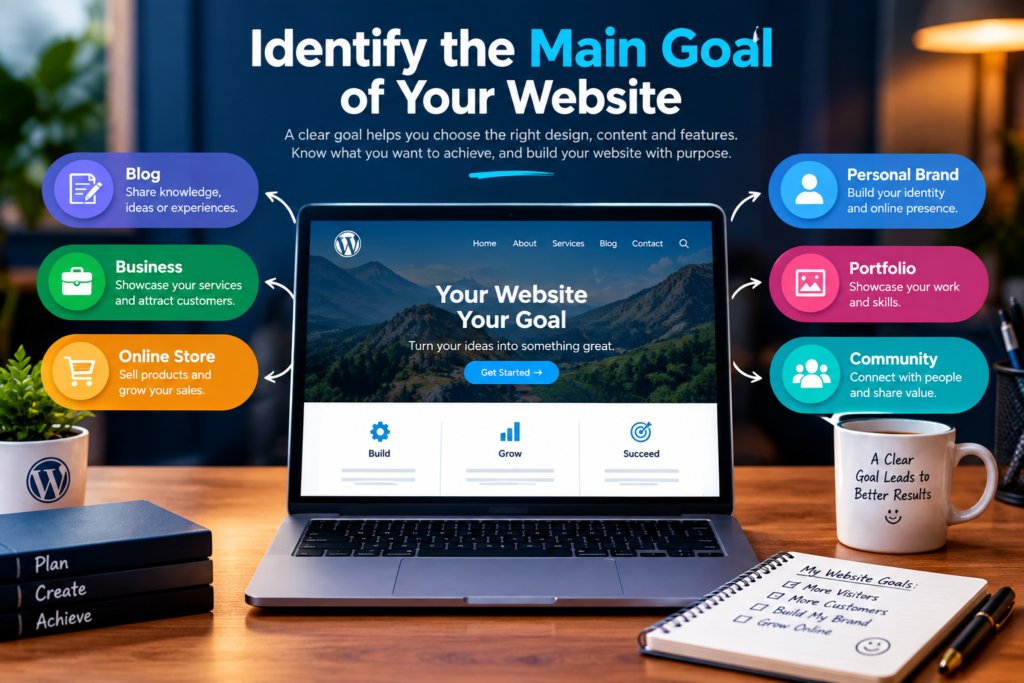
Before buying anything, decide what you want your website to accomplish.
Ask yourself:
- Is it a personal website?
- Do you want to start a blog?
- Is it for a business?
- Do you want to display your portfolio?
- Will you sell products?
- Do you want to publish educational content?
Knowing your target audience and their needs can make your website content more relevant. The uploaded copywriting material emphasizes understanding the audience, their problems, goals, experiences, and expectations before creating content.
A clear purpose also makes it easier to choose your pages, design, and content.
Step 2: Choose a Domain Name
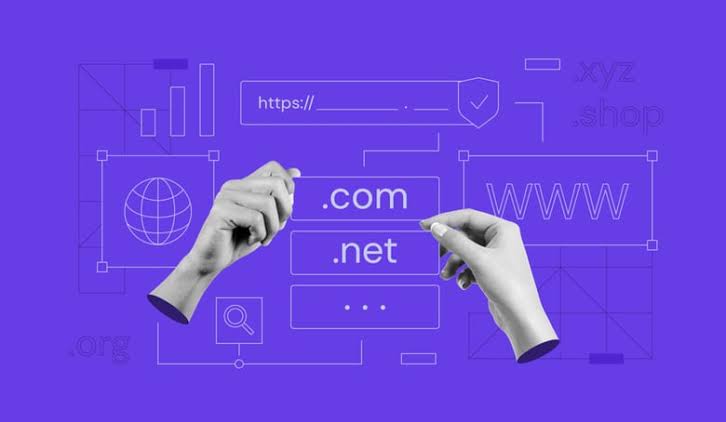
Your domain name serves as the online address that visitors enter to reach your website.
Try to choose a name that is:
- Easy to remember
- Easy to spell
- Relevant to your website
- Short and clear
- Suitable for your long-term plans
Avoid making the domain unnecessarily complicated with excessive numbers, unusual spellings, or confusing symbols.
Take some time before making the final decision because changing a domain later can create additional work.
Step 3: Choose WordPress Hosting
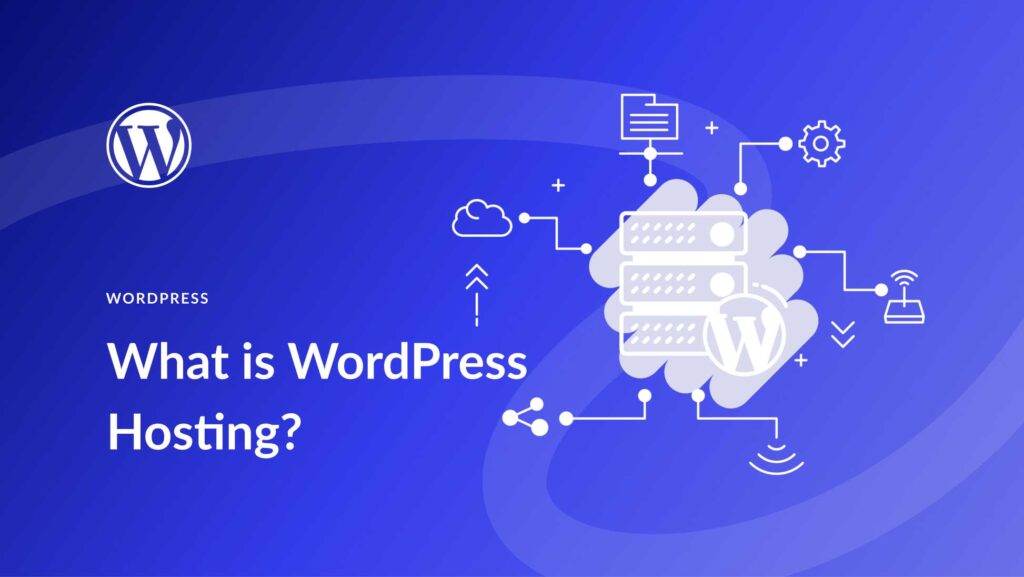
After selecting a domain, you need hosting. Web hosting provides the server environment where your website’s files and database are stored.
When comparing hosting providers, consider:
- Performance
- Reliability
- WordPress compatibility
- Backup options
- Security features
- Customer support
- Storage and bandwidth
- Pricing and renewal costs
For a new website, you generally do not need the most expensive hosting package. Choose an option that matches your current requirements and can grow with your website.
Step 4: Install WordPress
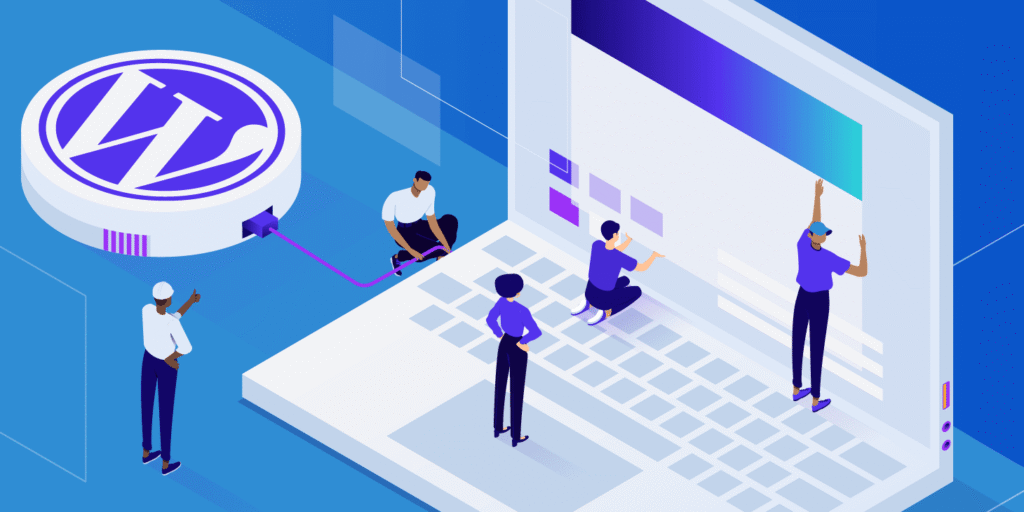
Many hosting providers offer a simple WordPress installation process.
Depending on the hosting company, installation may be available through an automated setup tool. You may need to select your domain, create administrator login details, and complete the installation.
Once WordPress is installed, you can access the administration area and begin building your website.
Keep your administrator credentials private and use a strong, unique password.
Step 5: Select a WordPress Theme
A theme controls much of your website’s visual appearance.
When selecting a theme, look for:
- Clean design
- Mobile responsiveness
- Good performance
- Regular updates
- Compatibility with your required plugins
- Easy customization
Do not select a theme only because it contains impressive animations or decorative features.A clean and user-friendly layout helps visitors find the information they need quickly. Your website should also clearly guide users toward the next step.
This follows the copywriting principle of reducing unnecessary mental effort and giving readers a clear next step.
Step 6: Create Important Website Pages
Most websites need several basic pages.
Common examples include:
Home Page
The homepage introduces your website and explains what visitors can find there.
About Page
Use this page to explain who you are, what you do, or what your business provides.
Contact Page
Provide visitors with a clear and convenient way to contact you.
Blog Page
If you plan to publish articles, your blog can organize your content in one place.
Privacy Policy
A privacy policy can explain how your website handles visitor information.
Depending on your website type, you may also need service pages, product pages, terms and conditions, or other specialized pages.
Step 7: Add Useful Plugins
Plugins allow you to add functionality to WordPress without building every feature from scratch.
Depending on your needs, you may use plugins for:
- SEO
- Contact forms
- Backups
- Security
- Performance
- Analytics
- Spam protection
- E-commerce
Avoid installing plugins simply because they are available.Each additional tool should serve a specific purpose. Installing too many unnecessary plugins can complicate website maintenance and management.
Step 8: Create Helpful Content
A website needs useful content to give visitors a reason to stay and return.
Before writing an article or page, identify what your target audience actually wants to know.
Instead of writing generic content, focus on specific questions and problems.
For example, instead of writing a broad article called “Websites,” you could create an article explaining “How to Build a WordPress Website for a Small Business.”
The copywriting material recommends researching customer problems, frustrations, desired outcomes, and the language people naturally use.
This method can help ensure that your content better matches the interests and needs of your target audience.
Step 9: Make Your Website Mobile-Friendly

A large number of visitors may access your website from smartphones and tablets.
Test your website across various screen sizes to ensure that:
- Text is easy to read
- Buttons are easy to tap
- Images fit the screen
- Menus work properly
- Forms are usable
- Pages do not require unnecessary horizontal scrolling
A mobile-friendly website can make browsing easier and more convenient for visitors.
Step 10: Set Up Basic SEO
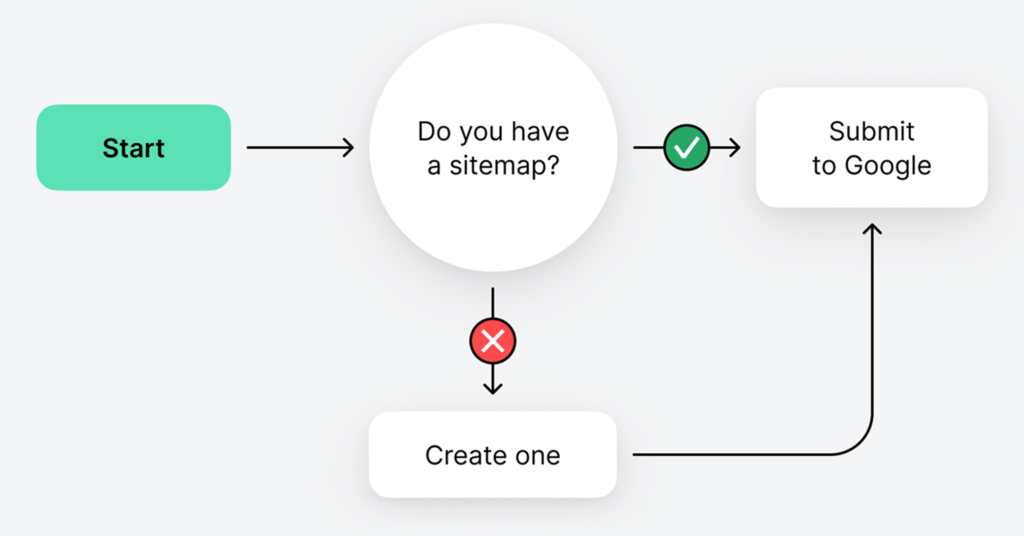
SEO helps search engines better interpret your website and understand what each page is about.
Start with the basics:
- Choose a focus keyword for important pages.
- Write clear titles.
- Create useful meta descriptions.
- Use descriptive URLs.
- Organize content with headings.
- Add meaningful image alt text.
- Link related pages together.
- Publish genuinely useful content.
Avoid stuffing keywords into every sentence. Write naturally for readers first.
The copywriting framework in your uploaded material also emphasizes knowing the audience before creating content, because generic content can fail to connect with the intended reader.
Step 11: Add Security and Backups

Before promoting your website, take basic security precautions.
Use a strong administrator password, keep WordPress and its components updated, remove software you no longer need, and maintain regular backups.
You should also consider additional login protection and website monitoring.
A backup does not stop an attack, but it can give you a recovery option if something goes wrong.
Step 12: Test Your Website Before Launching
Before telling people about your website, test everything.
Check:
- Navigation menus
- Contact forms
- Buttons
- Images
- Links
- Mobile layout
- Page loading
- Spelling
- Important pages
- Login and administrator access
Open your website as if you were a first-time visitor. Look for anything confusing or difficult to use.
Step 13: Publish and Improve
Once everything works properly, your website is ready to launch.
But launching is only the beginning.
Continue publishing useful content, reviewing website performance, updating WordPress components, monitoring security, and improving pages based on visitor needs.
The best websites are usually developed over time rather than completed perfectly on the first day.
Final Thoughts
Learning how to build a WordPress website becomes much easier when you divide the process into manageable steps.
Start by defining your website’s purpose, choose a suitable domain and hosting provider, install WordPress, select a clean theme, create essential pages, add only useful plugins, and publish content that solves real problems.
Then focus on mobile usability, SEO, security, backups, and regular improvements.
You do not need to build everything at once. Start with the essentials, make the website useful for your visitors, and improve it as your experience grows.
Frequently Asked Questions
1. Can a beginner build a WordPress website?
Yes. WordPress is designed to allow users to create and manage websites without needing to manually code every feature.
2. How much does it cost to build a WordPress website?
The cost depends on your domain, hosting, themes, plugins, and other services. A basic website can be started with a relatively small budget, while advanced websites can require additional expenses.
3. Do I need coding skills to use WordPress?
Basic WordPress websites can be created without coding knowledge. Coding becomes more useful when you want highly customized designs or functionality.
4. What do I need to build a WordPress website?
At minimum, you generally need a domain name, web hosting, WordPress, website content, and a suitable design or theme.
5. What pages should a new WordPress website have?
Common pages include Home, About, Contact, Blog, and Privacy Policy. The exact pages depend on the website’s purpose.
6. Are WordPress plugins necessary?
Plugins are not required for every feature, but they can add useful functionality such as contact forms, SEO tools, security features, backups, and e-commerce capabilities.
7. Is WordPress good for SEO?
WordPress can provide a strong foundation for SEO, but search visibility also depends on content quality, website performance, technical setup, user experience, and other SEO factors.
8. How long does it take to build a WordPress website?
A simple website can potentially be created quickly, while a larger website with custom design, many pages, e-commerce, or advanced functionality can take considerably longer.
9. What should I do after launching my WordPress website?
Keep your software updated, create backups, publish useful content, monitor security, improve your SEO, check website performance, and regularly review the visitor experience.