
How to Secure a WordPress Site
Your WordPress website may look perfectly safe on the outside, but security problems can develop without being obvious. Simple security weaknesses such as easy-to-guess passwords, old plugins, insecure themes, incorrect hosting settings, or harmful files can make a WordPress website an easy target for cyberattacks.
Fortunately, you can improve your website’s security with several practical steps without needing advanced technical skills.
Following a consistent security routine can strengthen your website’s defenses and help minimize common security threats.
This guide covers practical ways to protect a WordPress website, with simple steps that beginners can easily follow.
Why WordPress Security Matters
A website contains more than webpages and articles. It can also store user details, admin accounts, inquiry forms, company information, and other valuable data.
If an attacker gains access to your website, they may change pages, insert unwanted code, create unauthorized accounts, or damage important files. A compromised website can also affect your visitors’ trust.
Website security should be maintained continuously instead of being handled as a single task. The aim is to lower security risks and prevent unauthorized individuals from accessing the website.
1. Use a Strong Administrator Password
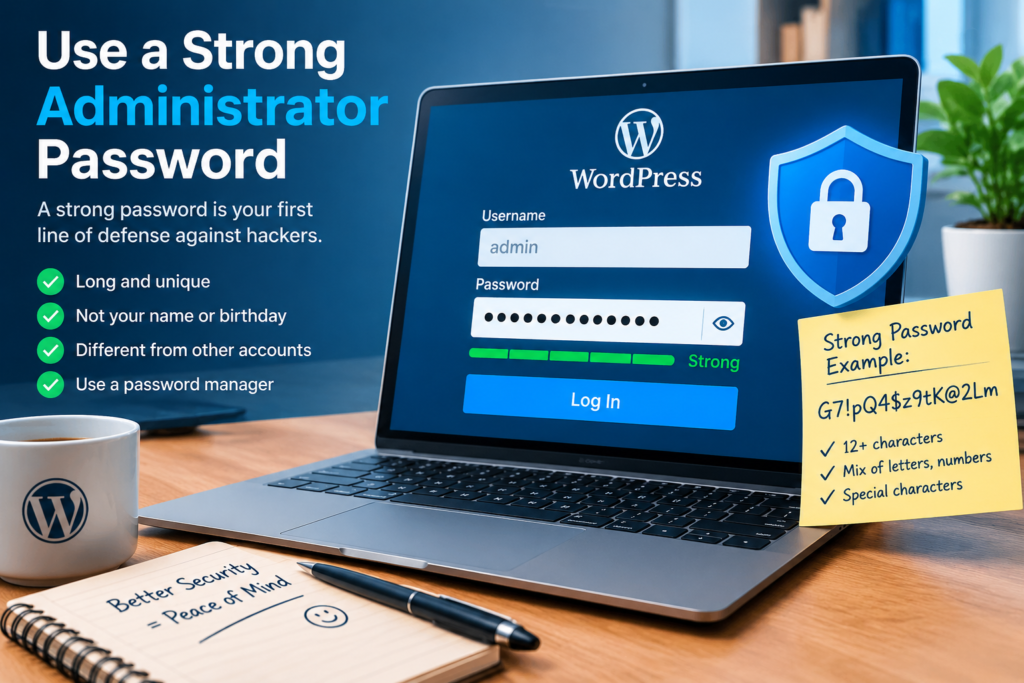
To improve WordPress security, assign every administrator a strong, unique password that is not used for any other account.
Avoid passwords based on your name, website name, birthday, phone number, or other easily guessed information.
A strong password should be:
- Long and difficult to guess
- Unique to your WordPress account
- Different from passwords used on other websites
- Stored safely using a trusted password manager
Never share your administrator password with other people unless there is a genuine need for access.
2. Enable Two-Factor Authentication
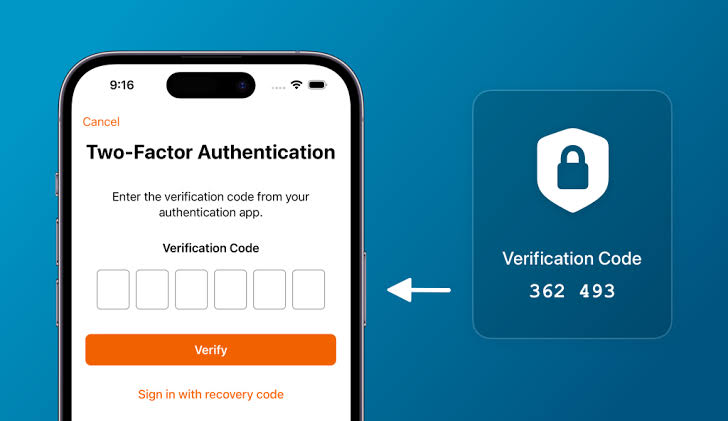
Two-factor authentication (2FA) adds an extra verification step to the account login process.
Rather than depending solely on a password, it asks users to complete a second verification method. This extra check can reduce the risk of unauthorized access if login credentials are compromised. For For WordPress administrator accounts, enabling 2FA adds an extra layer of protection to the website’s overall security.
3. Keep WordPress Updated
Keeping WordPress updated can help reduce the security risks associated with older software versions.
. Updates may include security fixes, bug fixes, performance improvements, and compatibility changes.
You should regularly check for updates to:
- WordPress core
- Plugins
- Themes
Create a recent backup of your website before applying major updates so you can restore it if an unexpected problem occurs.
This gives you a recovery option if something unexpectedly goes wrong.
4. Remove Unused Plugins and Themes
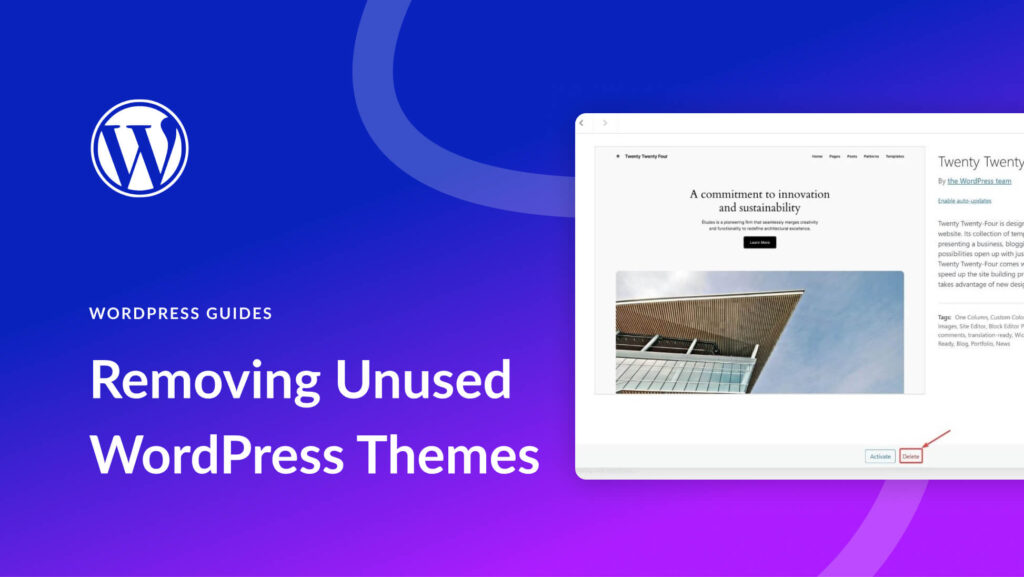
Installing too many plugins can make website management harderMore importantly, software that is no longer needed can become outdated and may create potential security concerns over time.
Review your WordPress dashboard and remove plugins and themes that you no longer need.
Remove themes and plugins that are no longer needed instead of leaving unused software installed on your website.
Keep your website’s software collection as small and manageable as possible.
5. Install a Reputable Security Plugin
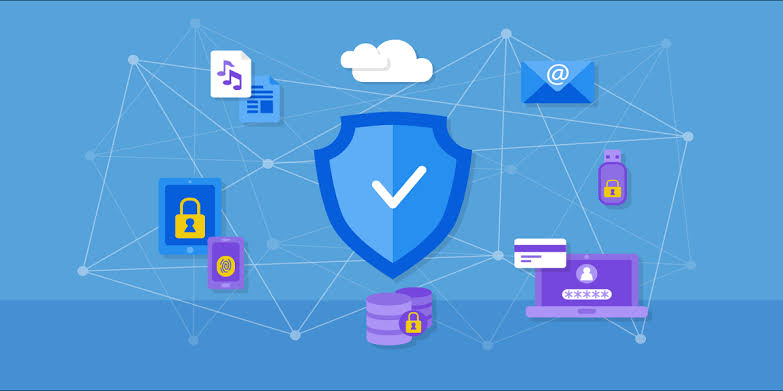
A WordPress security plugin can provide additional tools to monitor website activity and strengthen protection against potential security threats.
Depending on the plugin, features may include:
- Login protection
- Malware scanning
- Firewall functionality
- Security alerts
- Suspicious activity monitoring
- IP blocking
- File-change monitoring
Select a trusted security plugin and review its available features instead of using multiple plugins that offer similar functions.
6. Use SSL and HTTPS
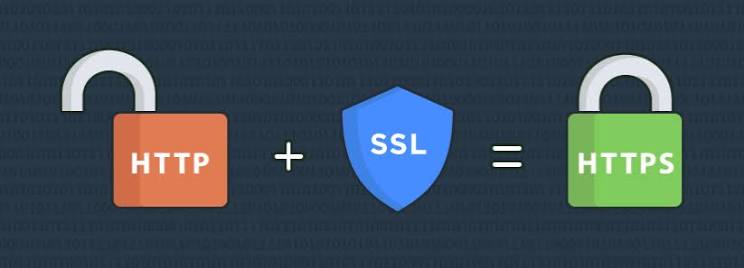
SSL technology helps protect the information transmitted between your website and its visitors.
When HTTPS is properly enabled, information is transmitted through an encrypted connection, while browsers can also display a security indicator to show that the connection is protected.
After installing an SSL certificate, make sure your WordPress website consistently uses HTTPS and that important resources are not still being loaded through insecure HTTP connections.
7. Create Regular Website Backups
Even with security measures in place, backups are essential.
A backup gives you a recovery option if your website is damaged, compromised, or accidentally changed.
A useful backup strategy should include copies of important website data such as:
- WordPress files
- Themes
- Plugins
- Media uploads
- Database
Do not assume that having a backup plugin installed automatically means your backup strategy is working. Periodically check that backups are actually being created and can be restored.
8. Protect the WordPress Login Page
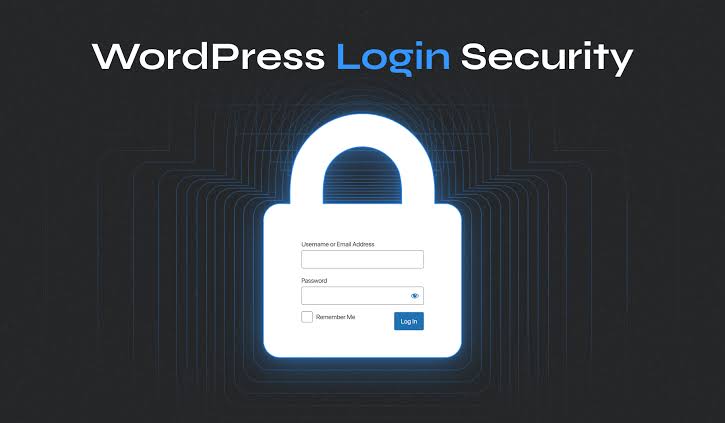
The WordPress login page is a common target because attackers may make repeated attempts to access accounts using stolen or guessed login details.
You can strengthen login protection by creating strong passwords, activating two-factor authentication, restricting repeated failed login attempts, and removing administrator accounts that are no longer necessary.
Do not use simple usernames or passwords that attackers could easily guess.
9. Use Secure Web Hosting
Your hosting setup is also an important factor in maintaining strong website security.
When choosing hosting, look for providers that offer security-related features such as:
- Regular backups
- SSL support
- Server monitoring
- Malware protection
- Updated server software
- Technical support
A secure WordPress website depends on both the software and the hosting infrastructure where it operates.
10. Assign Users Only the Permissions They Require

If multiple people manage your website, avoid giving everyone administrator privileges.
WordPress provides different user roles, allowing you to give users the level of access required for their responsibilities.
For example, someone who only needs to write blog posts may not need complete administrative control.
Restricting user permissions can help minimize the impact if an account is compromised or used improperly.
11. Monitor Your Website Regularly
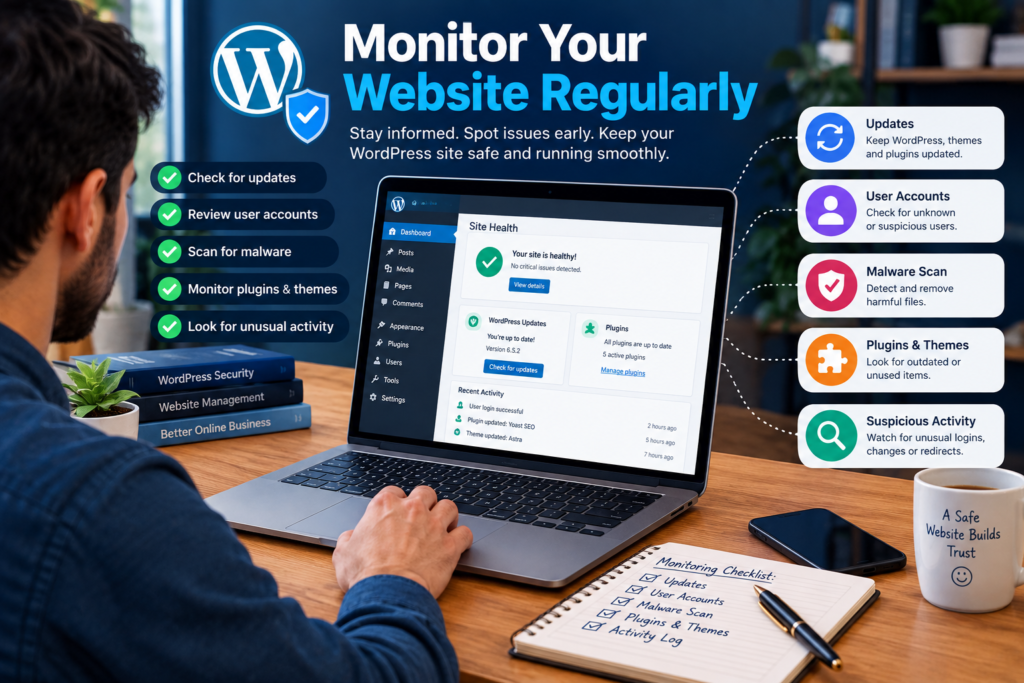
Website security requires regular attention and should not be treated as a one-time task.
Create a simple security routine. Check your WordPress dashboard, updates, user accounts, plugins, themes, backups, and security alerts regularly.
If you notice an unfamiliar administrator account, unexpected file changes, strange redirects, or unusual website behavior, investigate the issue quickly.
12. Avoid Pirated WordPress Themes and Plugins
Using unauthorized or altered copies of premium themes and plugins may expose a website to significant security vulnerabilities.
Such files may contain unwanted code, hidden backdoors, or malicious modifications. Instead of saving money with an unofficial copy, use legitimate software from trusted sources.
This also makes future updates and troubleshooting easier.
13. Choose Your Security Messages Carefully
Security is not only a technical topic. When explaining website security to your visitors or customers, your content should be simple, relevant, and easy to understand.
The uploaded copywriting material emphasizes that effective communication should first capture attention, connect with the reader’s concerns, provide logical support, and then give a clear next action.
For a WordPress security article, this means starting with the reader’s concern, explaining the risk clearly, providing practical solutions, and ending with an easy action plan.
14. Make Security Part of Your Routine

You do not need to complete every security task at the same time.
Start with the basics:
- Create a strong administrator password.
- Enable two-factor authentication.
- Update WordPress, themes, and plugins.
- Remove unused software.
- Set up reliable backups.
- Use HTTPS.
- Install a reputable security solution.
- Review users and permissions.
- Monitor your website regularly.
Following these steps consistently can make your WordPress website more resistant to many common security problems.
Final Thoughts
Learning how to secure a WordPress site is an important step for every website owner. Security is not about finding one magical setting that protects everything. It is about combining several sensible practices.
Strong passwords, two-factor authentication, regular updates, backups, HTTPS, secure hosting, limited permissions, and regular monitoring can all contribute to a safer website.
Start with the most important basics today and gradually build a security routine around your WordPress website. A few minutes spent on prevention can be far easier than dealing with a compromised website later.
Frequently Asked Questions
1. How do I secure a WordPress site for free?
You can start with strong passwords, regular WordPress updates, removing unused plugins and themes, enabling HTTPS when available, limiting user permissions, and maintaining reliable backups.
2. Is WordPress safe for websites?
WordPress can be used securely, but website security depends on proper configuration, software updates, hosting, account protection, and ongoing maintenance.
3. Do I need a WordPress security plugin?
A reputable security plugin can provide useful security features such as scanning, login protection, monitoring, and alerts. However, a plugin should complement—not replace—basic security practices.
4. How often should I update WordPress?
Check your WordPress dashboard regularly for available updates. Before significant changes, maintain a recent backup so you have a recovery option if an unexpected problem occurs.
5. Why is HTTPS important for WordPress?
HTTPS helps protect information exchanged between a visitor’s browser and your website by using encrypted communication when SSL/TLS is correctly configured.
6. Are free WordPress themes safe?
Themes from reputable sources can be appropriate, but unofficial or modified themes may introduce security risks. Avoid pirated themes and use software from trustworthy sources.
7. Can a backup protect my WordPress website?
A backup does not prevent an attack, but it can provide a way to restore your website after certain types of damage, compromise, or accidental changes.
8. What is the first thing I should do to improve WordPress security?
Start with your administrator account. Use a strong unique password, enable two-factor authentication, and make sure unnecessary administrator accounts are removed or properly restricted.