
Introduction

A mixed content error can appear on a WordPress website after installing an SSL certificate. The website may open with HTTPS, but some images, scripts, stylesheets, fonts, or other resources may still load through HTTP. When this happens, browsers can display security warnings or show a mixed content notification.
This problem is common when a website has recently moved from HTTP to HTTPS or when old URLs remain inside WordPress settings, themes, plugins, or database records. Fortunately, mixed content issues can usually be fixed without rebuilding the website.
In this guide, you will learn what mixed content means, why it happens, how to find insecure URLs, and how to fix the problem safely.
What Is a Mixed Content Error?
Mixed content occurs when an HTTPS webpage requests some resources using an unsecured HTTP connection.
For example, your main website may use:
But an image could still be loaded from:
http://example.com/image.jpg
The page is secure, but the HTTP resource is not protected by HTTPS. Modern browsers may block certain resources or display warnings to visitors.
There are two common types of mixed content:
Active mixed content: This includes scripts, iframes, and other resources that can affect how a webpage functions. Browsers may block these resources completely.
Passive mixed content: This generally includes images, audio, or video files. Browsers may allow them but still report security problems.
Fixing both types is important for website security and visitor trust.
Why Does Mixed Content Happen in WordPress?
There are several reasons a WordPress website may experience this problem.
The most common cause is an incomplete HTTPS migration. If the website was originally created using HTTP, old links may remain after installing an SSL certificate.
Another possible cause is a theme or plugin that contains an HTTP URL. Some third-party resources, such as fonts, scripts, or images, may also be referenced using an insecure address.
Hard-coded URLs inside posts, widgets, menus, or custom code can create the same issue. Cached versions of old pages can sometimes make the problem appear even after the URLs have been corrected.
Step 1: Confirm That SSL Is Working
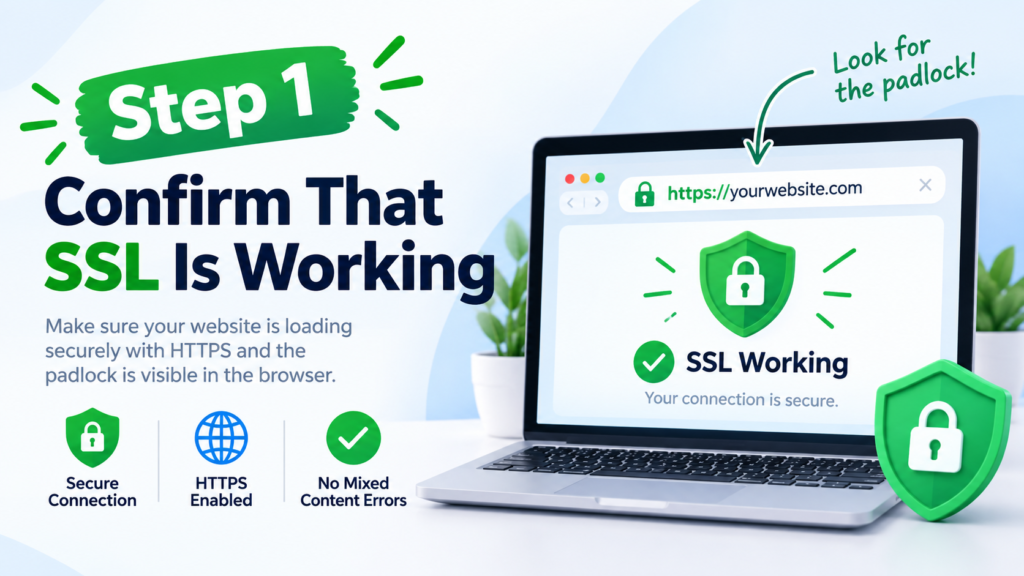
Before fixing mixed content, make sure your SSL certificate is active.
Open your website using HTTPS:
If the website loads correctly over HTTPS, your certificate is probably working. If you receive an SSL certificate warning, solve that issue first.
You should also make sure the HTTPS version is used consistently across your website.
Step 2: Check WordPress URLs
Log in to your WordPress dashboard and go to:
Settings → General
Look for:
- WordPress Address (URL)
- Site Address (URL)
Both addresses should normally use HTTPS.
For example:
not:
http://yourdomain.com
Save the changes if you make any updates.
Be careful when editing these settings because an incorrect URL can make the WordPress dashboard or website difficult to access.
Step 3: Find HTTP Resources
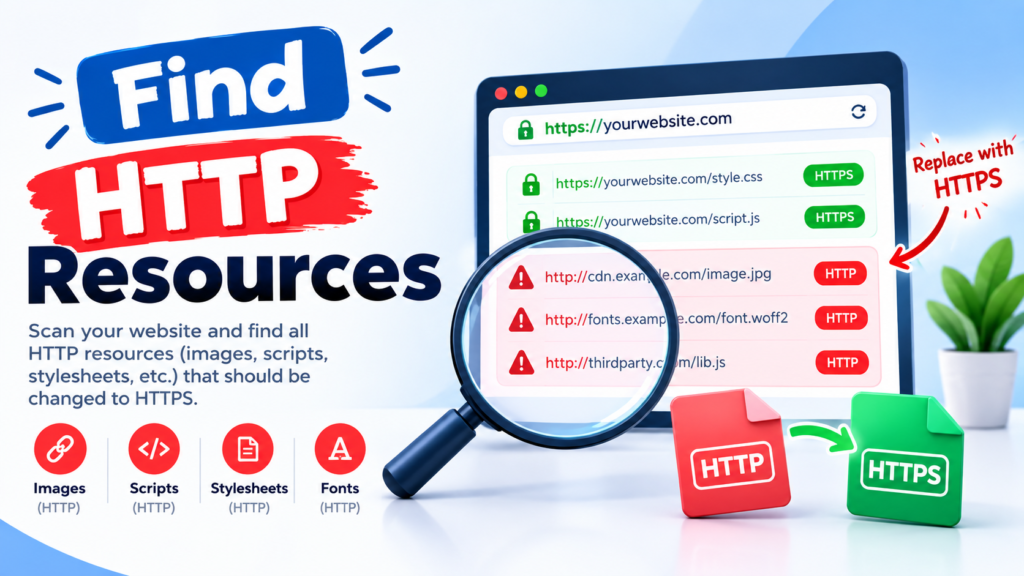
The next step is to identify which resources are still using HTTP.
Open the affected webpage in a modern browser and check the browser’s developer tools. The Console section may display messages about blocked or insecure resources.
Look for URLs beginning with:
http://
instead of:
https://
Pay particular attention to images, JavaScript files, CSS files, fonts, and external resources.
Once you know the problematic URL, you can locate where it is being loaded from in WordPress.
Step 4: Update Internal HTTP Links

If old HTTP links exist inside your content, replace them with HTTPS versions.
For example:
http://yourdomain.com/page
should become:
Check important areas such as:
- Posts and pages
- Navigation menus
- Widgets
- Theme settings
- Header and footer sections
- Image URLs
- Custom HTML
- Theme or plugin settings
Do not replace URLs blindly. Make sure the HTTPS version of the resource actually exists.
Step 5: Use a WordPress SSL Plugin
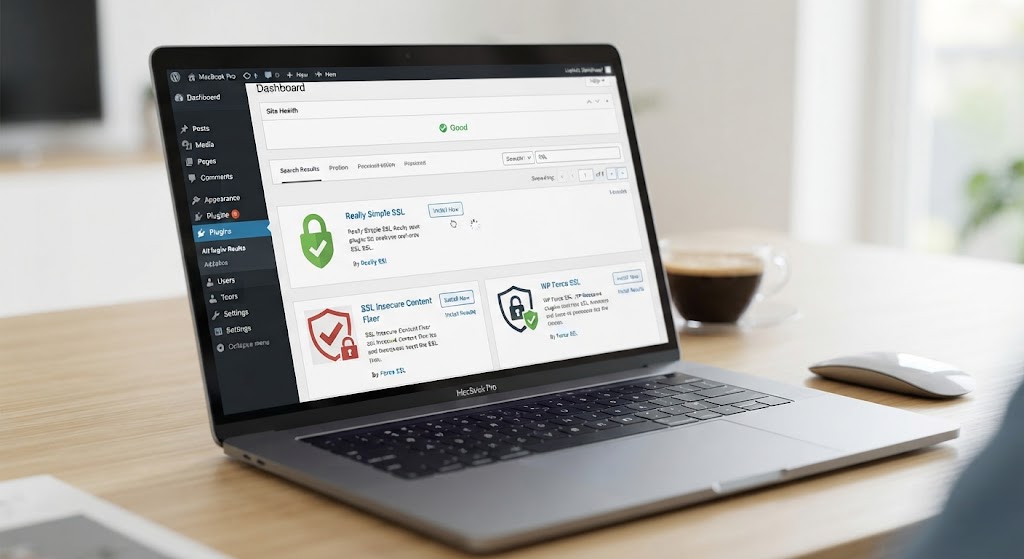
A suitable SSL-related WordPress plugin can simplify the process of identifying and correcting HTTPS-related configuration problems.
Before installing any plugin, check that it is compatible with your WordPress version and comes from a trustworthy source.
Plugins can help with redirects and certain SSL configuration tasks, but they should not be treated as a substitute for fixing incorrect URLs permanently.
After making changes, clear your website cache and test the affected pages again.
Step 6: Check Themes and Plugins
Sometimes the mixed content warning is caused by a theme or plugin.
If the browser reports a particular JavaScript, CSS, image, or font file, determine which theme or plugin is responsible for loading it.
Update the theme or plugin if a newer version is available. Developers often release updates that correct compatibility and HTTPS problems.
If a plugin is loading an external resource through HTTP and no HTTPS version is available, you may need to contact the developer or find a secure alternative.
Step 7: Replace HTTP URLs in the Database Carefully
Older websites can contain hundreds of HTTP references inside their database.
Manually changing every URL can be time-consuming. A search-and-replace method can help identify old URLs and change them to HTTPS.
However, database changes should be handled carefully. Always create a complete backup before modifying database content.
Some WordPress data uses serialized values, meaning a simple database replacement may damage stored information if it is performed incorrectly.
For this reason, use a WordPress-compatible search-and-replace solution rather than directly changing database tables without understanding the structure.
Step 8: Clear Cache After Fixing the Error
After correcting mixed content, clear all relevant caches.
This may include:
- WordPress cache
- Plugin cache
- Hosting cache
- CDN cache
- Browser cache
Then reload the website and check the page again.
If the warning disappears after clearing the cache, an old cached version may have been responsible for the problem.
Step 9: Test Your Website Again
After completing the fixes, test important pages across your website.
Check:
- Homepage
- Blog posts
- Pages
- Contact page
- Images
- Forms
- Navigation
- CSS styling
- JavaScript functionality
Use the browser developer console to confirm that HTTP resources are no longer being requested.
You should also test your website in a private or incognito browser window to reduce the possibility of an old browser cache affecting the result.
Common Mistakes to Avoid
One common mistake is changing only the homepage while leaving old HTTP URLs on other pages.
Another mistake is installing several SSL plugins at the same time. Multiple plugins may create conflicting redirects or unnecessary configuration changes.
Avoid editing the WordPress database without a backup. A small mistake can affect important website data.
You should also avoid ignoring mixed content warnings. Even if the page appears to work normally, insecure resources can create security and functionality problems.
Conclusion
A mixed content error usually means that an HTTPS WordPress website is still loading one or more resources through HTTP. The issue can often be resolved by checking WordPress URLs, finding insecure resources, updating old links, reviewing themes and plugins, and clearing cached files.
Always create a backup before making major database or configuration changes. After fixing the URLs, test your website carefully to make sure pages, images, scripts, and other resources load correctly through HTTPS.
A properly configured HTTPS website provides visitors with a more secure browsing experience and helps prevent avoidable SSL-related warnings.
FAQs
1. What causes a mixed content error in WordPress?
A mixed content error usually occurs when an HTTPS webpage loads one or more resources through HTTP. Old image URLs, scripts, stylesheets, plugins, themes, and hard-coded links are common causes.
2. Can a mixed content error affect SEO?
Mixed content itself is primarily a security and technical issue, but unresolved HTTPS problems can create a poor user experience and may affect website functionality. Keeping the entire website properly secured is recommended.
3. How do I know which resource is causing mixed content?
Open the affected page in your browser and check the Developer Tools Console. It can show warnings identifying HTTP resources that are being loaded on an HTTPS page.
4. Do I need an SSL plugin to fix mixed content?
Not necessarily. You can manually correct many insecure URLs. However, an appropriate WordPress SSL tool may make some HTTPS configuration tasks easier.
5. Why does mixed content remain after changing HTTP to HTTPS?
Old cached files, database URLs, plugin resources, theme files, or external resources can continue loading through HTTP. Clearing caches and checking the browser console can help locate remaining problems.
6. Should I change HTTP URLs directly in the database?
Database changes should be performed carefully. Create a complete backup first and use a WordPress-compatible search-and-replace method to reduce the risk of damaging serialized data.
7. Is mixed content dangerous?
Some mixed content can be blocked by browsers, especially active resources such as scripts. Leaving the issue unresolved can also create security warnings and website functionality problems.