
Introduction

WordPress makes it easy to upload images, videos, documents, themes, plugins, and other files. However, you may sometimes receive an error saying that the uploaded file is too large. This issue occurs because the hosting server sets a specific PHP limit for the size of files that can be uploaded through WordPress.
A small upload limit can become frustrating when you need to upload high-resolution images, large PDFs, videos, themes, or plugin packages.Fortunately, you can raise this limit using different methods, depending on your hosting setup and the level of server access you have.
This guide explains effective ways to Fix WordPress File Upload Size Limit and allow larger files to be uploaded to your website.
What Is the WordPress File Upload Size Limit?

The WordPress upload limit defines the largest individual file you can add to your website through the Media Library or other upload options.
For example, your website may allow files up to 2 MB, 8 MB, 32 MB, or another limit. The exact amount depends mainly on your hosting server and PHP configuration.
To view the current upload limit, open:
WordPress Dashboard → Media → Add New
The upload screen normally displays the maximum file size permitted by your website.
Why Does WordPress Have an Upload Limit?
Upload restrictions are usually controlled at the server level. Hosting companies set limits to prevent excessive resource usage and protect websites from extremely large uploads.
Several PHP configuration options can influence this upload limit, including:
- upload_max_filesize
- post_max_size
- memory_limit
- max_execution_time
If these values are too low, WordPress may prevent larger files from being uploaded.
1. Check Your Current Upload Limit
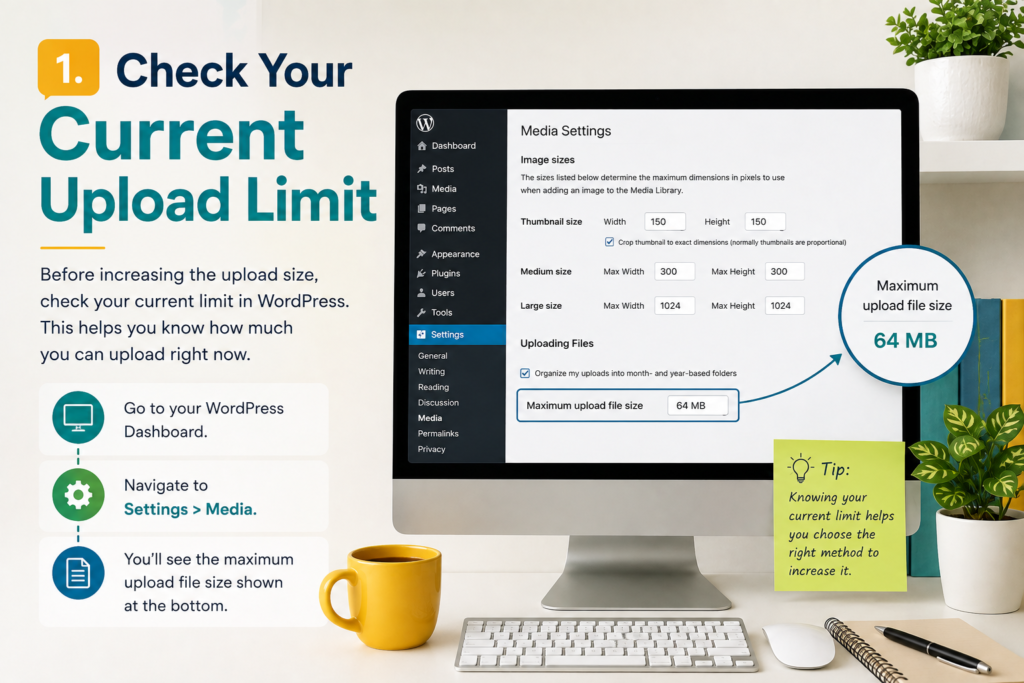
Before changing anything, find out how much your website currently allows.
Open the WordPress Media Library and select Add New. The maximum permitted file size should appear on the upload page.
Knowing the current limit helps you decide how much you need to increase it. For example, if your limit is 2 MB and you need to upload 20 MB files, you may need to adjust your PHP settings through your hosting account.
2. Raise the Upload Limit Using Your Hosting Control Panel
Many hosting providers offer an easy way to modify PHP settings without manually editing WordPress files.
Sign in to your hosting account and find settings such as:
PHP Settings, MultiPHP INI Editor, PHP Configuration, or Select PHP Version.
Find the following settings:
upload_max_filesize
post_max_size
memory_limit
You can increase the values according to your website’s requirements.
For example:
upload_max_filesize = 64M
post_max_size = 64M
memory_limit = 128M
Save the changes and return to WordPress. Then check the Media Library to see whether the maximum upload size has increased.
The exact options and available limits vary between hosting providers.
3. Modify the php.ini Configuration
If your hosting account provides access to the php.ini file, you can adjust the upload-related settings directly from there.
A typical configuration could include:
upload_max_filesize = 64M
post_max_size = 64M
memory_limit = 128M
The upload_max_filesize value determines the maximum size of an individual uploaded file, while post_max_size controls the maximum size of POST data sent to the server.
Make sure post_max_size is not lower than upload_max_filesize.
After making changes, save the configuration and check whether WordPress recognizes the new values.
4. Use the .htaccess File

Websites running on Apache may sometimes allow PHP settings to be adjusted through the .htaccess file.
Depending on your server setup, you can add configuration rules like these:
php_value upload_max_filesize 64M
php_value post_max_size 64M
This approach may not be supported by every hosting service, and an incorrect .htaccess configuration could result in website or server errors.
Create a backup of the file before you start editing it. If your website displays an error after the modification, remove the added directives or contact your hosting provider.
5. Try a WordPress Plugin
If you do not want to edit server configuration files, a suitable WordPress plugin may provide a simpler solution.
Search the WordPress plugin directory for a trusted plugin designed to increase the maximum upload size. Install a reputable option, activate it, and follow its configuration instructions.
Keep in mind that plugins cannot always override restrictions imposed by the hosting server. If your hosting provider has placed a strict limit, you may still need to contact support.
6. Contact Your Hosting Provider
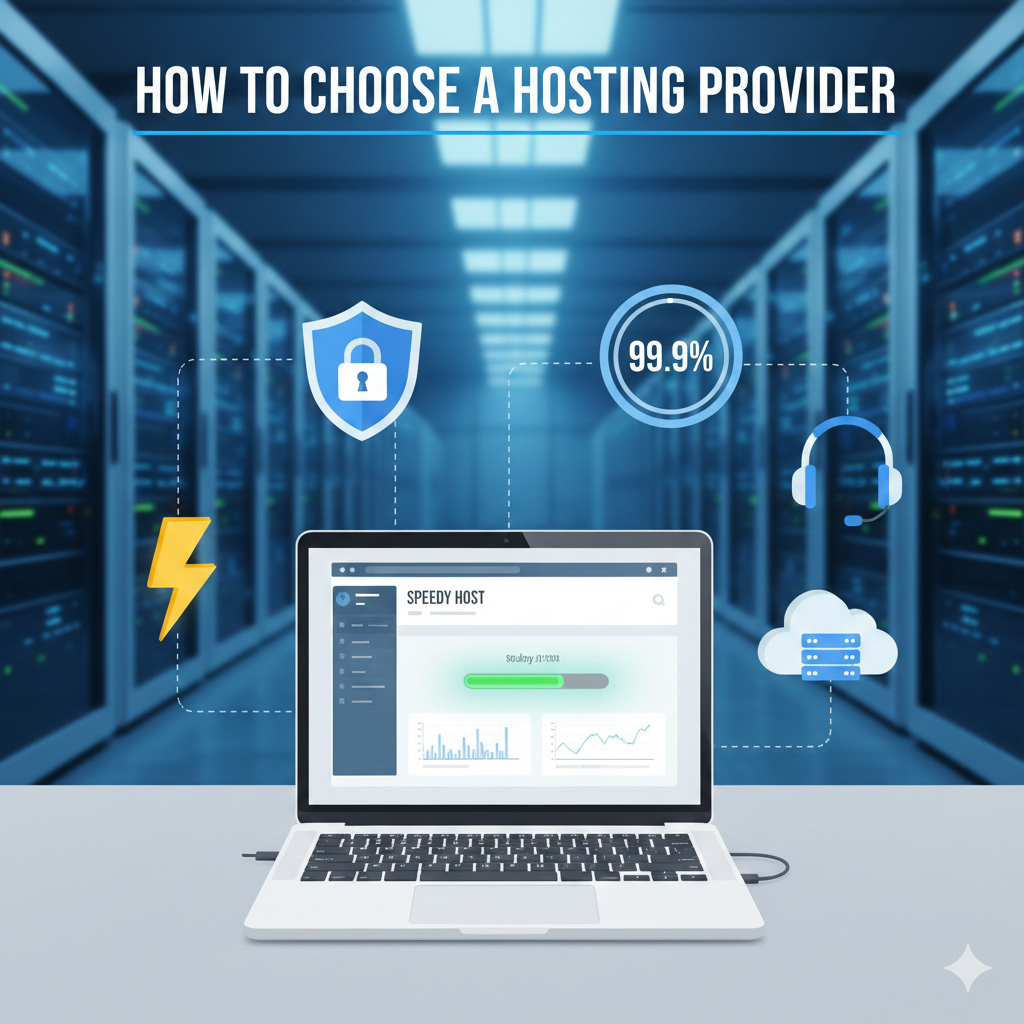
Sometimes the easiest solution is to ask your hosting company to increase the PHP upload limits.
Send your hosting support team a request asking them to increase values such as:
- Maximum upload size
- PHP post size
- PHP memory limit
Tell them the file size you need to upload. The hosting team can determine whether your current hosting package supports the requested limit.This method is particularly helpful when you cannot access the PHP configuration files.
7. Check the New Upload Size
After applying any changes, return to:
WordPress Dashboard → Media → Add New
Check the maximum upload size displayed there.
Try uploading a test file that is within the new limit. If the upload succeeds, the configuration is working correctly.
If the displayed limit has not changed, clear your website cache and check the PHP configuration again.
Common Problems After Increasing the Upload Limit
Raising the upload limit does not mean that all large files will upload successfully. Very large files can also be affected by server timeout restrictions, memory limitations, or available hosting resources.
If an upload still fails, check:
- PHP memory limit
- Maximum execution time
- Server timeout
- Available disk space
- File permissions
- Hosting restrictions
Large video files may require more server resources than ordinary images or documents.
Best Practices for Large WordPress Files
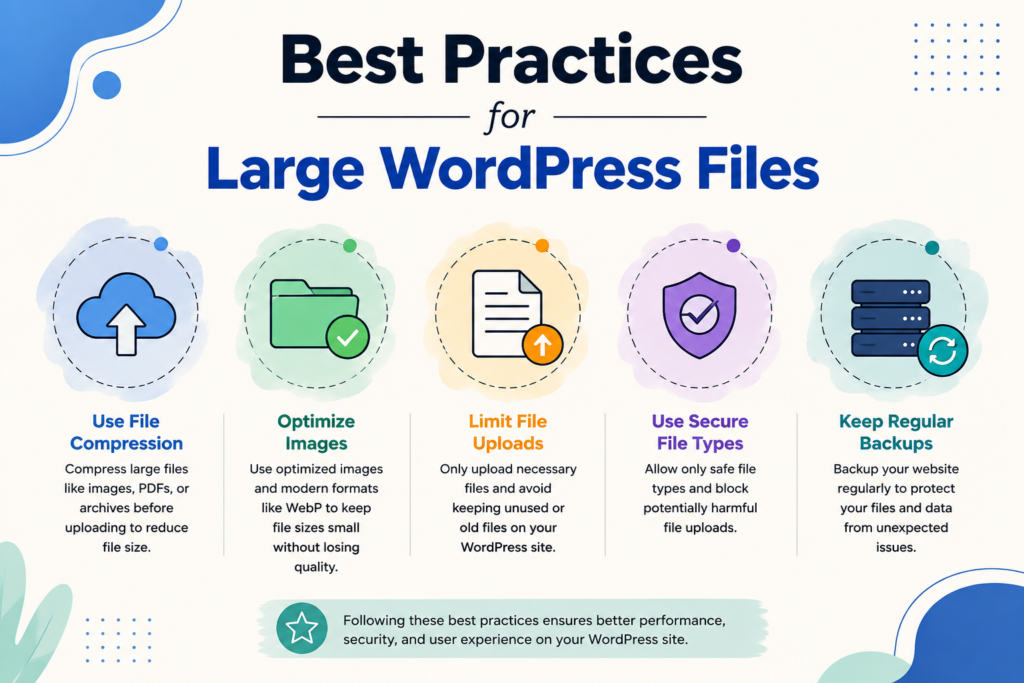
Avoid setting extremely high upload limits unless your website actually needs them. Large uploads can consume storage and server resources.
Reduce image file sizes before uploading and choose the right format for each image. . For large videos, consider hosting them on a dedicated video platform and embedding them on your website instead of storing every video directly on your server.
Regularly remove unused media files and maintain enough available storage.
Conclusion
A low upload limit can prevent WordPress users from adding important images, documents, themes, plugins, and other files. Fortunately, you can often resolve the problem by adjusting PHP settings through your hosting panel, editing php.ini, using supported server configuration methods, installing a suitable plugin, or contacting your hosting provider.
Start by checking your current upload limit. Then choose the safest method available for your hosting environment. After making the change, test the Media Library to confirm that WordPress now accepts the required file size.
FAQs
What is the maximum file upload size in WordPress?
There is no single maximum size for every WordPress website. The limit depends on your hosting environment and server configuration.
How can I increase the WordPress upload limit?
You can increase it through your hosting PHP settings, php.ini, supported server configuration, a suitable plugin, or by asking your hosting provider for assistance.
Why does WordPress say my file is too large?
This message usually appears when the file exceeds the maximum upload size configured for your WordPress website or hosting server.
Can a plugin increase the WordPress upload size?
Some plugins can make it easier to adjust upload settings, but they may not override restrictions imposed directly by your hosting provider.
What should I do if the upload limit does not change?
Check your PHP settings, clear website caches, and confirm that the changes were applied to the correct PHP version. If the issue remains, contact your hosting provider.
Is increasing the upload limit safe?
Generally, a reasonable increase is fine when your hosting environment can handle it. Avoid setting unnecessarily large limits because large uploads can consume server storage and resources.