
Introduction

The footer is the section that appears at the bottom of most WordPress websites. It can contain important information such as copyright text, contact details, navigation links, social media links, privacy policies, and other useful content.
Learning how to edit footer in WordPress is helpful when you want to update outdated information, add useful links, or make the bottom section of your website match your overall design.
The exact editing process depends on your WordPress theme and whether your website uses the Site Editor, Customizer, widgets, or a page builder. This guide explains several common methods so beginners can choose the one that matches their website.
What Is the Footer in WordPress?
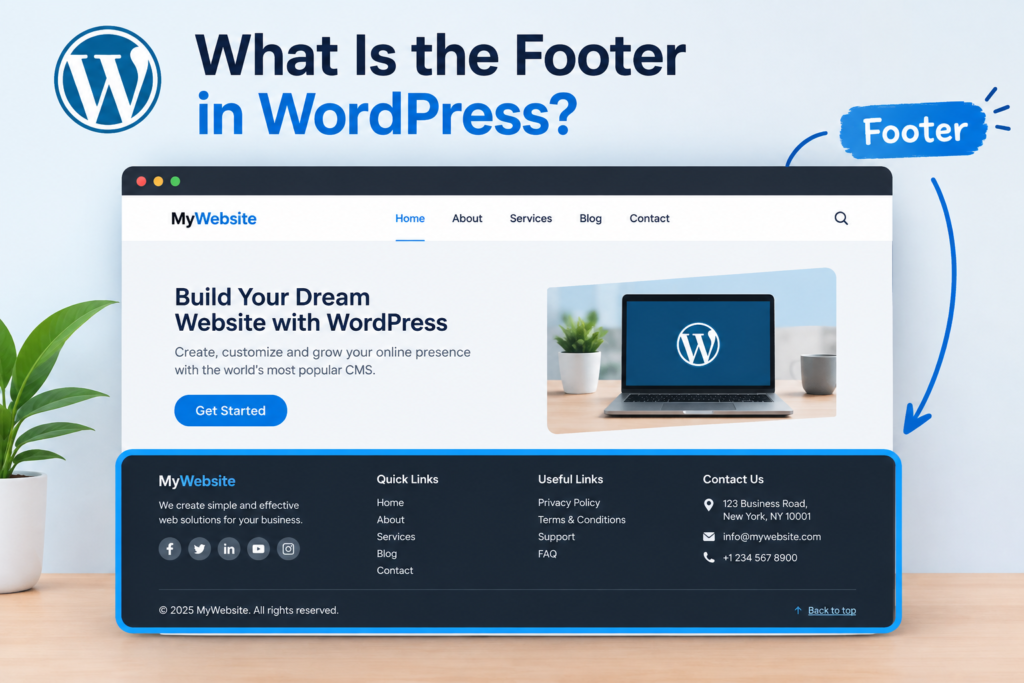
The footer is the lower section of a website that normally appears after the main page content. It is often visible across multiple pages.
A WordPress footer may include:
- Copyright information
- Website navigation
- Contact information
- Social media links
- Privacy policy links
- Terms and conditions
- Newsletter forms
- Useful widgets
Because the footer appears throughout the website, keeping its information accurate and organized is important.
How to Edit Footer in WordPress Using the Site Editor
If you are using a block-based WordPress theme, you may be able to modify the footer through the Site Editor.
Follow these steps:
- Log in to your WordPress dashboard.
- Open Appearance.
- Select Editor.
- Look for the Patterns or template section.
- Find the footer area.
- Select the footer to open it for editing.
- Click the text, link, image, or other block you want to change.
- Make your required adjustments.
- Click Save when you are finished.
This method is useful because you can modify the footer visually without editing theme files directly.
How to Edit Footer Using the WordPress Customizer
Some classic WordPress themes provide footer settings through the Customizer.
To check this option:
- Go to your WordPress dashboard.
- Navigate to Appearance → Customize.
- Find the footer-related settings or options.
- Open the available footer settings.
- Change the text, layout, widgets, or other available options.
- Preview the changes.
- Click Publish to apply them.
The available settings can differ significantly between themes. If you do not see a footer option, your theme may use another editing method.
How to Change Footer Widgets
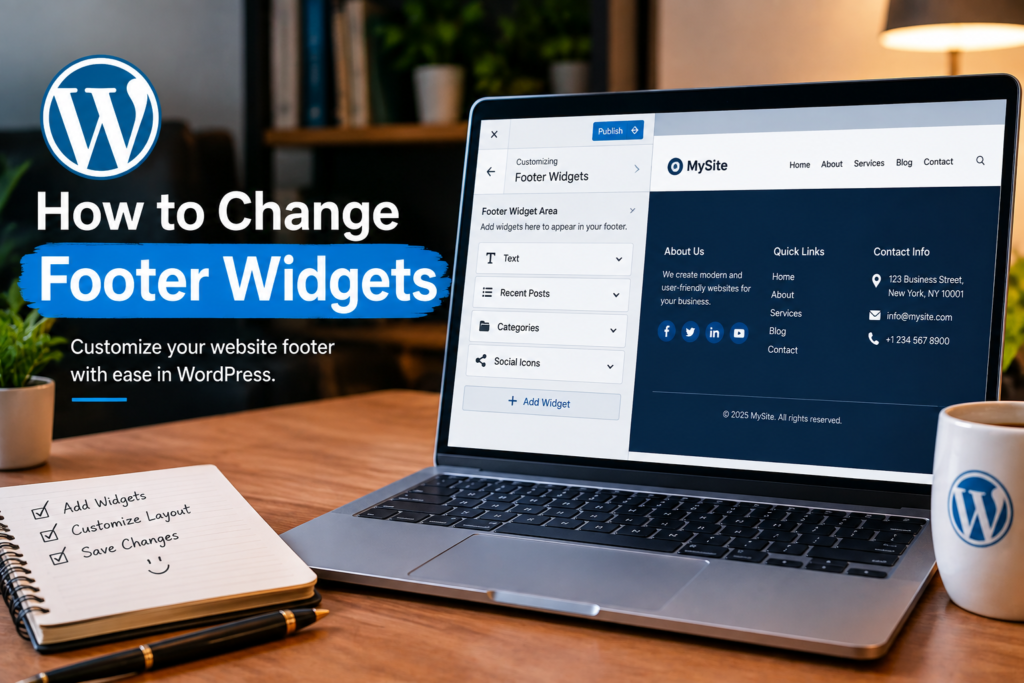
Certain WordPress themes provide dedicated footer widget sections where you can add and display content. These areas can contain text, menus, search boxes, images, or other supported elements.
To manage them, open the WordPress dashboard and check Appearance → Widgets.
Depending on your WordPress version and theme, you may see several footer widget areas. You can select a footer area and add or remove blocks as needed.
For example, you could add:
- A short business description
- A navigation menu
- Contact details
- Social links
- A newsletter block
Do not overcrowd the space with information that is not necessary. A clean footer is generally easier for visitors to use.
How to Edit Footer Copyright Text
A copyright statement is commonly included in the footer of many websites. If your theme provides an option for changing this text, you can update it through the theme settings, Customizer, Site Editor, or another built-in editing area.
For example, you may want to replace an outdated copyright notice with your current business or website name.
If the copyright text is controlled by the theme, look through the theme’s footer settings before attempting to modify theme files.
How to Edit Footer Menu in WordPress
A footer menu can help visitors quickly access important pages.
You can create a menu containing links such as:
- About Us
- Contact
- Privacy Policy
- Terms of Service
- Services
- Blog
The exact menu location depends on your theme. Some themes allow footer menus through Appearance → Menus, while block-based themes may provide navigation controls through the Site Editor.
After creating or editing the menu, check the front end of your website to make sure every link works correctly.
How to Edit Footer With a Page Builder
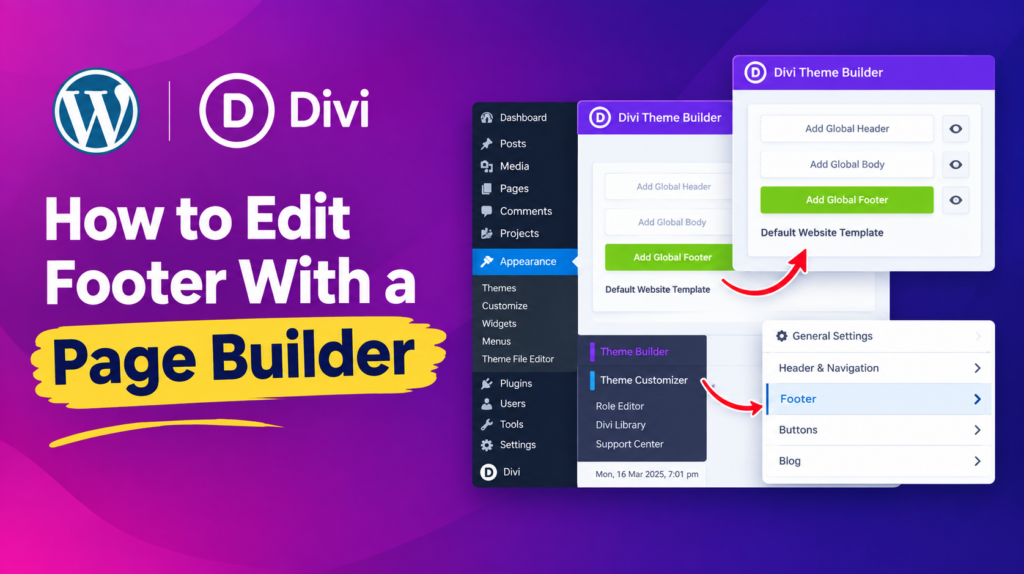
If your website was created with a page builder, the footer may be controlled by that builder rather than the normal WordPress settings.
Popular page builders can provide dedicated footer templates or theme-building features. In such cases, open the relevant builder’s template section and locate the footer design.
You can then modify elements such as:
- Text
- Buttons
- Images
- Links
- Columns
- Social icons
Always save or update the template after making changes.
Should You Edit the Footer PHP File?
WordPress themes may contain a file called footer.php, which controls part of the footer structure. Technically, developers can modify this file directly.
However, beginners should be careful with this method. Incorrect changes to theme files can cause layout problems or website errors.
If you need to edit theme code, create a backup first and preferably use a child theme. This helps prevent your custom changes from being overwritten when the main theme receives an update.
For simple footer changes, using the Site Editor, Customizer, widgets, or a page builder is usually more convenient.
Common Footer Mistakes to Avoid
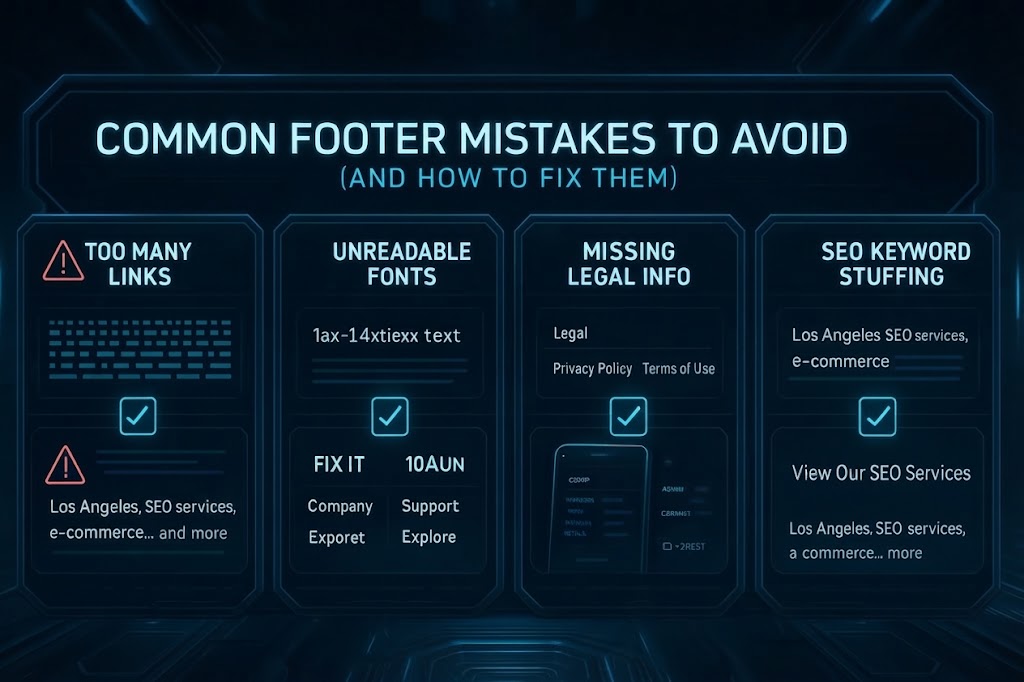
Keep your WordPress footer simple and avoid adding unnecessary complexity.
Some common mistakes include:
- Adding too many links
- Leaving outdated contact information
- Using broken links
- Adding excessive promotional content
- Making text difficult to read
- Including unnecessary widgets
- Changing theme files without a backup
The footer should support website navigation rather than distract visitors.
Why a Good Footer Matters
A well-organized footer can make important information easier to access. Visitors often look at the bottom of a website when searching for contact information, policies, navigation links, or business details.
A useful footer can also reinforce your website’s structure by providing links to important pages.
For business websites, it can be especially useful to include basic contact information and important legal or policy pages.
Final Thoughts
Understanding how to edit footer in WordPress becomes much easier once you know which editing system your theme uses. Depending on your setup, you may be able to make changes through the Site Editor, Customizer, widgets, menus, or a page builder.
For beginners, using the built-in visual editor is often the easiest approach. editing tools rather than modifying theme files directly. Before making major changes, keep a recent backup and check your website afterward on both desktop and mobile devices.
A simple, accurate, and well-structured footer can improve navigation and give visitors quick access to important information.
FAQs
Can I edit the footer in WordPress without coding?
Yes. Many WordPress themes allow footer changes through the Site Editor, Customizer, widgets, or page-builder tools without requiring coding knowledge.
Why can’t I find the footer option in WordPress?
The location of footer settings depends on your active theme. A block theme may use the Site Editor, while another theme may provide footer controls through the Customizer or widgets.
Can I remove “Powered by WordPress” from the footer?
In many cases, this text can be changed through your theme’s settings or footer editor. The exact method depends on the theme you are using.
Is it safe to edit footer.php?
Editing theme files requires care. Make a backup first and consider using a child theme if you need to make code-based customizations.
Can I add a menu to my WordPress footer?
Yes. Many themes support footer navigation menus. You can usually create a menu and assign it to a footer location provided by the theme.