
Introduction
One of the most frustrating problems WordPress users face is the White Screen of Death (WSOD). When this error occurs, your website suddenly shows a blank white screen instead of your content. No error message, no warning — just a blank page.
This issue can affect your entire website or sometimes only the admin dashboard. In this guide, you will learn why this problem happens and Guide to Fix WordPress White Screen of Death step by step.
What is WordPress White Screen of Death?
The WordPress White Screen of Death is an error where your website stops loading and displays a completely white screen.
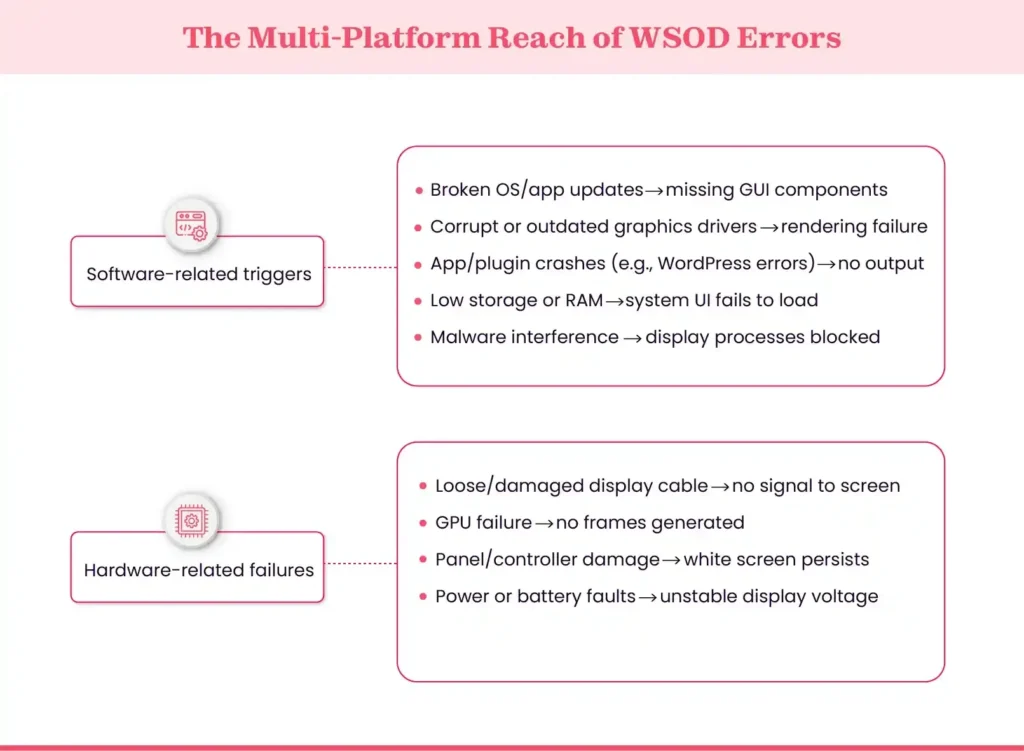
This usually happens due to:
- PHP errors
- Plugin conflicts
- Theme issues
- Memory limit exhaustion
In simple words, your website fails to load properly because something is breaking the system.
Why Does White Screen of Death Happen?
Understanding the root cause is very important before fixing the issue.
Plugin Conflicts
One of the most common reasons is plugin conflict. When two or more plugins are not compatible, they can break your site.
Theme Errors
A poorly coded or corrupted theme can also cause this issue.
Exhausted Memory Limit
If your website uses too much server memory, WordPress may stop working properly.
PHP Errors
Incorrect or outdated PHP code can trigger a white screen.
Corrupted Core Files
Sometimes WordPress core files get damaged during updates.
Effects of White Screen of Death on Website
This issue can seriously affect your website:
Website Becomes Inaccessible
Users cannot open your website at all.
Admin Dashboard Lockout
You may lose access to your WordPress admin panel.
Traffic Loss
Visitors leave immediately when they see a blank page.
SEO Impact
If the site stays down for long, search rankings may drop.
Business Damage
For business websites, this can directly affect revenue and trust.
How to Repair WordPress White Screen of Death Problem
Now let’s go step by step to solve this issue.
1. Disable All Plugins
The first step is to check if plugins are causing the issue.
Steps:
- Access your website file via cPanel
- Go to wp-content folder
- Rename plugins folder to plugins_old
This will deactivate all plugins. If the site starts working, the issue is caused by a plugin.
2. Switch to Default Theme
Sometimes the theme is the problem.
Steps:
- Go to wp-content/themes
- Rename your active theme folder
- WordPress will automatically a default theme
If the site loads, your theme is faulty.
3. Increase PHP Memory Limit
Low memory can also trigger WSOD.
Fix:
Add this line in wp-config.php file:
define(‘WP_MEMORY_LIMIT’, ‘256M’);
This increases available memory for WordPress.
4. Enable Debug Mode
Debug mode helps identify the exact error.
Steps:
Add this line in wp-config.php:
define(‘WP_DEBUG’, true);
This will show error messages instead of a blank screen.
5. Check for Corrupted Files
If core files are damaged, re-upload WordPress files.
Steps:
- Download fresh WordPress version
- Replace wp-admin and wp-includes folders
This fixes missing or corrupted files.
6. Clear Cache
Sometimes caching plugins store broken pages.
Solution:
- Clear browser cache
- Clear WordPress cache plugin
- Clear server cache
7. Fix Syntax Errors
Even a small code mistake can break your site.
Tip:
- Check recent code changes
- Remove faulty scripts or snippets
Best Practices to Avoid White Screen of Death
Keep Plugins Updated
Always update plugins regularly.
Use Trusted Themes
Avoid nulled or untrusted themes.
Backup Your Website
Always keep a backup before making changes.
Limit Plugin Usage
Only install necessary plugins.
Use Reliable Hosting
Good hosting reduces many technical issues.
When to Contact Developer
If none of the methods work, you may need professional help. Complex server or code issues require expert troubleshooting.
FAQs
What causes WordPress white screen of death?
It is usually caused by plugin conflicts, theme errors, or memory issues.
How do I fix a blank white screen in WordPress?
Disable plugins, switch themes, and increase memory limit.
Is white screen of death dangerous?
Yes, it can affect your website traffic and SEO if not fixed quickly.
Can hosting cause white screen error?
Yes, poor hosting or low server resources can trigger it.
How can I prevent WSOD in future?
Keep updates, backups, and avoid unnecessary plugins.