
Running a WordPress website becomes easier with plugins because they add features without requiring advanced coding knowledge. From SEO tools to security systems and contact forms, plugins help improve functionality and save time. However, using multiple plugins can sometimes create compatibility issues that affect how a website performs.
Plugin conflicts are among the most common problems experienced by website owners. They may cause broken pages, website errors, slow loading speeds, or even prevent users from accessing the website completely.
The good news is that most plugin conflicts can be identified and solved without technical expertise. This guide explains the causes, warning signs, and practical methods to fix plugin conflicts while improving overall website stability.
What Is a Plugin Conflict in WordPress?
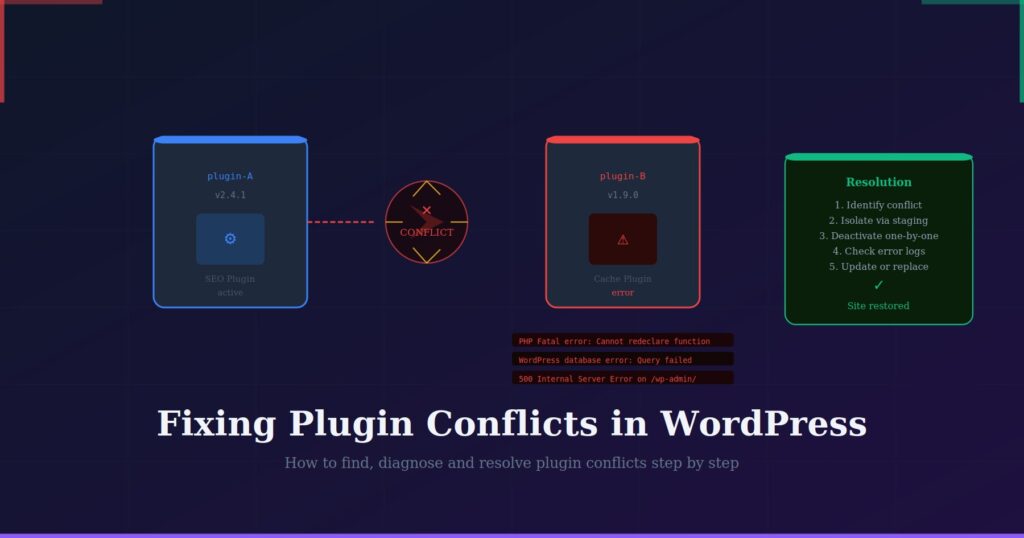
A plugin conflict happens when two or more plugins interfere with each other or when a plugin clashes with a theme or WordPress core files.
Because different plugins are created by different developers, their code can sometimes interact in unexpected ways.
A conflict may happen after:
- Installing a new plugin
- Updating existing plugins
- Updating WordPress core files
- Changing themes
- Using outdated software versions
Common Signs of Plugin Conflicts
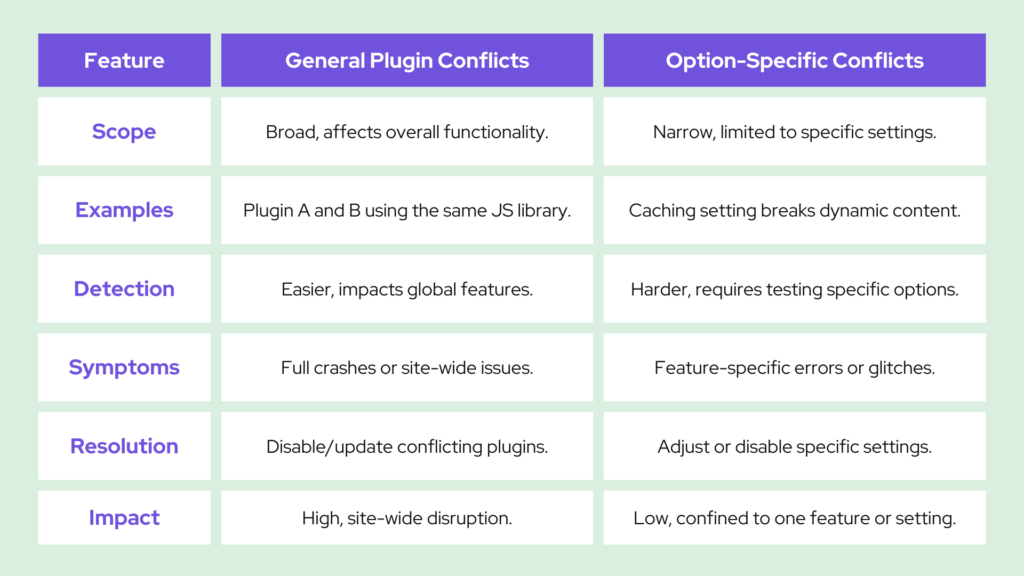
Not every plugin issue produces the same symptoms. Some websites may show visible errors, while others become slower over time.
Common warning signs include:
- White screen appearing on pages
- Broken layouts
- Missing website features
- Contact forms not working
- Website speed becoming slower
- Login page problems
- Error messages appearing suddenly
Recognizing these signs early can help prevent larger website problems.
Why Plugin Conflicts Happen
Outdated Plugins
Older plugins may not support the latest WordPress versions.
When WordPress updates but plugins remain outdated, compatibility issues can appear.
Too Many Plugins
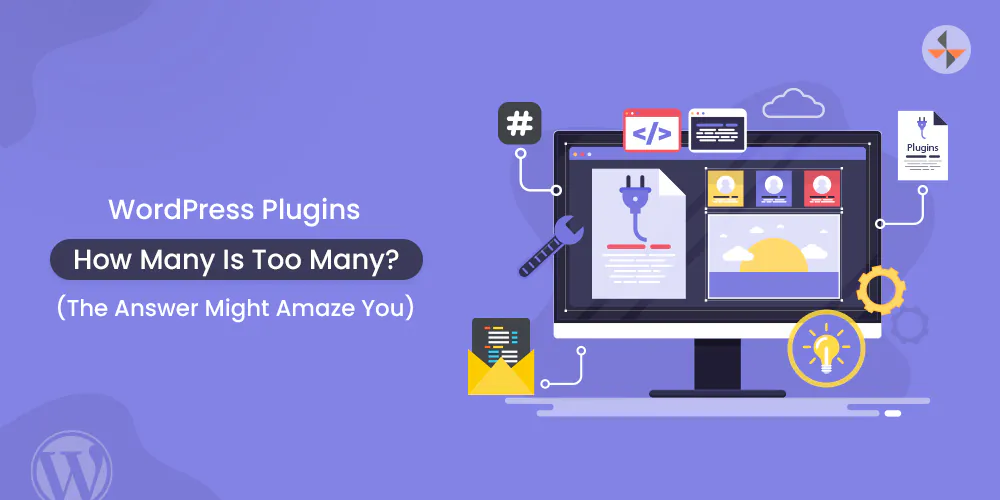
Adding unnecessary plugins increases the chance of code interference.
Some website owners install multiple plugins with similar functions, which often creates conflicts.
Examples include:
- Two caching plugins
- Multiple SEO plugins
- Multiple security tools
Theme Compatibility Problems
Sometimes the issue does not come from plugins themselves.
A theme may include custom functions that interfere with plugin behavior.
Poorly Coded Plugins
Not all plugins follow WordPress coding standards.
Low-quality plugins can create performance issues and unexpected errors.
How to Fix Plugin Conflicts in WordPress
1: Create a Website Backup
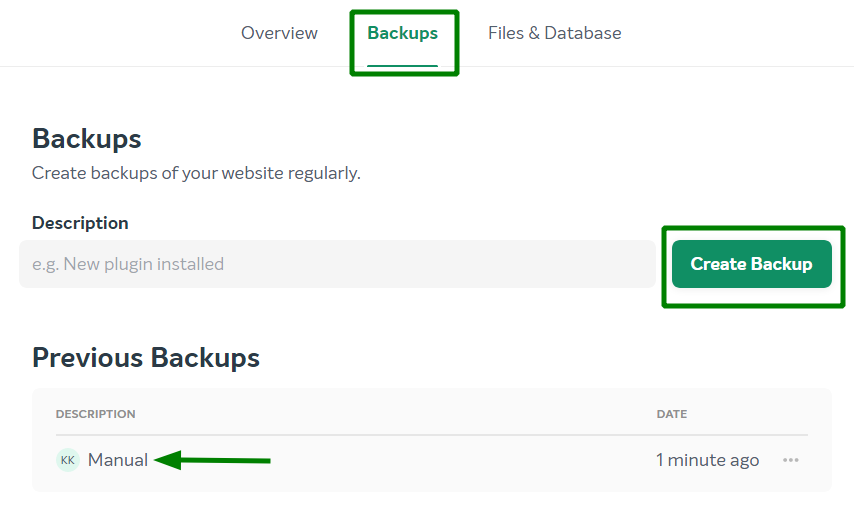
Before making any changes, create a complete backup.
Backups help restore your website if something goes wrong during troubleshooting.
Include:
- Database backup
- Media files
- Themes
- Plugins
2: Disable All Plugins
The fastest way to identify conflicts is disabling plugins temporarily.
Steps:
- Open WordPress dashboard
- Navigate to Plugins
- Select all plugins
- Click Deactivate
After disabling plugins, check whether the issue disappears.
If the problem is solved, a plugin conflict is likely causing the issue.
3: Activate Plugins One by One
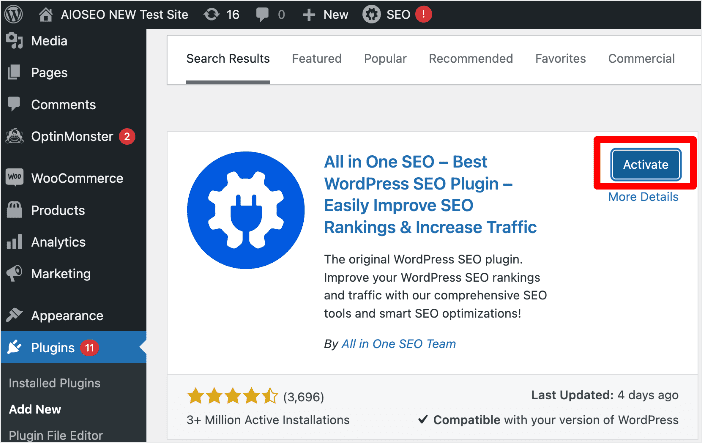
Once all plugins are disabled:
- Activate one plugin
- Test the website
- Activate the next plugin
- Repeat the process
Eventually, the conflicting plugin usually becomes obvious.
This method helps isolate the problem without guessing.
4: Switch to a Default Theme
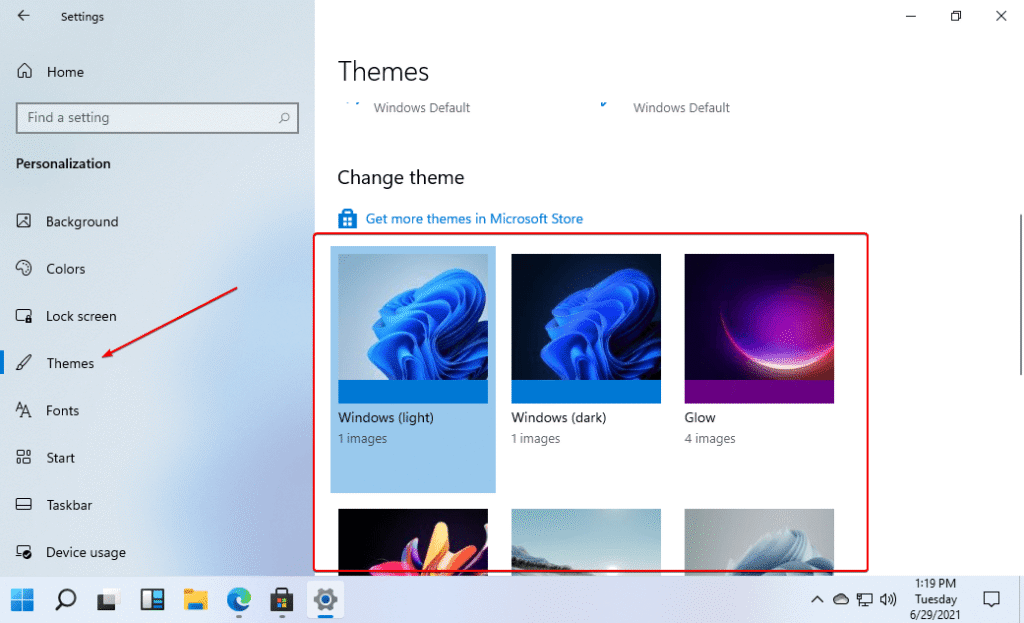
Themes occasionally create compatibility issues.
Temporarily switch to a default WordPress theme and test the website again.
Default themes may include:
- Twenty Twenty-Four
- Twenty Twenty-Five
- Twenty Twenty-Six
If the problem disappears, the theme may be contributing to the issue.
5: Clear Website Cache
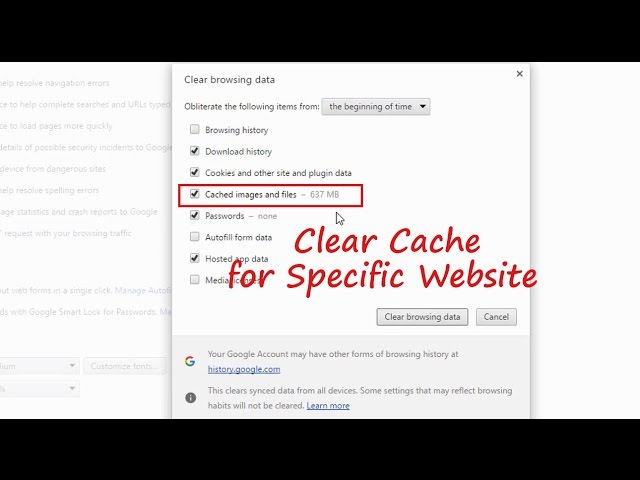
Sometimes changes appear ineffective because cached data continues displaying older versions.
Clear:
- Browser cache
- Website cache
- CDN cache
After clearing cache, refresh your website.
Update Plugins and WordPress
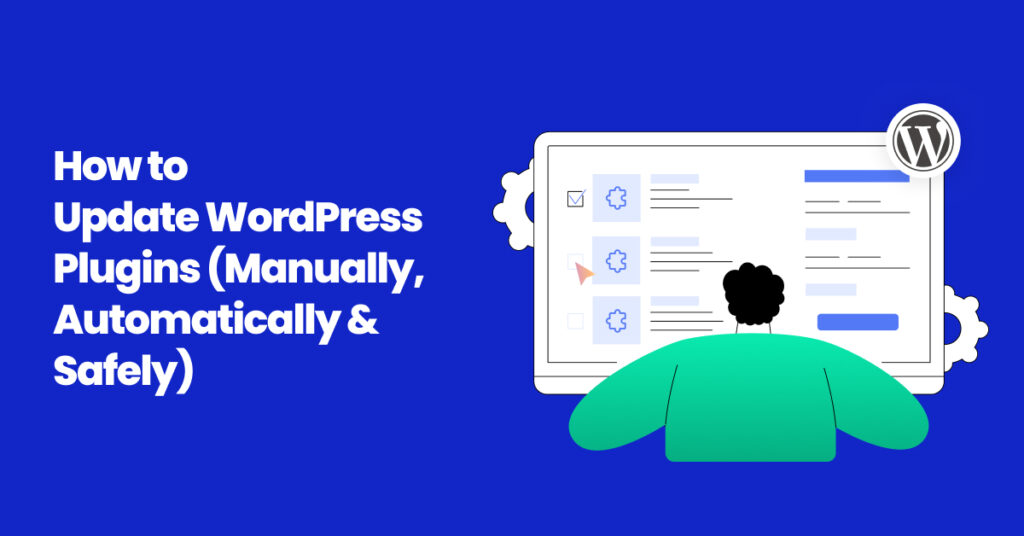
Developers regularly release updates to fix bugs and compatibility problems.
Always keep updated:
- WordPress core
- Plugins
- Themes
Updated software reduces security risks and improves performance.
Best Practices to Prevent Plugin Conflicts
Install Only Necessary Plugins
Avoid installing plugins simply because they look useful.
Use plugins that directly support your website goals.
Use Trusted Plugins
Choose plugins with:
- Positive reviews
- Regular updates
- Active support
- High installation numbers
Reliable plugins are usually more stable.
Avoid Duplicate Functions
Do not install multiple plugins serving the same purpose.
Examples:
Instead of using:
- Two SEO plugins
- Two cache plugins
Choose one reliable solution.
Test Changes on a Staging Site
A staging environment lets you test updates before applying them to the live website.
This reduces unexpected errors.
Can Plugin Conflicts Affect SEO?
Yes, plugin conflicts can affect search performance.
Possible SEO problems include:
- Slow loading speed
- Broken pages
- Crawl errors
- Increased bounce rate
- Indexing problems
Search engines prefer websites that load correctly and provide smooth user experiences.
Why Website Stability Matters
A website should consistently work for both visitors and search engines.
Technical issues caused by plugin conflicts can reduce:
- User trust
- Conversion rates
- Organic traffic
- Website performance
Maintaining a stable website creates a better experience for users.
Final Thoughts
Plugin conflicts are common in WordPress websites, but they are usually manageable with the right approach. Identifying the issue early, testing plugins carefully, and maintaining updates can prevent major problems.
Rather than installing many plugins, focus on quality and compatibility. A cleaner website setup often performs better and creates fewer technical issues.
FAQs
1. What causes plugin conflicts in WordPress?
Plugin conflicts usually occur because of outdated plugins, duplicate functionality, or compatibility problems with themes and WordPress updates.
2. How do I identify a conflicting plugin?
Deactivate all plugins and reactivate them one at a time until the issue returns.
3. Can plugin conflicts slow down a website?
Yes, conflicts may create performance issues and increase loading times.
4. Can themes create plugin conflicts?
Yes, some themes contain custom code that may interfere with plugin functionality.
5. How can I prevent plugin conflicts?
Keep plugins updated, avoid duplicate tools, and install only trusted plugins.