
Quick answer: You can build a real estate website with WordPress by choosing a domain and hosting, installing WordPress, and adding a real estate theme and listings plugin such as Essential Real Estate. Then add properties with photos, prices, maps, and search filters, plus contact forms and local SEO.
Introduction
A real estate website has a clear job: help a visitor find the right property and contact the right person. A buyer wants to filter by location, price, and bedrooms, see good photos, check the map, and send an enquiry without friction. WordPress fits because a theme gives you the design and a listings plugin gives you property fields, search, and maps.
What Do You Need Before You Start?
You need a domain name, a hosting plan, a WordPress installation, and a clear focus. Your domain should be short, easy to spell, and related to your brand or area, such as your agency name plus your city. Avoid hyphens and numbers, because people mistype them.
Hosting matters more here than for a simple blog, because listing pages carry many images. Choose a host with solid uptime, daily backups, and SSL included. Shared hosting is fine for a new site with a few dozen listings.
How to Set Up WordPress for a Real Estate Site
- Register a domain and hosting
Buy your domain and hosting from a reputable provider, and check the official site for current pricing. Many hosts offer a one-click WordPress installer. Use it, choose a strong password, and avoid “admin” as a username. - Install WordPress and SSL
If your host does not install WordPress for you, follow the official WordPress installation guide. After installation, make sure your site loads over HTTPS. Most hosts provide a free SSL certificate you can enable from the hosting panel. - Set your basic settings
In Settings > General, set your site title and timezone. In Settings > Permalinks, choose Post name so listing URLs are clean. In Settings > Discussion, turn off comments on listings, because they attract spam.
Which WordPress Theme Is Best for Real Estate?
You have two main options: a dedicated real estate theme, or a flexible general theme with a listings plugin. A dedicated theme such as Houzez includes listing layouts, agent pages, and search out of the box, but is often heavier.
A flexible theme such as Astra, paired with a listings plugin, is often the safer choice. Astra is lightweight and lets the plugin handle property data, so you can change the theme later without losing listings. See our guide to the best WordPress theme for SEO and better site performance. Test any theme on a phone first.
Theme options table (option / what you get / best for):
| Option | What you get | Best for |
|---|---|---|
| Dedicated theme | Layouts, agents, search built in | Ready-made design |
| Flexible theme + plugin | Lightweight, listings in plugin | Speed, flexibility |
| Page builder + plugin | Full control over layouts | Custom area pages |


Which Listings Plugin Should You Use?
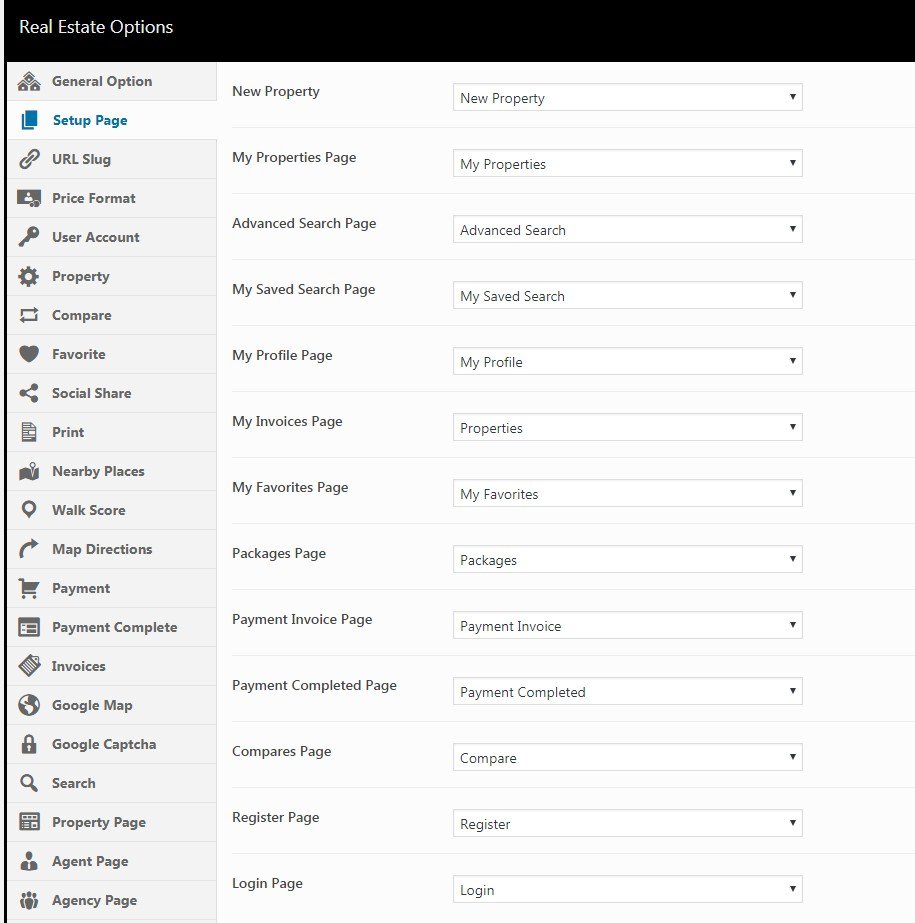
A listings plugin adds a “Properties” section to WordPress, with fields for price, location, bedrooms, bathrooms, area, property type, and status. Without it, you would build those fields yourself and search filters would not work properly.
Essential Real Estate is a well-known free plugin covering property submission, advanced search, maps, agent profiles, and saved searches. Estatik is another popular option with a free version and paid add-ons. Check the official site for current pricing before buying any paid version.
When comparing plugins, check search filters, maps, agent pages, and data ownership. Install one listings plugin, not two, because two will fight over the same data and break search. See our guide on how WordPress plugins work.

How to Add Your First Property Listings
Good listings sell the site. A listing with one dark photo will not get enquiries.
- Create the listing and fill in every field
Go to your listings section and click Add New. Write a clear title with property type and location, such as “3-Bedroom Apartment for Sale in Downtown Aqaba”. Add price, type, status, bedrooms, bathrooms, area, and address. - Add photos and write the description
Upload at least eight to ten photos, starting with the best exterior or living room photo. Compress photos before upload and add descriptive alt text. Then write 150 to 300 words on layout, condition, nearby amenities, and what is included. - Add the location and publish
Add the full address and place the pin on the map. A pin in the wrong place wastes viewings. If the exact address should stay private, use the neighbourhood and say so. Publish it and check it on your phone.
How to Add Search Filters and Maps That Actually Help
Search is the heart of a real estate site. Start with the filters buyers use most: location, price range, property type, status, bedrooms, and bathrooms. Add more only after those work well, because too many filters on a small site return empty results. Place the search form at the top of your homepage and listings page, and test a real search yourself.
Show a map view as an option next to the list view, not as the only view. Some visitors prefer a list, and a map alone can be slow on a phone. Load the map only when the visitor chooses it, so it does not slow the first view of the page.
How to Turn Visitors into Leads
Every listing should have a visible contact form and a phone or messaging button. Add a short form with name, email or phone, and message, plus a pre-filled message such as “I am interested in this property”. Keep it to four fields at most; long forms reduce enquiries. Connect it to an email address you check daily.
Create an agent page for each agent, with a photo, phone number, areas covered, and current listings. Buyers trust a named person more than a generic form. Add one clear call to action on the homepage — “Browse homes for sale” or “Book a viewing” — and track which pages get the most enquiries.
How to Do SEO for a Real Estate Website
Real estate SEO is mostly local SEO. You are not ranking for “houses for sale” worldwide; you are ranking for “apartments for sale in [your city]” and “3-bedroom house for rent in [your neighbourhood]”. Use a clear title and meta description for every listing and area page, with property type and location in the title. Use one H1 per page and H2 headings for description, features, and location.
Add structured data for listings if your plugin supports it, so search engines can understand price, location, and type. Keep your Google Business Profile up to date and make sure your name, address, and phone number match your site. For setup, follow our WordPress SEO optimization guide for beginners.
How to Launch and Grow Your Real Estate Site
Before you launch, work through this checklist:
- Test the site on a phone and a desktop, and check every contact form.
- Check that every listing has a price, photos, and a map pin.
- Confirm the site loads over HTTPS and that SSL is valid.
- Set up backups, and confirm one has actually run.
- Submit your sitemap to Google Search Console.
After launch, add listings regularly and update sold or rented properties promptly. Mark sold properties as sold instead of deleting them right away. Grow with local content: a home-buying guide for your city, a monthly market update, or a neighbourhood guide. Share new listings on social media.
FAQ
How much does it cost to build a real estate website with WordPress?
The main costs are a domain, hosting, and optionally a premium theme or plugin. WordPress itself is free. Check the official site for current pricing before you buy.
Do I need a dedicated real estate theme?
No. A flexible theme such as Astra with a listings plugin such as Essential Real Estate works well and is easier to change later.
How do I add properties to my WordPress real estate site?
Install a listings plugin, then add each property with a title, price, photos, description, features, and map location. Fill in every search field so search filters work correctly.
How do I get leads from my real estate website?
Add a short contact form and a phone button to every listing, create an agent page for each agent, and make the next step clear. Reply quickly and keep prices up to date.