
Introduction
Getting locked out of your WordPress dashboard can feel like a nightmare, especially when your website depends on regular updates. Many beginners search for simple fixes when the login page stops working, but most guides are too technical or confusing.
In this article, you’ll learn Easy ways to fix WordPress login page not working, along with clear explanations of why this problem happens. Every method is beginner-friendly, practical, and designed to help you regain access quickly without breaking your site.
What Does “WordPress Login Page Not Working” Mean?
When your login page fails, it means you cannot access your admin dashboard even after entering correct details. Instead of logging in, you might see errors, blank screens, or repeated redirects.
This issue can occur due to small misconfigurations or conflicts inside your website files.
Why WordPress Login Page Stops Working
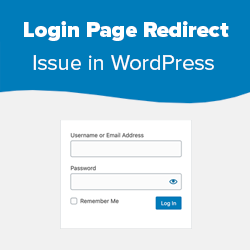
Plugin Conflict After Update
Installing a new plugin or updating an existing one can break login functionality.
Browser Cache Problem
Old saved data can prevent the login page from working correctly.
Wrong Website URL Settings
Incorrect site address causes redirect loops.
Theme Errors
A poorly coded theme may block admin access.
Hosting or Server Issue
Sometimes the problem is not in your site but on the server side.
Common Signs of Login Page Problems
- Login page keeps refreshing
- Password not accepted
- White blank screen appears
- Redirect loop error
- Admin panel not opening
How to Fix WordPress Login Page Not Working (Step-by-Step)
1. Clear Browser Data First
Simple but powerful fix
Most beginners ignore this step, but it solves many login issues instantly.
Steps:
- Open browser settings
- Clear cache and cookies
- Restart browser
- Try login again
2. Rename Plugins Folder
Best method to detect conflicts
If a plugin is causing the issue, this method will fix it.
Steps:
- Go to File Manager in hosting
- Open wp-content
- Rename plugins to plugins-disable
- Reload login page
If login works, one of your plugins is the problem.
3. Reset Password from Database
When email reset fails
Sometimes password reset emails don’t arrive.
Steps:
- Open phpMyAdmin
- Select your database
- Open wp_users
- Edit your account
- Enter new password
- Select MD5
- Save
4. Fix WordPress URL Manually
Solve redirect loop issue
Wrong URL settings can trap users in a loop.
Add this code in wp-config.php:
define(‘WP_HOME’,’https://yourdomain.com’);
define(‘WP_SITEURL’,’https://yourdomain.com’);
5. Switch to Default Theme
Check theme errors
If your theme is broken, login may stop working.
Steps:
- Open wp-content/themes
- Rename current theme
- WordPress will activate default theme
6. Fix .htaccess File
Important file repair
A corrupted file can block access.
Steps:
- Go to root folder
- Rename .htaccess
- Create a new one
- Save changes
7. Increase PHP Memory Limit
Prevent loading failure
Low memory can cause login errors.
Add this in wp-config.php:
define(‘WP_MEMORY_LIMIT’, ‘256M’);
8. Disable Security Restrictions
Avoid false blocking
Security plugins sometimes block real users.
Solution:
- Disable plugin via file manager
- Try logging in again
Pro Tips to Prevent Login Problems
- Always update plugins carefully
- Use trusted themes only
- Avoid installing too many plugins
- Keep regular backups
- Use strong but memorable passwords
Conclusion
Fixing a WordPress login issue doesn’t have to be complicated. Most problems happen due to small errors like plugin conflicts, wrong settings, or cache issues. By following the simple methods in this guide, you can quickly restore access and keep your website running smoothly.
Consistency in maintenance and careful updates will help you avoid these issues in the future.
FAQs
1. Why is my WordPress login page not opening?
This usually happens due to plugin conflicts, server issues, or incorrect settings.
2. How do I fix login redirect loop?
Update your site URL settings in the configuration file.
3. Can I access WordPress without login?
Yes, you can reset access using database or file manager.
4. What causes a blank login screen?
Theme or plugin errors are the most common reasons.
5. How do I unlock my WordPress admin?
Disable security plugins or reset your password manually.