
The WordPress dashboard is the control center of your website. It allows website owners to publish content, install plugins, manage themes, update settings, and control website functionality. When the dashboard suddenly stops loading, it can become frustrating because it prevents access to important website features.
A dashboard loading issue can happen for many reasons. In some cases, the problem is temporary and caused by browser cache. In other situations, plugin conflicts, server limitations, theme issues, or database errors may be responsible.
The good news is that most WordPress dashboard problems can be fixed without advanced technical knowledge.
This guide explains common causes and practical solutions to restore dashboard access.
Why the WordPress Dashboard Stops Loading
Understanding the possible causes makes troubleshooting easier.
Common reasons include:
- Plugin conflicts
- Theme-related issues
- Browser cache problems
- Corrupted WordPress files
- Low PHP memory limits
- Database issues
- Hosting server problems
- PHP version incompatibility
Identifying the actual cause saves time and prevents unnecessary changes.
Signs of a Dashboard Loading Problem
Before applying fixes, recognize the warning signs.
Common symptoms include:
- Endless loading screen
- Blank white page
- Slow dashboard performance
- Error messages appearing
- Login page redirect loops
- Dashboard partially loading
- Missing menus or settings
These symptoms often indicate technical conflicts behind the website.
1: Clear Browser Cache and Cookies

Sometimes browsers store old files that interfere with the dashboard.
Clear:
- Browser cache
- Cookies
- Temporary files
After clearing them:
- Restart the browser
- Open WordPress again
- Check whether the issue continues
This simple step often solves temporary loading problems.
2: Disable All Plugins
Plugin conflicts are among the most common reasons for dashboard failures.
To test plugins:
- Access website files through File Manager or FTP
- Open the plugins folder
- Rename the plugins directory temporarily
- Refresh the dashboard
If the dashboard loads normally, one of the plugins is likely creating the problem.
After that:
- Restore the folder name
- Enable plugins individually
- Identify the problematic plugin
3: Switch to a Default WordPress Theme
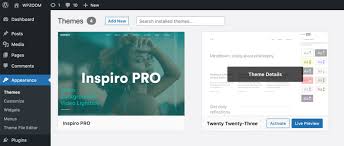
Sometimes themes conflict with WordPress updates or plugins.
Switch temporarily to a default theme such as:
- Twenty Twenty-Four
- Twenty Twenty-Five
- Twenty Twenty-Six
If dashboard access returns, your previous theme may be responsible.
4: Increase PHP Memory Limit
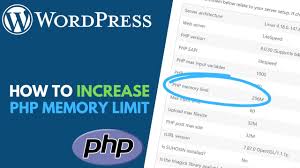
Low memory limits can prevent WordPress from loading correctly.
Add this code to your configuration file:
define(‘WP_MEMORY_LIMIT’, ‘256M’);
Increasing memory gives WordPress more resources to process dashboard functions.
5: Check for Corrupted WordPress Files
Damaged files sometimes prevent important functions from working.
You can fix this by:
- Downloading a fresh WordPress copy
- Replacing core files except the wp-content folder and configuration file
This refreshes essential files without affecting content.
6: Update PHP Version
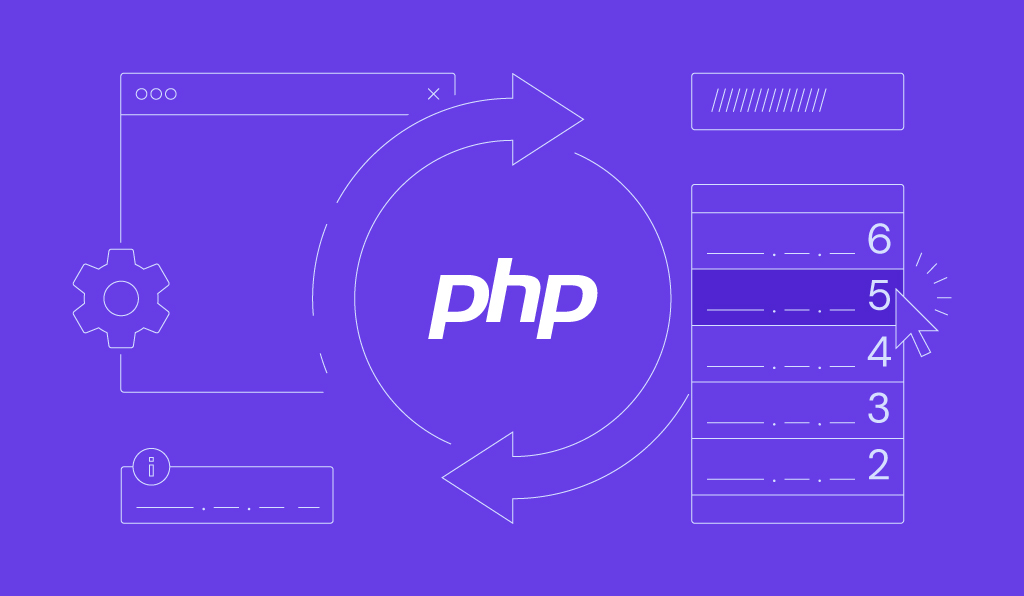
Outdated PHP versions may create compatibility problems.
To check:
- Open your hosting control panel
- Find PHP settings
- Compare the current version with WordPress requirements
Using modern PHP versions improves both performance and stability.
7: Repair the WordPress Database
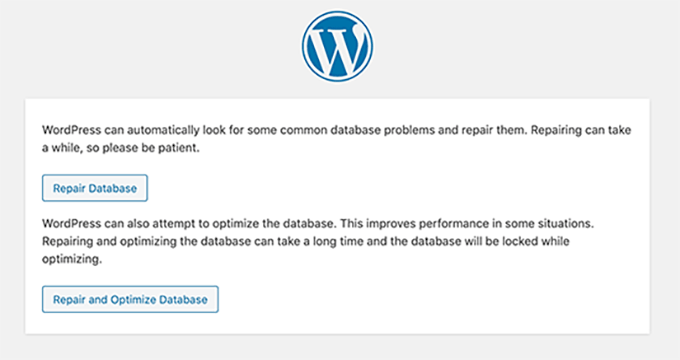
Database issues can prevent dashboards from loading correctly.
Enable database repair inside your configuration file:
define(‘WP_ALLOW_REPAIR’, true);
After enabling:
- Open the repair page
- Run database optimization and repair
Database maintenance can solve hidden problems.
8: Review Server Resource Usage
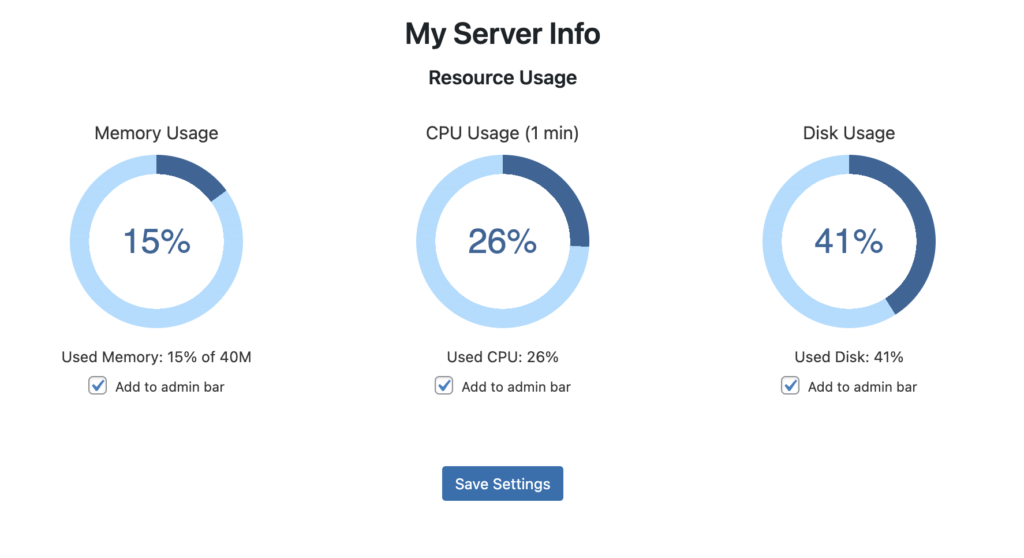
Limited server resources sometimes affect dashboard performance.
Check:
- CPU usage
- RAM consumption
- Storage space
- Bandwidth usage
High usage can slow or interrupt dashboard loading.
9: Disable Cache Temporarily
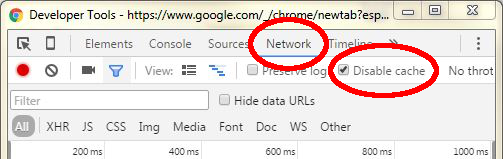
Caching plugins occasionally create dashboard conflicts.
Temporarily disable:
- Website cache plugins
- Server-side caching
- CDN cache systems
Then test dashboard functionality again.
10: Contact Hosting Support

If none of the above methods work, hosting support can help identify server-related problems.
Request checks for:
- Error logs
- Firewall restrictions
- Resource limitations
- Server configuration problems
Hosting providers often identify issues quickly.
How to Prevent Dashboard Problems in the Future
Prevention is easier than emergency troubleshooting.
Recommended practices:
- Keep plugins updated
- Update themes regularly
- Remove unused plugins
- Create backups frequently
- Monitor website performance
- Use trusted tools only
Small maintenance habits can prevent larger issues later.
Final Thoughts
A WordPress dashboard not loading can interrupt website management and create unnecessary stress. Fortunately, most problems are caused by common issues like plugin conflicts, outdated themes, low memory limits, or server restrictions.
Following a structured troubleshooting process can help identify and fix the issue quickly. Regular updates and maintenance can also reduce the chances of future problems.
FAQs
1. Why is my WordPress dashboard stuck loading?
This often happens because of plugin conflicts, memory limitations, or theme issues.
2. Can plugins stop the WordPress dashboard from opening?
Yes. Poorly coded or conflicting plugins can interrupt dashboard functionality.
3. Does cache affect dashboard loading?
Yes. Outdated cache files can create display and loading issues.
4. Will updating PHP help fix dashboard problems?
Sometimes. Newer PHP versions improve compatibility and performance.