
How to Repair Broken WordPress Permalinks and 404 Errors
One of the most frustrating issues for website owners is when WordPress permalinks suddenly stop working and pages begin showing 404 errors.
A website may appear completely normal on the homepage, but individual posts and pages stop loading correctly. Visitors click a link and instead of reaching the content, they see a “404 Page Not Found” message.
This problem is very common in WordPress websites and usually happens because permalink settings, server configuration, or plugins interfere with URL structure.
The good news is that the issue can often be fixed within a few minutes.
In this guide, you will learn why WordPress permalinks stop working, what causes 404 errors, and how to solve the problem step by step.
What Are WordPress Permalinks?
Permalinks are the permanent URLs used for posts, pages, categories, and other website content.
For example:
yourwebsite.com/sample-post
A well-structured, clean permalink format helps make URLs more readable for users and can also enhance overall SEO performance.
WordPress allows users to customize permalink structures directly from the dashboard.
Why WordPress Permalinks Stop Working
Several issues can break permalink functionality.
Some problems are small configuration mistakes, while others are related to plugins or hosting environments.
Below are the most common causes.
Incorrect Permalink Settings
Sometimes permalink settings become corrupted after updates or migrations.
When this happens, WordPress may fail to generate proper rewrite rules.
As a result, posts and pages start returning 404 errors.
Corrupted .htaccess File
The .htaccess file controls how URLs are handled on many WordPress hosting environments.
If this file becomes damaged or contains incorrect rules, permalink structures may stop functioning correctly.
Plugin Conflicts
Some plugins modify URL behavior or rewrite rules.
When incompatible plugins interact with permalink settings, broken URLs and 404 pages may appear across the website.
Theme-Related Problems
In some cases, poorly coded themes interfere with WordPress rewrite functions.
This can affect custom post types, category pages, and normal post URLs.
Server Configuration Issues
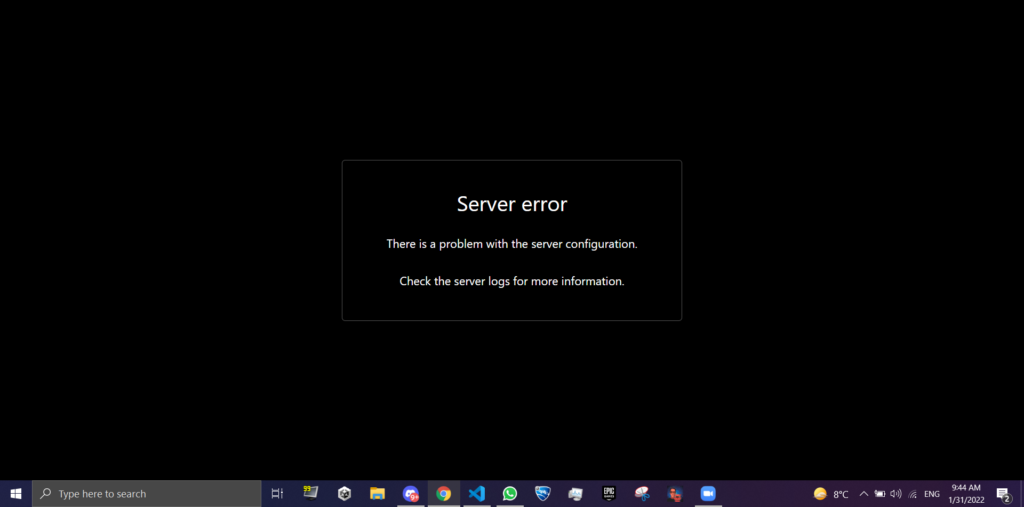
Servers that do not properly support URL rewriting may create permalink problems.
This issue is more common after hosting migrations or manual server configuration changes.
How to Fix WordPress Permalinks Not Working
Here are the most practical and effective approaches to fix the problem.
1. Refresh Permalink Settings
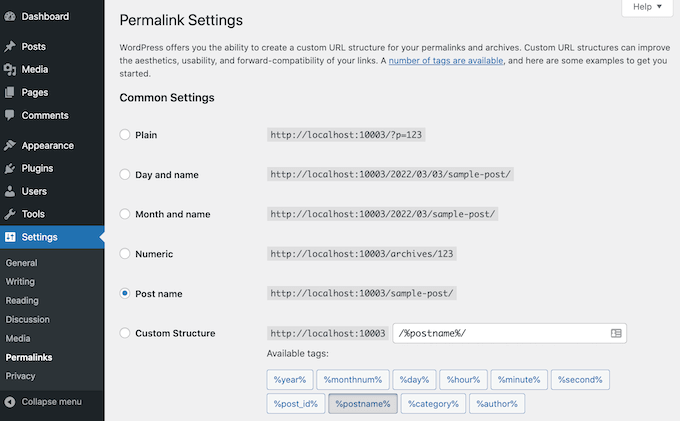
This is the easiest and most successful fix.
Steps:
- Open WordPress dashboard
- Go to:
Settings → Permalinks
- Select your preferred permalink structure
- Click:
Save Changes
Even if you do not change anything, saving again forces WordPress to refresh rewrite rules.
This often fixes the problem immediately.
2. Regenerate the .htaccess File
If the first method does not work, the .htaccess file may be damaged.
Steps:
- Access your website through File Manager or FTP
- Locate:
.htaccess
- Rename it temporarily:
.htaccess-old
- Return to WordPress permalink settings
- Click “Save Changes” again
WordPress can automatically generate a new .htaccess file when needed.
3. Disable Plugins Temporarily
Plugins are one of the most common reasons behind permalink errors.
To test plugins:
- Go to:
Plugins → Installed Plugins
- Deactivate all plugins
- Check if URLs start working again
If the issue disappears, reactivate plugins one by one until the problematic plugin is found.
4. Switch to a Default Theme
Themes occasionally create compatibility issues.
To test this:
- Open:
Appearance → Themes
- Activate a default WordPress theme
If permalinks begin working, the original theme may contain conflicting code.
5. Check File Permissions
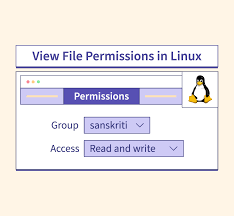
Incorrect file permissions can stop WordPress from updating rewrite rules.
Recommended permissions:
Folders: 755
Files: 644
These settings usually work correctly on most hosting providers.
6. Verify Apache Rewrite Module
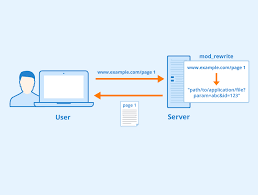
If your hosting server uses Apache, URL rewriting must be enabled.
Many shared hosting providers already enable this automatically, but custom servers sometimes require manual configuration.
7. Clear Website Cache
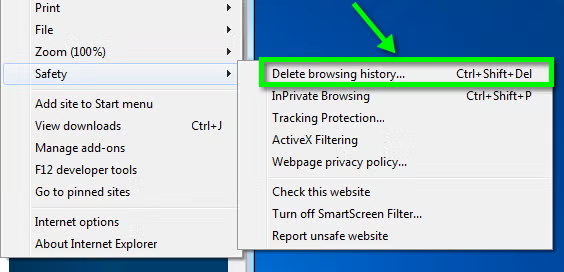
Caching plugins or server cache may continue showing broken URLs even after fixes are applied.
Clear:
- browser cache
- WordPress cache
- CDN cache
- hosting cache
After clearing cache, test your URLs again.
How 404 Errors Affect SEO
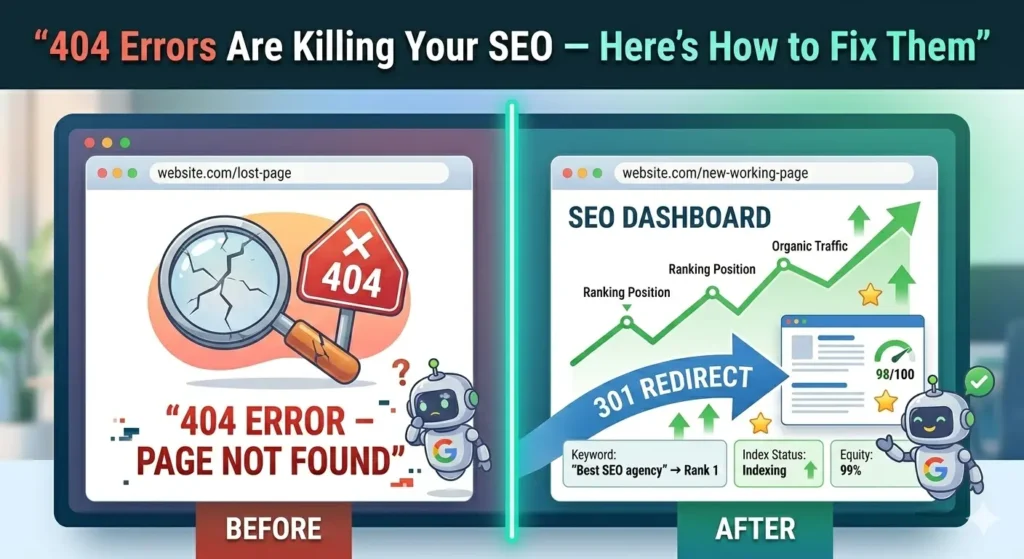
Broken permalinks can damage search visibility and user experience.
When pages repeatedly return 404 errors:
- search engines struggle to crawl content
- visitors leave the site quickly
- rankings may decline
- internal links stop passing authority
Fixing permalink issues quickly helps protect your website performance.
Best Practices to Prevent Future Permalink Problems
It is much simpler to avoid permalink issues from the start than to correct them after they occur.
Avoid unnecessary plugin installations
Too many plugins increase compatibility risks.
Use reliable themes
Well-coded themes create fewer technical problems.
Keep backups
Always create backups before making major changes.
Avoid frequent permalink changes
Changing URL structure repeatedly can create SEO problems.
Use quality hosting
Reliable hosting environments reduce server-related issues.
When You Should Contact Hosting Support
If none of the methods work, the issue may be server-related.
Contact your hosting provider if:
- rewrite rules are disabled
- server configuration changed
- URLs fail after migration
- file permissions cannot be modified
Hosting support can review server logs and identify deeper technical problems.
Final Thoughts
Broken WordPress permalinks and 404 errors can appear suddenly, but in most cases the solution is straightforward.
Refreshing permalink settings, repairing the .htaccess file, and checking plugins usually solve the issue quickly.
The most important thing is to address the problem early before it affects user experience and SEO performance.
A properly working permalink structure improves website navigation, helps search engines crawl content correctly, and creates a smoother experience for visitors.
FAQs
Why are WordPress permalinks showing 404 errors?
This usually happens because rewrite rules, plugins, themes, or server settings interfere with URL structure.
Does resetting permalinks delete website content?
No. Refreshing permalink settings only rebuilds URL rewrite rules and does not remove content.
What does the .htaccess file do in WordPress?
The .htaccess file controls URL rewriting and server behavior for WordPress websites.
Should I change permalink settings often?
No. Frequent permalink changes can create broken links and SEO issues.