
Images play an important role on every website. They improve design, explain information visually, and make pages more engaging for visitors. That is why it can be frustrating when images suddenly stop appearing in WordPress.
Sometimes only featured images disappear. In other cases, images inside blog posts, galleries, or media library files stop loading completely.
The good news is that this issue is usually fixable.
In most cases, missing images are caused by incorrect file paths, plugin conflicts, server permissions, cache problems, or image loading errors after updates.
This guide explains why WordPress images may not appear and how you can solve the problem step by step.
Why Are WordPress Images Not Showing?
There is no single cause behind missing images. Different websites can experience the issue for different reasons.
Broken image URLs
If the file path changes or becomes incorrect, WordPress may not find the image file.
Plugin conflicts
A plugin can interfere with image loading, media rendering, or optimization settings.
Incorrect file permissions
The server may block image files if folder permissions are not set correctly.
Cache problems
Old cached files sometimes continue showing broken image versions.
CDN or lazy loading errors
Image delivery services and optimization tools can occasionally prevent proper loading.

Theme-related issues
A theme update or custom code may stop featured images or content images from displaying correctly.
How to Identify the Problem
Before changing anything, first check where the issue appears.
Ask these questions:
- Are all images missing or only some?
- Is the problem only on one page?
- Are featured images affected?
- Does the media library still show the files?
- Did the problem start after a plugin or theme update?
These answers help narrow down the source much faster.
How to Fix WordPress Images Not Showing
Work through these steps one by one.
1. Refresh the Page and Clear Cache
Sometimes the problem is temporary.
Clear:
- browser cache
- website cache
- CDN cache if you use one
Then reload the page.
Cached files often continue displaying old broken versions even after the real problem is already fixed.
2. Check Whether the Image URL Works
Right-click the missing image and open it in a new tab.
Look at the image address.
If the image URL returns a 404 page, WordPress cannot locate the file.
This usually means the image path changed, the file was deleted, or the media file became disconnected from the content.

3. Verify Images Still Exist in the Media Library
Go to:
Media → Library
Check whether the missing files still appear there.
If the file is missing from the media library, it may have been deleted accidentally during cleanup, migration, or plugin changes.
If the file exists, the issue is more likely related to loading or display rather than missing files.

4. Disable Image Optimization Plugins
Image optimization plugins sometimes create broken image paths or loading conflicts.
Temporarily deactivate plugins related to:
- image compression
- lazy loading
- CDN integration
- caching
After disabling them, refresh the page.
If the images appear again, one of the plugins is likely responsible.
5. Check File Permissions
Server permissions can prevent images from loading.
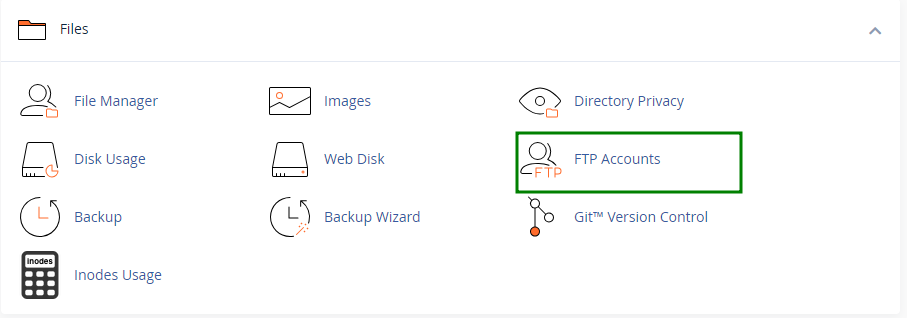
Open File Manager or FTP.
Go to:
wp-content/uploads
The folders should normally allow image files to be read by the server.
In many cases:
- folders use 755
- files use 644
Incorrect permissions can stop images from loading even when the files still exist.
6. Re-upload One Test Image
Sometimes testing one fresh file helps identify the issue quickly.
Upload a new image through:
Media → Add New
Insert it into a test page.
If the new image works but older images do not, the problem may be related to older file paths or migration changes.
7. Check Recent Theme Changes
A recent theme update or custom template edit may affect image output.
Test by temporarily switching to a default WordPress theme.
If the images appear after changing themes, the issue is probably inside the active theme files.
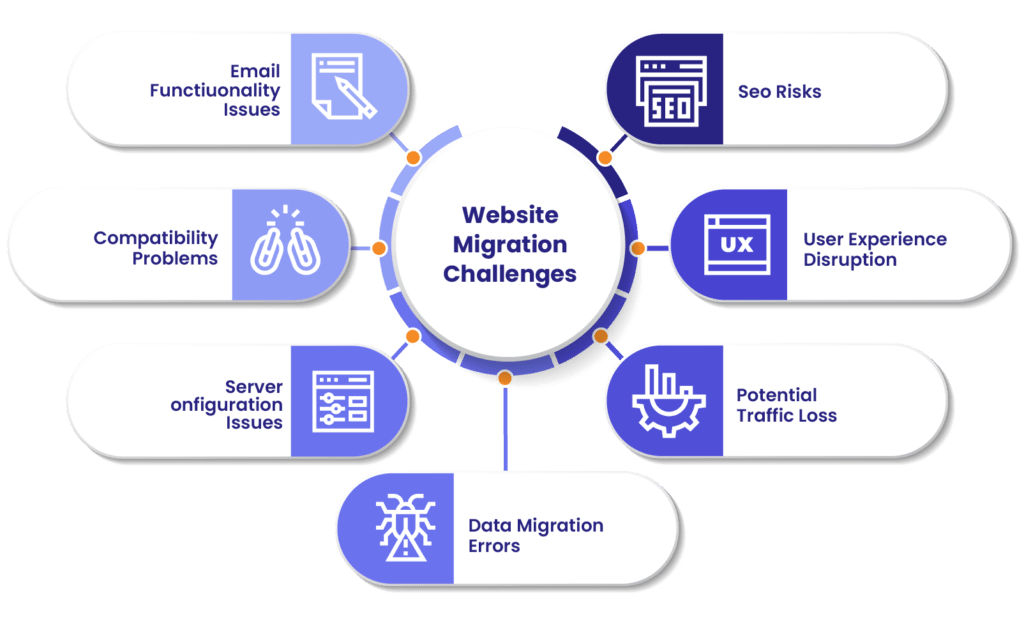
8. Inspect Website Migration Problems
Image problems often appear after moving a website to a new domain or hosting server.
During migration, old image URLs may still point to the previous domain.
For example:
- old domain paths
- incorrect upload directory references
- mixed content issues after HTTPS activation
This is very common after site transfers.
9. Look for Mixed Content Errors
If your website uses HTTPS but some images still load through HTTP, browsers may block them.
You can check this by opening browser developer tools.
Mixed content warnings often explain why images disappear even though files still exist.
Why Featured Images Sometimes Disappear
Featured images can behave differently from normal content images.
This may happen because:
- theme templates do not call the featured image correctly
- featured image support is missing
- caching shows an older version
- plugin conflicts affect thumbnails
If only featured images are missing, the problem is often theme-related rather than media-library related.
What to Do Before Contacting Hosting Support
Before asking your hosting provider for help, check these first:

Review recent updates
Did the problem start after a plugin, theme, or WordPress update?
Test plugin conflicts
Disable image-related plugins temporarily.
Confirm files still exist
Make sure image files remain inside the uploads folder.
Check browser console warnings
This can reveal path errors, blocked requests, or mixed content issues.
Doing these checks first saves time and helps hosting support investigate faster.
How to Prevent Image Problems in the Future
Prevention is always easier than recovery.
Keep regular backups
A backup makes it easier to restore media files.
Avoid unnecessary plugins
Too many media plugins can create conflicts.
Test after updates
Always check pages after updating themes or plugins.
Monitor site migrations carefully
Image paths often break during migration.
Keep file structure clean
Avoid manually moving upload folders unless necessary.
Final Thoughts
Missing images in WordPress can look serious, but the issue is often easier to solve than it first appears.
In many cases, the cause is linked to plugin conflicts, broken file paths, caching, permissions, or migration-related changes.
The best approach is simple.
Start with basic checks, test plugins, confirm file locations, and work step by step.
Once you identify the source, restoring images usually becomes much easier.
A clear troubleshooting process not only fixes the problem faster but also improves the overall experience for your visitors.
FAQs
Why are images missing on my WordPress website?
Images may disappear because of broken URLs, plugin conflicts, caching issues, incorrect permissions, or migration-related file path problems.
Can a plugin stop images from loading?
Yes. Image optimization, lazy loading, caching, or CDN plugins can sometimes interrupt normal image delivery.
Why do images disappear after moving a website?
During migration, image URLs may still point to the previous domain or incorrect upload paths.
How can I check if image files still exist?
Open the WordPress media library or inspect the uploads folder through File Manager or FTP.
Should I contact hosting support immediately?
It is better to first check cache, plugins, permissions, and image paths before contacting hosting support.