
Website loading speed can significantly affect how visitors interact with your site, its SEO results, and its overall efficiency. Visitors usually expect a webpage to load quickly, especially when accessing it from a mobile device. If your WordPress website takes too long to display its content, visitors may leave before interacting with your pages.
Plugins are commonly used to enhance WordPress performance, but they are not the only way to make a site faster. Several improvements can be applied directly through your website settings and hosting service. This guide covers simple, practical techniques for improving WordPress speed without relying on plugins.
Why Is WordPress Website Speed Important?
A quick-loading website provides visitors with a smoother and more enjoyable browsing experience. When pages load quickly, users can access information without waiting for unnecessary resources to finish loading.
Website performance can also influence SEO and conversions. A slow website may create a poor experience, while a faster website can help users navigate more comfortably.
Instead of immediately installing another optimization plugin, first identify what is actually making your website slow.
1. Choose Good WordPress Hosting
The quality of your hosting service can greatly influence how efficiently your website loads and performs. If the server is slow, overloaded, or has limited resources, your website may take longer to respond even when the website itself is well optimized.
Select a hosting package with enough server capacity to handle your website’s needs efficiently. Small websites may work well with basic hosting, while websites receiving more traffic may require stronger server resources.
If your website has suddenly become slower, checking your hosting performance should be one of the first steps.
2. Optimize Images Before Uploading
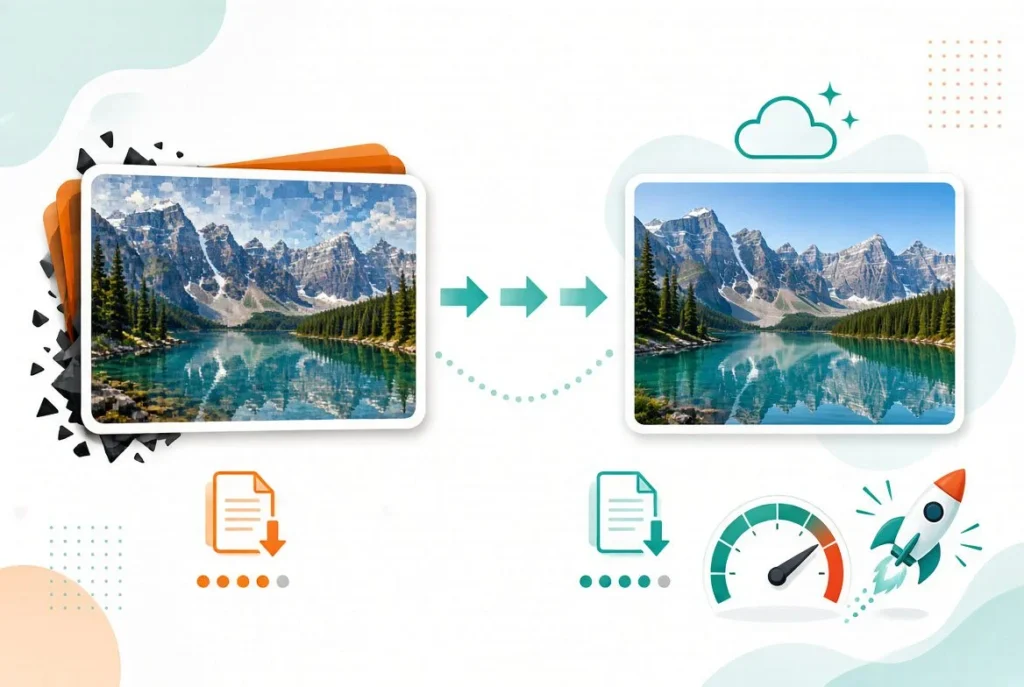
Large image files are among the most common reasons for slow-loading webpages. Uploading high-resolution images without reducing their size can unnecessarily increase the amount of data browsers need to download.
Resize images according to where they will appear on your website. For example, there is usually no reason to upload an extremely large image when it will only be displayed in a small content area.
Reduce image sizes before adding them to your website, and consider using formats like WebP to keep files lightweight without noticeably affecting image quality.
3. Use a Lightweight WordPress Theme
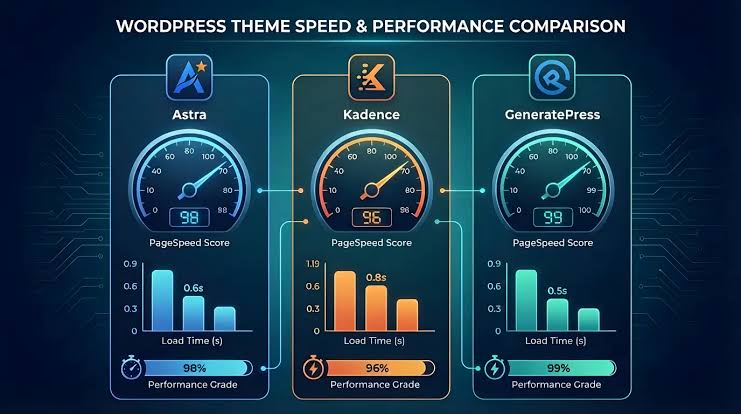
Your theme can have a significant effect on website performance. Many themes come with extra features, animations, scripts, sliders, and visual components that your website may not actually need.
A lightweight theme generally requires fewer resources to load. Choose a design that provides the features you actually need rather than selecting a theme simply because it contains hundreds of optional features.
A clean and straightforward design can minimize the amount of unnecessary data and resources loaded on each page.
4. Remove Unused Plugins
Although you may want to speed up WordPress without adding plugins, it is still important to review the plugins already installed on your website.
If you have plugins that are no longer needed, remove them. Unnecessary extensions can increase maintenance requirements and may load additional resources depending on how they are developed.
Before deleting anything, make sure the plugin is not required by your theme or another important website feature.
5. Reduce Unnecessary JavaScript

JavaScript is useful for interactive features, but excessive scripts can increase page loading timeSome websites load scripts for animations, analytics, widgets, sliders, and other optional functions. Check your website’s scripts and remove any that are unnecessary or no longer useful. If a script is only needed on a particular page, avoid loading it everywhere when possible.
Be careful when editing theme files because deleting required JavaScript can cause website features to stop working.
6. Minimize External Resources
External resources can create additional requests whenever someone visits your website. Examples include third-party fonts, social media widgets, advertising scripts, analytics tools, and embedded content.
Review these resources and remove those that provide little value. You can also reduce the number of external fonts and font variations used by your website.
A page with fewer unnecessary external requests generally has less work to perform before all its content becomes available.
7. Take Advantage of Server-Side Caching
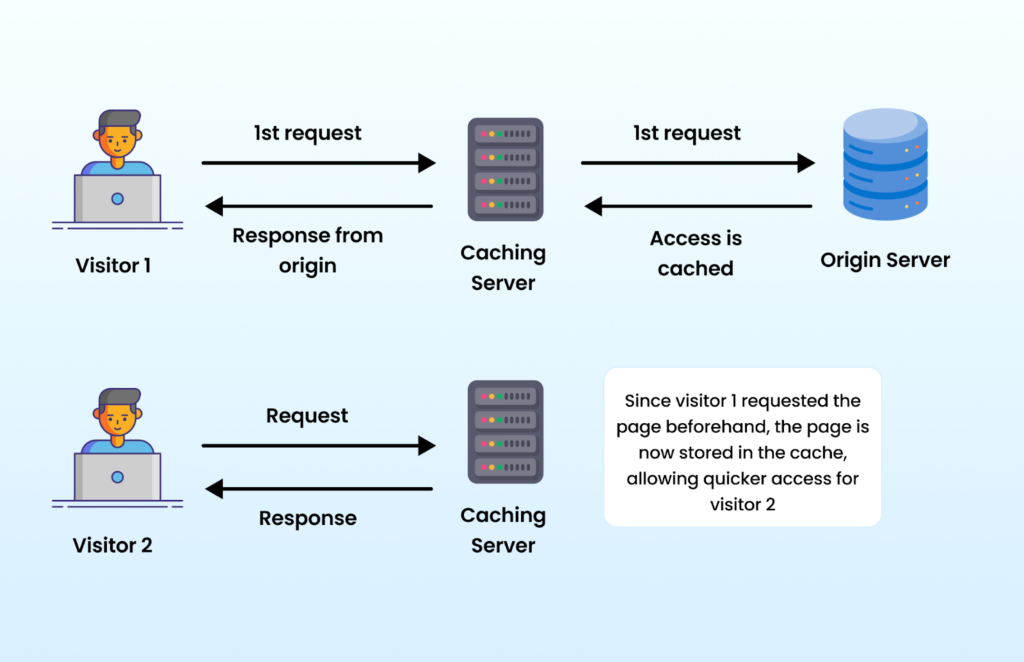
Caching can be enabled on a WordPress website without relying on an additional plugin. Some hosting providers offer server-level caching through their hosting platforms.
Server-side caching keeps frequently accessed resources ready, allowing pages to be delivered faster without repeatedly processing the same content.
Check your hosting control panel or contact your hosting provider to determine whether built-in caching is available. Follow the recommended configuration provided by your hosting company.
8. Keep WordPress Updated
Using an outdated version of WordPress, themes, or necessary extensions can create performance and security concerns.
Keep your WordPress installation updated and remove old themes or extensions that you no longer use. Before making major updates, create a backup so you can restore your website if an unexpected problem occurs.
Regular maintenance helps keep the website stable and easier to manage.
9. Clean Unnecessary Database Data

Over time, a WordPress site may collect data and content that are no longer needed. Old revisions, unwanted comments, temporary data, and unused content may increase database clutter.
Review your website regularly and remove information that is genuinely no longer required. Database modifications should be performed carefully because deleting the wrong data can affect your website.
Make a backup of your database before applying any modifications.
10. Avoid Excessive Website Elements
A visually attractive website does not need to contain every possible design feature. Large sliders, multiple animations, background videos, pop-ups, widgets, and decorative effects can increase page complexity.
Focus on elements that improve the visitor’s experience. Remove features that do not serve a clear purpose.
A cleaner page can be easier to navigate and may require fewer resources to load.
11. Optimize Your Homepage
The homepage is often one of the most visited pages on a website. If it contains many large images, videos, sliders, widgets, and unnecessary sections, it may become heavy.
Review every section of your homepage and ask whether it provides real value. Compress images, remove unnecessary elements, and keep the layout focused.
A simple homepage can provide visitors with important information without forcing the browser to load excessive resources.
12. Test Your Website Regularly
After making performance improvements, test your website to see whether the changes actually helped.
Use website speed-testing tools to review loading performance and identify areas that need attention. Check both desktop and mobile performance because the results can differ between devices.
Do not focus only on achieving a perfect score. Look at practical issues such as large files, slow server response, excessive scripts, and layout-related problems.
Conclusion
Learning how to speed up a WordPress website without plugins is possible when you focus on the actual causes of slow performance. Better hosting, optimized images, a lightweight theme, fewer external requests, efficient caching, and regular maintenance can make a noticeable difference.
You do not need to install numerous plugins to begin improving your website. Start by identifying the largest performance problems, make changes carefully, and test the website after each major improvement.
A fast website is not only about technical performance. It also provides visitors with a smoother browsing experience and makes your website easier to use.
FAQs
Can I speed up WordPress without using plugins?
Yes. You can improve performance through image compression, better hosting, lightweight themes, server-side caching, database maintenance, and reducing unnecessary scripts.
What is usually responsible for a slow WordPress website?
Large images, weak hosting, heavy themes, excessive JavaScript, external resources, and too many website elements are common causes of slow performance.
Does image compression make WordPress faster?
Yes. Smaller image files require less data to download, which can help reduce page loading time.
Is a lightweight theme better for website speed?
Generally, yes. A lightweight theme usually loads fewer resources and avoids unnecessary features that can increase page size.
Can I use caching without a WordPress plugin?
Yes. Some hosting providers offer server-level caching. You can check your hosting control panel or ask your hosting company about available caching options.
Should unused plugins be deleted?
If a plugin is no longer needed, removing it can help keep your WordPress installation clean and easier to maintain. Always make a backup before making significant changes.
How can I check my WordPress website speed?
You can use online performance-testing tools to measure loading speed and identify issues such as large files, slow server response, and excessive resources.