
WordPress websites occasionally experience technical issues that prevent users from accessing the admin dashboard. One frustrating issue many website owners face is the login redirect loop problem.
This problem happens when users successfully enter their username and password, but instead of reaching the WordPress dashboard, they are sent back to the login page repeatedly.
Many beginners initially think they entered the wrong password, but in most situations, the issue comes from website settings, plugins, themes, cookies, or server configurations.
The good news is that this problem can usually be fixed without advanced technical skills.
This guide explains why the WordPress login redirect loop appears and how to solve it.
What Is a WordPress Login Redirect Loop?
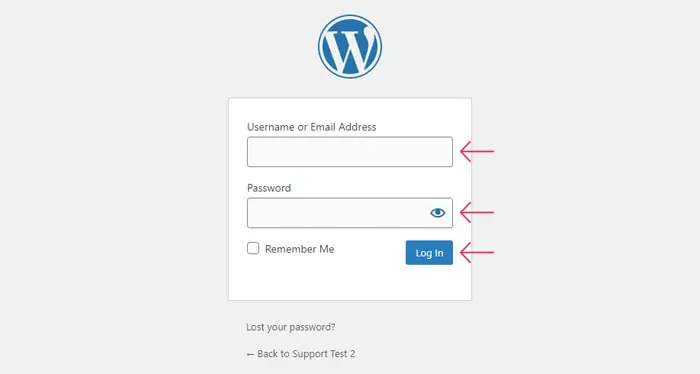
A login redirect loop occurs when WordPress continuously sends users back to the login page after entering their credentials.
The process usually looks like this:
Login page → credentials entered → page reload → login page appears again
Instead of opening:
Login page → dashboard access
The website becomes trapped in a repeating cycle.
Why Does WordPress Login Redirect Loop Happen?
Several factors may trigger this issue.
Common reasons include:
- corrupted browser cookies
- plugin conflicts
- incorrect website URL settings
- theme issues
- damaged cache files
- corrupted .htaccess file
- server configuration problems
Identifying the exact cause helps speed up the fixing process.
Clear Browser Cookies and Cache
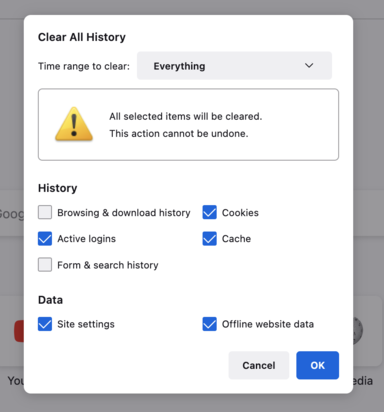
WordPress uses cookies to manage login sessions.
If stored cookies become outdated or damaged, they may interfere with login requests.
To test this:
- clear browser cookies
- clear browsing cache
- restart the browser
- try logging in again
You can also test access using a private browser window.
Sometimes this simple step resolves the problem immediately.
Disable Plugins Through File Manager
Plugin conflicts frequently create login problems.
Some plugins may interfere with authentication settings or website sessions.
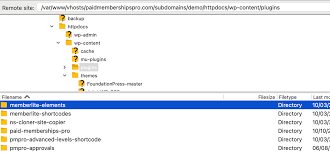
To disable plugins:
Step 1:
Open:
- File Manager
- FTP access
Step 2:
Navigate to:
public_html/wp-content/
Step 3:
Locate:
plugins
Rename it to:
plugins-disabled
WordPress automatically disables active plugins.
Try logging in again.
If the issue disappears, a plugin likely caused the problem.
Review WordPress URL Settings
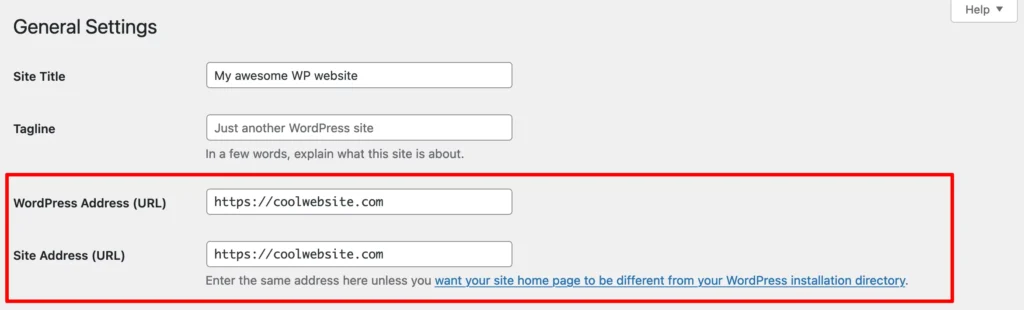
Incorrect website addresses can also create redirect loops.
WordPress stores two important values:
- WordPress Address (URL)
- Site Address (URL)
If these addresses differ unexpectedly, login behavior may break.
Open:
wp-config.php
Add:
define(‘WP_HOME’,’https://yourwebsite.com’);
define(‘WP_SITEURL’,’https://yourwebsite.com’);
Replace the example URL with your actual domain.
Save changes and test login again.
Regenerate the .htaccess File
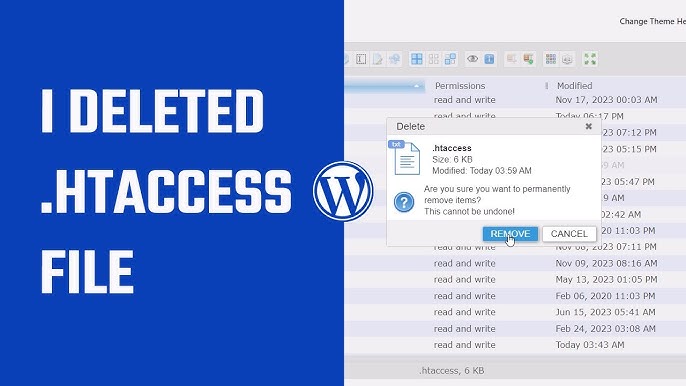
A damaged .htaccess file may create redirect behavior.
To generate a fresh file:
Step 1:
Open File Manager.
Step 2:
Locate:
.htaccess
Rename it:
.htaccess-old
Step 3:
Visit:
WordPress Dashboard → Settings → Permalinks
Click:
Save Changes
WordPress automatically creates a new file.
Switch to a Default Theme
Theme-related problems occasionally affect login functionality.
Custom themes sometimes create compatibility issues after updates.
Open:
wp-content/themes
Rename the active theme folder.
WordPress may automatically activate an available default theme if one exists on the website.
Attempt to log in again.
Remove Cache Files
Caching systems help improve performance, but damaged cache files can occasionally create login problems.
Clear:
- website cache
- server cache
- browser cache
- CDN cache
After clearing everything, reload the login page.
Check File Permissions
Incorrect permissions may prevent WordPress from functioning correctly.
Standard settings usually include:
Folders:
755
Files:
644
Review these settings using hosting File Manager or FTP tools.
Review Recent Changes
Ask yourself:
- Did you install a plugin recently?
- Did you change website URLs?
- Did you modify theme files?
- Did you install caching tools?
Recent changes often provide clues.
If the problem appeared immediately after a change, reversing it may solve the issue.
Prevent Login Redirect Problems in the Future
You can reduce future issues by following good website maintenance practices.
Helpful habits include:
- update WordPress regularly
- install trusted plugins
- avoid unnecessary plugins
- create backups frequently
- monitor website performance
Routine maintenance often prevents unexpected issues.
Final Thoughts
WordPress login redirect loops may seem frustrating at first, but the issue is usually connected to settings or website conflicts rather than serious damage.
Most website owners can solve the problem by checking plugins, refreshing configuration files, clearing cache, or reviewing website settings.
Working through each solution step carefully can restore dashboard access and prevent future interruptions.
FAQs
Why does WordPress keep returning to the login page?
This often happens because of browser cookies, plugin conflicts, cache issues, or incorrect website settings.
Can a plugin create login loop problems?
Yes. Certain plugins can interfere with login sessions and redirect behavior.
Will deleting cookies affect my website?
Removing cookies only clears stored browser data and does not delete website content.
Can theme problems block dashboard access?
Some themes can create compatibility issues that affect login behavior.
Is the login redirect loop difficult to fix?
In most cases, the problem can be solved using simple troubleshooting steps without advanced coding knowledge.