
Losing important files on a Windows computer can be stressful, especially when those files contain personal photos, business documents, work projects, or valuable information. Whether you accidentally deleted a file, emptied the Recycle Bin, formatted a storage drive, or lost data after a system problem, there may still be ways to recover it.
The good news is that Windows provides several built-in recovery options, including the Recycle Bin, File History, Windows Backup, and other recovery features. You can also use Microsoft’s Windows File Recovery utility to attempt to restore permanently deleted files from supported local storage devices.
So, how can you recover deleted files on Windows? Start by checking the Recycle Bin. If the files are not there, investigate your backups, OneDrive, and File History. For files that were permanently deleted, Microsoft’s Windows File Recovery tool may help.
This guide explains how to recover deleted files on Windows 10 and Windows 11 using practical, step-by-step methods. It also covers important precautions, recovery limitations, and ways to prevent future data loss.
1. What Happens When You Delete a File on Windows?
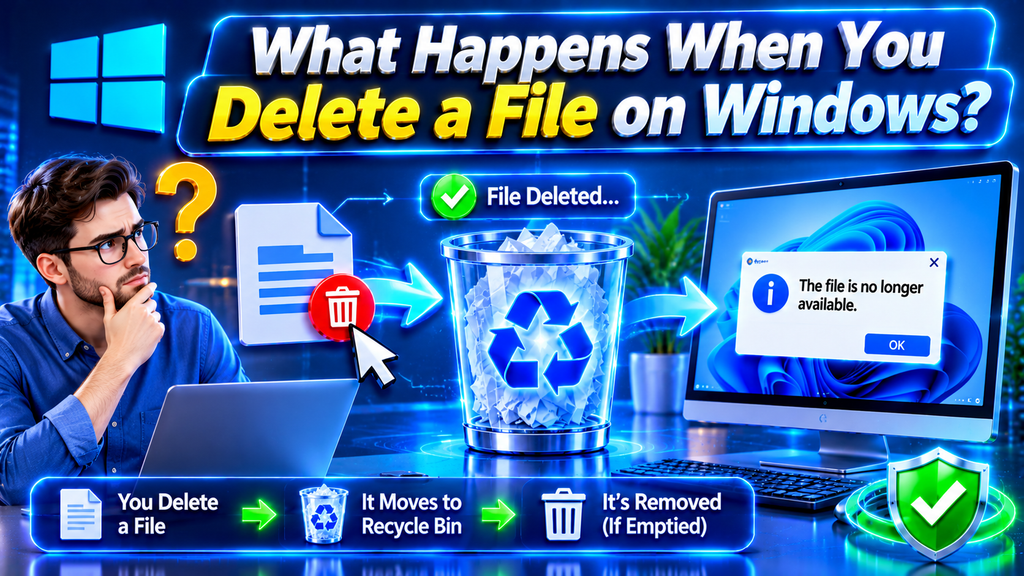
Before recovering deleted files, it is helpful to understand what happens when you remove something from your computer.
When you normally delete a file using the Delete key, Windows generally moves it to the Recycle Bin instead of immediately removing it from the storage drive. This gives you an opportunity to restore the file if you change your mind.
However, files deleted using Shift + Delete, files removed after emptying the Recycle Bin, and files deleted from certain removable drives may bypass the Recycle Bin.
When a file is permanently deleted, Windows typically marks the storage space it occupied as available for new data. The original information may remain on the storage device until new information overwrites it.
This is why recovering deleted files is sometimes possible even after permanent deletion.
Why Acting Quickly Matters
If you accidentally delete an important file, stop using the affected drive as much as possible. Avoid downloading applications, installing recovery software, copying large files, or saving new documents to that drive.
New data may overwrite the storage space containing the deleted file, reducing the possibility of successful recovery.
This precaution is particularly important when recovering data from the Windows system drive.
It is also worth understanding that recovery is not guaranteed. SSDs, for example, may use TRIM and other storage-management processes that can make permanently deleted data difficult or impossible to recover.
2. Restore Lost Files Using the Windows Recycle Bin

The Recycle Bin is the easiest place to start when you want to recover deleted files on Windows. Most files deleted normally from internal drives are temporarily stored there.
You do not need additional software or technical knowledge to use this method.
Step-by-Step Instructions
- Go to your Windows desktop.
- Find and double-click the Recycle Bin icon.
- Browse the list of deleted files and folders.
- Locate the file you want to recover.
- Right-click the selected file.
- Choose Restore from the context menu.
- Open the original folder to check whether the file has returned.
Windows usually restores the selected item to its original location.
What If You Cannot Find the Recycle Bin?
If the Recycle Bin icon is missing from your desktop, you can access it through Windows Search.
- Open the Start menu.
- Type Recycle Bin in the search box.
- Select the Recycle Bin application.
- Search for your deleted file.
Important Things to Remember
The Recycle Bin may not contain every deleted file. Items removed using Shift + Delete, files deleted from certain removable drives, and files too large for the configured Recycle Bin settings may not appear there.
If the Recycle Bin has been emptied, try an alternative file recovery method.
3. Recover Permanently Deleted Files Using Windows File Recovery
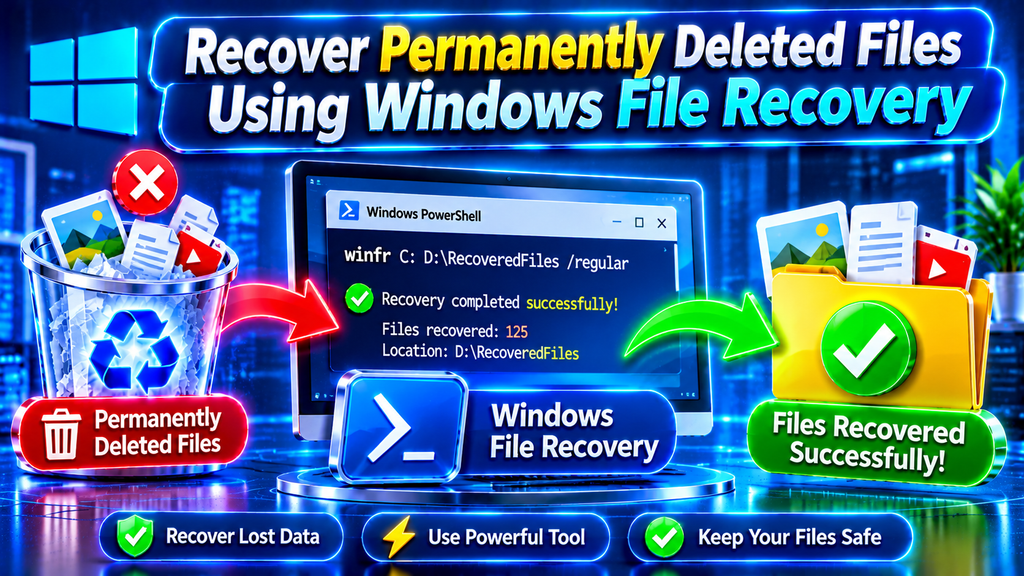
If your files are no longer available in the Recycle Bin, Microsoft’s Windows File Recovery utility is another option.
Microsoft offers Windows File Recovery as a free command-line tool that users can download from the Microsoft Store.
It is designed to attempt recovery of deleted files from supported local storage devices, including internal drives, external drives, and USB devices.
It can be useful when you have permanently deleted documents, photographs, videos, or other important files.
Step 1: Install Windows File Recovery
- Open the Microsoft Store.
- Search for Windows File Recovery.
- Find the official Microsoft application.
- Select Install.
- Wait until the installation is complete.
Step 2: Open the Application
- Open the Start menu.
- Search for Windows File Recovery.
- Right-click the application.
- Select Run as administrator.
- Approve the permission request if prompted.
The application opens a command-line window where you can enter recovery commands.
Step 3: Understand the Recovery Command
The general command format is:
Here is what each part means:
- Source drive: The drive where the deleted files were originally stored.
- Destination drive: The separate drive where recovered files will be saved.
- Mode: The recovery method, such as Regular or Extensive.
- Filter: The file name, extension, or folder path you want to search.
Step 4: Recover Documents
For example, if you want to recover PDF and Word documents from your C: drive and save them to your E: drive, use:
This command attempts to recover matching PDF and DOCX files.
Step 5: Recover Photos
To search for JPEG and PNG photographs from a Pictures folder, use:
Replace <username> with your actual Windows account folder name.
Regular vs. Extensive Recovery Mode
Windows File Recovery provides two main recovery modes.
Regular Mode: Generally recommended for recently deleted files on NTFS drives.
Extensive Mode: Useful for older deletions, formatted drives, corrupted drives, and supported FAT or exFAT storage devices.
If you are unsure which mode to use, Microsoft recommends starting with Regular mode when appropriate.
Important Recovery Warning
Always use a different destination drive from the source drive. For example, if you are recovering files from C:, save them to E: or an external drive.
Never save recovered files back to the same drive you are trying to recover. Doing so can overwrite other recoverable data.
Windows File Recovery does not support recovery from cloud storage or network file shares. For those locations, use the relevant cloud service’s recovery features.
4. Restore Deleted Files Using File History and Windows Backup

Windows offers backup features that can help restore deleted or modified files. If you previously enabled File History or configured Windows Backup, you may be able to recover your information without using third-party recovery software.
Method A: Recover Files Using File History
File History is a Windows backup feature that saves copies of personal files to an external drive or network location.
It can help restore documents, pictures, videos, and other files that were included in your backup configuration.
Follow these steps:
- Connect the external drive used for File History.
- Open Control Panel.
- Navigate to System and Security.
- Select File History.
- Choose Restore personal files if the option is available.
- Browse the available backup versions.
- Select the file or folder you want to restore.
- Click the Restore button.
You can also navigate to the folder where the missing file was originally stored, right-click it, and select Restore previous versions when previous versions are available.
If you want to avoid overwriting an existing file, use the Restore to option when available.
Important: File History cannot restore files that were never included in its backup or saved before the relevant backup was created.
Method B: Recover Files Using Windows Backup
Windows Backup can protect supported files and settings through your Microsoft account and OneDrive, depending on your configuration.
To investigate your available backup options:
- Open Windows Settings.
- Select Accounts.
- Look for Windows backup.
- Review the available backup and synchronization settings.
- Check whether your important folders were included in your backup configuration.
The exact restoration process depends on how your backup was configured and whether the files were successfully synchronized.
Remember that Windows Backup and File History are different features. Having one enabled does not automatically mean every file on your computer has been backed up.
5. Recover Deleted Files from OneDrive and Previous Versions
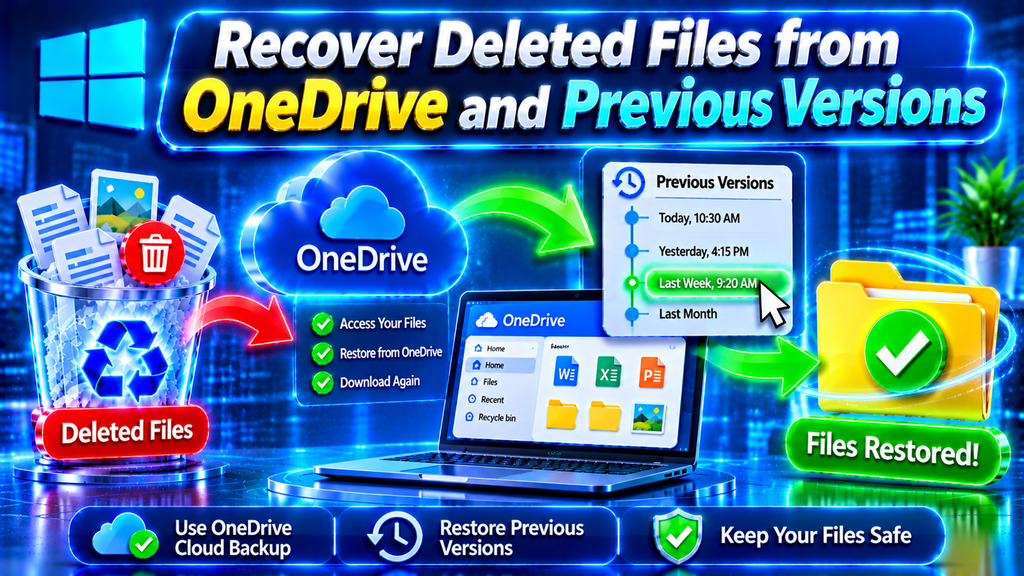
If you use OneDrive to synchronize or back up your Windows files, your deleted information may still be available online.
This is especially useful when files disappear from your local computer because they were deleted from a synchronized folder.
Restore Files from the OneDrive Recycle Bin
Follow these instructions:
- Open your web browser.
- Visit the official OneDrive website.
- Sign in using the Microsoft account connected to your computer.
- Select Recycle Bin from the navigation panel.
- Search for your deleted file.
- Select the file or folder.
- Click Restore.
The file should return to its previous OneDrive location.
For personal OneDrive accounts, deleted files are generally retained in the recycle bin for up to 30 days. Work or school accounts generally have a 93-day retention period, although organizational settings may differ.
Files permanently deleted from the OneDrive recycle bin may no longer be recoverable through the normal restoration process.
Restore an Earlier Version of a File
Sometimes, you may not have deleted a file but accidentally changed or replaced its contents.
In that situation, OneDrive Version History may help.
- Open OneDrive online.
- Find the document you want to restore.
- Right-click the file.
- Select Version History.
- Review the available versions.
- Select the version you need.
- Choose Restore.
This method can be helpful for recovering earlier versions of Word documents, spreadsheets, PDFs, and other supported file types.
Always check that you are signed in to the correct Microsoft account. Some users have multiple personal and work accounts, which can make files appear missing when they are actually stored elsewhere.
6. Use Third-Party Data Recovery Software Carefully
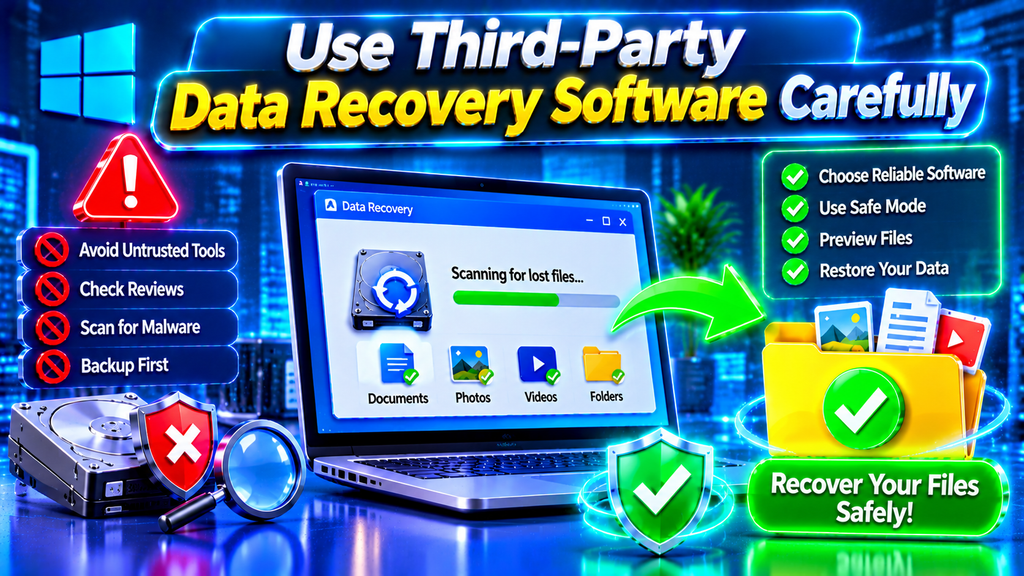
If the built-in Windows recovery methods do not work, you may consider third-party data recovery software.
These applications scan storage devices for recoverable file information and may help locate deleted documents, photos, videos, and other data.
However, choosing recovery software requires caution because not every application is trustworthy or effective.
What to Look for in Recovery Software
Before installing a recovery application, consider these factors:
- Trusted developer: Choose software from a reputable company with a clear support website.
- File system compatibility: Check whether the application supports your storage device and file system.
- File preview: Prefer tools that let you preview recoverable files before restoring them.
- Read-only scanning: Look for scanning features that avoid modifying the affected drive.
- Recovery destination: Make sure recovered files can be saved to a separate storage device.
- Privacy policy: Review how the application handles personal documents and other sensitive information.
- Transparent pricing: Check whether scanning, previewing, and actual recovery require separate payments.
How to Use a Recovery Application Safely
- Research the application and verify its official website.
- Avoid installing it on the drive containing the deleted files.
- Connect a separate external storage device.
- Run a scan of the affected drive.
- Review the list of recoverable files.
- Preview files when supported.
- Select the files you need.
- Recover them to the separate storage device.
Can Recovery Software Restore Every Deleted File?
No. Recovery applications cannot guarantee successful recovery.
If deleted information has been overwritten, physically damaged, encrypted, or removed through storage-management processes, recovery may not be possible.
For valuable business information or irreplaceable personal data, consider contacting a professional data recovery service before attempting multiple scans or repair operations.
Avoid running unnecessary disk repair commands on a drive with important missing files until you have considered the risk of modifying the affected storage.
7. Common File Recovery Problems and Ways to Prevent Data Loss

Even after trying different recovery methods, you may encounter problems. Understanding these issues can help you choose the safest next step.
Why Are Deleted Files Not Appearing in the Recycle Bin?
Files removed using Shift + Delete, files deleted from certain external storage devices, and files removed after the Recycle Bin was emptied may not appear there.
Solution: Check OneDrive, File History, Windows Backup, and Windows File Recovery.
Why Does Windows File Recovery Show No Results?
This may happen because the data has been overwritten, the wrong drive or file filter was selected, or the storage device does not contain recoverable file information.
Solution: Verify the source drive, file path, file extension, and recovery mode. Try Extensive mode when appropriate.
Can Deleted Files Be Recovered from an SSD?
Sometimes, but SSD recovery can be more difficult than traditional hard-drive recovery.
Many SSDs support TRIM, a feature that helps the operating system and drive manage deleted data. Once the relevant data has been processed, recovering it may be impossible.
Solution: Stop using the affected SSD and investigate available backups immediately.
How to Prevent Future Data Loss
Recovering deleted files is useful, but preventing data loss is even better.
Here are some practical habits:
- Enable regular backups of important folders.
- Use File History with an external storage device.
- Synchronize essential documents with OneDrive.
- Keep multiple copies of irreplaceable files.
- Avoid deleting unfamiliar system folders.
- Check files before emptying the Recycle Bin.
- Keep Windows and security software updated.
- Test your backups occasionally to ensure they work.
- Store an additional backup separately from your computer.
A useful approach is the 3-2-1 backup strategy: maintain three copies of important data, use two different storage types, and keep one copy in a separate location.
This approach reduces the risk of losing everything because of accidental deletion, hardware failure, theft, or other unexpected problems.
8. Frequently Asked Questions About Recovering Deleted Files on Windows
1. How can I recover permanently deleted files on Windows?
You can attempt to recover permanently deleted files using Windows File Recovery, File History, OneDrive, or an existing backup. Start by checking whether another copy exists before scanning the affected drive. Recovery is not guaranteed, especially if new data has overwritten the deleted information.
2. Can I recover deleted files after emptying the Recycle Bin?
Yes, recovery may still be possible after emptying the Recycle Bin. Check File History, OneDrive, and other backups first. If no backup exists, Microsoft’s Windows File Recovery utility may help recover files from supported local drives.
3. Is Windows File Recovery free?
Yes. Microsoft’s Windows File Recovery application is available free through the Microsoft Store. It uses command-line instructions to attempt recovery from supported local storage devices. You need a separate destination drive to save recovered files.
4. How do I recover deleted files without installing software?
Start by checking the Recycle Bin. If the files are missing, investigate File History, Windows Backup, OneDrive, and previous file versions. These built-in Windows and Microsoft services may help restore files without installing additional recovery applications.
5. Can I recover deleted photos from Windows 11?
Yes, deleted photos may be recoverable through the Recycle Bin, OneDrive, File History, or Windows File Recovery. If you used an external camera memory card, stop using it immediately and investigate recovery options compatible with that storage device.
6. Can I recover files deleted using Shift + Delete?
Sometimes. Shift + Delete generally bypasses the Recycle Bin, but the underlying data may remain on the storage device until overwritten. You can investigate Windows File Recovery or another reputable recovery solution, although success is not guaranteed.
7. How long do permanently deleted files remain recoverable?
There is no fixed recovery period. It depends on storage activity, file system behavior, drive type, and whether the deleted data has been overwritten. On SSDs, TRIM may make recovery difficult much sooner. Stop using the affected drive to improve your chances.
8. Can I recover deleted files from an external hard drive?
Yes, recovery may be possible from an external hard drive or supported USB storage device. Check its Recycle Bin behavior and any existing backups. Microsoft’s Windows File Recovery also supports recovery attempts from supported external storage devices.
9. What should I do if Windows File Recovery cannot find my files?
First, verify the source drive, destination drive, file extension, and folder path. If you used Regular mode, consider Extensive mode when appropriate. If the files remain unavailable, check your backups or consult a professional data recovery service.
10. How can I protect my files from accidental deletion in the future?
Use File History, Windows Backup, OneDrive, or another reliable backup solution. Keep important documents in multiple locations and periodically verify that your backups can actually be restored. Avoid relying on a single computer or storage device for irreplaceable information.
Final Thoughts
Learning how to recover deleted files on Windows can save valuable documents, personal photographs, and important work information. The best recovery method depends on how the files were deleted, where they were stored, and whether a backup is available.
For ordinary deletion, the Recycle Bin is the easiest solution. For backed-up files, File History and OneDrive are useful options. If files were permanently deleted, Windows File Recovery provides an additional way to attempt recovery.
The most important step is to act quickly and avoid writing new data to the affected drive. Although no recovery method guarantees success, understanding these options can significantly improve your chances of restoring important information.
Most importantly, create regular backups so that accidental deletion does not become a permanent data loss problem.