
Website speed is one of the most important factors for user experience and search engine optimization. Users expect websites to open without delays, and search engines tend to rank faster-loading pages more favorably. One of the easiest ways to improve loading speed is by configuring the right WordPress Cache Settings.
Caching minimizes the processing your server needs whenever a visitor opens your website. Rather than creating each page from the beginning every time, WordPress delivers a previously stored version, allowing pages to load more efficiently and providing visitors with a faster browsing experience. This not only improves page speed but also reduces server load and creates a smoother browsing experience.
Whether you run a personal blog, a business website, or an online store, understanding cache settings can help you achieve better performance and stronger SEO results. This guide explains how WordPress caching works, why it matters, and the best settings and practices for optimizing your website.
What Are WordPress Cache Settings?
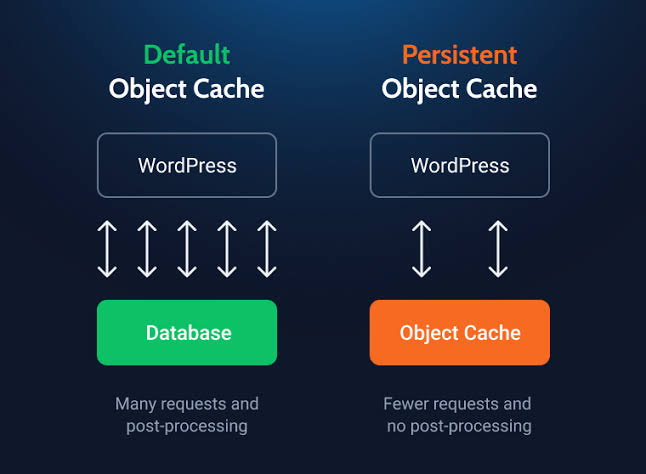
WordPress Cache Settings are configuration options that control how cached files are created, stored, and delivered to visitors. Instead of rebuilding every webpage whenever someone opens your site, WordPress saves a static version that can be served instantly.
When caching is enabled correctly, your server spends less time processing requests, resulting in faster loading times and improved efficiency.
These settings are usually managed through caching plugins, hosting control panels, or server-level tools. While the exact options may vary, the goal is always the same: improve speed without affecting the functionality of your website.
Why Is Caching Important?
Caching provides several benefits that improve both website performance and SEO.
Faster Page Loading
Cached pages load much more quickly than dynamically generated pages. Visitors can access information almost instantly, creating a better browsing experience.
Better SEO Performance
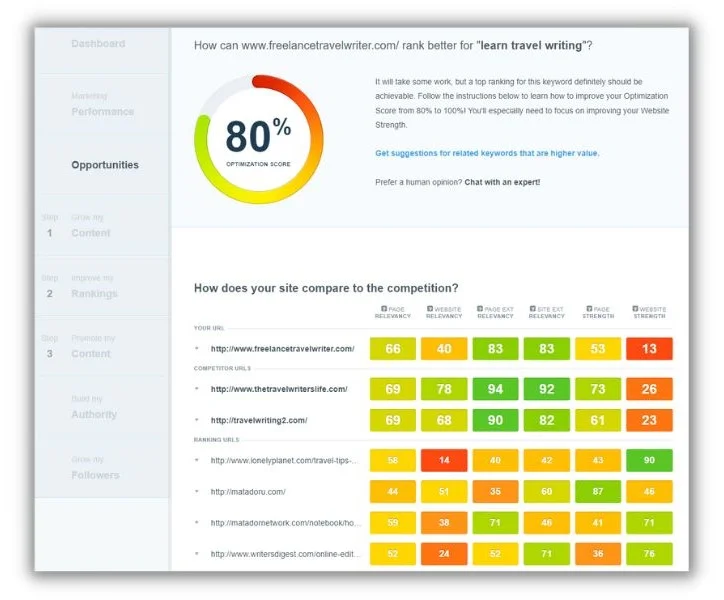
Google considers page speed an important ranking factor. Faster websites are more likely to provide a positive user experience, which can contribute to improved search visibility.
Reduced Server Load
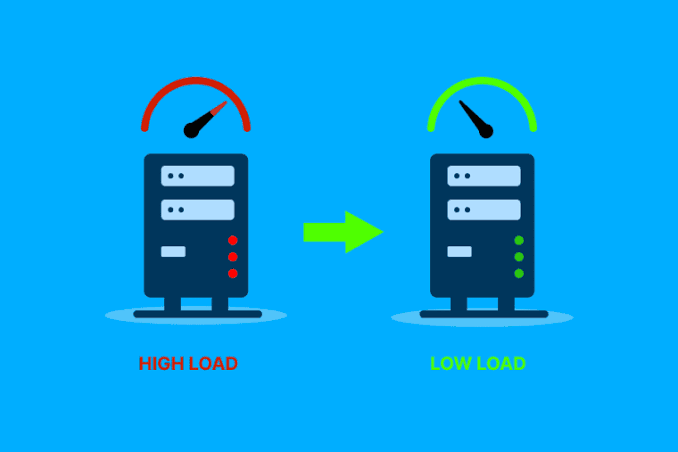
Every uncached page requires PHP processing and database queries. Cached pages minimize these requests, allowing your hosting server to handle more visitors efficiently.
Improved User Experience
People are more likely to stay on websites that load quickly. Faster pages encourage visitors to explore additional content and reduce bounce rates.
How Does WordPress Caching Work?
When someone visits your website for the first time, WordPress builds the page by loading PHP files, retrieving data from the database, and assembling the content.
Caching stores a pre-generated version of a webpage, allowing it to load more quickly for future visitors. . Future visitors receive this stored version instead of forcing WordPress to rebuild everything again.
The process can be summarized in three simple steps:
- A visitor requests a webpage.
- WordPress generates the page and stores a cached copy.
- Future visitors receive the cached version until it expires or is refreshed.
This approach significantly reduces loading time.
Different Types of WordPress Caching
Understanding different caching methods helps you choose the right settings.
Page Cache
Page caching stores complete HTML versions of your webpages.
It is the most common caching method and provides the biggest speed improvements for most websites.
Browser Cache
Browser caching stores website files such as images, CSS, and JavaScript on a visitor’s device.
When users return to your website, these files do not need to be downloaded again, resulting in faster page loads.
Object Cache
Object caching stores frequently used database queries in memory.
This reduces database activity and improves performance for websites with dynamic content.
Database Cache
Database caching stores the results of frequently used database queries, reducing the need to process the same requests repeatedly.
Instead of executing identical queries repeatedly, WordPress can retrieve stored results more efficiently.
CDN Cache
A CDN improves website performance by keeping copies of your site’s files on servers located in various geographic locations.
Visitors automatically receive content from the nearest server, reducing loading time regardless of their location.
Best WordPress Cache Settings
Although every website is different, the following settings generally provide excellent performance.
Enable Page Caching
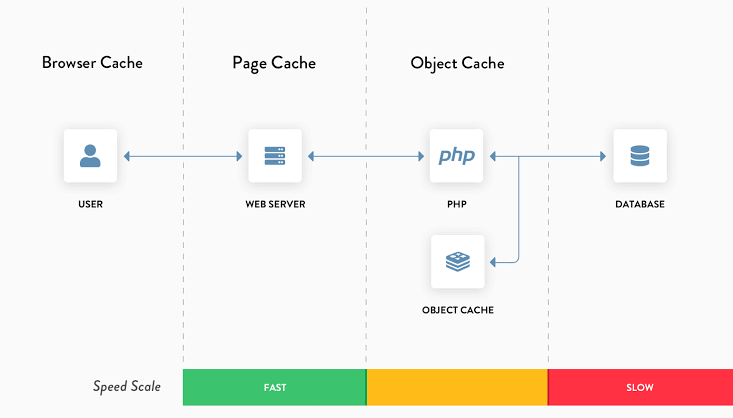
Always enable page caching for public pages.
Enable Browser Caching
Allow browsers to store static resources like images, fonts, and style sheets.
Compress Website Files
Enable GZIP or Brotli compression if available.
Compressed files download faster and improve loading speed.
Minify CSS and JavaScript
Removing unnecessary spaces and comments from CSS and JavaScript files reduces their size without affecting functionality.
Enable Cache Preloading
Cache preloading automatically generates cached pages before visitors request them.
This ensures the first visitor also experiences fast loading.
Set Cache Expiration
Configure cache expiration according to how frequently your content changes.
Static websites can use longer cache durations, while frequently updated websites should refresh cache more often.
Exclude Dynamic Pages
Some pages should never be cached, including:
- Shopping cart
- Checkout page
- User dashboard
- Login page
- Payment pages
Caching these pages may display outdated information.
Common WordPress Cache Settings Mistakes
Even though caching improves website performance, incorrect settings can create problemsUnderstanding these issues helps ensure your website remains efficient while operating smoothly.
Caching Dynamic Pages
Pages such as login screens, shopping carts, checkout pages, and user account dashboards should not be cached. These pages display personalized information, and caching them can show outdated or incorrect content to visitors.
Forgetting to Clear Cache
After updating your website, changing a theme, or publishing new content, the old cached version may still appear. Clearing the cache ensures visitors always see the latest version of your website.
Using Multiple Cache Plugins
Installing two or more caching plugins at the same time may cause conflicts. This can lead to broken layouts, slow performance, or unexpected errors. Choose one reliable caching solution and configure it properly.
Ignoring Mobile Optimization
Most visitors browse websites on mobile devices. Test your cache settings on smartphones and tablets to ensure pages load correctly and quickly on every screen size.
How to Clear WordPress Cache
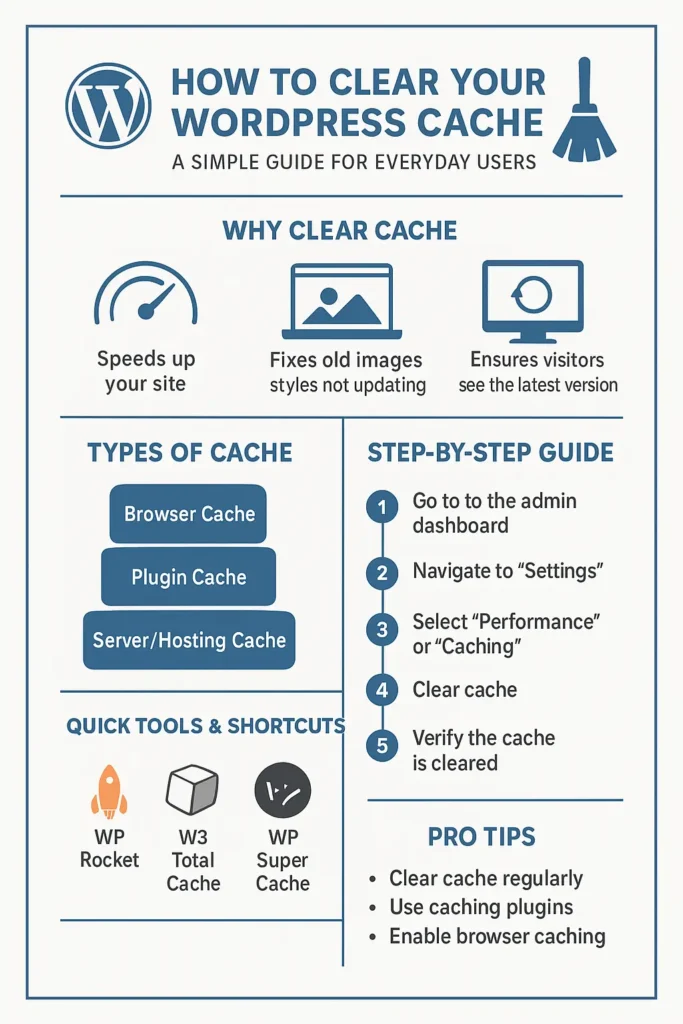
Clearing your cache is a simple but important maintenance task.
You should clear the cache after:
- Publishing a new article
- Updating plugins or themes
- Changing website design
- Editing CSS or JavaScript files
- Fixing website errors
Most caching plugins include a Clear Cache or Purge Cache button inside the WordPress dashboard. If your hosting provider offers server-level caching, you can also clear it from your hosting control panel.
Best Practices for WordPress Cache Settings
Following these best practices will help you maintain excellent website performance.
Keep WordPress Updated
Always use the latest version of WordPress, themes, and plugins. Updates often include performance improvements and compatibility fixes.
Optimize Images
Large images slow down websites even when caching is enabled. Compress images before uploading them and use modern image formats whenever possible.
Minimize Unnecessary Plugins
Every plugin adds extra processing. Remove plugins you no longer use to improve speed and reduce server load.
Use a Reliable Hosting Provider
Caching works best when combined with high-quality hosting. A fast server provides a stronger foundation for overall website performance.
Test Website Speed Regularly
Monitor your website after making changes. Regular speed testing helps identify issues before they affect visitors or search rankings.
SEO Benefits of Proper Cache Settings
Correct WordPress Cache Settings contribute to better SEO in several ways.
Faster Loading Speed
Quick-loading pages improve user satisfaction and support better search engine performance.
Lower Bounce Rate
Visitors are more likely to stay on websites that respond quickly. Longer sessions often indicate a positive user experience.
Improved Crawl Efficiency
Fast websites allow search engines to crawl more pages efficiently, helping new content get discovered sooner.
Better Core Web Vitals
Caching can improve important performance metrics such as loading speed and responsiveness, supporting stronger SEO results.
WordPress Cache Settings for Blogs
Blog websites usually benefit from aggressive page caching because most pages contain static content.
Recommended practices include:
- Enable page caching
- Enable browser caching
- Compress CSS and JavaScript
- Optimize featured images
- Clear cache after publishing new articles
These settings help readers access blog posts quickly while reducing server resources.
WordPress Cache Settings for WooCommerce Websites
Online stores require a slightly different approach because many pages display dynamic information.
Recommended settings include:
- Cache product pages
- Exclude cart and checkout pages
- Exclude user account pages
- Enable browser caching
- Optimize images
- Use cache preloading
These settings improve performance while ensuring customers always see accurate shopping information.
Frequently Asked Questions (FAQs)
What are WordPress Cache Settings?
WordPress Cache Settings control how cached files are created and served to visitors, helping websites load faster and reducing server workload.
Does caching improve SEO?
Yes. Faster websites generally provide a better user experience, which supports stronger SEO performance and improved search visibility.
Should I clear cache after updating my website?
Yes. Clearing the cache ensures visitors receive the latest version of your pages instead of older cached copies.
Can caching break a website?
Incorrect settings may cause display or functionality issues, especially on dynamic pages. Proper configuration prevents most problems.
How often should I clear my cache?
Clear the cache whenever you make significant updates, such as publishing new content, changing your design, or updating plugins and themes.