
WordPress plugins extend website functionality and help users add features without writing custom code. However, there are times when a plugin suddenly stops working, causing missing features, broken layouts, or unexpected website errors.
If you are facing a plugin issue, do not panic. In most cases, the problem can be identified and resolved through a systematic troubleshooting process. Understanding the possible causes can help restore your website quickly while preventing similar issues in the future.
Why WordPress Plugins Stop Working
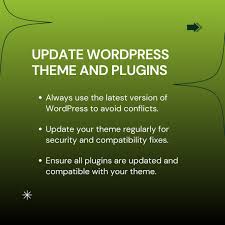
A plugin may stop functioning for several reasons. Sometimes the issue is related to a recent update, while in other situations it may involve compatibility conflicts or server-related problems.
Common causes include:
- outdated plugin versions
- WordPress core conflicts
- theme compatibility issues
- PHP version mismatches
- corrupted plugin files
- insufficient hosting resources
Finding the exact cause is the first step toward resolving the issue.
Check Whether the Plugin Is Updated
Plugin developers regularly release updates to improve performance, security, and compatibility.
An older plugin version may not work correctly with newer WordPress installations.
Visit your WordPress dashboard and review available updates. Installing the latest version can often resolve functionality problems without requiring additional troubleshooting.
Verify WordPress Compatibility
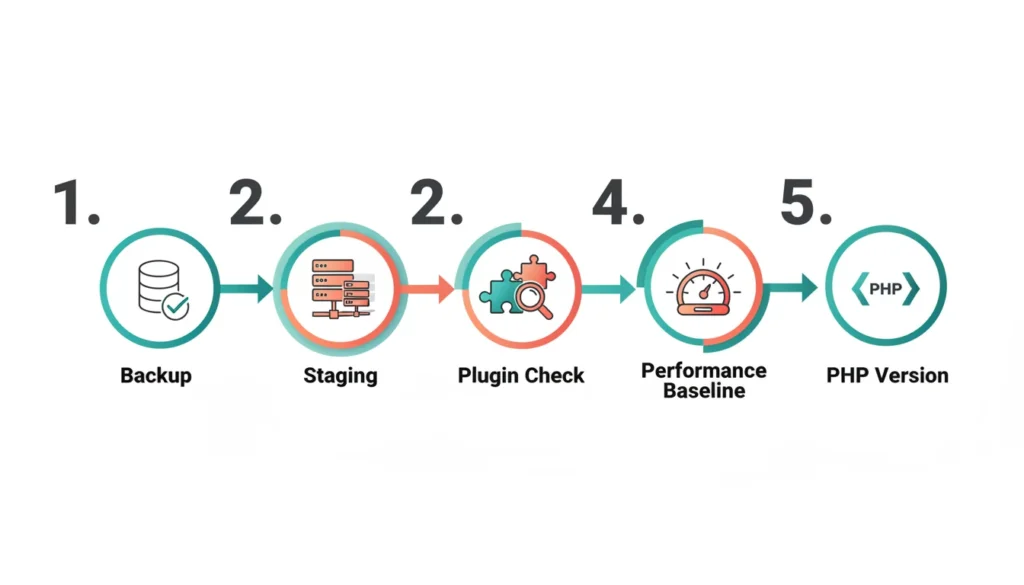
Not every plugin supports every version of WordPress.
After a major WordPress update, some plugins may experience temporary compatibility issues.
Review the plugin documentation and verify that the plugin supports your current WordPress version.
Compatibility information is often provided by the plugin developer.
Test for Plugin Conflicts
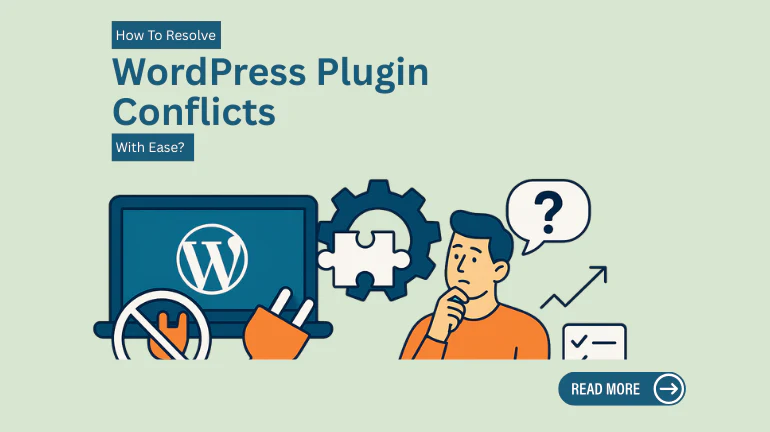
Plugin conflicts are one of the most common reasons behind functionality problems.
A conflict occurs when two plugins attempt to perform incompatible actions.
To identify conflicts:
- Deactivate all plugins.
- Reactivate the affected plugin.
- Test whether it works properly.
- Reactivate remaining plugins one at a time.
This method helps isolate the plugin causing the issue.
Check Theme Compatibility
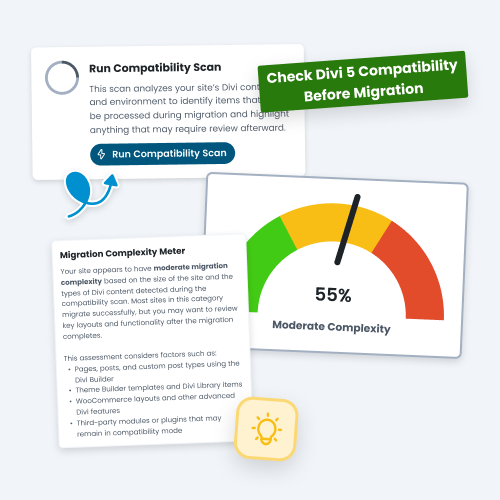
Sometimes the problem is not the plugin itself.
Certain WordPress themes include custom functionality that can interfere with plugin behavior.
Temporarily switch to a default WordPress theme and test the plugin again.
If the plugin starts working, the issue may involve theme compatibility.
Review PHP Version Requirements
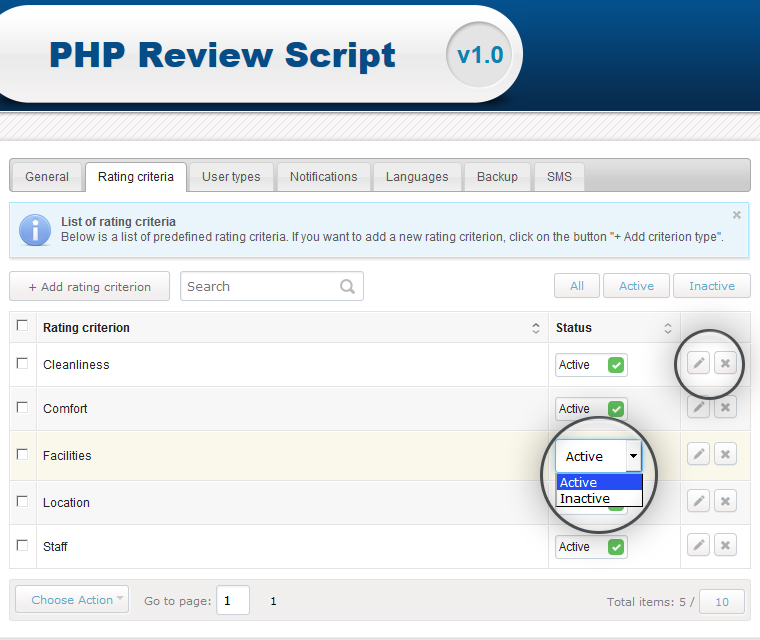
Running outdateing PHP software can lead to errors , missing feature, or complete plugins failure.
Check your hosting dashboard to verify your PHP version and compare it with the plugin requirements.
Upgrading PHP can improve both compatibility and performance.
Examine Error Logs
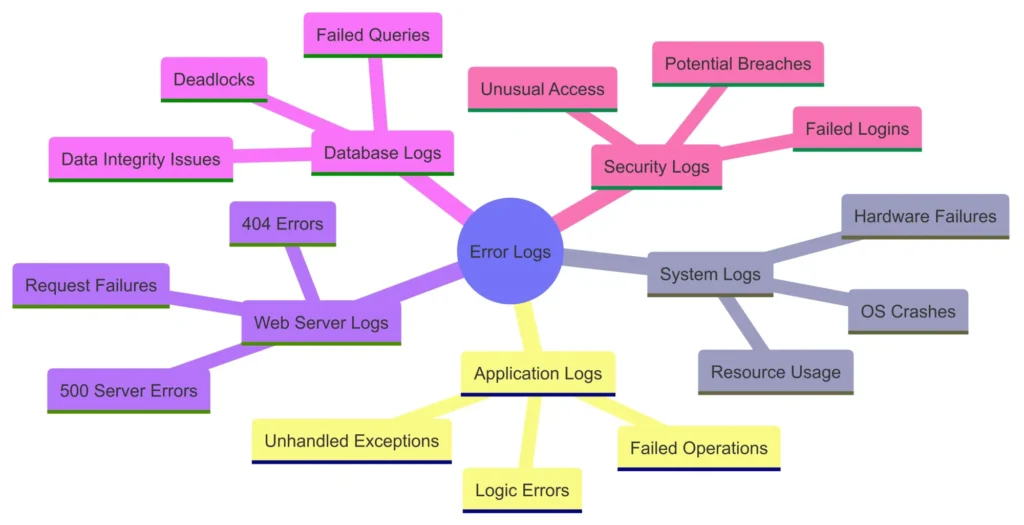
Error logs can provide valuable information about what is causing a plugin to fail.
Many hosting providers offer access to server logs through their control panels.
Reviewing error messages may reveal:
- missing files
- coding errors
- memory limitations
- compatibility problems
These details can significantly reduce troubleshooting time.
Clear Website Cache

Caching systems sometimes display outdated content even after a problem has been fixed.
If changes do not appear immediately:
- clear browser cache
- clear server cache
- clear CDN cache
After refreshing the website, check whether the plugin functions correctly.
Verify File Integrity
A plugin may become damaged during installation, migration, or updates.
Corrupted files can prevent proper functionality.
Consider:
- deleting the plugin
- downloading a fresh copy
- reinstalling the plugin
A clean installation often resolves file-related issues.
Check Hosting Resource Limits
Hosting restrictions can affect plugin performance.
Common limitations include:
- memory limits
- execution time limits
- CPU restrictions
Resource-intensive plugins may stop working if the hosting environment cannot provide sufficient resources.
Review hosting specifications and upgrade resources if necessary.
Enable WordPress Debug Mode
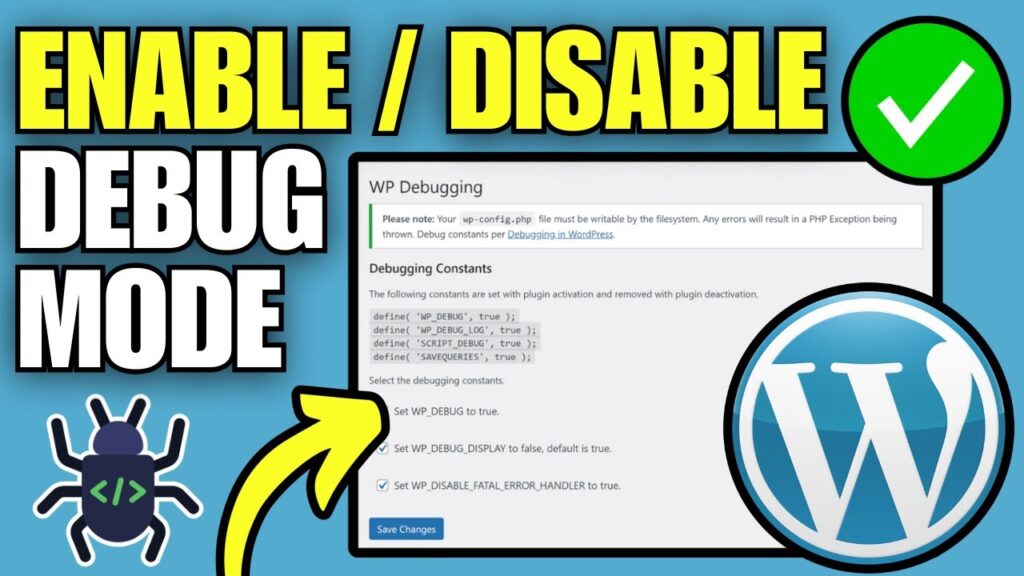
WordPress includes a built-in debugging feature that can help identify technical issues.
Debug mode can reveal hidden errors that are not visible on the front end of the website.
Developers frequently use this feature when diagnosing plugin problems.
Always disable debugging after troubleshooting is complete.
Prevent Future Plugin Problems
Avoiding plugin issues is often easier than fixing them.
Best practices include:
- updating plugins regularly
- removing unused plugins
- using trusted developers
- testing updates on staging sites
- maintaining regular backups
A proactive maintenance strategy can reduce the likelihood of future disruptions.
Common Mistakes Website Owners Make
Many users unintentionally create plugin problems by:
- installing too many plugins
- ignoring update notifications
- using unsupported extensions
- downloading plugins from unreliable sources
- neglecting website maintenance
Avoiding these mistakes can improve website stability.
Final Thoughts
When a WordPress plugin stops working, the issue is usually related to compatibility, configuration, resources, or software conflicts. A structured troubleshooting process can help identify the cause and restore functionality efficiently.
By keep WordPress update, maintaining plugins compatibility, and following best practice, website owner can reduceing downtime and createing a more reliable website experience.
FAQs
Why did my WordPress plugin stop working suddenly?
Recent updates, compatibility issues, server changes, or plugin conflicts are common reasons.
Can a WordPress update break a plugin?
Yes. If a plugin has not been updated for compatibility, issues may occur after major WordPress releases.
How can I identify a plugin conflict?
Deactivate all plugins and reactivate them individually to locate the source of the conflict.
Does PHP version affect plugin functionality?
Yes. Many plugins require specific PHP versions to operate correctly.
Is reinstalling a plugin safe?
In most cases, reinstalling a plugin can resolve corrupted file issues, but creating a backup beforehand is recommended.