
A WordPress theme controls the appearance, layout, and design of your website. When a theme stops working correctly, your site may display broken pages, missing content, layout issues, or functionality problems. This can affect user experience and even reduce search visibility if visitors cannot properly access your content.
Theme-related problems are common and usually happen because of plugin conflicts, update errors, corrupted files, or compatibility issues. The good news is that most problems can be fixed without advanced technical skills.
This guide explains practical steps to fix WordPress theme issues and restore your website functionality.
Why WordPress Themes Stop Working Properly
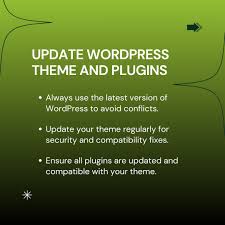
Many website owners experience sudden theme problems after updates or configuration changes.
Common reasons include:
- Theme and plugin conflicts
- Corrupted theme files
- Outdated themes
- Cache problems
- PHP version incompatibility
- Custom code errors
- Server-related issues
Identifying the root cause makes troubleshooting easier.
Signs That Your WordPress Theme Has Problems
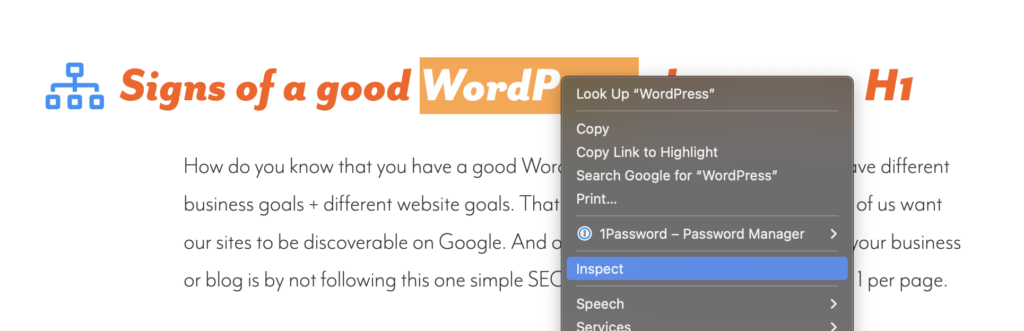
Before fixing the issue, recognize the warning signs.
Common symptoms include:
- Website layout appears broken
- Missing images or content
- White screen errors
- Mobile display issues
- Slow page loading
- Menus not working
- Widget problems
- Styling issues
These symptoms often indicate theme-related conflicts.
1: Clear Website and Browser Cache
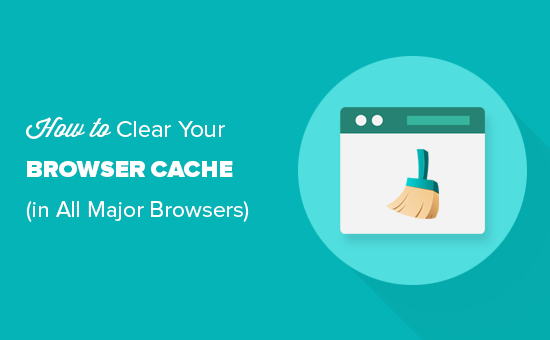
Sometimes a theme appears broken because old cached files continue loading.
Clear:
- Browser cache
- Website cache plugin data
- CDN cache if used
After clearing the cache, refresh the page and check if the issue disappears.
2: Update Your Theme
Outdated themes often create compatibility problems with newer WordPress versions.
To update:
- Open WordPress Dashboard
- Go to Appearance
- Select Themes
- Update the active theme if available
Updates often contain:
- Bug fixes
- Security improvements
- Compatibility updates
Always create a backup before updating.
3: Check Plugin Conflicts
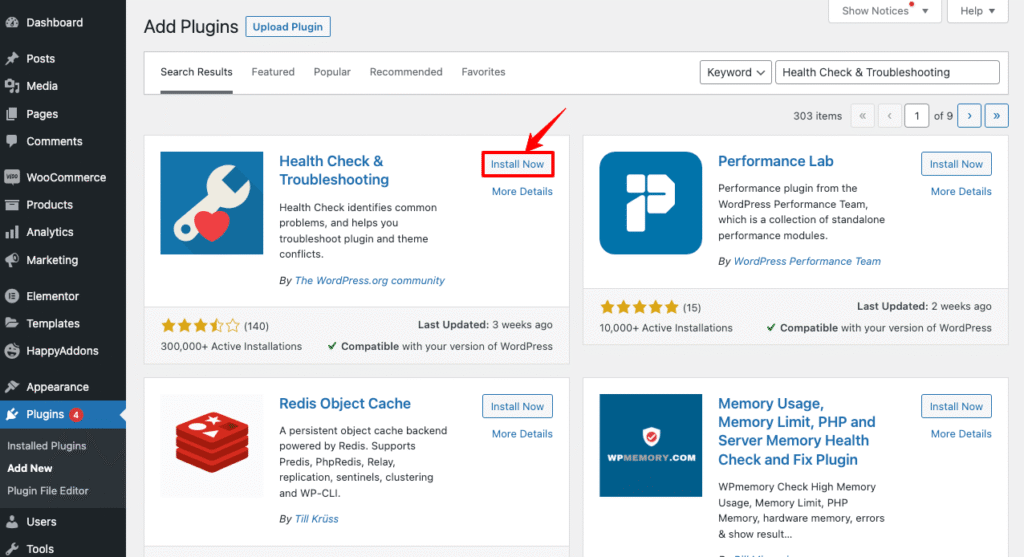
Plugin conflicts are one of the most common reasons behind WordPress theme problems.
To test:
- Disable all plugins
- Refresh your website
- Check if the issue disappears
- Enable plugins one at a time
If the problem returns after activating a specific plugin, you have identified the conflict.
4: Switch to a Default Theme
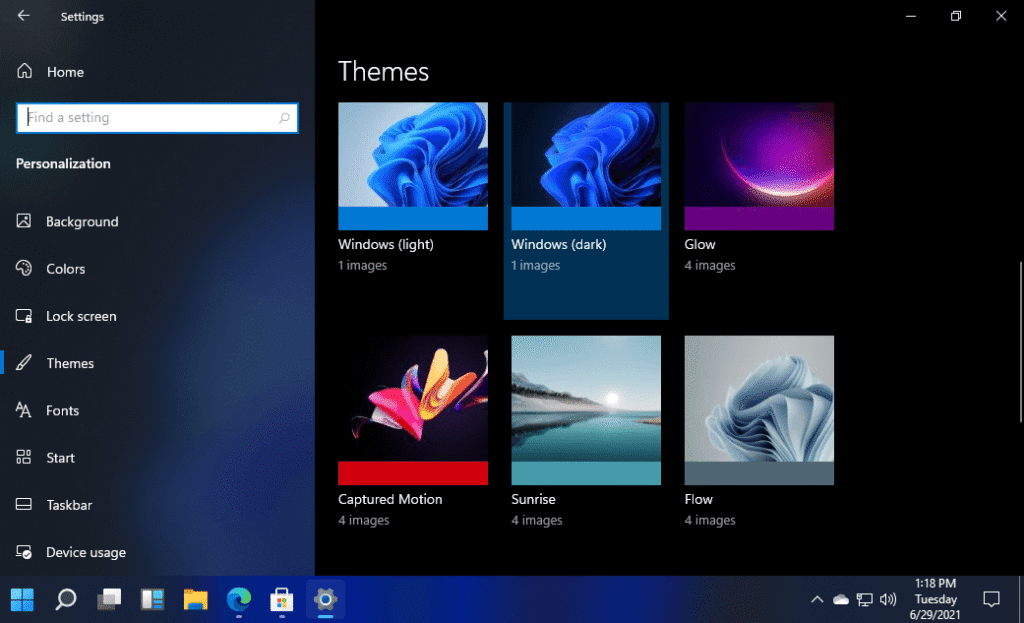
Switch temporarily to a default WordPress theme.
Examples:
- Twenty Twenty-Four
- Twenty Twenty-Five
- Twenty Twenty-Six
If the issue disappears after changing themes, your current theme is likely causing the problem.
5: Check Theme File Errors
Missing or damaged theme files can break functionality.
Use:
- File Manager
- FTP access
Review important files:
- style.css
- functions.php
- header.php
- footer.php
If files were modified recently, restore a clean backup.
6: Increase WordPress Memory Limit
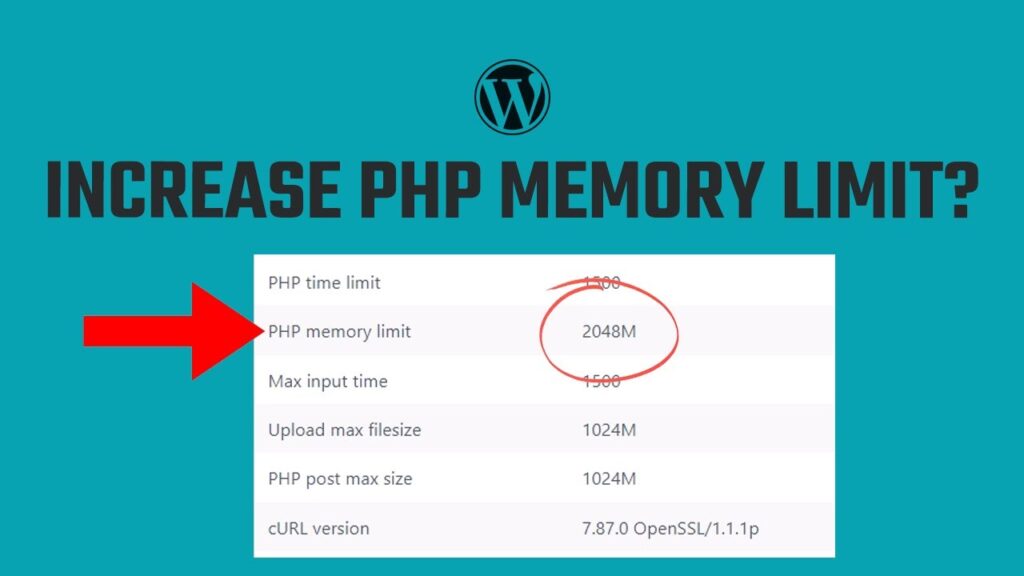
Low memory can affect theme performance.
Add this to your configuration file:
define(‘WP_MEMORY_LIMIT’, ‘256M’);
Increasing memory helps websites handle more resources and processes.
7: Verify PHP Version Compatibility
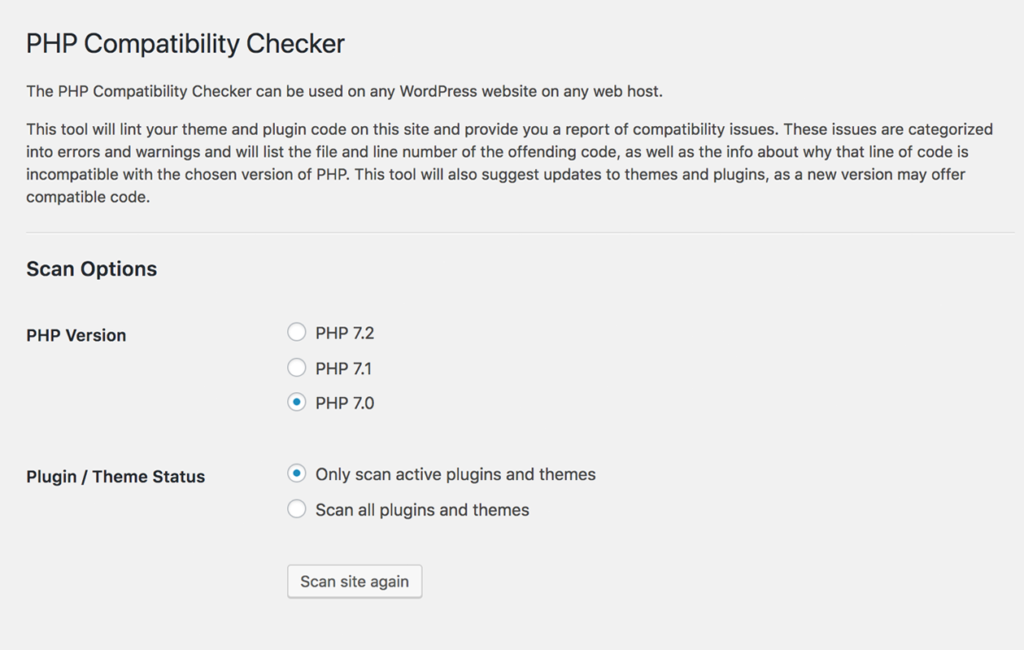
Themes sometimes require newer PHP versions.
To check:
- Open hosting control panel
- Find PHP settings
- Compare the version with theme requirements
Older PHP versions can create display and functionality issues.
8: Disable Custom Code Changes
Custom CSS or PHP modifications can accidentally break a theme.
Review recent changes:
- Custom CSS
- Theme editor modifications
- Snippets added manually
Remove suspicious code and test again.
9: Reinstall the Theme
If files become corrupted, reinstalling the theme often solves the issue.
Steps:
- Download a fresh theme copy
- Delete old theme files
- Upload new files
- Activate the theme again
Create a backup before reinstalling.
Best Practices to Avoid Theme Problems
Preventive maintenance reduces future issues.
Recommended practices:
- Keep themes updated
- Use trusted themes only
- Avoid excessive plugins
- Create regular backups
- Test updates before applying them to live websites
Small maintenance tasks help prevent larger technical problems.
Final Thoughts
WordPress theme issues can seem frustrating, but most problems have simple solutions. Whether the cause is outdated files, plugin conflicts, or server settings, following a step-by-step troubleshooting process can quickly restore your website.
Regular updates and proper website maintenance can also reduce future theme-related issues and improve website performance.
FAQs
1. Why is my WordPress theme not displaying correctly?
This usually happens because of plugin conflicts, outdated themes, cache issues, or corrupted files.
2. Can plugins break a WordPress theme?
Yes. Some plugins can conflict with themes and create layout or functionality problems.
3. Should I reinstall my WordPress theme?
If files are damaged or corrupted, reinstalling the theme can help fix issues.
4. Does updating WordPress affect themes?
Sometimes updates create compatibility problems if themes are outdated.
5. How do I know if my theme is causing the issue?
Switch temporarily to a default theme. If the issue disappears, the active theme is likely responsible.