
Smartphones are now a routine part of daily living. People use their phones for online banking, social media, messaging, shopping, browsing, and storing personal information. Because smartphones contain so much valuable data, they can become attractive targets for cybercriminals. Malicious software, commonly known as malware, can threaten mobile devices by stealing information, displaying unwanted advertisements, monitoring activities, or interfering with normal phone performance.
Many users become concerned when their phones suddenly slow down, overheat, display unusual pop-ups, or consume battery power faster than usual. These behaviors can sometimes indicate a security problem, but they do not automatically mean that a phone has a virus. Battery aging, software bugs, background applications, and insufficient storage can also cause similar issues.
Understanding how to tell if your phone has a virus is important for protecting personal information and maintaining device security. Android and iPhone users can identify suspicious activity by reviewing installed applications, checking battery and data usage, examining security settings, and using trusted security features.
This professional guide explains the most common warning signs of mobile malware, how to check an Android or iPhone for security threats, how to remove suspicious software, and how to prevent future infections.
1. What Is a Phone Virus and How Does Mobile Malware Work?

A phone virus is a type of malicious software designed to interfere with a smartphone’s normal operation or perform unauthorized activities. Technically, a traditional virus spreads by attaching itself to other files or programs. However, people commonly use the term phone virus to describe different types of mobile malware.
Mobile malware can include spyware, adware, ransomware, trojans, and harmful applications. Each type may affect a device differently.
Spyware is designed to secretly collect information, such as browsing activity, location data, or other sensitive details.Its behavior is shaped by the permissions and access it receives.
Adware displays unwanted advertisements. Some adware is merely annoying, while malicious forms may redirect users to unsafe websites or encourage harmful downloads.
Trojans are harmful programs that masquerade as trusted applications. They may appear to be useful games, utilities, or tools but perform harmful activities after installation.
Ransomware can lock files or restrict access to a device and demand payment. Mobile ransomware is less common than some other threats, but it remains a security concern.
Phishing malware may be distributed through deceptive links, messages, or fake login pages. These attacks often attempt to steal passwords and financial information.
Mobile malware may enter a phone through unsafe downloads, fake applications, suspicious attachments, compromised websites, or unauthorized app installations. Recognizing these risks helps users make better security decisions.
2. Ten Common Signs Your Phone May Have a Virus

There is no single symptom that proves a smartphone is infected. However, several unusual behaviors appearing together may indicate that the device needs a security check.
1. Your Phone Suddenly Becomes Slow
A smartphone that previously worked smoothly may begin lagging, freezing, or taking longer to open applications.
Malicious software can consume processing power and memory while performing hidden tasks. However, low storage space, outdated software, and too many background applications can also slow a device.
2. Battery Drains Faster Than Normal
Unexpected battery consumption is another possible warning sign. Some malicious applications operate continuously in the background, using power for unauthorized activities.
Open your phone’s settings and review the battery-usage details. If an unfamiliar application consumes an unusually large amount of power, investigate it.
3. Your Phone Gets Unusually Hot
Phones can become warm during gaming, video streaming, charging, or intensive tasks. However, frequent overheating while the device is idle may deserve attention.
Hidden background processes can increase processor activity and temperature. Look for other symptoms before concluding that malware is responsible.
4. You See Frequent Pop-Up Advertisements
Unexpected advertisements appearing outside normal applications may indicate adware or a browser notification problem.
Some malicious advertisements attempt to convince users that their devices are infected. They may display messages such as “Your phone has a dangerous virus” or “Install this cleaner immediately.”
Avoid clicking these warnings because they may lead to unsafe websites or unwanted downloads.
5. Unknown Applications Appear on Your Phone
Applications that you do not remember installing deserve investigation.
Some unwanted applications may be installed through deceptive downloads or bundled software. Check your installed application list and review unfamiliar programs carefully.
Do not uninstall essential system applications simply because their names are unfamiliar.
6. Your Mobile Data Usage Increases Unexpectedly
Malicious applications may communicate with external servers or transmit information in the background.
If mobile data usage suddenly increases without an obvious explanation, review app-level data consumption. Streaming, automatic updates, cloud backups, and social media can also cause high usage.
7. Your Browser Redirects to Strange Websites
If your browser repeatedly opens unfamiliar pages or changes its search engine without your permission, it may be affected by unwanted software or suspicious website settings.
This behavior can also result from browser notifications, extensions, or unsafe websites.
8. Your Phone Crashes Frequently
Repeated application crashes, freezing, or unexpected restarts can indicate software instability.
Malware may sometimes interfere with normal operations, but operating system errors, faulty applications, and hardware issues can produce similar symptoms.
9. Your Contacts Receive Messages You Did Not Send
If your friends or family receive strange messages from your phone number or accounts, investigate immediately.
This may indicate account compromise, a malicious application, or unauthorized access to your messaging services.
10. You Notice Unusual Account or Financial Activity
Unexpected password reset notifications, unfamiliar login alerts, unknown purchases, or unauthorized banking transactions are serious warning signs.
These incidents may result from phishing, compromised credentials, malware, or account theft rather than a phone virus specifically.
If financial activity appears suspicious, contact your bank through its official communication channels immediately.
3. How to Check If Your Android Phone Has a Virus
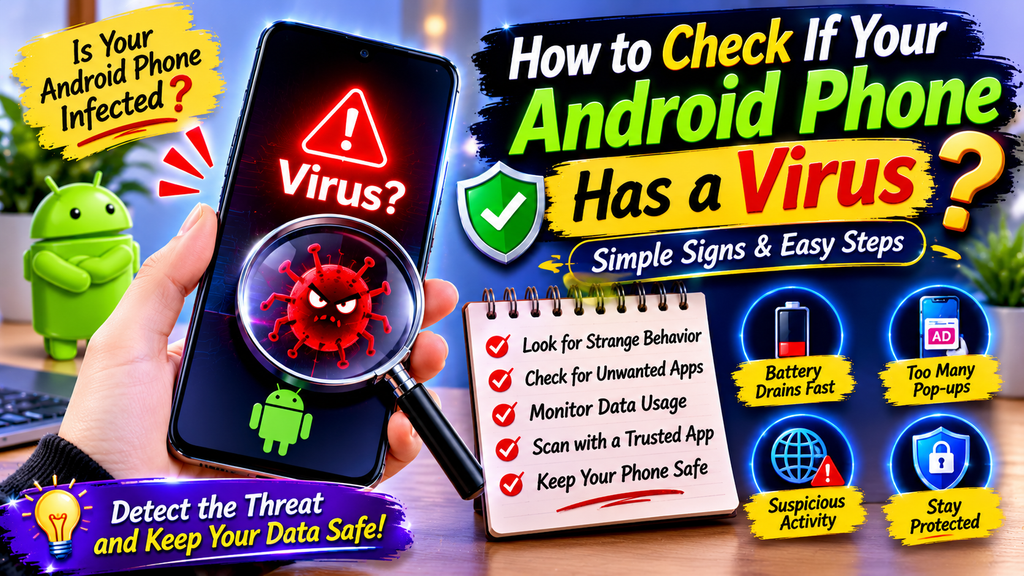
Android users have several built-in security features that can help identify potentially harmful applications.
Step 1: Run Google Play Protect
Google Play Protect scans apps for signs of harmful activity.
Follow these steps:
- Open the Google Play Store.
- Tap your profile picture in the top-right corner.
- Select Play Protect.
- Tap Scan if available.
- Review the results.
- Follow any recommended actions for harmful applications.
Google Play Protect may warn about, disable, or remove harmful apps.
Step 2: Review Installed Applications
Open your phone settings and navigate to the Apps section. The exact menu name may vary depending on your Android version or manufacturer.
Review recently installed applications and investigate anything you do not recognize.
Remove applications that you no longer need or that appear suspicious, provided they are not essential system components.
Step 3: Check Battery Usage
Navigate to Settings and open the Battery section.
Review the battery usage list. Look for unfamiliar applications that consume excessive power without a reasonable explanation.
Step 4: Review Mobile Data Usage
Open Settings and locate Network, Connections, or Data Usage.
Check which applications are using mobile data in the background. Investigate unfamiliar apps with unusually high consumption.
Step 5: Update Android Software
Go to Settings and check for available system updates.
Security updates can address vulnerabilities that attackers may exploit. Keep your applications updated through trusted sources as well.
Step 6: Review App Permissions
Check whether applications have access to sensitive features such as:
- Camera
- Microphone
- Location
- Contacts
- SMS
- Accessibility services
Remove permissions that are unnecessary for an application’s function. Be especially cautious with unknown apps requesting extensive access.
4. How to Tell If Your iPhone Has a Virus

iPhones use Apple’s security architecture, which limits the ability of applications to access other apps and system files. This makes traditional widespread virus infections less common, but iPhones are not immune to phishing, spyware, malicious profiles, or account compromise.
Check for Unfamiliar Applications
Review your Home Screen and App Library.
Look for applications that you do not remember installing. Delete suspicious apps if you can verify that they are not necessary.
Review iPhone Battery Usage
Open Settings and select Battery.
Review the battery activity by application. Investigate unfamiliar applications or unusually high background activity.
Check iPhone Storage
Open Settings, select General, and tap iPhone Storage.
Review installed applications and their storage usage. Unknown or unnecessary applications can be removed.
Review VPN and Device Management Profiles
Open Settings and navigate to:
General → VPN & Device Management.
Look for configuration profiles or management settings that you do not recognize.
Some profiles are legitimate, especially on work or school devices. Do not remove an authorized management profile without understanding its purpose.
Update iOS
Open Settings, select General, and tap Software Update.
Install available updates to receive security improvements and bug fixes.
Check Apple Account Security
Review your Apple Account devices and sign-in activity. Remove unfamiliar devices and change your password if you suspect unauthorized access.
Apple’s Safety Check feature, available on supported iOS versions, can also help users review sharing and account access.
5. How to Remove a Virus or Malware From Your Phone

If you suspect that your smartphone contains malware, taking careful action can reduce the risk of further damage.
Remove Suspicious Applications
Uninstall applications that are clearly unwanted or harmful.
On Android, open Settings, select Apps, choose the suspicious application, and tap Uninstall.
On iPhone, press and hold the application icon and select Remove App, then Delete App.
Restart Your Phone
Restarting your device can stop temporary background processes and help resolve certain software problems.
However, restarting alone does not remove persistent malware.
Clear Browser Data
If suspicious pop-ups or redirects appear while browsing, clear the browser’s history and website data.
For Chrome, open Settings and look for Privacy and Security options.
For Safari on iPhone, open Settings, select Safari, and use the option to clear history and website data.
Also review browser notifications and remove permissions for unfamiliar websites.
Run a Trusted Security Scan
Android users can start with Google Play Protect. If additional scanning is needed, use a reputable mobile security application obtained from an official store.
Avoid unknown antivirus applications advertised through alarming pop-ups.
Change Compromised Passwords
If you suspect that passwords have been stolen, change them from a trusted device.
Prioritize email, banking, social media, and important accounts. Enable multifactor authentication wherever available.
Consider a Factory Reset
If malware symptoms continue after removing suspicious apps and updating the system, a factory reset may be necessary.
Before resetting, back up important personal files carefully. Avoid restoring suspicious applications or unknown configuration settings.
A factory reset erases data stored on the device, so it should be treated as a last resort rather than the first solution.
6. Fake Virus Warnings, Scams, and Security Risks to Avoid

Many smartphone users encounter fake virus alerts while browsing the internet.
These messages often claim that the device has been infected and must be cleaned immediately. They may encourage users to install an application, call a support number, or make a payment.
Common Characteristics of Fake Virus Alerts
- Urgent messages demanding immediate action.
- Unusual spelling or grammatical mistakes.
- Claims that a website has detected multiple viruses.
- Requests to download unknown antivirus software.
- Requests for credit card information.
- Fake countdown timers.
- Alerts that appear directly inside a browser webpage.
A website cannot reliably determine that your phone is infected simply by displaying a pop-up message.
What Should You Do?
If a suspicious alert appears:
- Do not tap its download button.
- Do not provide personal or financial information.
- Close the browser tab or application.
- If the tab refuses to close, force-close the browser.
- Review recently installed applications.
- Run a trusted security check if necessary.
Avoid installing applications from unofficial websites unless you fully understand the source and security implications.
7. Best Practices to Protect Your Phone From Viruses

Prevention is one of the most effective ways to reduce mobile security risks.
Download Applications From Official Stores
Use Google Play Store or Apple App Store whenever possible.
Official stores have security review processes, although no store can guarantee that every application is completely safe.
Keep Your Operating System Updated
Install security updates as soon as practical.
Updates can fix known vulnerabilities and improve device protection.
Avoid Suspicious Links
Do not click unexpected links received through SMS, email, messaging applications, or social media.
Verify the sender before opening attachments or entering account information.
Use Strong Passwords
Create unique passwords for important accounts.
A password manager can help organize credentials securely. Enable multifactor authentication for email, banking, and other sensitive accounts.
Review Application Permissions
Only grant applications the permissions they genuinely need.
For example, a simple calculator should not normally require access to your contacts, microphone, or location.
Avoid Untrusted Public Wi-Fi
Public Wi-Fi networks may expose users to privacy and security risks.
Avoid accessing sensitive accounts over unfamiliar networks. When possible, use a trusted network or mobile connection.
Back Up Important Data
Regularly back up photos, contacts, documents, and other important files.
A secure backup can help recover information if the device becomes compromised or needs to be reset.
Keep Security Protection Enabled
Android users should keep Google Play Protect enabled.
iPhone users should keep iOS updated and use Apple’s available privacy and security settings.
Conclusion
Knowing how to tell if your phone has a virus can help you identify potential security problems before they become more serious. Unusual battery drain, overheating, unexpected advertisements, unfamiliar applications, and strange account activity are warning signs that deserve attention.
However, these symptoms may also result from ordinary software problems, aging batteries, or excessive application usage. The best approach is to investigate suspicious behavior carefully instead of assuming that every unusual phone activity indicates a virus.
Android users can use Google Play Protect, while iPhone users can review application settings, security profiles, account access, and software updates. Removing suspicious applications, avoiding unsafe links, and using strong passwords can significantly improve smartphone security.
By following these practical security measures, users can protect their personal information, reduce malware risks, and enjoy a safer mobile experience. Regular security checks and responsible application downloads remain essential for keeping modern smartphones protected.
8. Frequently Asked Questions About How to Tell If Your Phone Has a Virus
1. How can I tell if my phone has a virus?
Common warning signs include unexpected pop-up ads, unknown applications, unusual battery drain, excessive mobile data usage, browser redirects, and suspicious account activity. These symptoms do not confirm infection by themselves.
2. Can an Android phone get a virus?
Yes. Android devices can be affected by viruses and other types of malware, especially when users install untrusted applications, download unsafe files, or interact with suspicious links.
3. Can an iPhone get a virus?
Traditional virus infections are less common on iPhones because of Apple’s security architecture. However, iPhones can still be affected by phishing, spyware, malicious profiles, and account compromise.
4. How do I scan my phone for viruses?
On Android, open Google Play Store, tap your profile picture, select Play Protect, and run a scan. iPhone users should review installed apps, profiles, permissions, account security, and available software updates.
5. Does a hot phone mean it has a virus?
No. A phone may become hot because of gaming, charging, streaming, or background updates. Persistent overheating combined with other unusual symptoms may require a security check.
6. Can a phone virus steal my personal information?
Some types of malware can attempt to steal personal information, passwords, financial details, or other sensitive data. The amount of access depends on the malware and the permissions or vulnerabilities it can exploit.
7. Will a factory reset remove a phone virus?
A factory reset can remove many types of malware by erasing applications and data stored on the device. However, it may not resolve every possible security issue, and restoring infected backups or settings can reintroduce problems.
8. Are virus warning pop-ups always real?
No. Many virus warning pop-ups are fake advertisements designed to scare users into downloading software or paying for unnecessary services. Close suspicious alerts without interacting with them.
9. Can antivirus apps protect my phone?
Reputable security applications can help detect certain malware and unsafe behavior. However, no antivirus application can guarantee complete protection against every threat.
10. What should I do if my phone is hacked?
Disconnect from suspicious networks if necessary, remove suspicious applications, update your device, and change compromised passwords using a trusted device. Review banking and account activity, enable multifactor authentication, and contact your bank if unauthorized transactions occur.How to Tell If Your Phone Has a Virus A Complete Guide
Smartphones are now a routine part of daily living. People use their phones for online banking, social media, messaging, shopping, browsing, and storing personal information. Because smartphones contain so much valuable data, they can become attractive targets for cybercriminals. Malicious software, commonly known as malware, can threaten mobile devices by stealing information, displaying unwanted advertisements, monitoring activities, or interfering with normal phone performance.
Many users become concerned when their phones suddenly slow down, overheat, display unusual pop-ups, or consume battery power faster than usual. These behaviors can sometimes indicate a security problem, but they do not automatically mean that a phone has a virus. Battery aging, software bugs, background applications, and insufficient storage can also cause similar issues.
Understanding how to tell if your phone has a virus is important for protecting personal information and maintaining device security. Android and iPhone users can identify suspicious activity by reviewing installed applications, checking battery and data usage, examining security settings, and using trusted security features.
This professional guide explains the most common warning signs of mobile malware, how to check an Android or iPhone for security threats, how to remove suspicious software, and how to prevent future infections.
1. What Is a Phone Virus and How Does Mobile Malware Work?
A phone virus is a type of malicious software designed to interfere with a smartphone’s normal operation or perform unauthorized activities. Technically, a traditional virus spreads by attaching itself to other files or programs. However, people commonly use the term phone virus to describe different types of mobile malware.
Mobile malware can include spyware, adware, ransomware, trojans, and harmful applications. Each type may affect a device differently.
Spyware is designed to secretly collect information, such as browsing activity, location data, or other sensitive details.Its behavior is shaped by the permissions and access it receives.
Adware displays unwanted advertisements. Some adware is merely annoying, while malicious forms may redirect users to unsafe websites or encourage harmful downloads.
Trojans are harmful programs that masquerade as trusted applications. They may appear to be useful games, utilities, or tools but perform harmful activities after installation.
Ransomware can lock files or restrict access to a device and demand payment. Mobile ransomware is less common than some other threats, but it remains a security concern.
Phishing malware may be distributed through deceptive links, messages, or fake login pages. These attacks often attempt to steal passwords and financial information.
Mobile malware may enter a phone through unsafe downloads, fake applications, suspicious attachments, compromised websites, or unauthorized app installations. Recognizing these risks helps users make better security decisions.
2. Ten Common Signs Your Phone May Have a Virus
There is no single symptom that proves a smartphone is infected. However, several unusual behaviors appearing together may indicate that the device needs a security check.
1. Your Phone Suddenly Becomes Slow
A smartphone that previously worked smoothly may begin lagging, freezing, or taking longer to open applications.
Malicious software can consume processing power and memory while performing hidden tasks. However, low storage space, outdated software, and too many background applications can also slow a device.
2. Battery Drains Faster Than Normal
Unexpected battery consumption is another possible warning sign. Some malicious applications operate continuously in the background, using power for unauthorized activities.
Open your phone’s settings and review the battery-usage details. If an unfamiliar application consumes an unusually large amount of power, investigate it.
3. Your Phone Gets Unusually Hot
Phones can become warm during gaming, video streaming, charging, or intensive tasks. However, frequent overheating while the device is idle may deserve attention.
Hidden background processes can increase processor activity and temperature. Look for other symptoms before concluding that malware is responsible.
4. You See Frequent Pop-Up Advertisements
Unexpected advertisements appearing outside normal applications may indicate adware or a browser notification problem.
Some malicious advertisements attempt to convince users that their devices are infected. They may display messages such as “Your phone has a dangerous virus” or “Install this cleaner immediately.”
Avoid clicking these warnings because they may lead to unsafe websites or unwanted downloads.
5. Unknown Applications Appear on Your Phone
Applications that you do not remember installing deserve investigation.
Some unwanted applications may be installed through deceptive downloads or bundled software. Check your installed application list and review unfamiliar programs carefully.
Do not uninstall essential system applications simply because their names are unfamiliar.
6. Your Mobile Data Usage Increases Unexpectedly
Malicious applications may communicate with external servers or transmit information in the background.
If mobile data usage suddenly increases without an obvious explanation, review app-level data consumption. Streaming, automatic updates, cloud backups, and social media can also cause high usage.
7. Your Browser Redirects to Strange Websites
If your browser repeatedly opens unfamiliar pages or changes its search engine without your permission, it may be affected by unwanted software or suspicious website settings.
This behavior can also result from browser notifications, extensions, or unsafe websites.
8. Your Phone Crashes Frequently
Repeated application crashes, freezing, or unexpected restarts can indicate software instability.
Malware may sometimes interfere with normal operations, but operating system errors, faulty applications, and hardware issues can produce similar symptoms.
9. Your Contacts Receive Messages You Did Not Send
If your friends or family receive strange messages from your phone number or accounts, investigate immediately.
This may indicate account compromise, a malicious application, or unauthorized access to your messaging services.
10. You Notice Unusual Account or Financial Activity
Unexpected password reset notifications, unfamiliar login alerts, unknown purchases, or unauthorized banking transactions are serious warning signs.
These incidents may result from phishing, compromised credentials, malware, or account theft rather than a phone virus specifically.
If financial activity appears suspicious, contact your bank through its official communication channels immediately.
3. How to Check If Your Android Phone Has a Virus
Android users have several built-in security features that can help identify potentially harmful applications.
Step 1: Run Google Play Protect
Google Play Protect scans apps for signs of harmful activity.
Follow these steps:
- Open the Google Play Store.
- Tap your profile picture in the top-right corner.
- Select Play Protect.
- Tap Scan if available.
- Review the results.
- Follow any recommended actions for harmful applications.
Google Play Protect may warn about, disable, or remove harmful apps.
Step 2: Review Installed Applications
Open your phone settings and navigate to the Apps section. The exact menu name may vary depending on your Android version or manufacturer.
Review recently installed applications and investigate anything you do not recognize.
Remove applications that you no longer need or that appear suspicious, provided they are not essential system components.
Step 3: Check Battery Usage
Navigate to Settings and open the Battery section.
Review the battery usage list. Look for unfamiliar applications that consume excessive power without a reasonable explanation.
Step 4: Review Mobile Data Usage
Open Settings and locate Network, Connections, or Data Usage.
Check which applications are using mobile data in the background. Investigate unfamiliar apps with unusually high consumption.
Step 5: Update Android Software
Go to Settings and check for available system updates.
Security updates can address vulnerabilities that attackers may exploit. Keep your applications updated through trusted sources as well.
Step 6: Review App Permissions
Check whether applications have access to sensitive features such as:
- Camera
- Microphone
- Location
- Contacts
- SMS
- Accessibility services
Remove permissions that are unnecessary for an application’s function. Be especially cautious with unknown apps requesting extensive access.
4. How to Tell If Your iPhone Has a Virus
iPhones use Apple’s security architecture, which limits the ability of applications to access other apps and system files. This makes traditional widespread virus infections less common, but iPhones are not immune to phishing, spyware, malicious profiles, or account compromise.
Check for Unfamiliar Applications
Review your Home Screen and App Library.
Look for applications that you do not remember installing. Delete suspicious apps if you can verify that they are not necessary.
Review iPhone Battery Usage
Open Settings and select Battery.
Review the battery activity by application. Investigate unfamiliar applications or unusually high background activity.
Check iPhone Storage
Open Settings, select General, and tap iPhone Storage.
Review installed applications and their storage usage. Unknown or unnecessary applications can be removed.
Review VPN and Device Management Profiles
Open Settings and navigate to:
General → VPN & Device Management.
Look for configuration profiles or management settings that you do not recognize.
Some profiles are legitimate, especially on work or school devices. Do not remove an authorized management profile without understanding its purpose.
Update iOS
Open Settings, select General, and tap Software Update.
Install available updates to receive security improvements and bug fixes.
Check Apple Account Security
Review your Apple Account devices and sign-in activity. Remove unfamiliar devices and change your password if you suspect unauthorized access.
Apple’s Safety Check feature, available on supported iOS versions, can also help users review sharing and account access.
5. How to Remove a Virus or Malware From Your Phone
If you suspect that your smartphone contains malware, taking careful action can reduce the risk of further damage.
Remove Suspicious Applications
Uninstall applications that are clearly unwanted or harmful.
On Android, open Settings, select Apps, choose the suspicious application, and tap Uninstall.
On iPhone, press and hold the application icon and select Remove App, then Delete App.
Restart Your Phone
Restarting your device can stop temporary background processes and help resolve certain software problems.
However, restarting alone does not remove persistent malware.
Clear Browser Data
If suspicious pop-ups or redirects appear while browsing, clear the browser’s history and website data.
For Chrome, open Settings and look for Privacy and Security options.
For Safari on iPhone, open Settings, select Safari, and use the option to clear history and website data.
Also review browser notifications and remove permissions for unfamiliar websites.
Run a Trusted Security Scan
Android users can start with Google Play Protect. If additional scanning is needed, use a reputable mobile security application obtained from an official store.
Avoid unknown antivirus applications advertised through alarming pop-ups.
Change Compromised Passwords
If you suspect that passwords have been stolen, change them from a trusted device.
Prioritize email, banking, social media, and important accounts. Enable multifactor authentication wherever available.
Consider a Factory Reset
If malware symptoms continue after removing suspicious apps and updating the system, a factory reset may be necessary.
Before resetting, back up important personal files carefully. Avoid restoring suspicious applications or unknown configuration settings.
A factory reset erases data stored on the device, so it should be treated as a last resort rather than the first solution.
6. Fake Virus Warnings, Scams, and Security Risks to Avoid
Many smartphone users encounter fake virus alerts while browsing the internet.
These messages often claim that the device has been infected and must be cleaned immediately. They may encourage users to install an application, call a support number, or make a payment.
Common Characteristics of Fake Virus Alerts
- Urgent messages demanding immediate action.
- Unusual spelling or grammatical mistakes.
- Claims that a website has detected multiple viruses.
- Requests to download unknown antivirus software.
- Requests for credit card information.
- Fake countdown timers.
- Alerts that appear directly inside a browser webpage.
A website cannot reliably determine that your phone is infected simply by displaying a pop-up message.
What Should You Do?
If a suspicious alert appears:
- Do not tap its download button.
- Do not provide personal or financial information.
- Close the browser tab or application.
- If the tab refuses to close, force-close the browser.
- Review recently installed applications.
- Run a trusted security check if necessary.
Avoid installing applications from unofficial websites unless you fully understand the source and security implications.
7. Best Practices to Protect Your Phone From Viruses
Prevention is one of the most effective ways to reduce mobile security risks.
Download Applications From Official Stores
Use Google Play Store or Apple App Store whenever possible.
Official stores have security review processes, although no store can guarantee that every application is completely safe.
Keep Your Operating System Updated
Install security updates as soon as practical.
Updates can fix known vulnerabilities and improve device protection.
Avoid Suspicious Links
Do not click unexpected links received through SMS, email, messaging applications, or social media.
Verify the sender before opening attachments or entering account information.
Use Strong Passwords
Create unique passwords for important accounts.
A password manager can help organize credentials securely. Enable multifactor authentication for email, banking, and other sensitive accounts.
Review Application Permissions
Only grant applications the permissions they genuinely need.
For example, a simple calculator should not normally require access to your contacts, microphone, or location.
Avoid Untrusted Public Wi-Fi
Public Wi-Fi networks may expose users to privacy and security risks.
Avoid accessing sensitive accounts over unfamiliar networks. When possible, use a trusted network or mobile connection.
Back Up Important Data
Regularly back up photos, contacts, documents, and other important files.
A secure backup can help recover information if the device becomes compromised or needs to be reset.
Keep Security Protection Enabled
Android users should keep Google Play Protect enabled.
iPhone users should keep iOS updated and use Apple’s available privacy and security settings.
Conclusion
Knowing how to tell if your phone has a virus can help you identify potential security problems before they become more serious. Unusual battery drain, overheating, unexpected advertisements, unfamiliar applications, and strange account activity are warning signs that deserve attention.
However, these symptoms may also result from ordinary software problems, aging batteries, or excessive application usage. The best approach is to investigate suspicious behavior carefully instead of assuming that every unusual phone activity indicates a virus.
Android users can use Google Play Protect, while iPhone users can review application settings, security profiles, account access, and software updates. Removing suspicious applications, avoiding unsafe links, and using strong passwords can significantly improve smartphone security.
By following these practical security measures, users can protect their personal information, reduce malware risks, and enjoy a safer mobile experience. Regular security checks and responsible application downloads remain essential for keeping modern smartphones protected.
8. Frequently Asked Questions About How to Tell If Your Phone Has a Virus
1. How can I tell if my phone has a virus?
Common warning signs include unexpected pop-up ads, unknown applications, unusual battery drain, excessive mobile data usage, browser redirects, and suspicious account activity. These symptoms do not confirm infection by themselves.
2. Can an Android phone get a virus?
Yes. Android devices can be affected by viruses and other types of malware, especially when users install untrusted applications, download unsafe files, or interact with suspicious links.
3. Can an iPhone get a virus?
Traditional virus infections are less common on iPhones because of Apple’s security architecture. However, iPhones can still be affected by phishing, spyware, malicious profiles, and account compromise.
4. How do I scan my phone for viruses?
On Android, open Google Play Store, tap your profile picture, select Play Protect, and run a scan. iPhone users should review installed apps, profiles, permissions, account security, and available software updates.
5. Does a hot phone mean it has a virus?
No. A phone may become hot because of gaming, charging, streaming, or background updates. Persistent overheating combined with other unusual symptoms may require a security check.
6. Can a phone virus steal my personal information?
Some types of malware can attempt to steal personal information, passwords, financial details, or other sensitive data. The amount of access depends on the malware and the permissions or vulnerabilities it can exploit.
7. Will a factory reset remove a phone virus?
A factory reset can remove many types of malware by erasing applications and data stored on the device. However, it may not resolve every possible security issue, and restoring infected backups or settings can reintroduce problems.
8. Are virus warning pop-ups always real?
No. Many virus warning pop-ups are fake advertisements designed to scare users into downloading software or paying for unnecessary services. Close suspicious alerts without interacting with them.
9. Can antivirus apps protect my phone?
Reputable security applications can help detect certain malware and unsafe behavior. However, no antivirus application can guarantee complete protection against every threat.
10. What should I do if my phone is hacked?
Disconnect from suspicious networks if necessary, remove suspicious applications, update your device, and change compromised passwords using a trusted device. Review banking and account activity, enable multifactor authentication, and contact your bank if unauthorized transactions occur.