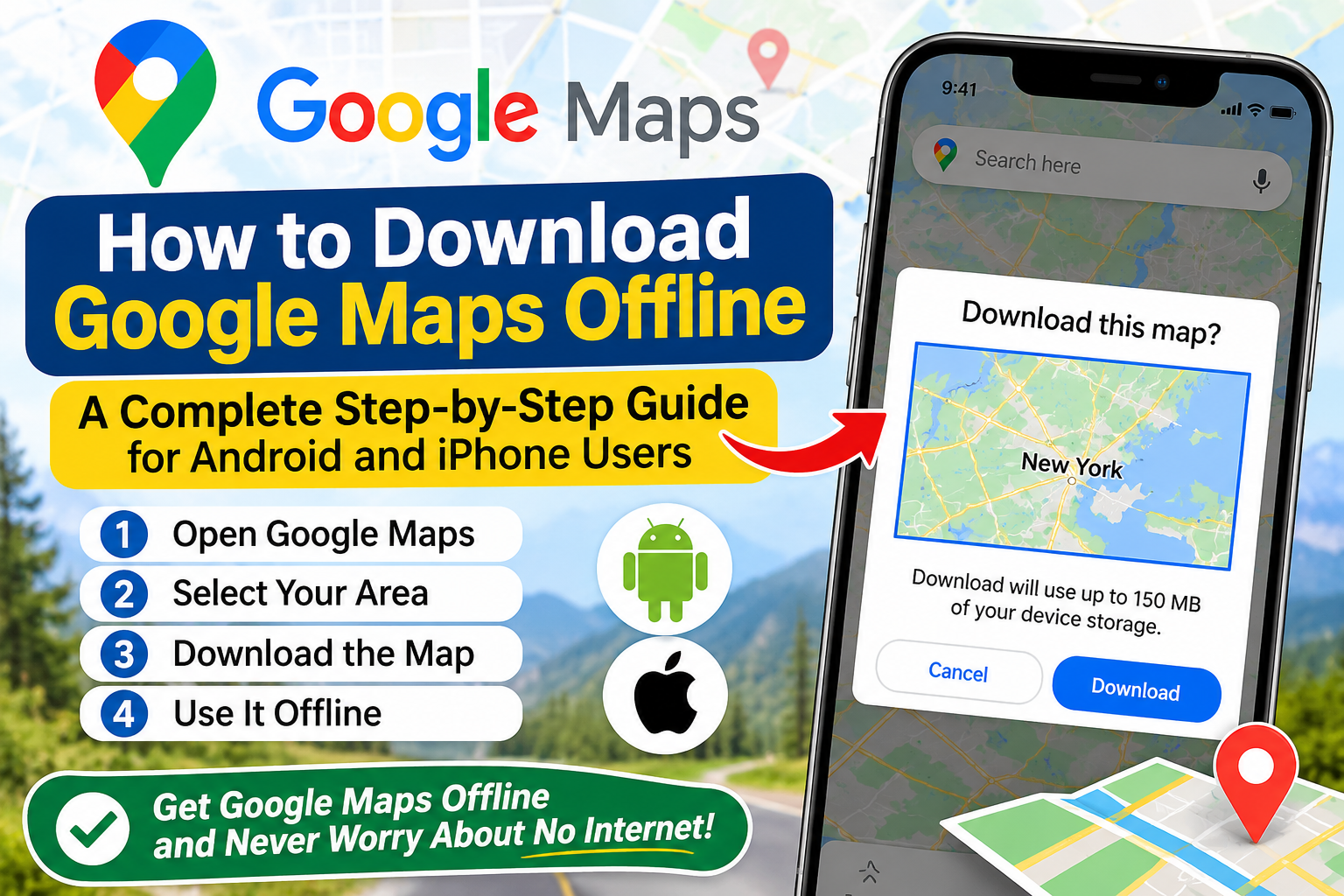

Google Maps is one of the most popular navigation applications in the world. It helps people find locations, explore nearby places, plan routes, and reach destinations efficiently. However, internet connectivity is not always available, especially when traveling through remote areas, visiting unfamiliar cities, or experiencing weak mobile network coverage. In these situations, downloading maps for offline use can be extremely helpful.
Learning how to download Google Maps offline allows users to save selected geographical areas directly to their mobile devices. Once downloaded, these maps can provide driving directions without requiring an active internet connection, provided the entire route is covered by the saved map. This feature is useful for travelers, commuters, tourists, and anyone who wants to reduce mobile data usage.
On supported Android and iOS devices, Google Maps lets users download maps for offline use. .The process is straightforward and requires only a few steps. Users can download a specific city, select a custom geographical area, manage saved maps, and update them when necessary. This complete guide explains the download process, offline navigation features, limitations, and helpful tips for using Google Maps without internet access.
1. What Are Google Maps Offline Maps and How Do They Work?

Google Maps offline maps are saved geographical areas that users can access when their internet connection is unavailable or unreliable. Instead of loading map information through mobile data or Wi-Fi every time, the application stores the selected area on the device.
The offline map feature is designed primarily for driving navigation. It allows users to view downloaded roads, explore covered locations, and receive driving directions when the destination and route fall within the saved map area.
For example, someone traveling from Multan to a nearby destination may download the relevant geographical area before leaving home. If the mobile network becomes unavailable during the journey, Google Maps can continue providing supported offline driving directions within the downloaded region.
Offline maps are particularly beneficial for:
- Travelers exploring unfamiliar cities.
- Drivers traveling through remote locations.
- People with limited mobile data packages.
- Tourists visiting destinations with weak network coverage.
- Users preparing for international travel.
- Individuals who want navigation backup during emergencies.
However, offline maps do not provide every feature available in the online version. Real-time traffic information, alternative routes based on current conditions, and public transportation, walking, or cycling directions are unavailable offline. Users should understand these limitations before relying on downloaded maps.
2. Saving Google Maps for Offline Use on Android
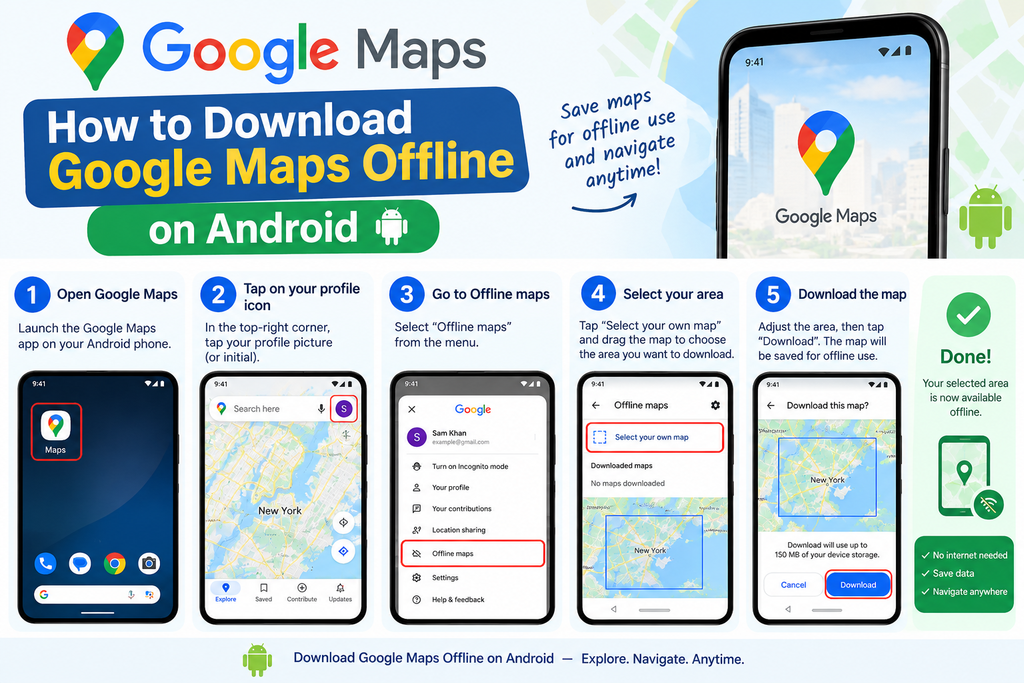
You can download maps for offline use directly from the Google Maps app on an Android phone.
Before beginning, ensure that the Google Maps application is installed, the device has sufficient storage space, and an internet connection is available.
Follow these steps:
Step 1: Open Google Maps
Unlock your Android smartphone and launch the Google Maps application. Make sure you are signed in and connected to Wi-Fi or mobile data.
Step 2: Search for Your Desired Location
Search for the city, town, or destination whose map you want to save.
For example, you can search for Multan, Lahore, Islamabad, Karachi, or another location.
Step 3: Open the Location Details
After searching, select the desired place from the results. Depending on the app version, swipe through the place information panel to locate additional options.
Step 4: Select Download Offline Map
Open the More menu in the location information panel and choose the Download offline map option.
Step 5: Adjust the Map Area
Google Maps displays a rectangular selection area. Adjust it to include the roads and locations you expect to visit.
Make sure the complete intended driving route is included within the selected area.
Step 6: Tap Download
Press the Download button and wait for the application to save the selected map.
The download time depends on the area size, internet speed, and available device storage.
Step 7: Confirm the Download
Once the download is complete, open your profile picture and select Offline maps. The saved geographical area should appear in your downloaded maps list.
Your Android device is now ready to use the selected map without an internet connection.
3. How to Download Google Maps Offline on iPhone

iPhone users can also save geographical areas for offline navigation. The process is similar to Android, although the interface may look slightly different.
Step 1: Open Google Maps on Your iPhone
Launch Google Maps from your iPhone’s home screen.Make sure you have an internet connection and that Incognito mode is turned off.
Step 2: Search for a City or Destination
Select Download to save the map area to your iPhone. You can search for a city, town, or other geographical location.
Step 3: Open the Place Information
Tap the name or address displayed at the bottom of the screen to open the location details.
Step 4: Find the Download Option
Tap the More menu and select Download offline map.
Step 5: Select the Area
Adjust the map rectangle to cover the region you want to access offline. Include the relevant roads, neighborhoods, and destinations.
Step 6: Download the Map
Select Download to save the map area to your iPhone.
Step 7: Check Your Saved Maps
Tap your profile picture and choose Offline maps. Your downloaded region should be available in the list.
After completing these steps, you can access the saved map when your iPhone has no internet connection, as long as your route remains within the downloaded area.
4. How to Download a Custom Area in Google Maps

Sometimes, downloading an entire city is unnecessary. Users may only need a specific neighborhood, travel route, or geographical region.
Google Maps provides an option called Select your own map, which allows users to choose a custom area.
Follow these steps to download a map of a selected area:
- Open the Google Maps application.
- Tap your profile picture or initial.
- Select Offline maps.
- Tap Select your own map.
- Move and adjust the rectangular map selection.
- Make sure the required geographical area is covered.
- Tap Download.
- Wait for the map to finish saving.
Custom map downloads are useful when traveling through particular regions or visiting multiple destinations within a limited geographical area.
For example, a traveler planning to explore several locations in Islamabad can download the relevant area instead of saving a much larger map.
Choosing a smaller area can also reduce the amount of storage space required. Nevertheless, the selected map should be large enough to include the complete planned route.
5. How to Use Google Maps Without an Internet Connection
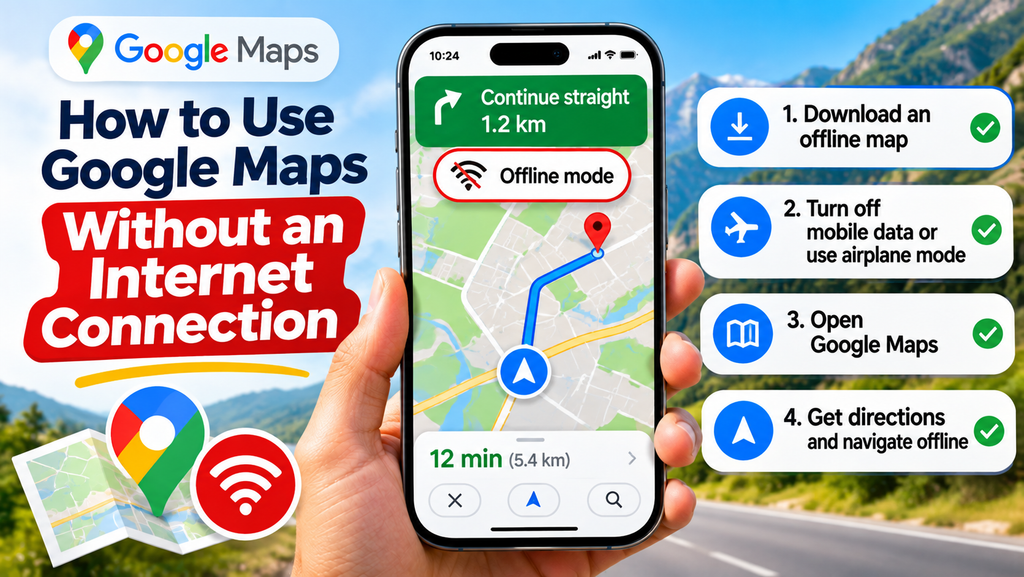
Once an offline map has been downloaded, users can access supported navigation features even when Wi-Fi and mobile data are unavailable.
To use Google Maps offline:
- Download the required geographical area before your journey.
- Turn off mobile data or disconnect from Wi-Fi if you want to test offline functionality.
- Open Google Maps.
- Enter your destination.
- Select the driving route.
- Start navigation if the route is supported by the saved map.
Google Maps can provide driving directions as long as the entire route is within the downloaded geographical area.
Your phone’s GPS may continue determining your location without an internet connection. GPS positioning and downloading map information are separate processes, which is why offline navigation can still work.
However, offline navigation has several limitations.
Features Available Offline
- Viewing downloaded map areas.
- Supported driving directions.
- GPS-based location positioning.
- Basic road navigation within saved areas.
Features Not Available Offline
- Real-time traffic updates.
- Live traffic-based alternative routes.
- Public transportation directions.
- Walking directions.
- Cycling directions.
- Certain location details that require internet access.
Offline navigation is therefore useful for basic driving guidance, but it should not be considered a complete replacement for online Google Maps.
6. How to Manage, Update, and Delete Offline Maps

Downloaded maps require occasional maintenance. Google Maps allows users to view, rename, update, and delete saved geographical areas.
How to Find Downloaded Maps
Open Google Maps, tap your profile picture, and select Offline maps.
This section displays your saved geographical areas and provides options for managing them.
How to Update Offline Maps
Offline maps may expire or become outdated as roads and geographical information change.
To update a saved map:
- Open Google Maps.
- Tap your profile picture.
- Select Offline maps.
- Choose the map that needs updating.
- Tap Update.
Google Maps may automatically update offline maps when connected to Wi-Fi, depending on the app settings.
How to Rename an Offline Map
Renaming maps can help users organize different travel destinations.
- Open Offline maps.
- Select the downloaded area.
- Tap the Edit option.
- Enter a new name.
- Tap Save.
How to Delete an Offline Map
If a downloaded map is no longer needed, deleting it can free up device storage.
- Open Google Maps.
- Tap your profile picture.
- Select Offline maps.
- Choose the map you want to remove.
- Tap Delete.
Regularly managing offline maps helps maintain sufficient storage space and ensures that important geographical areas remain available.
7. Benefits, Limitations, and Tips for Google Maps Offline Navigation

Downloading Google Maps offline provides several advantages, especially for people who travel frequently.
Benefits of Offline Google Maps
Reduced Mobile Data Usage: Downloading maps through Wi-Fi can reduce the amount of mobile data used during navigation.
Reliable Navigation Backup: Saved maps can provide supported driving guidance when internet connectivity becomes unavailable.
Useful for Remote Areas: Offline maps can help users navigate through areas with weak or inconsistent mobile network coverage.
Convenient for Travel: Users can prepare maps before visiting unfamiliar cities or destinations.
Better Travel Preparation: Downloading maps in advance helps reduce the risk of being unable to load geographical information during a journey.
Important Limitations
Offline maps do not provide live traffic information, and supported driving directions are limited to the downloaded area.
Some countries or regions may not support offline map downloads due to Google Maps availability restrictions.
Downloaded maps also require storage space on the device. Larger geographical areas generally require more storage than smaller selections.
Practical Tips for Better Offline Navigation
- Download maps before leaving home.
- Use Wi-Fi whenever possible.
- Select an area large enough to cover the complete route.
- Check available device storage.
- Keep downloaded maps updated.
- Charge your phone before long journeys.
- Carry a backup navigation option for important trips.
- Verify the route before traveling.
These practices can improve the reliability of offline navigation and make travel more convenient.
Conclusion
Learning how to download Google Maps offline is a valuable skill for anyone who wants convenient and reliable navigation during travel. The offline map feature allows Android and iPhone users to save selected geographical areas and access supported driving directions without an active internet connection.
The process involves searching for a location, selecting the download option, adjusting the geographical area, and saving the map to the device. Users can also download custom regions, update saved maps, manage storage, and remove unnecessary downloads.
Although offline Google Maps cannot provide every online feature, it remains a useful navigation backup for travelers, drivers, tourists, and people with limited mobile data. By downloading maps before a journey and keeping them updated, users can explore unfamiliar locations with greater convenience and confidence.
For the best experience, always ensure that your complete planned driving route is included in the downloaded area. With proper preparation, Google Maps offline navigation can make your journeys simpler, more efficient, and less dependent on internet connectivity.
8. Frequently Asked Questions About How to Download Google Maps Offline
1. How do I download Google Maps offline?
Open Google Maps, search for a location, open its information panel, select More, and tap Download offline map. Adjust the area and confirm the download.
2. Can I use Google Maps without internet?
Yes. Google Maps can provide supported driving directions without an internet connection if the complete route is covered by a downloaded offline map.
3. Can I download Google Maps offline on Android?
Yes. Android users can download geographical areas through the Google Maps application by searching for a location or selecting a custom map area.
4. Can I download Google Maps offline on an iPhone?
Yes. iPhone users can open Google Maps, search for a location, tap its information panel, select Download offline map, and save the required area.
5. Does Google Maps offline navigation provide GPS location?
Yes. Your phone’s GPS can determine your location without mobile data or Wi-Fi. However, map coverage and navigation functionality depend on the downloaded area.
6. Can I download an entire country in Google Maps?
Google Maps allows users to download selected geographical areas, but downloading an entire country may not be possible due to area-size and storage limitations. You may need to download several smaller regions.
7. Do offline Google Maps show live traffic?
No. Live traffic information and traffic-based alternative routes require an internet connection.
8. How much storage do offline Google Maps require?
The storage requirement depends on the geographical area, map detail, and roads included. Google Maps displays an estimated download size before saving the map.
9. Do Google Maps offline downloads expire?
Yes. Offline maps need to be updated periodically. Google Maps may attempt to update maps automatically when they are approaching expiration and the device is connected to Wi-Fi.
10. Can I use Google Maps offline for walking and public transportation?
No. Google Maps offline navigation does not provide walking, cycling, or public transportation directions. Offline navigation is primarily designed for supported driving routes.