
Introduction
The “Error Establishing a Database Connection” is one of the most frustrating issues WordPress users face. When this error appears, your entire website goes down and visitors cannot access any page.
The good news is that this problem is common and can usually be fixed without advanced technical knowledge. In this guide, you will learn exactly why it happens and how to fix it step by step.
What Does This Error Mean?
WordPress works using two main parts:
- Files (themes, plugins, media)
- Database (posts, pages, settings, user data)
When WordPress cannot connect to the database, it shows this error message.
In simple terms:
Your website is running, but it cannot access its stored data.
Main Causes of This Error
Understanding the root cause is the first step to fixing it properly.
1. Incorrect Database Credentials
WordPress needs correct database details stored in the wp-config.php file. If even one detail is wrong, connection will fail.
2. Database Server Issues
Sometimes the hosting database server goes down temporarily or becomes unresponsive.
3. Corrupted Database Files
Plugins, crashes, or incomplete updates can damage your database structure.
4. Corrupted WordPress Core Files
Missing or broken system files can also break the database connection.
5. High Server Load
If your website gets too many requests at once, your database may stop responding.
6. Wrong Hosting Configuration
Sometimes hosting settings or migrations are not properly configured.
Step-by-Step Solutions to Fix the Error
Now let’s go through practical solutions one by one.
Step 1 – Check wp-config.php File
This file controls your database connection.
Check carefully:
- Database name
- Username
- Password
- Host (usually localhost)
Even a small typo can break everything.
Step 2 – Verify Database in Hosting Panel
Log in to your hosting control panel and check:
- Is the database still existing?
- Is the user connected to it?
- Are permissions correct?
If not, reassign the user to the database.
Step 3 – Repair WordPress Database
WordPress provides a built-in repair tool.
Add this line to wp-config.php:
define(‘WP_ALLOW_REPAIR’, true);
Then open:
yourwebsite.com/wp-admin/maint/repair.php
Click:
- Repair Database
- or Repair and Optimize
After completion, remove the code for security reasons.
Step 4 – Check Hosting Server Status
Sometimes the issue is not from your website.
What you should do:
- Check if hosting is down
- Try opening other sites on same server
- Contact hosting support
If server is down, wait until it is restored.
Step 5 – Restore Backup
If the issue started after changes, restoring backup is the fastest solution.
Most hosting providers offer:
- Daily backups
- One-click restore
- Manual restore options
Step 6 – Reupload WordPress Core Files
If files are corrupted:
- Download fresh WordPress from official site
- Replace only wp-admin and wp-includes folders
- Do not overwrite wp-content
Step 7 – Increase Database Limits (Advanced)
Sometimes hosting limits cause the issue.
You can:
- Upgrade hosting plan
- Increase PHP memory limit
- Optimize database queries
How to Prevent This Error in Future
Prevention saves time and stress.
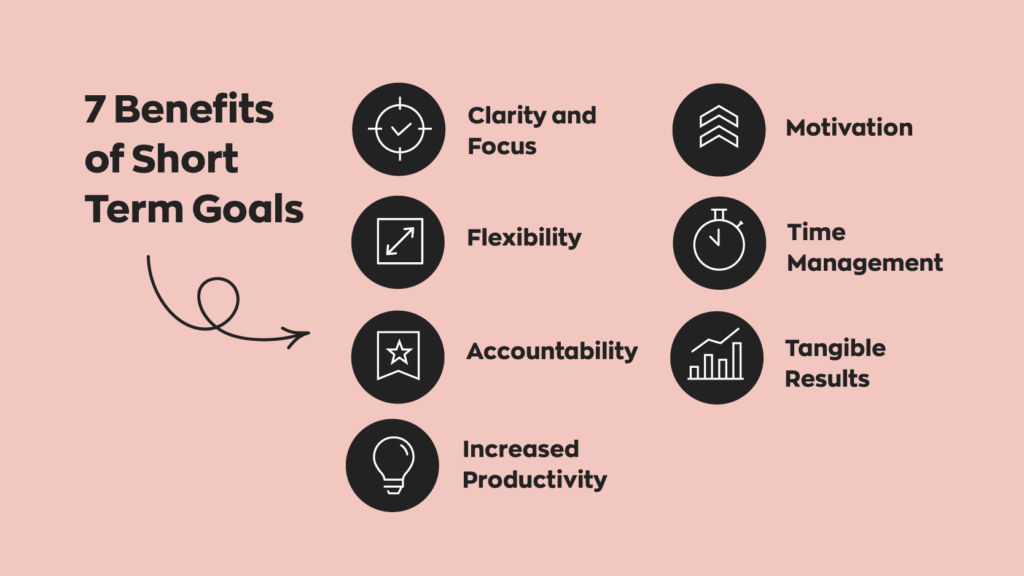
Follow these best practices:
- Use reliable hosting provider
- Keep WordPress updated
- Avoid unnecessary plugins
- Schedule regular backups
- Optimize database regularly
- Use security plugins carefully
Common Beginner Mistakes
Many users make these mistakes:
- Editing configuration without backup
- Ignoring hosting warnings
- Installing too many plugins
- Not checking database credentials carefully
- Using outdated WordPress versions
Avoiding these mistakes improves website stability.
Why Fixing This Error is Important
If you ignore this issue:
- Your website becomes fully inaccessible
- You lose visitors
- SEO rankings drop
- Google may temporarily de-index pages
That’s why fixing it quickly is very important.
Final Thoughts
The “Error Establishing a Database Connection” looks serious, but it is usually caused by simple issues like incorrect credentials, server downtime, or corrupted files.
By following the steps in this guide, you can easily diagnose and fix the problem without needing advanced technical skills.
Consistency in maintenance and proper hosting setup can prevent this error in the future.
FAQs
1. What causes database connection error in WordPress?
It is mainly caused by wrong database credentials, server issues, or corrupted database files.
2. Is this error fixable without coding?
Yes, most solutions like checking hosting or using repair tools do not require coding.
3. Can plugins cause this error?
Yes, faulty or heavy plugins can sometimes break database connections.
4. How long does it take to fix this issue?
It usually takes 10 to 30 minutes depending on the cause.
5. Will I lose my data if this error appears?
No, your data is safe. It is just a connection issue, not data loss.