
One of the most common problems WordPress users face is a file upload restriction. You may try uploading a theme, plugin, video, PDF, backup file, or image only to see a message saying that the file exceeds the maximum upload size for this site.
This issue can be frustrating, especially when working with large website files.In most cases, this issue can be resolved with a few simple adjustments.
In this guide, you will learn why WordPress upload limits exist, how to increase the upload size, and which methods work best for different hosting environments.
What Is the WordPress Upload File Size Limit?
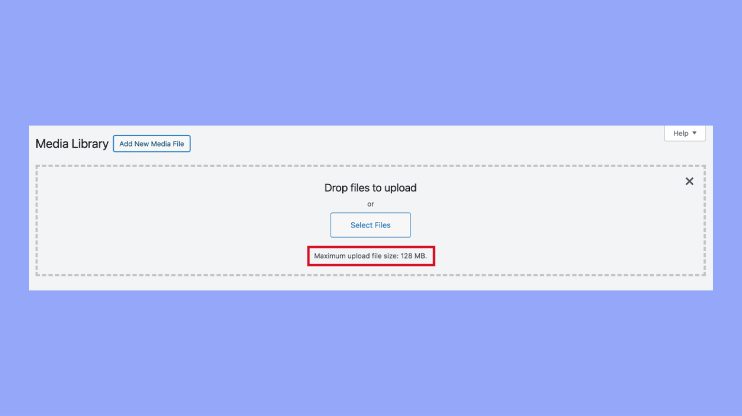
WordPress hosting providers set upload restrictions to protect server resources.
Depending on your hosting plan, you may see limits such as:
- Maximum upload file size 1 MB
- Maximum upload file size 2 MB
- Maximum upload file size 8 MB
- Maximum upload file size 64 MB
These limits determine the largest file you can upload through the WordPress dashboard.
When the file exceeds that limit, WordPress blocks the upload process.
Why Does the Upload Size Error Appear?
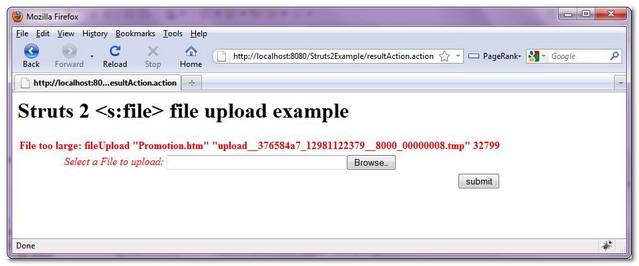
This issue often occurs when the server configuration allows only small file uploads through PHP settings.
Common messages include:
- The selected file is bigger than the maximum upload limit configured for this website.
- Upload failed because the file is too large
- Maximum upload file size exceeded
- Upload file size limit reached
This restriction is often controlled through server settings rather than WordPress itself.
How to Check Your Current Upload Limit
To see your current upload limit:
- Open WordPress Dashboard
- Navigate to Media → Add New
- Look below the upload box
You will usually see a message showing the current upload size limit.
This helps determine how much the limit needs to be increased.
1: Increase Max Upload Size in WordPress Using wp-config
Modifying the wp-config.php file is often a practical way to increase WordPress upload limits.
Locate:
wp-config.php
Open the file, locate the line below, and insert the following code just above it.
/* That’s all, stop editing! */
Example:
@ini_set(‘upload_max_size’, ‘128M’);
@ini_set(‘post_max_size’, ‘128M’);
@ini_set(‘max_execution_time’, ‘300’);
Save the file and check whether the upload limit has changed.
This method works on many hosting environments.
2: Modify PHP Settings
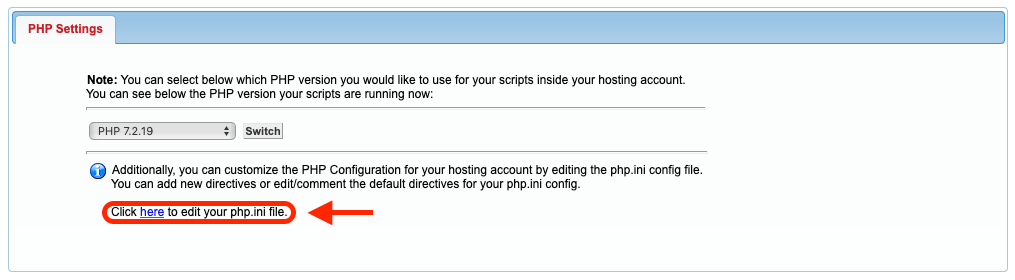
Many hosting providers allow PHP configuration changes through the control panel.
Important settings include:
upload_max_filesize
post_max_size
memory_limit
max_execution_time
For example:
upload_max_filesize = 128M
post_max_size = 128M
memory_limit = 256M
Increasing these values often resolves upload size issues.
3: Edit the .htaccess File
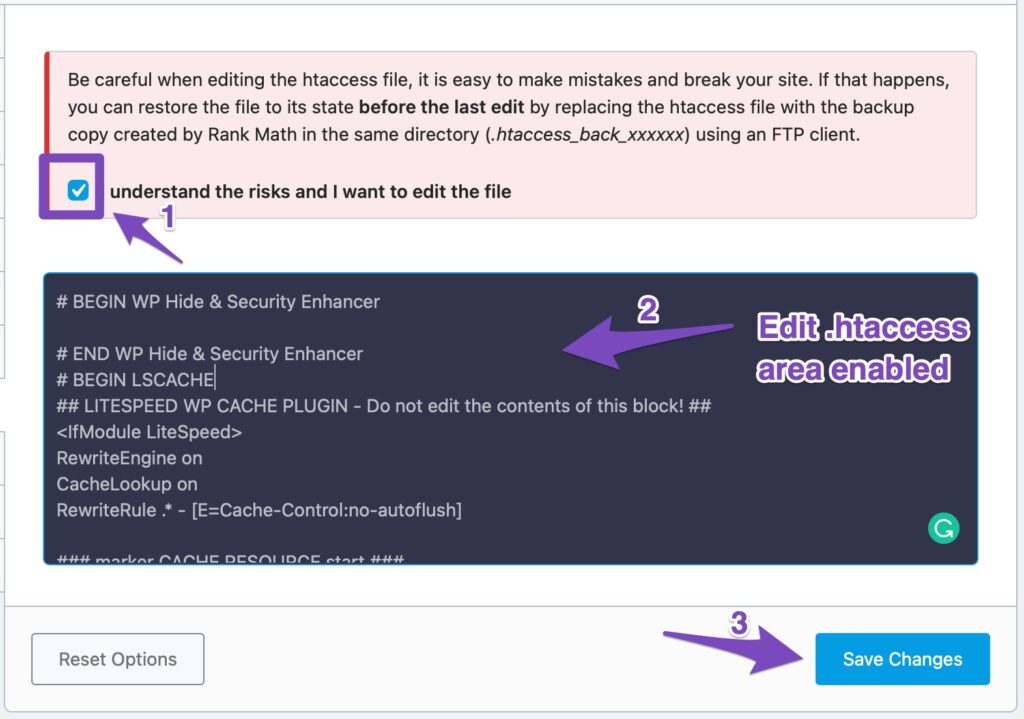
Some hosting environments allow upload size changes through the .htaccess file.
Add:
php_value upload_max_filesize 128M
php_value post_max_size 128M
php_value memory_limit 256M
php_value max_execution_time 300
Save the file and test uploads again.
If your hosting provider blocks these commands, remove them immediately to avoid server errors.
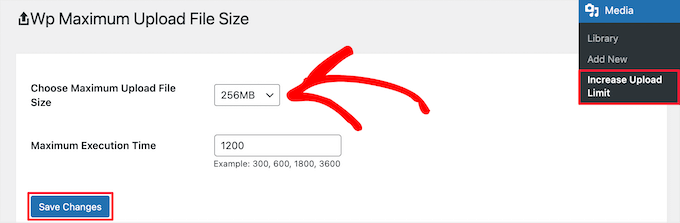
4: Use a Maximum Upload File Size Plugin
Some users prefer not to edit website files manually.
In that case, an increase maximum upload file size plugin can help.
These plugins provide a simple interface where you can adjust upload limits directly from the WordPress dashboard.
Benefits include:
- beginner-friendly setup
- no coding required
- quick configuration
Always choose reputable plugins with positive reviews.
5: Contact Your Hosting Provider
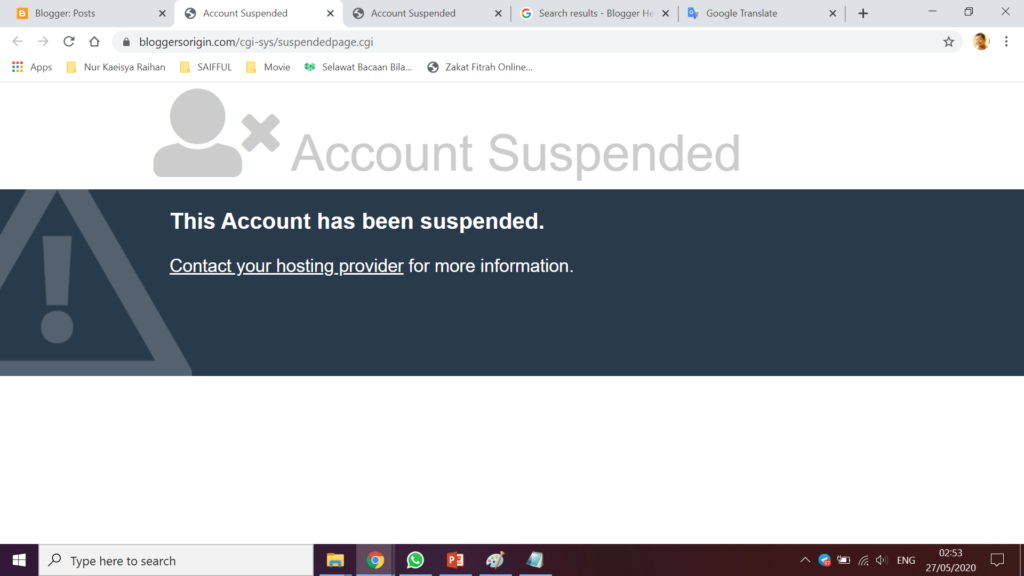
If none of the previous methods work, your hosting company may have server-level restrictions.
Many hosting providers can increase upload limits upon request.
Simply contact support and ask them to raise:
- upload_max_filesize
- post_max_size
- memory_limit
Most providers can complete this adjustment quickly.
How to Allow Larger File Uploads in WordPress Running on Localhost
Developers working on localhost environments such as XAMPP or WAMP may encounter upload restrictions as well.
To increase limits:
- Open php.ini
- Locate:
upload_max_filesize
post_max_size
- Increase the values
- Save the file
- Restart Apache
The new settings should apply immediately.
Managing Big File Uploads Efficiently
Large files can consume significant server resources.
When handling big file uploads:
- compress files when possible
- optimize images before uploading
- remove unnecessary data
- use cloud storage for extremely large files
These practices help maintain website performance.
Common Mistakes to Avoid
Many users make mistakes while adjusting upload limits.
Examples include:
Setting only upload_max_filesize
You should also adjust post_max_size.
Ignoring memory limits
Low memory settings can still block uploads.
Forgetting to restart services
Localhost environments often require service restarts before changes take effect.
Editing the wrong file
Always verify that you are modifying the correct configuration file.
Does Upload Size Affect SEO?
The upload limit itself does not directly affect SEO.
However, it can indirectly influence website management.
For example:
- inability to upload optimized images
- problems importing content
- issues installing themes and plugins
Efficient website management supports better overall website performance.
Final Thoughts
The WordPress file upload size limit is a common issue that affects beginners and experienced website owners alike.
Fortunately, it can usually be resolved by adjusting PHP settings, modifying configuration files, using trusted plugins, or contacting your hosting provider.
Understanding how upload limits work allows you to manage large files more effectively and avoid interruptions while building your website.
With the right settings in place, uploading themes, plugins, backups, images, and other files becomes much easier.
FAQs
Why does WordPress show a file upload size error?
The error appears when the uploaded file exceeds the maximum size allowed by the server configuration.
Do I need a plugin to expand the upload size limit in WordPress?
Yes. You can modify wp-config.php, PHP settings, or the .htaccess file.
What is the recommended upload size for WordPress?
Many websites use limits between 64 MB and 256 MB depending on their needs.
Why do localhost installations have upload limits?
Local development environments use PHP settings that may restrict uploads by default.
Will increasing upload limits slow my website?
No. Increasing upload limits alone does not affect website speed, although very large files may use additional server resources.