
When updating plugins, themes, or the WordPress core, your website may suddenly display a message saying: “Briefly unavailable for scheduled maintenance.” Normally, this message disappears within seconds. However, sometimes the site gets stuck in maintenance mode and becomes inaccessible to visitors.
This issue is common in WordPress websites and can negatively affect user experience, SEO rankings, and website traffic if not fixed quickly.
The good news is that this problem is usually easy to solve. In this guide, you will learn why WordPress gets stuck in maintenance mode, how to fix it safely, and how to avoid the issue in the future.
What Causes WordPress Maintenance Mode Error?
Whenever WordPress performs updates, it temporarily creates a special file called .maintenance. This file tells visitors the website is under maintenance.
Normally, WordPress deletes the file automatically after the update finishes. But if the update process gets interrupted, the file remains active and the website stays stuck in maintenance mode.
Several issues can cause this problem:
- Slow hosting server
- Plugin conflicts
- Interrupted updates
- Low PHP memory limit
- Browser timeout during updates
- Corrupted WordPress files
Signs Your Website Is Stuck in Maintenance Mode
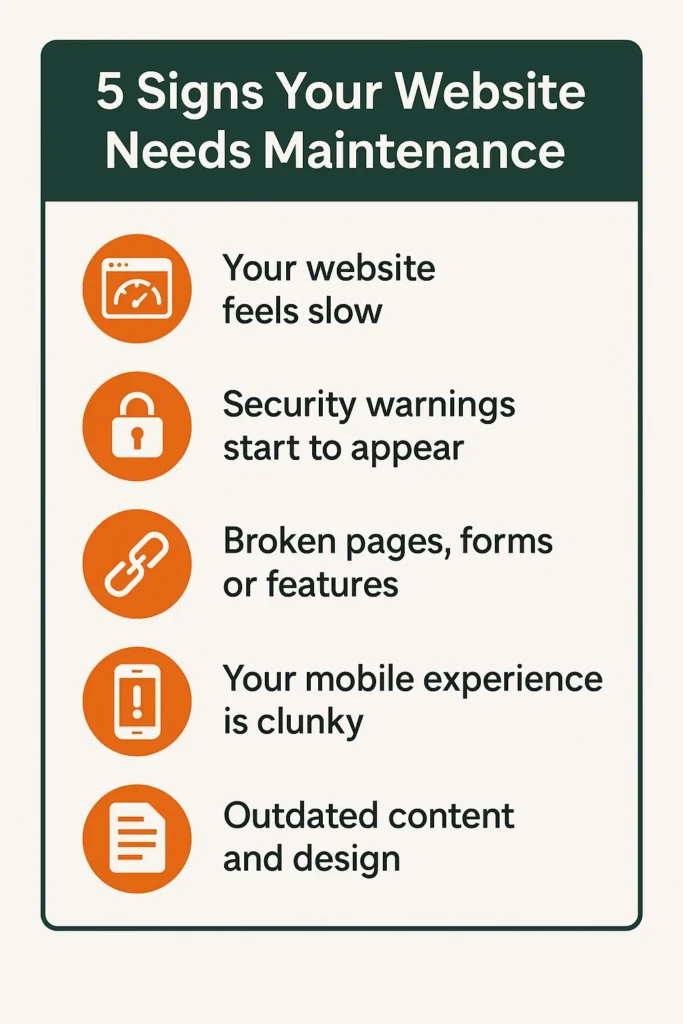
You may notice:
- A blank maintenance message
- “Briefly unavailable for scheduled maintenance” text
- WordPress admin area not opening
- Plugins or themes failing to update
- Visitors unable to access pages
If these symptoms appear for more than a few minutes, the website is likely stuck.
How to Fix WordPress Stuck in Maintenance Mode
Method 1 – Delete the .maintenance File
This is the fastest and most effective solution.
Step-by-Step Process
- Login to your hosting control panel
- Open File Manager
- Go to the root WordPress folder (public_html)
- Look for a hidden file named .maintenance
- Delete the file
After deleting it, refresh your website.
In most cases, the site immediately returns to normal.
What If You Cannot Find the .maintenance File?
Sometimes hidden files are disabled in File Manager.
Enable Hidden Files
- Open File Manager settings
- Enable “Show Hidden Files”
- Refresh the directory
The .maintenance file should now appear.
Fix Plugin or Theme Update Issues
A failed plugin update is one of the biggest reasons for maintenance mode problems.
Disable Problematic Plugins
If the issue continues:
- Go to wp-content/plugins
- Rename the plugins folder temporarily
- Check if the website loads
This disables all plugins at once.
After the site works again, rename the folder back and activate plugins individually to find the problematic one.
Increase PHP Memory Limit

Low server memory can interrupt WordPress updates.
You can increase memory by editing the wp-config.php file.
Add this line:
define(‘WP_MEMORY_LIMIT’, ‘256M’);
This gives WordPress more resources during updates.
Clear Website Cache
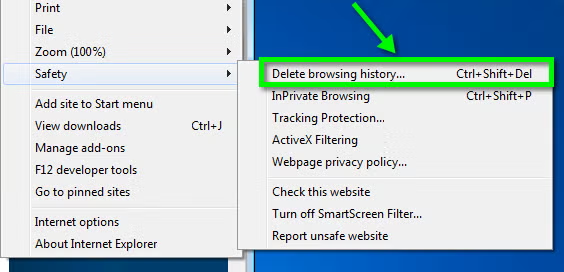
Sometimes the maintenance page remains cached even after fixing the issue.
Clear:
- Browser cache
- WordPress cache plugins
- CDN cache
Then reload the website.
Update WordPress Safely in the Future
Preventing the problem is easier than fixing it repeatedly.
Best Practices
Update One Plugin at a Time
Avoid updating many plugins simultaneously.
Use Reliable Hosting
Slow hosting increases the chance of interrupted updates.
Create Backups Before Updates
Always keep a backup before changing themes or plugins.
Avoid Closing Browser During Updates
Interrupting updates can leave maintenance mode active.
Keep Plugins Updated
Outdated plugins often create compatibility problems.
Can Maintenance Mode Affect SEO?
Yes, if the issue lasts too long.
Search engines may:
- Temporarily stop crawling pages
- Reduce rankings
- Show errors in search results
Short maintenance periods usually do not harm SEO, but long downtime can affect traffic and indexing.
How to Check Website Status After Fixing
After solving the issue:
- Open the website in incognito mode
- Test mobile and desktop versions
- Login to the WordPress dashboard
- Check plugins and themes
Also inspect your website in:
This helps confirm Google can access the website correctly.
Final Thoughts
WordPress maintenance mode errors may look serious, but they are usually simple to fix. In most cases, deleting the .maintenance file restores the website within minutes.
To avoid future problems, keep your WordPress website optimized, update plugins carefully, and use reliable hosting services.
A stable website improves both user experience and search engine performance.
FAQs
1. Why is WordPress stuck in maintenance mode?
This usually happens when an update is interrupted before WordPress removes the .maintenance file.
2. How do I remove WordPress maintenance mode manually?
Delete the .maintenance file from the root WordPress directory using File Manager or FTP.
3. Can plugins cause maintenance mode issues?
Yes, failed or incompatible plugin updates are one of the most common causes.
4. Will maintenance mode affect SEO rankings?
Short downtime usually does not affect rankings, but long outages can impact indexing and traffic.
5. How can I prevent this problem in the future?
Update plugins carefully, use backups, and avoid interrupting WordPress updates.