
Images play an important role in websites, graphic design, digital marketing, branding, and online content. Different image formats serve different purposes, and choosing the right format can improve image quality, website performance, and design flexibility. PNG is one of the most popular image formats because it supports transparent backgrounds and lossless compression. However, PNG images can become blurry or pixelated when enlarged significantly. This is where SVG becomes useful.
PNG to SVG conversion allows users to transform raster images into scalable vector graphics. SVG files can be resized without the typical pixelation associated with raster images, making them useful for logos, icons, illustrations, diagrams, and other graphics.
However, converting PNG into SVG is not always as simple as changing a file extension. A real vector conversion requires tracing the shapes, edges, and colors in the original image to create editable vector paths.The final output quality is influenced by the source image’s resolution, clarity, and the technique used for conversion.
In this guide, you will learn what PNG and SVG formats are, why conversion is useful, how to convert PNG to SVG using free tools, and how to improve the final result. Whether you are a beginner, designer, website owner, or developer, this article will help you understand the complete process.
1. What Is PNG to SVG Conversion?
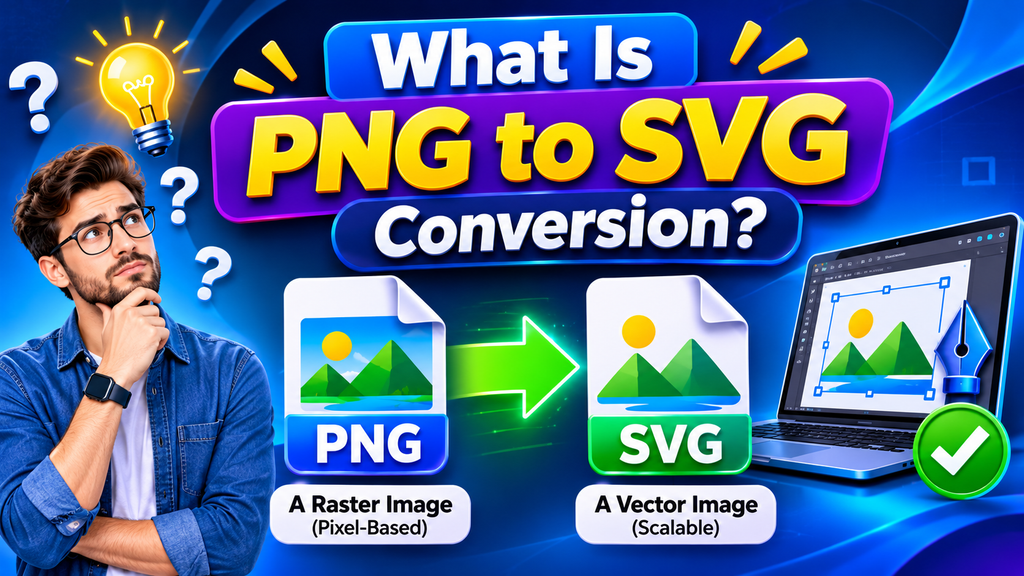
PNG to SVG conversion is the process of transforming a PNG raster image into an SVG vector graphic.PNG means Portable Network Graphics, whereas SVG refers to Scalable Vector Graphics..
A PNG image stores visual information as pixels. Each pixel contains color information, and thousands or millions of pixels combine to create the complete image. This format works well for photographs, screenshots, transparent graphics, and detailed images.
SVG works differently. Instead of storing an image as a fixed grid of pixels, it describes shapes, paths, lines, curves, colors, and other graphical elements using XML-based instructions. A browser or design application uses those instructions to render the graphic.
For example, a PNG logo might contain thousands of pixels representing a circle and some text. A properly converted SVG logo can contain editable paths, shapes, and text elements that describe those objects.
The main purpose of PNG to SVG conversion is not simply to change the file extension. It is to recreate the visual content as vector elements whenever possible.
Important difference: If you place a PNG image inside an SVG document without tracing it, the file may still contain the original raster image. It will have an SVG extension, but the image itself will not become a fully editable vector graphic.
2. Why Should You Convert PNG Images to SVG?
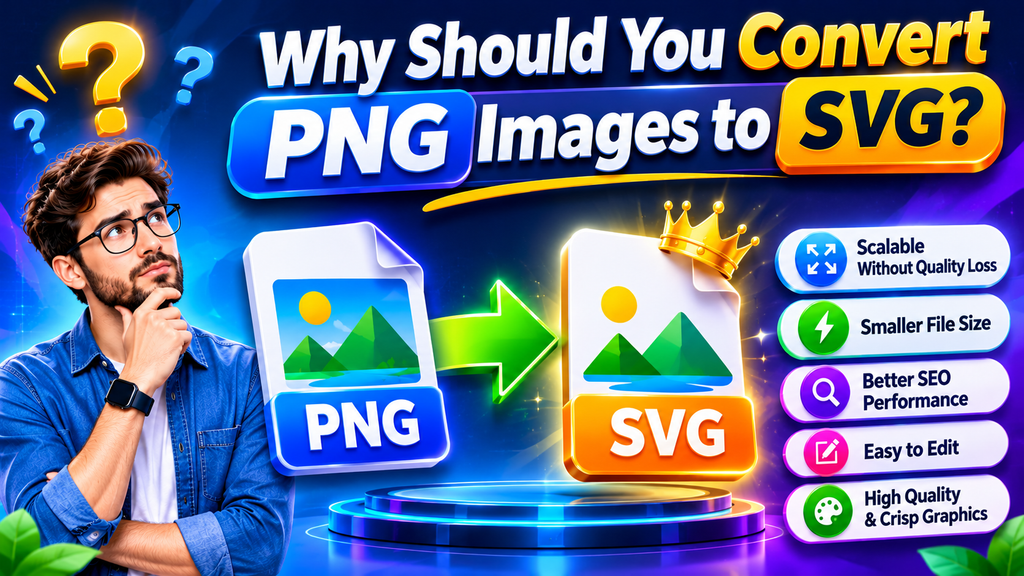
There are several reasons designers, developers, and website owners choose SVG instead of PNG for suitable graphics.
Scalable image quality: SVG graphics can be resized to different dimensions without the usual pixelation of raster images. This is useful when the same logo or icon needs to appear on mobile screens, desktop websites, and large displays.
Editable graphic elements: A genuine vector SVG can contain separate paths, shapes, and objects. Designers can adjust colors, edit curves, remove elements, or change dimensions using compatible vector software.
Flexible website graphics: SVG is supported by modern web browsers and can be used for many interface elements, logos, and icons. Developers can also style suitable SVG elements with CSS and manipulate them with JavaScript.
Potentially smaller file sizes: Simple graphics, such as icons and basic logos, can often be represented efficiently in SVG. However, a complex traced image may produce a large SVG file with many paths. SVG files are not necessarily smaller in size than PNG images.
Better design flexibility: SVG is useful when one graphic must be reused in different layouts, applications, or print and digital projects.
Transparency: SVG allows transparent sections, making it ideal for designs that need to blend seamlessly with various background colors or images.
These advantages make SVG a practical choice for simple illustrations, logos, icons, diagrams, and flat-color artwork. Photographs and highly detailed images are generally better kept in raster formats.
3. Best Free Tools to Convert PNG to SVG
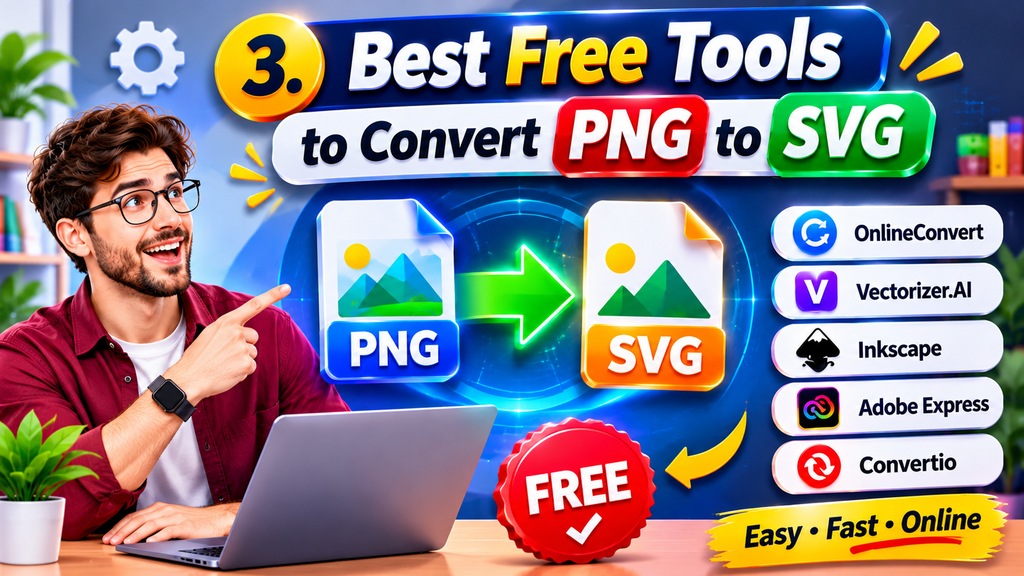
You do not always need expensive software to convert a PNG image into an SVG file. Several free tools provide raster-to-vector conversion features.
Inkscape
Inkscape is a vector design tool that is freely available and developed as open-source software. It includes a feature called Trace Bitmap, which can turn suitable raster images into vector paths.
To use it:
- Download and install Inkscape from its official website.
- Open the application and create a new document.
- Select File > Import and choose your PNG image.
- Select the imported image.
- Open Path > Trace Bitmap.
- Choose a tracing mode based on the image.
- Preview the result and adjust the settings.
- Apply the tracing operation.
- Move the traced result to check that it is separate from the original PNG.
- Remove the original image if it is no longer needed.
- Save the project as an SVG file.
Inkscape is particularly useful for logos, black-and-white illustrations, silhouettes, and flat-color graphics.
Adobe Illustrator
Adobe Illustrator is a professional vector design application. Its Image Trace feature can analyze raster images and generate vector paths.
A basic workflow includes:
- Open Adobe Illustrator.
- Import your PNG image.
- Select the image.
- Open the Image Trace panel.
- Choose an appropriate preset, such as a black-and-white or color option.
- Adjust the tracing settings.
- Select Expand to convert the tracing result into editable vector objects.
- Review and clean up the paths.
- Export or save the result as SVG.
Illustrator is suitable for professional design projects that require detailed control over vector artwork.
Online PNG to SVG Converters
Online converters can be convenient when you want to convert an image without installing desktop software. Depending on the service, you may be able to upload a PNG, select conversion settings, and download an SVG file.
A typical process is:
- Open a trusted PNG to SVG conversion website.
- Upload your PNG image.
- Select the available tracing or conversion settings.
- Start the conversion.
- Preview the output if the service offers that option.
- Download the SVG file.
- Open it in a vector editor to check the result.
Before uploading, review the website’s privacy policy and file-handling practices. Avoid uploading confidential logos, private documents, or sensitive images to services you do not trust.
4. Step-by-Step Guide to Convert PNG to SVG Using Inkscape
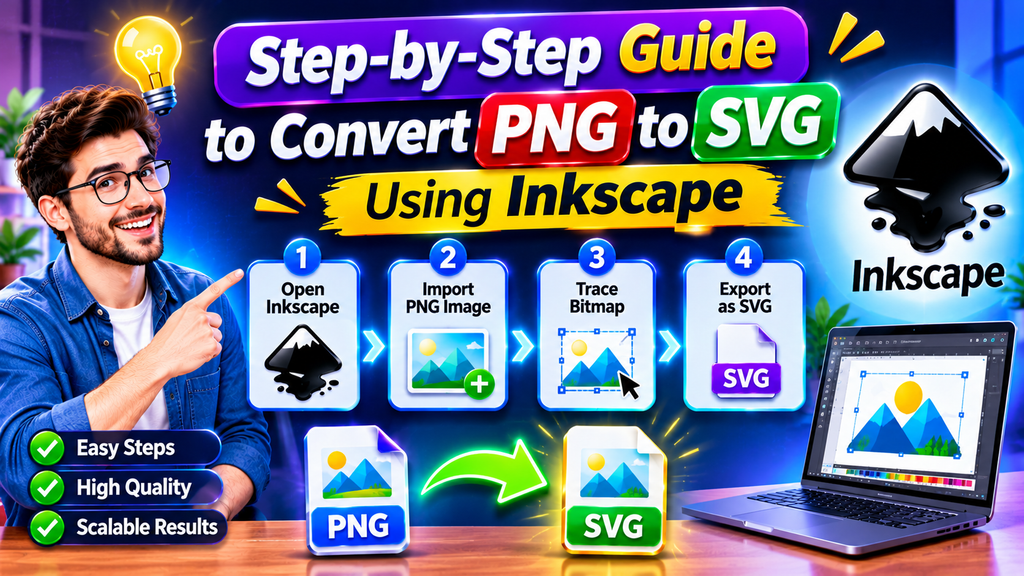
Inkscape is a practical choice for beginners because it is free and provides dedicated bitmap-tracing features. Follow these steps to create a genuine vector version of a suitable PNG image.
Step 1: Prepare Your PNG Image
Start with the highest-quality version of your image. A clear image with sharp edges usually produces better tracing results than a small, blurry, or heavily compressed image.
If possible, remove unnecessary backgrounds and improve contrast before conversion. A clean logo with a plain background is generally easier to trace than a complex photograph.
Step 2: Import the Image
Open Inkscape and select File > Import. Choose the PNG file from your computer and place it on the document.
You can resize or position the image before tracing. Keep the original image available because you may need to compare it with the vector result.
Step 3: Open Trace Bitmap
Select the imported image and navigate to Path > Trace Bitmap. This feature analyzes the image and generates vector paths based on its visible shapes and colors.
Different tracing modes are designed for different types of images. The correct option depends on whether your image contains a simple silhouette, line drawing, grayscale artwork, or multiple colors.
Step 4: Choose the Right Tracing Settings
For a black logo on a white background, a brightness-based tracing mode may work well. For artwork with several flat colors, multiple scans or color-based tracing options may be more appropriate.
Adjust the settings and preview the output. Avoid adding unnecessary detail because too many paths can make the SVG difficult to edit.
Step 5: Apply the Trace
When the preview looks suitable, apply the tracing operation. Inkscape creates the vector result, usually positioned directly over the original PNG.
Move the new object slightly to confirm that the vector result is separate from the raster image. This is an important step because the original PNG may still be present underneath.
Step 6: Clean Up the Vector Artwork
Inspect the traced result carefully. Remove unwanted background shapes, correct rough edges, and adjust colors where necessary.
You can use the Node tool to edit vector paths. For professional logos, you may need to simplify paths or redraw certain elements manually.
Step 7: Save as SVG
After checking the artwork, select File > Save As and choose the SVG format. Give the file a meaningful name and save it to your preferred folder.
Finally, reopen the SVG file to make sure it displays correctly. Test it at different sizes and check whether the shapes remain clean.
5. PNG vs SVG: Key Differences and When to Use Each Format
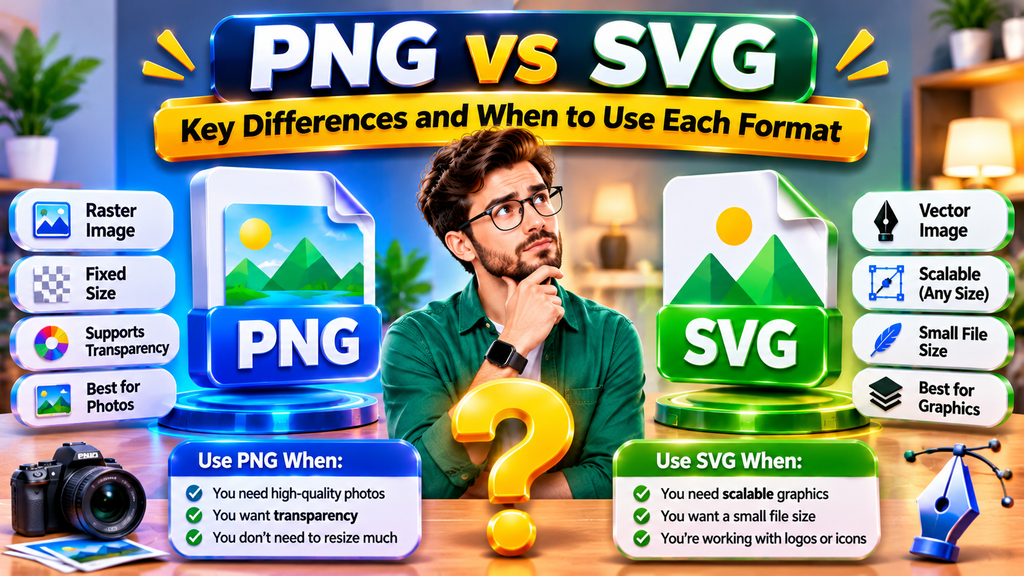
PNG and SVG are both useful image formats, but they are designed for different purposes. Understanding their differences helps you choose the right format for a particular project.
| Feature | PNG | SVG |
| Image type | Raster | Vector-based |
| Image structure | Pixels | Shapes and paths |
| Scaling | Can become pixelated | Scales without typical pixelation |
| Transparency | Supported | Supported |
| Editing | Pixel-level editing | Vector-object editing |
| Photographs | Excellent choice | Usually unsuitable |
| Logos and icons | Useful | Often preferred |
| Browser support | Widely supported | Widely supported in modern browsers |
| File size | Depends on image dimensions and content | Depends on paths and graphic complexity |
When Should You Use PNG?
PNG is a suitable choice for photographs, screenshots, detailed artwork, and images that contain complex color transitions. It is also useful when you need a fixed-size image with a transparent background.
For example, a detailed screenshot of a software interface is generally better stored as PNG because converting every visual detail into vector paths would be unnecessary.
When Should You Use SVG?
SVG is often a better choice for logos, icons, diagrams, simple illustrations, and interface graphics. These elements usually contain defined shapes and colors that can be represented as vector objects.
For example, a company logo may need to appear in a website header, mobile application, presentation, and large printed banner. An SVG version can make resizing and editing easier.
Does SVG Always Have a Smaller File Size?
No. A simple icon may have a very small SVG file, while a detailed, multicolor image converted into thousands of vector paths can produce a large file. Always compare the file sizes and visual quality before choosing a format.
6. Common PNG to SVG Conversion Problems and How to Fix Them
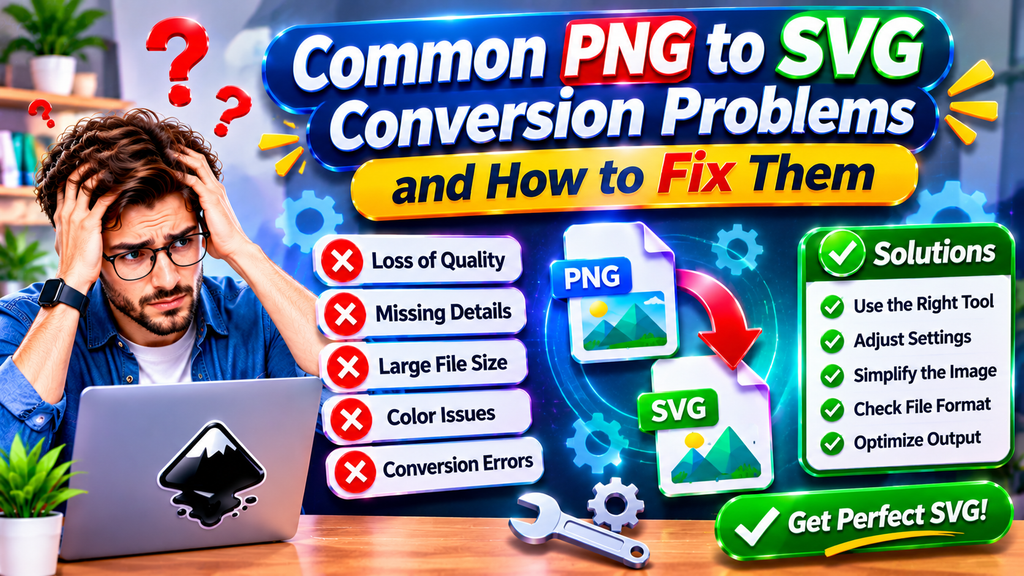
Although PNG to SVG conversion can be straightforward, some images require additional editing. Understanding common problems can help you achieve better results.
Blurry or Uneven Edges
Blurry edges usually appear when the original PNG has low resolution, poor contrast, or compression artifacts. The tracing tool may interpret these imperfections as part of the image.
Solution: Use a higher-resolution source image, improve contrast, and remove unnecessary noise before tracing.
Too Many Vector Paths
Complex images may generate hundreds or thousands of small paths. This can make the SVG difficult to edit and may increase its file size.
Solution: Use simpler tracing settings, reduce unnecessary colors, and simplify paths after conversion.
Incorrect Colors
Automatic tracing tools may combine similar colors or interpret shadows as separate shapes. As a result, the SVG may not look exactly like the original PNG.
Solution: Adjust color settings, reduce the number of colors when appropriate, and manually correct important areas.
Background Appears in the SVG
Some tracing tools create a vector shape for the background. This can make the converted graphic appear to have a solid background even when you expected transparency.
Solution: Inspect the generated objects and remove the unwanted background shape. Check the SVG over different background colors.
SVG Contains an Embedded PNG
Changing the file extension or saving an imported bitmap inside an SVG document does not automatically create vector paths.
Solution: Use a tracing feature such as Inkscape’s Trace Bitmap or Illustrator’s Image Trace. Confirm that the result contains editable vector objects rather than only the original embedded image.
Text Looks Different
Automatic tracing may convert letters into shapes instead of preserving editable text. Small or decorative fonts can also produce inaccurate results.
Solution: If you need editable text, recreate it using the correct font in a vector editor. Otherwise, carefully trace and inspect the letter shapes.
7. SEO, Website Performance, and Best Practices for Using SVG Images
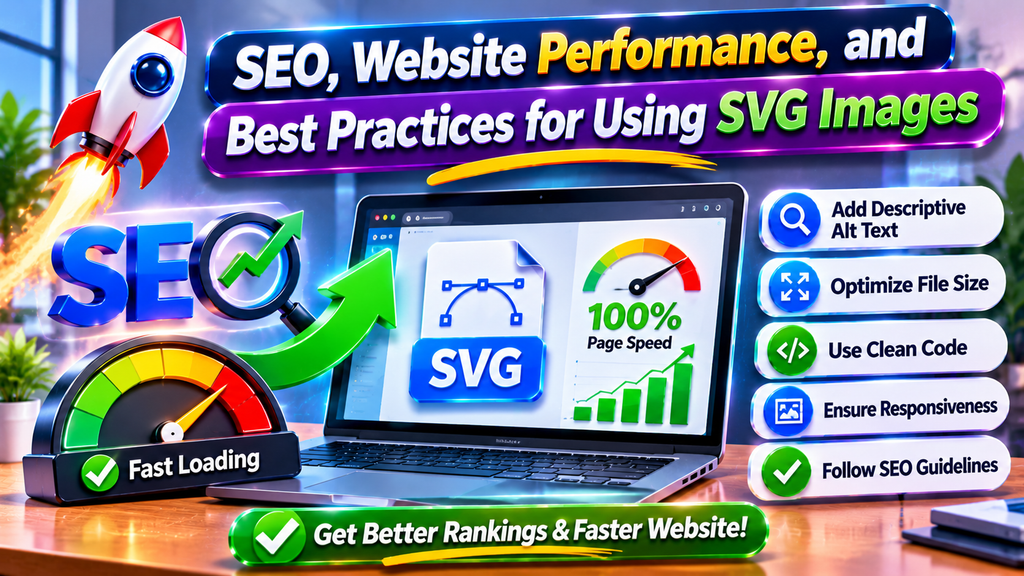
SVG can be useful for website design, but using it correctly is important. Website owners and developers should consider image quality, accessibility, security, and performance.
Use SVG for suitable graphics: Choose SVG for logos, icons, diagrams, and simple illustrations. Keep photographs and highly detailed images in suitable raster formats such as JPEG or PNG, depending on their requirements.
Optimize SVG files: Remove unnecessary metadata, unused elements, and excessive path details. A clean SVG can be easier to maintain and may load more efficiently.
Use descriptive filenames: Give files meaningful names that describe their content. For example, company-logo.svg is more informative than image123.svg.
Add accessible descriptions: When an SVG is used as meaningful content on a webpage, provide an appropriate text alternative. For an HTML image element, the alt attribute can describe the graphic. Decorative graphics may need different accessibility treatment so screen readers do not announce unnecessary content.
Check responsive behavior: Test SVG graphics on mobile phones, tablets, and desktop screens. Confirm that the viewBox and dimensions allow the artwork to display correctly at different sizes.
Consider browser security: SVG is XML-based and can contain features such as links, styles, and scripts. Only use SVG files from trusted sources, and sanitize user-uploaded SVG content before displaying it on a website. Do not assume every uploaded SVG is safe.
Use appropriate HTML: A simple SVG image can be included through an image element, such as:
<img src=”company-logo.svg” alt=”Company logo”>
For inline SVG, developers can place SVG markup directly in HTML when they need more control over its elements. The correct method depends on the project’s design and security requirements.
Keep internal linking relevant: If you publish tutorials about image tools, graphic formats, or website design on DevFreeHub, connect related articles through natural internal links. Relevant links help readers discover useful resources and help search engines understand relationships between your pages. Avoid adding unrelated links simply to increase the number of internal links.
Conclusion
Converting PNG to SVG is a useful way to make suitable graphics more flexible, scalable, and editable. SVG works particularly well for logos, icons, diagrams, and simple illustrations because vector paths can be resized without the typical pixelation of raster images.
For beginners, Inkscape provides a free way to trace PNG images and save the results as SVG files. Professional designers can also use applications such as Adobe Illustrator for more advanced tracing and editing.
Remember that not every PNG image is a good candidate for vector conversion. Simple graphics usually produce cleaner results, while photographs and highly detailed images may require extensive editing or may be better left in raster format.
Before using a converted SVG on your website or in a design project, check its paths, colors, transparency, file size, and overall appearance. Choosing the right conversion method will help you create cleaner graphics and get better results from your PNG to SVG workflow.
Frequently Asked Questions About PNG to SVG
1. What does PNG to SVG mean?
PNG to SVG means converting a raster PNG image into a vector graphic saved in SVG format. A proper conversion traces the image into editable paths and shapes rather than simply changing the file extension.
2. Can I convert PNG to SVG for free?
Yes. You can use free tools such as Inkscape and various online converters. Inkscape is a useful option if you want more control over tracing settings and vector editing.
3. Does converting PNG to SVG improve image quality?
It can improve scalability when the image is successfully converted into vector paths. However, conversion cannot automatically restore details that are missing from a low-quality original image. The result also depends on the tracing process.
4. Can I convert a photograph from PNG to SVG?
You can trace a photograph, but the result may contain a very large number of shapes and may not look as natural as the original. Photographs are generally better kept in raster formats.
5. Which free software is best for PNG to SVG conversion?
Inkscape is one of the best free options because it offers bitmap tracing and vector editing features. It is suitable for beginners as well as users who need more control over their graphics.
6. Can I edit an SVG file after conversion?
Yes. If the SVG contains actual vector paths and shapes, you can edit colors, curves, dimensions, and individual objects using compatible vector software. An SVG that only embeds a PNG will not provide the same editing flexibility.
7. Why does my SVG file look the same as my PNG?
The SVG may contain the original PNG as an embedded image rather than a traced vector version. Use a raster-to-vector tracing feature and check that the resulting objects are editable paths or shapes.
8. Is SVG better than PNG for website logos?
SVG is often a good choice for website logos because it can scale to different screen sizes without typical raster pixelation. However, the best format depends on the logo, website requirements, and compatibility needs.
9. Can SVG images have transparent backgrounds?
Yes. SVG supports transparent areas. You can create or edit vector shapes without adding a background, allowing the graphic to appear over different website or design backgrounds.
10. How can I check whether a PNG has been converted into a real SVG?
Open the SVG in a vector editor and select its elements. If you can select and edit separate paths or shapes, it is likely a genuine vector result. If the entire graphic behaves like one embedded bitmap, it may still contain the original PNG.