

Introduction
Managing money effectively is an important part of everyday life. Whether you receive a monthly salary, run a small business, study at school, or manage household expenses, keeping track of your finances can help you make better financial decisions. However, remembering every payment, purchase, bill, and saving goal can become difficult without a proper system.
An MS Excel budget template provides a convenient way to organize your income, record expenses, calculate your remaining balance, and monitor your savings. Instead of writing financial details in notebooks or calculating everything manually, you can use an organized Excel spreadsheet to manage your money in one place.
Microsoft Excel offers useful features such as formulas, tables, charts, filters, and conditional formatting. These tools make budget management easier and help users understand where their money goes.
In this guide, you will learn what an Excel budget template is, how it works, how to create one from scratch, which formulas are useful, and how to manage monthly expenses more effectively. You will also discover practical tips for building a budget spreadsheet that supports your financial goals.
1. What Is an MS Excel Budget Template?

An MS Excel budget template is a pre-designed spreadsheet used to record and organize financial information. It allows individuals, families, students, and businesses to monitor their income, expenses, savings, and available balances.
A typical budget template includes different sections for recording financial transactions. These sections help users understand how much money they receive, how much they spend, and how much remains after paying their expenses.
For example, someone earning a monthly income of $2,500 can use an Excel budget spreadsheet to organize rent, groceries, transportation, electricity bills, entertainment, and savings.
Built-in formulas enable spreadsheets to perform calculations and generate totals automatically.
This reduces manual calculations and makes financial information easier to understand.
Common information included in an Excel budget template:
- Monthly income and additional earnings.
- Fixed expenses such as rent and subscriptions.
- Variable expenses such as groceries and shopping.
- Savings contributions and financial goals.
- Total spending and remaining balance.
- Monthly comparisons and financial summaries.
An Excel budget template is useful because it provides a structured overview of personal or household finances without requiring complicated accounting software.
2. Why Should You Use an Excel Budget Spreadsheet?
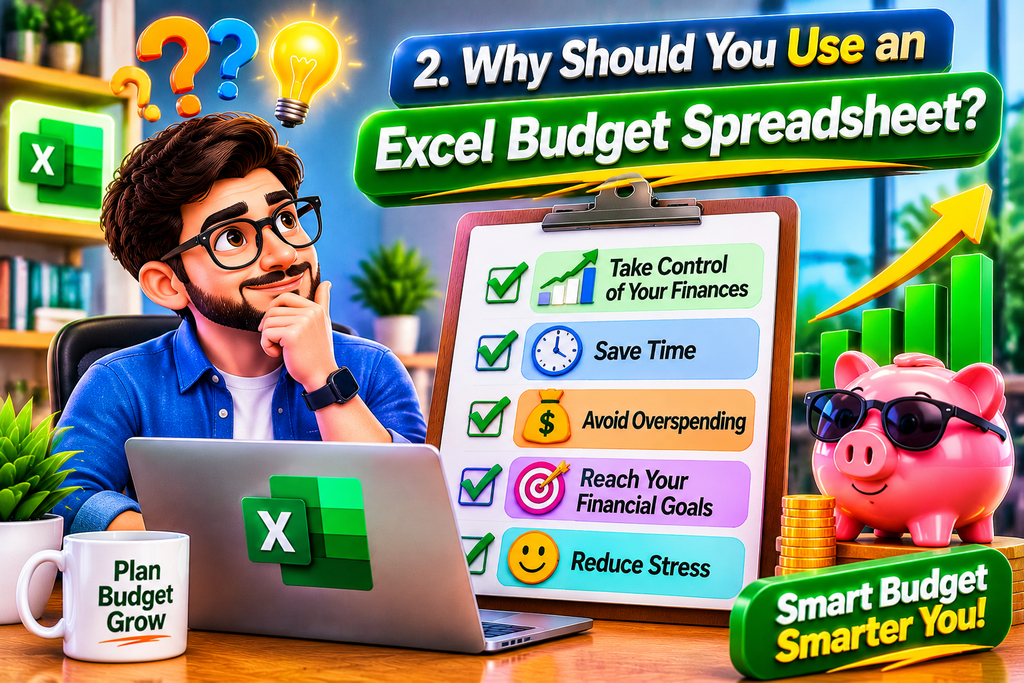
It gives users a clear picture of their financial activities and helps them identify areas where spending can be controlled.
One major advantage is flexibility. You can customize the spreadsheet according to your personal requirements instead of following a fixed budgeting system.
Here are some important benefits of using an Excel budget template.
Better Expense Management
You can record everyday purchases and identify which categories consume most of your income. Reviewing these details gives you a clearer picture of how you manage your expenses.
Automatic Calculations
Excel formulas can calculate income totals, expenses, savings, and remaining balances automatically.
Improved Financial Planning
A budget spreadsheet helps you prepare for upcoming payments, monthly bills, and planned purchases. You can also establish realistic savings targets.
Easy Customization
You can add or remove categories, change spreadsheet colors, create additional worksheets, and organize information according to your needs.
Visual Financial Reports
Excel charts and graphs can convert numerical information into visual reports. These reports make it easier to compare spending categories and understand monthly financial performance.
For individuals who want a simple financial management system, Excel provides a practical starting point.
3. Important Features of a Good Excel Budget Template
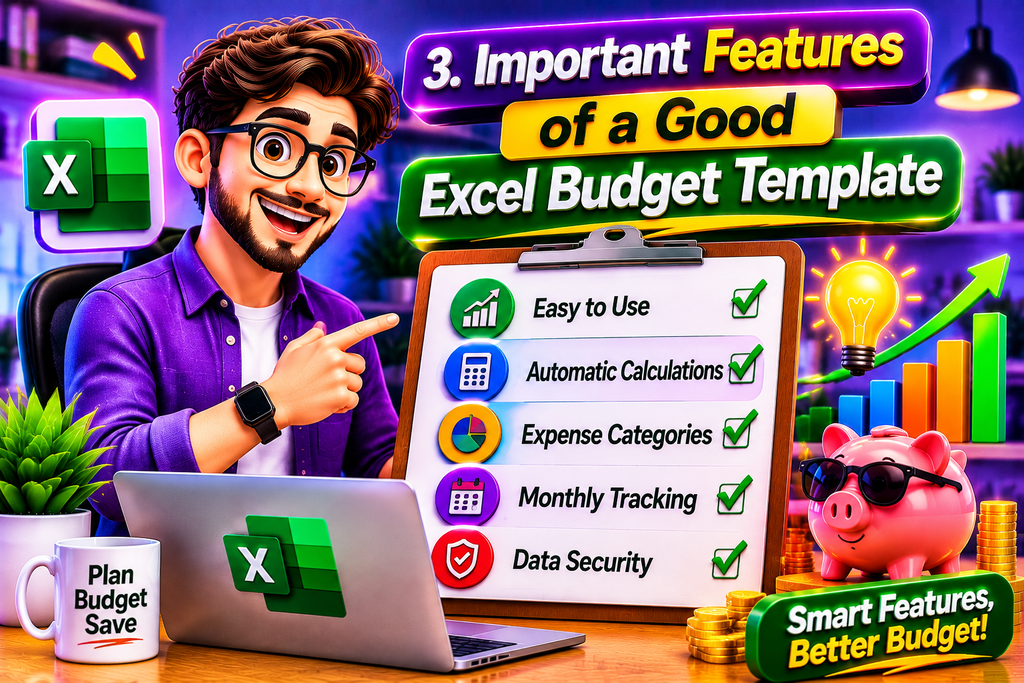
A useful budget spreadsheet should be simple to understand and easy to update. Adding too many unnecessary columns can make financial tracking confusing.
Instead, focus on the features that provide meaningful financial information.
Income Tracking: This section records salary, freelance earnings, business income, and other sources of money.
Expense Categories: Separate expenses into categories such as housing, transportation, food, education, utilities, and entertainment.
Automatic Totals: Use formulas to calculate total income, total spending, and available money.
Savings Tracker: Include a dedicated section for monthly savings and financial targets.
Monthly Overview: Display important financial information in one place, including income, expenses, and remaining balances.
Visual Charts: Use pie charts or bar charts to understand spending patterns.
Multiple Worksheets: Create separate sheets for monthly budgets, yearly summaries, and savings plans.
A well-organized template should present important information clearly without requiring users to navigate complicated spreadsheet structures.
4. How to Create an MS Excel Budget Template Step by Step

Creating a budget spreadsheet in Microsoft Excel is straightforward. You do not need advanced spreadsheet knowledge to build a basic financial tracker.
Follow these steps to create a personalized monthly budget.
Step 1: Open Microsoft Excel
Start Microsoft Excel on your computer. Select a blank workbook to create a new spreadsheet.
You can also search for existing budget templates through Excel’s available template options.
Step 2: Add Budget Headings
Create columns for the following information:
- Date
- Description
- Income
- Expense Category
- Expense Amount
- Remaining Balance
These headings provide a basic structure for recording financial transactions.
Step 3: Enter Your Monthly Income
Record all expected sources of income. Include your salary, freelance payments, business earnings, or other regular income.
If your income changes every month, update the spreadsheet whenever you receive additional payments.
Step 4: Add Expense Categories
Create categories for different spending activities. For example, include rent, groceries, transportation, internet, electricity, education, and personal purchases.
Organizing expenses into categories makes financial reports more useful.
Step 5: Enter Your Expenses
Whenever you spend money, enter the transaction into the appropriate section. Add details such as the transaction date, brief explanation, expense type, and total cost.
Regular updates help keep your budget accurate.
Step 6: Apply Excel Formulas
Apply spreadsheet functions to automatically determine your overall earnings and spending.
You can also create a formula to display the remaining balance.
Step 7: Format Your Spreadsheet
Use bold headings, suitable colors, borders, and currency formatting to improve readability.
Step 8: Save Your Budget File
Save the workbook with a recognizable name, such as Monthly Budget Planner. Update the file regularly to maintain accurate financial records.
5. Best Excel Formulas for Managing Income and Expenses
Excel formulas make budget management easier because they automatically perform calculations whenever you update financial information.
You can use several simple formulas to organize your monthly budget.
| Formula | Purpose | Example |
| SUM | Adds multiple values | =SUM(C2:C10) |
| AVERAGE | Calculates average spending | =AVERAGE(D2:D10) |
| MAX | Finds the highest expense | =MAX(D2:D10) |
| MIN | Finds the lowest expense | =MIN(D2:D10) |
| IF | Checks a condition | =IF(E2>0,”Over Budget”,”Within Budget”) |
Calculate Total Income
If your income values are entered in cells C2 through C10, use:
=SUM(C2:C10)
This formula adds all the income amounts in the selected range.
Calculate Total Expenses
If expenses are recorded in D2 through D10, enter:
=SUM(D2:D10)
Excel will calculate your total spending automatically.
Calculate Remaining Balance
You can subtract total expenses from total income:
=B2-C2
For example, if B2 contains total income and C2 contains total expenses, the formula displays the remaining amount.
Calculate Average Expenses
Use the AVERAGE formula to understand your typical spending:
=AVERAGE(D2:D10)
These formulas are suitable for beginners and can be expanded as your budget spreadsheet becomes more detailed.
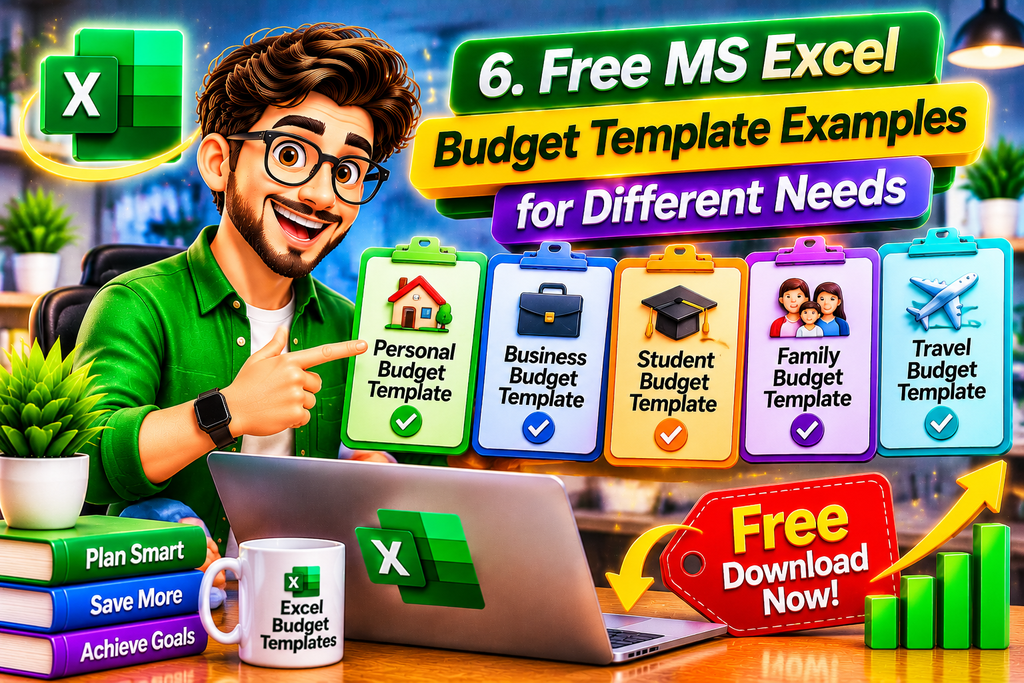
6. Free MS Excel Budget Template Examples for Different Needs

Different users have different financial requirements. A student may need a simple expense tracker, while a family may require a detailed household budget.
Choosing an appropriate template makes financial management more convenient.
Personal Monthly Budget Template
This template is designed for individuals who want to track their salary, daily purchases, bills, and savings.
It usually includes income, expenses, spending categories, and remaining balance.
Household Budget Template
Families can use this spreadsheet to organize household income and shared expenses.
It may include rent, groceries, school fees, electricity, transportation, healthcare, and other regular payments.
Student Budget Template
Students can monitor educational expenses, transportation costs, food purchases, accommodation, and personal spending.
A simple layout helps students manage limited budgets more effectively.
Small Business Budget Template
Small business owners can organize operational costs, sales income, employee expenses, inventory purchases, and other business-related financial activities.
However, a basic budget template should not replace professional accounting software when detailed financial reporting is required.
Monthly Expense Tracker
This template focuses on recording everyday spending. It allows users to review transactions and identify categories where expenses are increasing.
You can customize any of these templates according to your financial requirements.
7. Tips to Manage Your Budget More Effectively in Excel
Creating a spreadsheet is only the first step. Maintaining accurate financial records is equally important.
Use the following practices to get better results from your Excel budget template.
Update Your Spreadsheet Regularly
Enter transactions whenever possible instead of waiting until the end of the month. Regular updates reduce the chances of forgetting expenses.
Separate Fixed and Variable Expenses
Fixed expenses generally remain similar each month, while variable expenses can change depending on your activities.
Keeping these categories separate helps you understand your spending patterns.
Set Realistic Savings Goals
Decide how much money you want to save each month. Your savings target should reflect your income, necessary expenses, and financial responsibilities.
Use Conditional Formatting
Excel conditional formatting can highlight important values automatically. For example, you can highlight expenses that exceed your planned budget.
Review Monthly Reports
Compare your actual spending with your planned spending at the end of each month.
This process helps identify unnecessary expenses and areas that need adjustment.
Keep Backup Copies
Save an additional copy of your budget workbook in a secure location. This protects your financial records if the original file becomes unavailable.
Avoid Unnecessary Complexity
Use only the columns and formulas you need. A simple spreadsheet that you regularly maintain is often more useful than a complicated workbook that becomes difficult to update.
8. Common Mistakes to Avoid When Using an Excel Budget Template
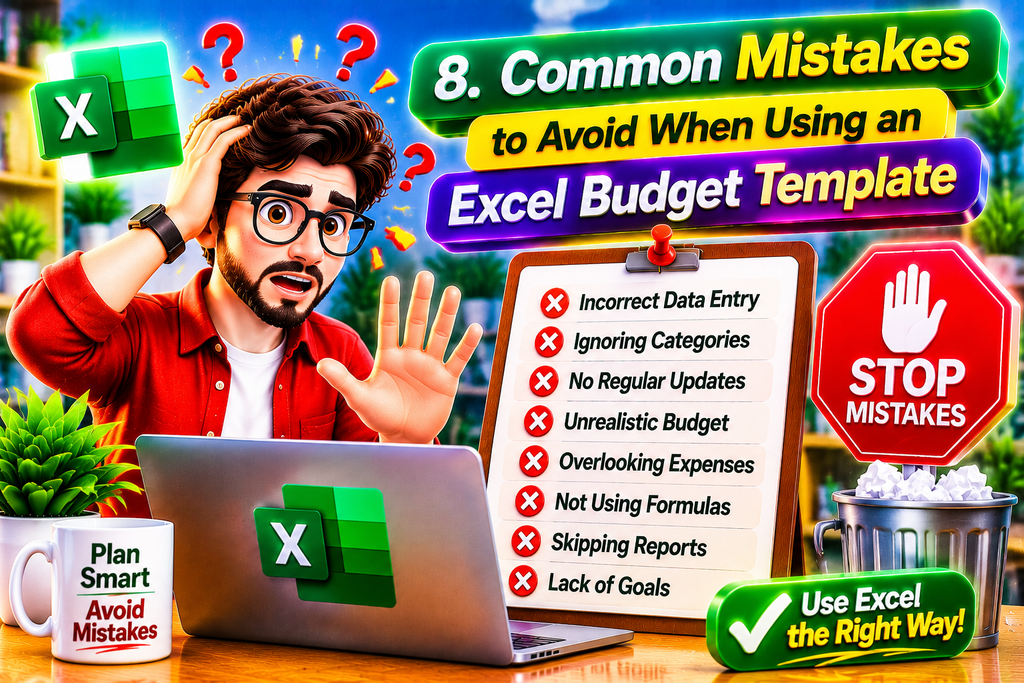
Although Excel makes financial tracking easier, some mistakes can reduce the accuracy of your budget.
Understanding these problems can help you maintain reliable financial information.
Forgetting Small Purchases
Small daily expenses may seem insignificant, but they can increase monthly spending. Record them alongside larger transactions.
Using Incorrect Formulas
An incorrect cell reference or formula range can produce inaccurate totals. Double-check formulas whenever you add new rows or columns.
Mixing Different Expense Categories
Combining unrelated expenses makes it difficult to understand where your money goes. Create separate categories for better organization.
Ignoring Irregular Expenses
Annual subscriptions, repairs, school fees, and occasional purchases should also be considered when planning a budget.
Not Reviewing the Budget
A spreadsheet is useful only when you regularly check its information. Review your financial records to identify changes and update your spending plan.
Sharing Sensitive Financial Information
Avoid sharing budget files containing private financial details with unauthorized people. Use appropriate file protection and secure storage practices.
By avoiding these mistakes, you can make your Excel budget spreadsheet more accurate, organized, and useful.
Frequently Asked Questions (FAQs)
1. What is an MS Excel budget template?
An MS Excel budget template is a spreadsheet designed to organize income, expenses, savings, and financial goals. It helps users monitor their money and calculate their remaining balance.
2. Is there a free Excel budget template?
Yes. Microsoft Excel provides different budget-related templates that users can explore. You can also create your own budget spreadsheet using a blank workbook and basic formulas.
3. How do I create a monthly budget in Excel?
Open a blank Excel workbook, add income and expense columns, enter your financial information, and use SUM formulas to calculate totals. You can also include savings and remaining balance sections.
4. Which Excel formula is best for calculating expenses?
The SUM formula is commonly used to calculate total expenses. For example, =SUM(D2:D20) adds all values within the selected range.
5. Can I use Excel to track daily expenses?
Yes. You can record daily purchases by entering the transaction date, description, category, and amount. Excel can organize these records and calculate total spending.
6. Can beginners use an Excel budget template?
Absolutely. Beginners can use a simple spreadsheet containing income, expenses, and remaining balance columns. Basic formulas make calculations easier without requiring advanced Excel skills.
7. What is the difference between a budget template and an expense tracker?
A budget template helps plan expected income and spending, while an expense tracker records actual transactions. Both can be combined in one Excel workbook.
8. Can I customize an Excel budget spreadsheet?
Yes. You can change headings, add expense categories, apply colors, create charts, and include formulas according to your financial requirements.
9. How can I calculate savings in Excel?
Subtract your total expenses from your total income. For example, use =B2-C2 when B2 contains income and C2 contains expenses. The result represents the remaining amount available for savings or other purposes.
10. Is Microsoft Excel suitable for household budget planning?
Yes. Excel can help families organize household income, utility bills, groceries, education costs, transportation, and savings. Its customizable structure makes it useful for different household requirements.
Conclusion
An MS Excel budget template is a practical solution for organizing income, tracking expenses, and planning monthly savings. It provides a simple way to understand financial activities without depending on complicated financial management tools.
By creating separate expense categories, applying basic Excel formulas, and reviewing monthly reports, you can develop a more organized approach to managing money.
Whether you are a student, employee, family member, or small business owner, a properly maintained Excel budget spreadsheet can help you understand your spending habits and make informed financial decisions.
Start with a simple template, update your records regularly, and improve your spreadsheet as your financial requirements change. Consistent budgeting can make financial planning easier and help you work toward realistic savings goals.