

Introduction
Email has become an important communication tool for students, professionals, businesses, and everyday internet users. Whether you want to communicate with someone, receive important updates, register on websites, or share documents, having an email address makes online activities easier.
Creating a fresh email account is a simple process that anyone can complete by following a few easy steps.
You do not need advanced technical knowledge or special software. A smartphone, computer, and internet connection are generally enough to get started.
Gmail is one of the popular choices because it provides an accessible inbox and connects with Google services such as Google Drive, Google Photos, YouTube, and Google Calendar.
This beginner-friendly guide explains how to create a new email account using Gmail, choose an appropriate email address, complete registration, and protect your account. It also covers common registration problems and answers frequently asked questions.
1. Understanding Email Accounts and Their Importance

An email account is an online service that allows you to send, receive, and organize electronic messages. Every account has a unique email address that identifies its mailbox.
For example, an address may look like:
yourname@gmail.com
The first part represents the username, while the second part identifies the email provider.
An email account is useful for several reasons:
- Communication: Send and receive messages without depending on traditional postal services.
- Online registration: Register for websites, educational platforms, and digital services.
- Document sharing: Send files, photographs, and other attachments.
- Account management: Receive security notifications and important service updates.
- Professional communication: Contact colleagues, clients, teachers, and organizations.
A personal email account can also make it easier to organize different online activities.
2. Essential Things to Prepare Before Setting Up an Email Account
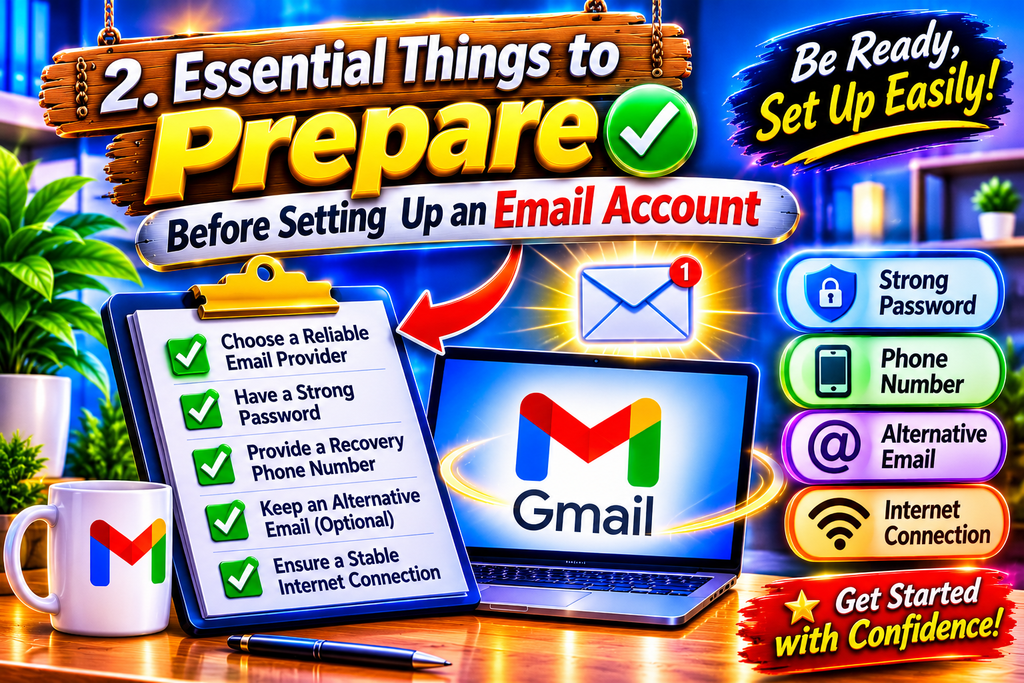
A device: You can use a desktop computer, laptop, Android phone, or iPhone.
Internet connection: A stable connection helps the registration page load correctly and allows you to complete any verification steps.
Basic information: Google may request your name, date of birth, and other details during registration. Enter accurate information.
A suitable username: Think of a few possible email addresses before beginning. Your preferred username might already be unavailable.
Choose a unique password that is hard to predict. Stay away from personal information, such as your name or date of birth, and avoid using common number patterns.
Recovery information: A recovery phone number or email address can help you regain access if you forget your password. Follow the recovery options presented during setup.
Always visit Google’s official website to register your account instead of entering your details on unknown or untrusted websites.
3. Steps to Create a New Email Address Using Your Computer

Creating a Gmail account on a computer is a simple process. Follow these steps carefully.
Step 1: Open the Google Account Registration Page
Open a trusted browser such as Chrome, Firefox, or Edge.
Visit the official Google Account registration page
You will see Google’s account creation options.
Step 2: Select the Account Type
Choose the appropriate option according to the intended use of the account.
For an ordinary personal mailbox, select For my personal use. Google also provides other account types, including options for children and business use.
Step 3: Enter Your Basic Information
Check your details carefully before moving forward. Accurate information can make future account recovery easier.
Step 4: Choose Your Email Address
You can select one of the suggested Gmail addresses or create a username of your choice.
For example:
If your preferred username is already being used, try a different combination that remains easy to remember.
Step 5: Create a Password
Choose a strong and unique password. Fill in the designated box with the required information and repeat the entry if the website asks for confirmation.
Create a separate password for each important account to reduce the risk of unauthorized access if one password is exposed.
Step 6: Complete Verificatio
Complete the steps provided on the verified website, and keep your security codes private to prevent unauthorized access to your account.
Step 7: Review and Finish Registration
Read the relevant privacy information and terms. If you agree, complete the remaining instructions.
Once registration is successful, you can open Gmail and access your new inbox.
4. Setting Up a New Email Account on Android and iOS Devices

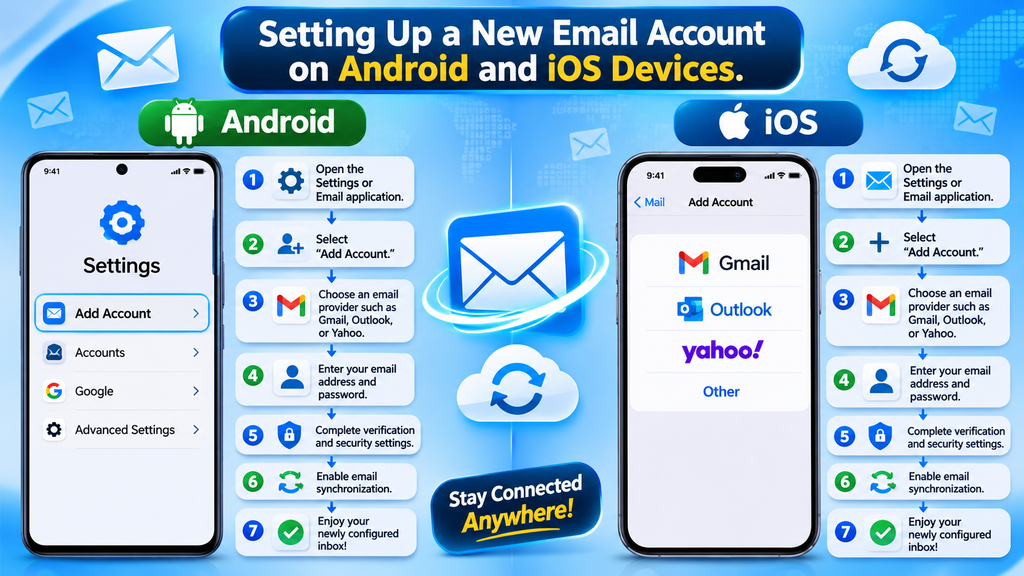
A new email address can be set up quickly through your mobile phone.
Simply open a mobile browser or the Gmail app and follow the required steps to finish setting it up.
Creating an Account on Android
- Launch the Gmail app on your phone or access the service through a web browser.
- Open the Google sign-in page.
- Choose the appropriate account type.
- Enter the information requested by Google.
- Select an available Gmail address.
- Create and confirm your password.
- Complete any verification steps.
- Follow the remaining instructions to finish setup.
After registration, open Gmail and select your new account to view your inbox.
Creating an Account on iPhone
Setting up an email account on an iPhone is equally simple and requires only a few easy steps.
- Open Safari or another trusted browser.
- Visit Google’s account registration page.
- Tap Create account.
- Select the appropriate account type.
- Enter your requested information.
- Choose a Gmail address.
- Set a strong password.
- Complete the registration instructions.
After completing the registration, launch Gmail and access your account with the email address and password you just created.
The exact screens and options may change as Google updates its services.
5. Tips for Selecting a Professional Email Address and Protecting Your Account
Choosing a suitable email address is an important part of creating a new account. Your username should be simple, understandable, and appropriate for its intended purpose.
Tips for Choosing a Username
Consider these suggestions:
- Use a recognizable name or suitable combination of words.
- Keep the address short and easy to type.
- Avoid unnecessary symbols and confusing number combinations.
- Choose a professional format when using email for educational or work-related communication.
- Avoid including private information in your public-facing email address.
For example, a simple name-based address is usually easier to recognize than a long username containing random characters.
Essential Email Security Practices
After creating your account, take some time to review its security settings.
Use a unique password: A password used only for your email account reduces the risk associated with password reuse.
Enable two-step verification: This adds an extra security check when signing in.
Add recovery information: Keep your recovery details accurate and accessible.
Check account activity: Review unfamiliar sign-ins and security notifications.
Avoid suspicious messages: Do not open unexpected attachments or follow questionable links.
Keep login information private: Never share your password or verification codes with anyone.
These simple habits help protect your mailbox and the personal information associated with it.
6. How to Send Your First Email After Registration

Once your account is ready, you can start sending messages.
Follow these instructions:
- Open Gmail and sign in using your new account.
- Find and select the Compose button.
- Enter the recipient’s email address in the To field.
- Add a short and relevant subject.
- Write your message in the main text area.
- Review the recipient and message.
- Select Send.
For example, if you are contacting a teacher, your subject might be “Question About the Assignment.”
You can also attach supported files using the attachment option. Before sending an attachment, make sure it is the correct file and that you are sharing it with the intended recipient.
After sending your message, you can find it in the Sent folder. Messages received from other people normally appear in your Inbox.
7. Common Problems When Creating a New Email Account
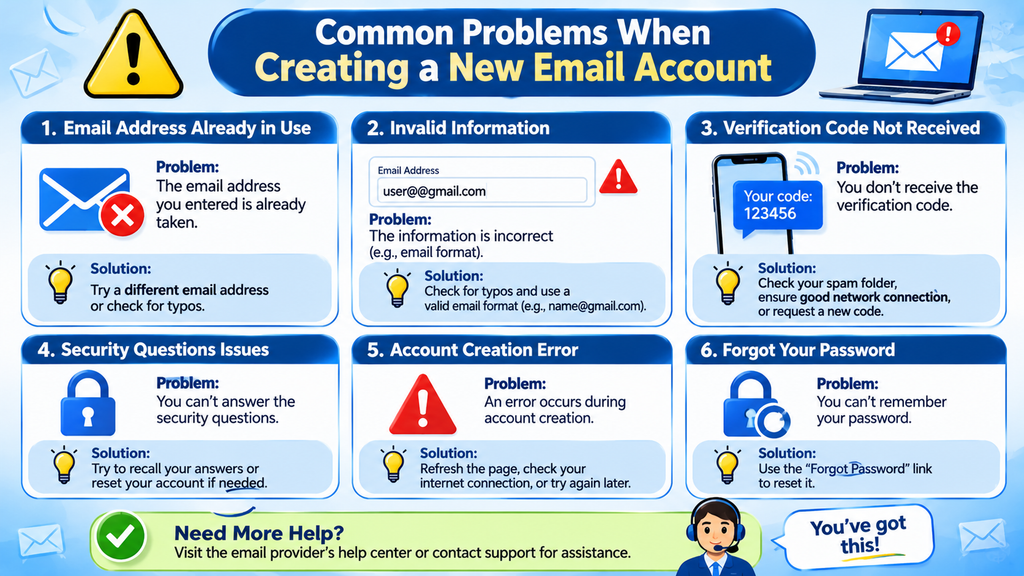
Sometimes users experience difficulties during registration. Most problems can be addressed by checking the information entered and following Google’s instructions.
Username Is Already Taken
Google does not allow two accounts to use the same Gmail username. If your preferred address is unavailable, try a different name combination or one of the suggestions provided.
Password Does Not Meet Requirements
If Google rejects your password, follow the password requirements displayed on the registration page. Create a stronger and unique password.
Verification Is Not Completing
Check whether you entered the requested information correctly. If a verification message is delayed, wait briefly and follow the available instructions rather than repeatedly submitting requests.
Registration Page Is Not Loading
Check your internet connection and reload the official registration page. You can also try another updated browser.
You Already Have a Google Account
If you previously registered for Gmail, YouTube, or another Google service, you may already have a Google Account. Try signing in or using the official account recovery process before creating another one.
8. Frequently Asked Questions About Creating a New Email Account
1. How do I make a new email account for free?
Visit Google’s official account registration page, select Create account, enter the requested information, choose an available Gmail address, and follow the registration instructions. Creating a standard personal Gmail account does not require a subscription fee.
2. Can I create a Gmail account without a computer?
Yes. You can use an Android phone or iPhone through a mobile browser or the Gmail application. The registration process is similar to the computer method.
3. Is Gmail the same as a Google Account?
Not exactly. Gmail is an email service, while a Google Account provides access to Gmail and other Google products, including Drive, Photos, Calendar, and YouTube.
4. Why is my preferred email address unavailable?
Your chosen username may already belong to another account or may not meet Google’s username availability rules. Try another combination or select an available suggestion.
5. Can I create more than one email account?
Yes, Google supports multiple accounts. You can use separate accounts for different purposes, provided you follow Google’s account policies.
6. Do I need a phone number to create a Gmail account?
Google may offer phone verification as part of registration, and the requirements can vary. Follow the instructions displayed during signup. Adding recovery information is also useful for account security.
7. How long does it take to create a new email account?
The registration process usually takes only a few minutes if you have your information ready. Additional verification may increase the time required.
8. Can I change my Gmail address after creating an account?
Google provides different options depending on your account and address type. Check the official account settings to see which changes are available. You may also be able to create another address.
9. What should I do if I forget my Gmail password?
Use Google’s official account recovery page. Follow the identity verification instructions and use your available recovery information to regain access.
10. Is it safe to use a Gmail account for important communication?
Gmail provides security features designed to protect accounts. For better protection, use a unique password, enable two-step verification, review account activity, and avoid suspicious links or attachments.
Conclusion
Learning how to make a new email account is an important step toward using online services and communicating digitally. Gmail makes the registration process accessible to beginners through its official website and mobile application.
By following the steps in this guide, you can choose an appropriate email address, complete registration, access your inbox, and send your first message. Remember to use a strong password, maintain accurate recovery information, and review your account security settings.
Whether you need an email address for personal communication, education, or professional activities, a properly configured email account can make your online experience more organized and convenient.