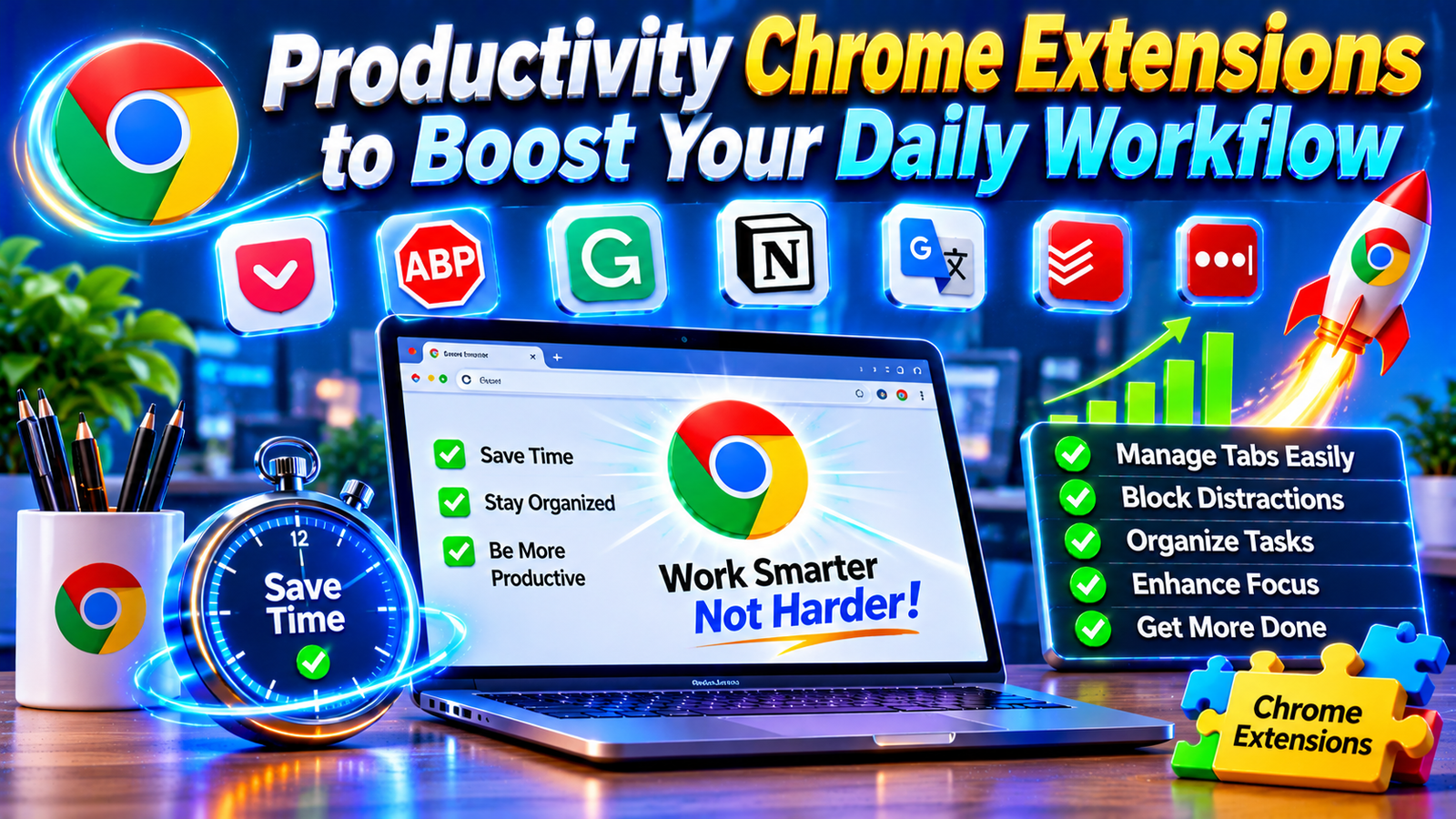

Working online has become a major part of modern life. Whether you are a student, freelancer, business owner, content creator, or remote employee, your browser is often the place where most of your daily work happens. However, managing multiple tabs, remembering important tasks, responding to messages, and avoiding distractions can make even simple activities time-consuming.
This is where productivity Chrome extensions become useful. These small browser add-ons introduce practical features that help you organize your work, manage tasks, save information, improve focus, and complete everyday activities more efficiently.
Instead of constantly switching between different applications, you can use carefully selected Chrome extensions to bring essential tools directly into your browser. Some extensions help manage your schedule, while others organize open tabs, block distracting websites, improve writing, or automate repetitive tasks.
In this guide, you will discover how productivity extensions work, which types are worth considering, how to choose the right tools, and how to use them effectively. Whether you want to improve your personal workflow or manage a busy professional schedule, the right browser extensions can make your daily routine easier and more organized.
1. What Are Productivity Chrome Extensions and How Do They Work?

Productivity Chrome extensions are small software tools that add useful features to the Google Chrome browser. They are designed to improve specific activities, such as task management, time tracking, note-taking, writing, scheduling, and website organization.
These extensions usually appear as icons near the Chrome address bar. After installation, users can access their features without opening a separate desktop application.
For instance, a task management extension lets you organize and manage your to-do list directly from your browser.
. A writing assistant can identify grammar mistakes as you compose an email. Similarly, a website blocker can restrict access to distracting websites during focused work sessions.
Most productivity extensions are available through the Chrome Web Store, where users can review descriptions, ratings, developer information, and requested permissions before installation.
How Do These Extensions Improve Daily Work?
Productivity tools work by reducing unnecessary steps in everyday activities. Instead of manually organizing everything, you can use browser-based features to manage information more conveniently.
Their common benefits include:
- Better organization: Keep tasks, bookmarks, and important information organized.
- Time savings: Reduce repetitive activities and unnecessary application switching.
- Improved concentration: Limit distractions and manage browsing habits.
- Efficient communication: Improve writing, proofreading, and email workflows.
- Task management: Track deadlines, priorities, and daily responsibilities.
- Convenience: Access useful tools directly from your browser.
The best approach is to choose extensions that solve actual problems rather than installing numerous tools simply because they are popular.
2. Best Types of Productivity Chrome Extensions to Consider

There are many categories of productivity extensions available, and each serves a different purpose. The right selection depends on your work habits, responsibilities, and personal preferences.
Here are some useful categories worth exploring.
Task Management and To-Do List Extensions
Task management extensions help you organize daily responsibilities and keep track of important deadlines.
Tools such as Todoist and TickTick offer task organization features that can help users manage personal projects, work assignments, reminders, and recurring activities.
You can create task lists, assign priorities, and organize responsibilities into different categories.
These extensions are particularly helpful for freelancers, students, project managers, and people handling multiple assignments.
Time Tracking Extensions
Time tracking tools help you understand how much time you spend on different activities.
For example, Clockify offers time tracking features that can help freelancers and professionals monitor working hours. Similar tools can provide insights into how time is distributed across projects.
Tracking your time regularly can help identify activities that consume more hours than expected.
Website Blocking and Focus Extensions
Online distractions are one of the biggest challenges when working through a browser.
Extensions such as StayFocusd can help limit access to distracting websites during selected periods. Focus-oriented tools can also encourage users to follow structured working sessions.
These features are useful when you need to concentrate on writing, studying, programming, or completing important assignments.
Note-Taking and Information Management Extensions
Note-taking extensions make it easier to capture ideas, save useful information, and organize research.
For example, Evernote Web Clipper helps users save web content for later reference. Other note-taking tools allow users to collect research materials, create reminders, and maintain organized digital notes.
These extensions can be particularly valuable for researchers, bloggers, students, and content creators.
Writing and Grammar Improvement Extensions
Writing assistants can help improve spelling, grammar, sentence clarity, and overall communication.
Grammarly is one example of a writing assistance tool that can provide suggestions while composing emails, documents, and online content.
Such extensions are useful for professionals who regularly write reports, business messages, articles, and other important documents.
Remember that automated writing suggestions should always be reviewed before publishing or sending important content.
3. Best Chrome Productivity Extensions to Streamline Your Workflow

Choosing individual extensions becomes easier when you understand what each tool offers. Below are some well-known options to explore for different productivity needs.
1. Todoist – Organize Tasks and Daily Responsibilities
Todoist is a popular task management platform that helps users organize responsibilities and manage personal projects.
Its features include task creation, project organization, priority levels, and due dates. Depending on the available plan and integration, users can also connect tasks with other productivity services.
Best for: Students, freelancers, remote employees, and professionals managing multiple projects.
2. Grammarly – Improve Writing Quality
Grammarly helps users identify spelling, grammar, punctuation, and clarity issues while writing online.
It can be useful when composing emails, preparing professional documents, creating blog content, or communicating with clients.
Best for: Writers, bloggers, students, marketers, and business professionals.
3. Clockify – Track Working Hours
Clockify provides time tracking features that help individuals and teams understand how much time they spend on projects.
Users can record work sessions and review time reports to understand their working patterns.
Best for: Freelancers, agencies, consultants, and remote teams.
4. StayFocusd – Reduce Online Distractions
StayFocusd is designed to help users control the time they spend on distracting websites.
It allows users to establish restrictions that encourage more focused browsing habits.
Best for: Students, remote workers, and people who struggle with unnecessary browsing.
5. Evernote Web Clipper – Save Useful Information
Evernote Web Clipper helps users capture useful web pages and information for future reference.
It can support research activities, content planning, and information organization.
Best for: Researchers, bloggers, students, and content creators.
6. Bitwarden – Manage Passwords Securely
Bitwarden is a password management service that helps users store and manage login credentials.
Instead of remembering multiple passwords manually, users can organize their credentials through a password manager.
Best for: Professionals, online business owners, and individuals managing multiple accounts.
7. Momentum – Create a More Focused New Tab Experience
Momentum replaces the standard Chrome new tab page with a personalized dashboard.
Depending on its available features and subscription, it can display daily focus information, inspirational content, and shortcuts that support an organized browsing routine.
Best for: People who want a cleaner and more intentional browser experience.
Note: Features, pricing, free-plan limitations, and extension availability may change. Check each developer’s official website and current Chrome Web Store listing before installing.
4. How to Choose the Right Productivity Chrome Extensions
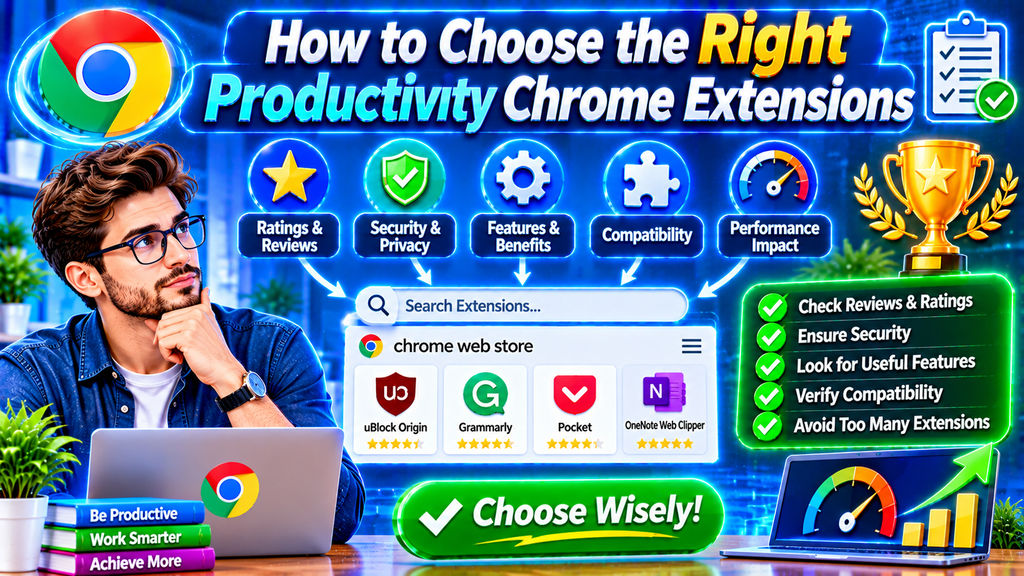
Not every extension is suitable for every user. Installing too many tools can create additional distractions, slow down your workflow, and make browser management more complicated.
Instead of selecting extensions based only on popularity, consider what you actually need.
Identify Your Biggest Productivity Challenge
Start by identifying the activities that consume most of your time.
For example:
- If you frequently forget deadlines, consider a task management extension.
- If social media interrupts your work, explore website blockers.
- If you spend hours writing emails, consider a writing assistant.
- If you manage multiple projects, investigate time tracking tools.
- If you collect online research, consider a note-taking extension.
Selecting tools according to specific needs makes your browser more useful.
Check Reviews and Developer Information
Before installing an extension, review its Chrome Web Store listing.
Look for:
- Clear feature descriptions.
- Recent user reviews.
- Developer information.
- Update history.
- Privacy disclosures.
- Compatibility with your Chrome version.
User reviews can provide helpful insights, but they should not be treated as a guarantee of quality or security.
Review Permissions and Privacy Policies
This is one of the most important steps when selecting a browser extension.
Some extensions request permission to access browsing history, website content, open tabs, or other information. These permissions may be necessary for certain features, but you should understand why an extension needs them.
Only approve permissions that make sense for the functionality you want to use. Prefer tools that request limited access and explain their data practices clearly.
You should also review the developer’s privacy policy, particularly when handling business information, confidential documents, or personal accounts.
5. How to Install and Manage Productivity Chrome Extensions
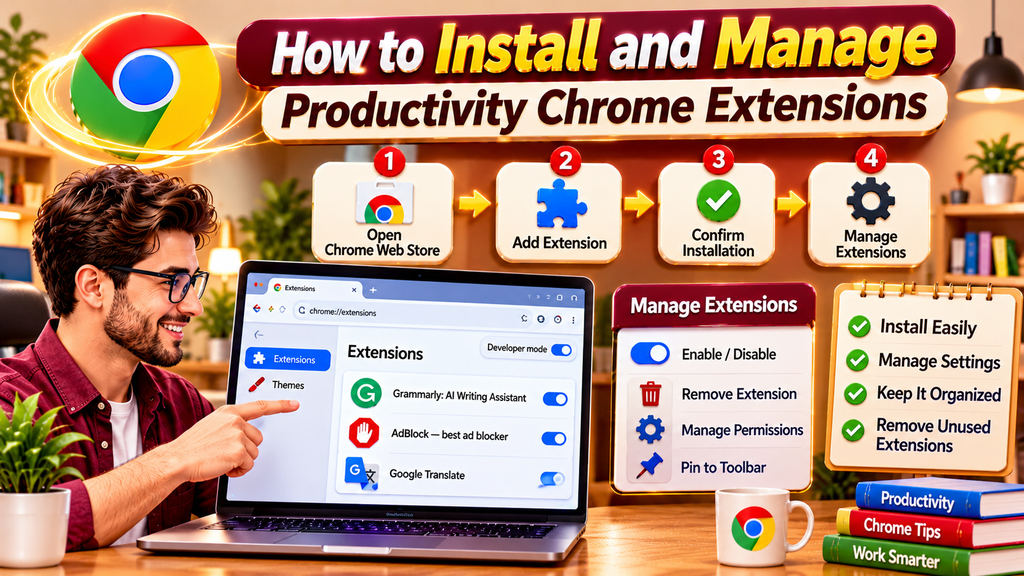
Installing an extension through the Chrome Web Store is straightforward. However, it is important to follow the correct steps and review the permissions before approving an installation.
Step 1: Open the Chrome Web Store
Launch Google Chrome on your desktop computer and visit the official Chrome Web Store.
Use its search feature to find the productivity tool you want to install.
Step 2: Review the Extension
Open the extension’s listing and examine its description, developer information, features, reviews, and permissions.
Make sure the extension provides the functionality you need.
Step 3: Add the Extension to Chrome
Select the Add to Chrome button.
Chrome may display a permission request explaining what information or browser features the extension wants to access.
Review the request carefully before selecting Add extension.
Step 4: Access Your Installed Extension
After installation, select the Extensions icon near the Chrome address bar.
Find your newly installed tool and select it to access its features.
You can also pin frequently used extensions to the browser toolbar for easier access.
Step 5: Manage or Remove Unnecessary Extensions
To manage installed extensions:
- Open Google Chrome.
- Select the three-dot menu.
- Navigate to Extensions.
- Select Manage Extensions.
- Review your installed tools.
- Disable or remove extensions you no longer need.
Regularly reviewing installed extensions helps keep your browser organized and reduces unnecessary access to browsing information.
6. Smart Ways to Use Chrome Extensions Without Losing Focus
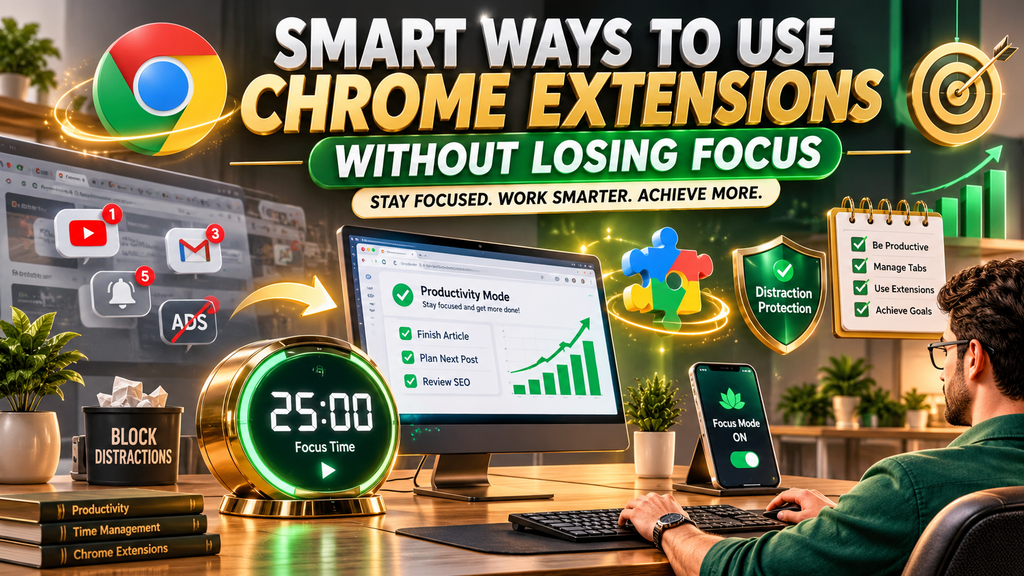
Even the best productivity tools cannot automatically make someone more productive. Their value depends on how effectively they fit into your daily routine.
A thoughtful setup can help you save time without creating additional digital clutter.
Create a Simple Daily Workflow
Start your day by reviewing your task management extension.
Identify the most important responsibilities and organize them according to urgency and priority.
For example, you might use the following routine:
- Morning: Review tasks, deadlines, and important messages.
- First work session: Complete your most important assignment.
- Midday: Check progress and update your task list.
- Afternoon: Handle communication and smaller responsibilities.
- End of day: Review completed work and prepare tomorrow’s tasks.
This simple structure can help reduce unnecessary decision-making.
Limit the Number of Installed Extensions
Installing too many browser extensions can make your workflow confusing.
Start with three or four tools that solve different problems. For example, you might combine a task manager, writing assistant, website blocker, and password manager.
Review their usefulness after a few weeks. Remove tools that do not provide meaningful value.
Use Keyboard Shortcuts When Available
Some productivity extensions support keyboard shortcuts that allow you to perform common actions without navigating multiple menus.
For example, shortcuts may help you open a task list, activate a feature, or access saved information.
Learning a few useful shortcuts can make repetitive activities faster.
Review Your Productivity Regularly
At the end of each week, evaluate whether your selected tools are helping.
Ask yourself:
- Am I completing tasks more efficiently?
- Am I spending less time on distracting websites?
- Is my browser easier to organize?
- Are my extensions providing useful features?
- Have I installed tools that I no longer use?
Your productivity setup should improve with your changing responsibilities.
7. Common Mistakes to Avoid When Using Productivity Chrome Extensions

Although productivity extensions offer many advantages, using them incorrectly can create new problems.
Understanding common mistakes helps you maintain a more efficient and secure browsing experience.
Installing Too Many Extensions
One common mistake is installing multiple extensions that perform nearly identical functions.
For example, using several task managers simultaneously can divide your responsibilities across different platforms.
How to avoid it: Choose one primary tool for each important productivity activity.
Ignoring Extension Permissions
Some users approve permission requests without reading them.
This can expose more browsing information than necessary.
How to avoid it: Review requested permissions and understand what information an extension can access before installation.
Depending Completely on Automated Tools
Productivity extensions can help organize work, but they cannot replace personal judgment, planning, and decision-making.
For example, writing assistants may suggest corrections that do not match your intended meaning.
How to avoid it: Review important tasks, documents, and automated suggestions before relying on them.
Forgetting to Update Extensions
Outdated extensions may contain bugs, compatibility problems, or security weaknesses.
How to avoid it: Keep Chrome and your installed extensions updated. Remove tools that are no longer maintained or needed.
Not Reviewing Privacy Settings
Some extensions collect or process information to provide their services.
How to avoid it: Read privacy disclosures, review account settings, and avoid using untrusted extensions for confidential work.
Treating Every Productivity Tool as Necessary
A popular extension may not solve a problem you actually have.
How to avoid it: Test tools according to their practical value rather than their popularity.
8. Frequently Asked Questions About Productivity Chrome Extensions
1. What are the best productivity Chrome extensions?
Some popular options include Todoist for task management, Grammarly for writing assistance, Clockify for time tracking, StayFocusd for distraction control, and Evernote Web Clipper for saving information. The best choice depends on your personal workflow and requirements.
2. Are productivity Chrome extensions free?
Many productivity extensions offer free versions, while some provide paid subscriptions for advanced features. Pricing, usage limits, and available features depend on the individual developer. Always check the current pricing information before subscribing.
3. Do Chrome extensions improve productivity?
Yes, useful extensions can improve productivity by reducing repetitive work, organizing tasks, limiting distractions, and making information easier to access. However, results depend on how effectively you use them.
4. Are Chrome productivity extensions safe?
They can be safe when selected carefully, but not every extension is trustworthy. Review the developer, permissions, privacy policy, and user feedback before installing anything. Avoid extensions that request unnecessary access to personal information.
5. How many Chrome extensions should I install?
There is no fixed ideal number. Start with a small collection of tools that solve specific problems. Four or five carefully selected extensions may be more useful than dozens of overlapping tools.
6. Can productivity Chrome extensions slow down my browser?
Some extensions may consume memory or processing resources, particularly when several are running simultaneously. If Chrome becomes slow, disable unnecessary extensions and check whether browser performance improves.
7. Which Chrome extensions are best for students?
Students may benefit from task management tools, writing assistants, note-taking extensions, website blockers, and time trackers. Todoist, Grammarly, Evernote Web Clipper, and StayFocusd are examples worth exploring.
8. Can I use productivity extensions on multiple computers?
Some extensions support synchronization through a user account or Chrome profile. However, synchronization features depend on the individual extension and its settings. Check the developer’s documentation to understand what information is synchronized.
9. How do I remove a productivity extension from Chrome?
Open Chrome, select the three-dot menu, navigate to Extensions, and choose Manage Extensions. Find the extension you want to remove and select Remove. Confirm your choice when prompted.
10. Do Chrome extensions work on mobile devices?
Chrome extensions are primarily designed for desktop versions of Chrome. Standard Chrome on Android and iOS does not provide the same extension installation experience as desktop Chrome. Some mobile browsers offer separate extension support, but compatibility varies.
Final Thoughts
Productivity Chrome extensions can make everyday browsing more organized, efficient, and convenient. From managing tasks and tracking working hours to improving writing and reducing distractions, the right tools can support almost every part of your digital routine.
However, productivity is not about installing the largest number of extensions. It is about identifying your challenges and choosing tools that provide practical solutions.
Start with a few trusted extensions, review their permissions, organize your workflow, and evaluate their usefulness regularly. With a simple and carefully selected browser setup, you can save time, reduce unnecessary distractions, and build a more productive working environment.