

Think of a website like a shop you open every morning. You would not unlock the door once and walk away for a year. A website works the same way: it needs regular care to stay secure, quick, and useful, whether yours is a personal blog, a business site, an online store, or a WordPress site.
Most owners focus on new posts, design, and visitors. But the quiet work behind the scenes is easy to forget, and that is where trouble starts: software goes out of date, a backup you assumed was running was not, a link quietly stops working, a page that loaded in a second now takes four.
This checklist helps you look over the important parts of your site and catch problems early, without needing to be a developer.
1. Understand Why Regular Website Maintenance Matters
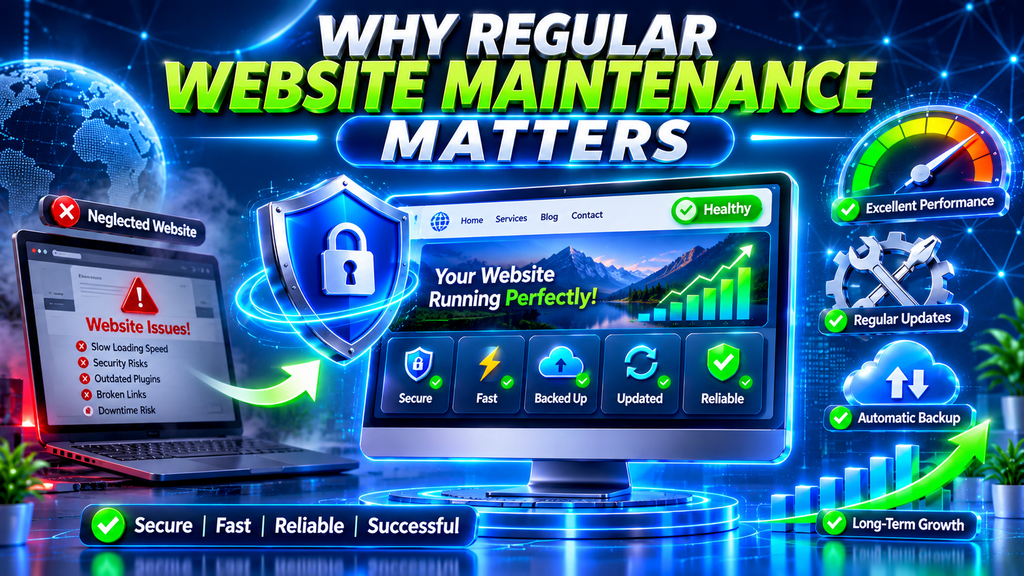
Looking after a website means checking, updating, protecting, and improving it. The part people miss: it is not only about fixing things after they break, but spotting trouble before your visitors notice it.
Why Is Website Maintenance Important?
A bit of routine care pays off in several ways:
- Stronger security: Up-to-date software and regular checks make it much harder for attackers to get in.
- Faster pages: Watching loading times reveals slow pages before visitors give up.
- Backups you can trust: A fresh, tested copy means quick recovery when something goes wrong.
- A smoother experience: Working links, forms, and menus make a site feel professional.
- SEO that holds up: Fixing technical errors and keeping content useful helps search engines find your pages.
- Less downtime: Regular checks catch warning signs before a small fault takes the site down.
Picture this: you run an online store, and one morning your payment plugin stops working. Nobody tests the checkout, so nobody notices — until the orders stop coming in.
2. Website Security: Essential Steps to Keep Your Site Safe

Security comes first. Websites face login attempts, harmful scripts, and flaws in unpatched software every day, and a secure site protects your visitors, your business details, and your reputation.
Update Website Software
Check regularly for updates to your CMS, plugins, and theme — they close security holes and fix bugs. Before a big update, save a backup and test the important parts afterwards.
Use Strong Login Credentials
Weak passwords are still one of the easiest ways into a website. A few habits make a real difference:
- Use long, unique passwords for each account.
- Never reuse the same password in two places.
- Switch on two-factor authentication where offered.
- – Assign administrator privileges exclusively to users who need them to perform their responsibilities.
- Delete old accounts that nobody uses any more.
Install and Maintain an SSL Certificate
An SSL/TLS certificate scrambles information travelling between your visitors and your site. Check it loads over HTTPS with a valid certificate, and watch for mixed-content warnings.
Scan for Malware and Suspicious Activity
Scan with a trusted security tool or your host’s security features, looking for files that should not be there, changes nobody made, and anything malicious.
Check User Permissions
Not everyone who works on a site needs full admin powers. Hand out permissions based on what each person actually does. Tight permissions limit the damage if an account is ever compromised.
Security Maintenance Checklist
- Bring WordPress core and your extensions up to date.
- Review admin accounts; remove unneeded ones.
- Turn on two-factor authentication.
- Confirm your SSL certificate is valid.
- Run a malware scan.
- Look for odd login activity.
- Delete plugins and themes you do not use.
- Review file permissions and access.
Check security regularly — but critical updates and anything suspicious cannot wait.
3. Website Backup and Software Updates

Sooner or later, something will go wrong: a file deleted by accident, an update that fails halfway, malware slipping in. A good backup is the difference between a bad afternoon and a disaster.
Create Regular Website Backups
A proper backup is the whole site, not just part of it:
- The website files themselves
- Images and uploads
- The database
- Your themes and plugins
- Key configuration files
On WordPress, the database holds your posts, pages, settings, and user accounts.
Choose an Appropriate Backup Schedule
How frequently you create backups should be based on how often your website’s information and content are modified.
- Personal blog: If you post rarely, a weekly backup is usually plenty.
- Business website: Daily backups are a sensible place to start.
- E-commerce store: Back up often — orders and customer details change all day.
Never let a backup be older than the work you would hate to lose.
Store Backups in Separate Locations
A common mistake: the only backup lives on the same hosting account as the website. If that account goes down or gets locked, you lose both. Keep copies in secure remote storage.
Test Your Backups
A backup is only reliable when you have tested its restoration process and confirmed that your data can be recovered successfully.
. Every so often, restore a copy on a staging version of your site: open pages, check images and database records, and click through key features.
Keep Software Updated
Old software is where compatibility trouble and security holes start, so watch for updates to your CMS, plugins, theme, PHP, and connected tools. Try big changes first on a staging copy, and only move them live once nothing important broke.
If a WordPress extension stops working after an update, follow our guide on How to Fix Plugin Not Working in WordPress Step by Step.
4. Website Performance and Speed Optimization

Speed is how visitors judge your site in the first few seconds. A slow page frustrates people and sends them back to the search results.
Check Website Loading Speed
Do not just test your homepage. Check blog posts, product pages, contact, checkout, and landing pages too, looking for slow pages, oversized files, and unneeded scripts.
Optimize Website Images
Big images are one of the most common reasons a page loads slowly. A few habits help a lot:
- Resize images to their display size.
- Use WebP or AVIF where supported.
- Compress images without visibly losing quality.
- Do not upload huge camera originals.
- Lazy-load below-the-fold images.
Review Caching Settings
Caching is your site remembering answers instead of working them out fresh every time. After any major change, check your settings again.
Remove Unnecessary Plugins and Scripts
Every extra plugin, tracking script, and outside resource adds work to every page load, so clear out the things you no longer use. If you are unsure what something does, find out before deleting it.
Monitor Core Web Vitals
Google’s Core Web Vitals judge how a page feels: Largest Contentful Paint (LCP) — how quickly the main content appears; Interaction to Next Paint (INP) — how fast the page reacts; Cumulative Layout Shift (CLS) — how much the page jumps. Fix the worst first.
Performance Maintenance Checklist
- Speed-test your key pages.
- Shrink the images that are too large.
- Go over your caching setup.
- Cut scripts you no longer need.
- Test how pages load on a phone.
- Keep track of your Core Web Vitals.
- Watch hosting resource usage.
- Investigate unusually slow pages.
5. Website SEO, Content, and Broken Link Maintenance

Writing good content is only half the job. The other half — the one most people skip — is looking after the pages you already published. Instructions go stale, screenshots stop matching reality, links die, and small faults block search engines from your best pages.
Find and Fix Broken Links
A dead link is a dead end: someone clicks, lands on an error page, and leaves. Work through internal links, external references, downloads, and menus. If a page has moved for good, point the old address at the best replacement with a 301 redirect — never point unrelated pages at each other just to make errors disappear.
Update Outdated Content
Go back through older posts, tutorials, and product and service pages, looking for dead instructions, old screenshots, outdated software, expired offers, and dead links. When a page genuinely needs work, update it properly — but do not just change the date.
Review Metadata and Headings
Every important page deserves a title tag that says what it is about, and a meta description that gives people a reason to click. Then read your headings: do they tell the story of the page clearly? Work keywords in naturally.
Check Indexing and Technical SEO
Can search engines reach your important pages — and are they allowed to show them? Check your XML sitemap, robots.txt, and canonical tags, and look for indexing errors, redirect chains, duplicate pages, and mobile usability problems.
Improve Internal Linking
Links inside your own site are signposts: a reader finishing one article should be able to follow a link to the next thing that helps them — a troubleshooting guide, a theme tutorial, a performance article. If you are improving website design and performance, our guide to Best Free WordPress Themes for Beginners in 2026 may also be useful. Link only to pages that genuinely help the reader, and write the link text so people know what they will find when they click.
6. Website Functionality, Mobile Experience, and User Interface Testing

A website can look beautiful and still be broken underneath: the button does nothing, the contact form never sends, the menu works on a laptop and falls apart on a phone.
Test Important Website Features
Walk through the interactive parts as a first-time visitor would:
- Navigation menus
- Search
- Contact forms
- Registration and login
- Newsletter sign-ups
- Shopping cart
- Payment checkout
- Download links
- Search filters
Test payment flows with extra care, using safe test methods — never a real customer’s card.
Check Mobile Responsiveness
Most visitors are on a phone or tablet, so open your site on a few screen sizes: is the text readable? Do images fit? Are buttons big enough to tap? Do menus open? Are forms easy?
Review Browser Compatibility
Your site will not look identical in every browser, and that is fine — but it should work in all of them. Test key pages in the browsers your visitors actually use.
Inspect Website Navigation
People should find what they need without thinking hard. Check your main menu, footer links, category pages, and breadcrumbs; drop dead links and rewrite confusing labels.
Test User Experience
Think about what visitors are trying to do: a business visitor usually wants contact details, fast; a shopper wants to find a product and check out without a struggle.
7. Monthly and Quarterly Website Maintenance Checklist

You do not need to do everything every day. Spread the work out: a little each day, a bit more each week, and a proper review every few months.
Daily Website Maintenance Tasks
For sites with regular traffic or customer information, a quick daily check is worth it:
- Is the site up and reachable?
- Any urgent security alerts?
- Any failed transactions?
- Did the backup finish?
- Any new errors in the logs?
- Are essential forms and services working?
Smaller sites can automate much of this, but someone should still glance at the results.
Weekly Website Maintenance Tasks
Each week:
- See what software updates are waiting.
- Read through any security notifications.
- Try your key forms — actually submit one.
- Review this week’s new pages.
- Confirm backups are running.
- Click through the links on your most important pages to make sure they still work.
- Check site speed and uptime.
Monthly Website Maintenance Tasks
Monthly:
- Review your analytics.
- Check the site on a phone.
- Check your Core Web Vitals.
- Review user accounts and permissions.
- Remove extensions you no longer need.
- Test restoring a backup.
- Refresh out-of-date content.
- Look for search indexing problems.
- Confirm your SSL certificate is healthy and know when it renews.
Quarterly Website Maintenance Tasks
Every three months:
- Audit your security setup.
- Review your hosting plan and renewal dates.
- Walk through your disaster recovery plan.
- Review design and usability.
- Ask whether each plugin and theme still earns its place.
- Test the paths that lead to a sale, sign-up, or message.
- Review privacy notices and visitor-data handling.
- Note technical improvements for next quarter.
Annual Website Maintenance Tasks
Once a year:
- Domain registration and renewal.
- Is your hosting plan still right?
- Does the site structure still make sense?
- Any major design work to plan?
- Which third-party services are you still paying for?
- How long should you keep old backups?
- Do your business goals still match the website?
A small blog and a busy store will never need the same schedule.
8. Common Website Maintenance Mistakes and How to Avoid Them

Even people who have run websites for years make these mistakes. Some cause technical headaches, others cost money or put the site at risk.
Ignoring Software Updates
Letting software sit out of date is asking for trouble — compatibility breaks, and security holes stay open. Check for updates regularly, with a backup in place.
Not Testing Backups
Plenty of owners are sure their backups work, yet they have never tried to restore one. A backup that cannot be brought back to life is not protection at all.
Installing Too Many Plugins
It is tempting to add a plugin for every little feature, but each one adds weight, needs updating, and can clash with the others. Pick reliable, maintained plugins, and clear out the ones you stopped using.
Ignoring Mobile Users
A site that feels great on a desktop can be miserable on a phone — tiny text, buttons you cannot tap, menus that will not open.
Neglecting Website Analytics
Without looking at your analytics, you are guessing. You will not notice a sudden drop in traffic, a page that became popular, or a section that quietly stopped working.
Making Changes Without Backups
Changing a theme, editing code, or tweaking settings without a backup is a gamble. One wrong step and you have no clean way back. Always create a recovery point first.
Treating Maintenance as a One-Time Activity
This is the biggest mistake of all. A website that works perfectly today can break tomorrow after an update, a hosting change, a new integration, or a surge in traffic. Maintenance is not a project you finish. It is a habit.
Conclusion
A well-looked-after website is simply a better website: it loads faster, breaks less, and earns more trust. Every task here plays a part — security updates, backups, speed work, SEO checks, mobile testing.
You do not need to do everything today. Pick a routine that fits your site and stick to it. Review your site regularly, test what matters, and keep software current.
Frequently Asked Questions (FAQs)
1. What is a website maintenance checklist?
A list of jobs that keep a website secure, working, up to date, and running well.
2. How often should I maintain my website?
All the time, in a sense — but different jobs run on different clocks. Security alerts and anything broken need attention right away; content reviews can wait for their weekly, monthly, or quarterly slot.
3. What are the most important website maintenance tasks?
Update your software, keep backups, check security, watch loading speed, repair dead links, test forms, and check mobile.
4. Is website maintenance necessary for small websites?
Yes. Small sites get hacked too, and they get broken links, software conflicts, and hosting problems just like big ones.
5. How often should I back up my website?
It depends on how often your site changes. A site that barely changes can get by with weekly backups; a business site or online store usually needs daily backups — or more often.
6. Does website maintenance improve SEO rankings?
It can help: better technical health, working links, fresh content, and faster pages all support search visibility.
7. What should be included in WordPress website maintenance?
Update the core, plugins, and theme; check security; back up files and database; test everything still works; speed things up; and review content.
8. How can I check whether my website is secure?
Check your SSL/TLS certificate, keep software updated, use strong login protection, review permissions, scan for malware, and watch for suspicious activity.
9. Can I perform website maintenance without technical knowledge?
Yes — most routine jobs are straightforward. Checking updates, backups, and links, and watching whether the site is up, can all be done from friendly dashboards.
10. What happens if I do not maintain my website regularly?
Things slowly fall apart: software goes out of date, security gaps open up, features stop working, pages get slower, and data can be lost. A little regular care prevents most of it.