
Introduction
Creating attractive images for websites, blogs, presentations, and social media has traditionally required design knowledge and dedicated editing software. However, artificial intelligence is making visual content creation more accessible. Users can now describe an idea in ordinary language and use AI-powered tools to turn that description into a visual concept.
The Canva AI Image Generator is one example of this technology. It helps users transform written descriptions into images that can be incorporated into different creative projects. Instead of searching through hundreds of stock photographs, users can describe the subject, visual style, background, lighting, and composition they want.
Canva provides AI-powered image creation through features such as Magic Media and its AI Image Generator. Users can explore different styles, generate visual variations, and continue editing their selected results within the Canva environment.
This technology is useful for bloggers, students, content creators, marketers, and small businesses. It can support creative brainstorming and reduce the time required to develop visual concepts.
In this guide, we will explore how Canva’s AI image generation works, its important features, practical applications, advantages, limitations, and tips for creating better results.
1. What Is Canva AI Image Generator?
Canva AI Image Generator is an artificial intelligence-powered feature that converts text descriptions into digital images. Users explain what they want to see, select an appropriate visual style, and generate images based on their instructions.
For example, someone creating a technology blog can enter a description of a futuristic smartphone surrounded by digital interface elements. The AI system processes the description and produces visual options that can be used as creative assets.
The technology makes image creation more accessible because users do not need advanced illustration or photography skills to experiment with different concepts.
Canva also provides Magic Media, which supports AI-powered image and graphic generation. Its available options include different artistic styles and image layouts.
How Does the Technology Work?
The process begins with a written prompt. This prompt provides information about the subject, environment, colors, visual appearance, and other creative details.
The AI model interprets these instructions and generates an image based on learned visual patterns. The user can then review the result, adjust the description, and generate alternative versions.
For example, a simple prompt might describe a modern workspace with a laptop and natural lighting. A more detailed prompt could specify a minimal composition, soft shadows, realistic materials, and a professional photography style.
The quality and accuracy of the result depend partly on the clarity of the instructions.
2. Key Features of Canva AI Image Generator

Canva offers several creative capabilities that help users move from an initial idea to a finished visual design. These tools are particularly useful because image generation and design editing can take place within the same creative environment.
Text-to-Image Generation
Text-to-image generation allows users to describe an image instead of creating every element manually. They can enter a prompt explaining the subject and desired appearance, then generate visual options.
This feature is useful when a specific image is difficult to find in a traditional stock library.
Multiple Artistic Styles
Different projects require different visual appearances. A professional business presentation may need realistic photography, while a creative poster might benefit from colorful digital artwork.
Canva provides different visual styles, including photography, digital art, and other artistic treatments, depending on the available generation interface.
Image Variations
Sometimes the first generated image does not match the original idea. Generating additional versions allows users to explore alternative compositions and appearances.
Magic Media also supports generating more images similar to a selected result.
Integrated Editing Tools
After generating an image, users can continue working with Canva’s editing features. They can adjust the composition, add text, apply filters, crop the image, and combine it with other design elements.
This makes the platform useful for creating complete visual materials rather than generating isolated pictures.
Different Image Layouts
Users can select suitable layouts such as square, landscape, or portrait when using supported Magic Media generation options.
Choosing an appropriate layout helps prepare visuals for blog graphics, social media content, and other publishing formats.
3. How to Use Canva AI Image Generator
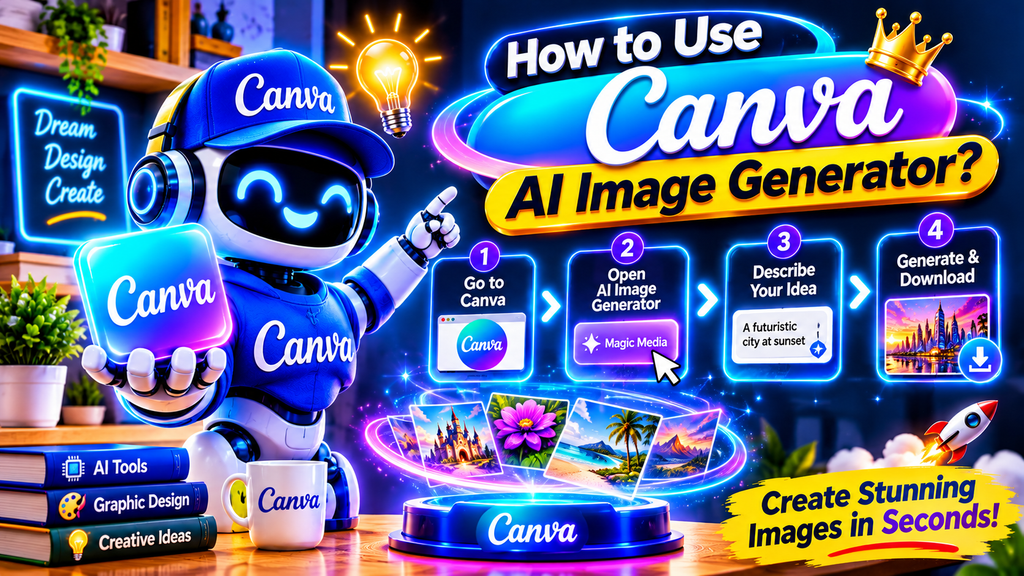
Using Canva’s AI image generation tools involves a straightforward creative process. The exact interface may vary depending on the tool, account, and platform version.
Follow these general steps to create an image.
Step 1: Open Canva
Access Canva by entering your registered account credentials.
You can access its AI image generation experience through the AI Image Generator or an available design editor.
Step 2: Find the Image Generation Tool
Inside the editor, look for Magic Media in the side panel. If it is not visible, open Apps and search for Magic Media.
You can also access Canva’s AI image generation experience through its dedicated image generator.
Step 3: Write a Detailed Prompt
Enter a description of the image you want to create. Include the subject, setting, colors, lighting, composition, and visual style.
For example:
“Create a realistic modern technology workspace featuring a silver laptop, soft blue lighting, a clean desk, subtle digital elements, and professional product photography.”
A specific description gives the image generator more information about your creative requirements.
Step 4: Select a Style and Layout
Choose an appropriate style and image format from the available options. Consider whether the image will be used in a blog article, presentation, poster, or social media design.
Step 5: Generate and Review Images
Review the results and identify the version that best matches your original idea.
Step 6: Edit and Export Your Design
Add text, adjust image placement, combine visual elements, or make other changes using Canva’s editing tools.
4. Best Uses of Canva AI Image Generator
AI-generated visuals can support different creative activities. The tool is not limited to one industry because its text-based approach allows users to describe a wide variety of subjects and concepts.
Blog and Website Graphics
Bloggers can create featured images, section illustrations, and supporting visuals for their articles.
For example, a website publishing technology tutorials can generate images showing cloud computing, mobile applications, cybersecurity concepts, or software development environments.
Custom visuals can help articles communicate ideas more effectively when they are relevant to the written content.
Social Media Content
Social media creators need visuals for posts, announcements, campaigns, and promotional designs.
Canva’s image generation capabilities can help develop creative concepts for different content formats. Users can then add headlines, branding elements, and other design components.
Marketing and Business Promotion
Small businesses can use AI-generated images to explore advertising concepts, promotional graphics, and product campaign ideas.
For instance, a business introducing a new product might generate several background concepts before selecting a suitable direction for its marketing material.
Generated visuals should accurately represent real products when used in product advertising.
Educational Presentations
Teachers and students can use custom illustrations to explain abstract subjects and make presentations more visually engaging.
An educational presentation about the solar system, for example, could include generated conceptual artwork that supports the explanation.
Creative Projects
Artists and designers can use image generation to experiment with colors, compositions, and visual concepts before developing a final design.
It can also help users overcome creative blocks by providing alternative visual directions.
5. Benefits of Using Canva AI Image Generator

AI image generation offers several practical advantages for people who regularly create digital content.
Saves Creative Time
Searching for a suitable image can take considerable time, particularly when a project requires a specific subject or composition.
Text-to-image generation provides another way to develop visual concepts without manually searching through large collections of existing photographs.
Supports Beginners
Traditional graphic design software can have a learning curve. Canva provides a more accessible environment where users can describe their ideas and experiment with generated results.
This allows beginners to explore visual design without needing advanced illustration skills.
Encourages Creative Experimentation
Users can test different descriptions, colors, backgrounds, and artistic directions. This makes it easier to explore several concepts before deciding on a final design.
Works With Other Design Features
Generated images can be incorporated into presentations, documents, social media graphics, and other Canva projects.
This integration can simplify the workflow because users do not always need to move between separate image-generation and editing applications.
Helps Develop Custom Visual Concepts
When existing stock images do not match a project’s requirements, AI generation can provide alternative concepts based on written descriptions.
However, generated results should always be reviewed before publication.
6. Limitations and Challenges of Canva AI Image Generator

Although AI image generation is useful, it does not guarantee perfect results. Understanding its limitations helps users develop more realistic expectations.
Results May Differ From the Prompt
An AI-generated image may not accurately represent every detail in a written description. Users might need to adjust their prompts or generate multiple variations.
Complex Visual Details Can Be Difficult
Some generated images may contain unusual object shapes, inconsistent visual elements, or inaccurate small details.
This can be particularly important when creating images that include product components, diagrams, or text.
AI Usage Restrictions
The availability of AI features and generation allowances may depend on the user’s Canva plan, account, and current product policies.
Some users may encounter usage limits or require a plan with additional access.
Copyright and Ownership Considerations
AI-generated images raise questions about ownership, copyright, and permitted commercial use.
Canva explains that users own what they create with Magic Media subject to its Terms of Use, but copyright protection and exclusive rights can vary by country. Users should review applicable terms before using generated content commercially.
Human Review Is Still Necessary
AI can help create visual concepts, but it cannot replace every part of the design review process.
Users should check image accuracy, readability, brand consistency, and suitability before publishing.
7. Tips for Creating Better AI Images With Canva
The quality of an AI-generated image depends partly on how clearly the user communicates the desired result.
Here are practical ways to improve your prompts and creative workflow.
Describe the Main Subject Clearly
Start by identifying exactly what the image should contain. Avoid descriptions that are too general.
Instead of writing “technology image,” describe a futuristic smartphone displaying a digital dashboard on a modern desk.
Include the Visual Style
Specify whether you want realistic photography, 3D artwork, digital illustration, watercolor, or another supported style.
This gives the generator a clearer visual direction.
Explain Lighting and Colors
Color and lighting can influence the mood of a visual.
For example, you might request warm natural lighting, cool blue highlights, soft shadows, or a clean neutral background.
Choose the Correct Composition
Explain where the main subject should appear and how much empty space the image should contain.
This is especially useful for blog banners and promotional graphics that require room for headlines.
Generate and Compare Variations
Do not assume that the first result will be the best one. Compare available variations and refine the description when necessary.
Review the Final Image
Before publishing, inspect the image for inaccurate details, unwanted objects, visual inconsistencies, and unsuitable elements.
A final human review helps ensure that the image supports the purpose of the project.
8. Is Canva AI Image Generator Worth Using in 2026?
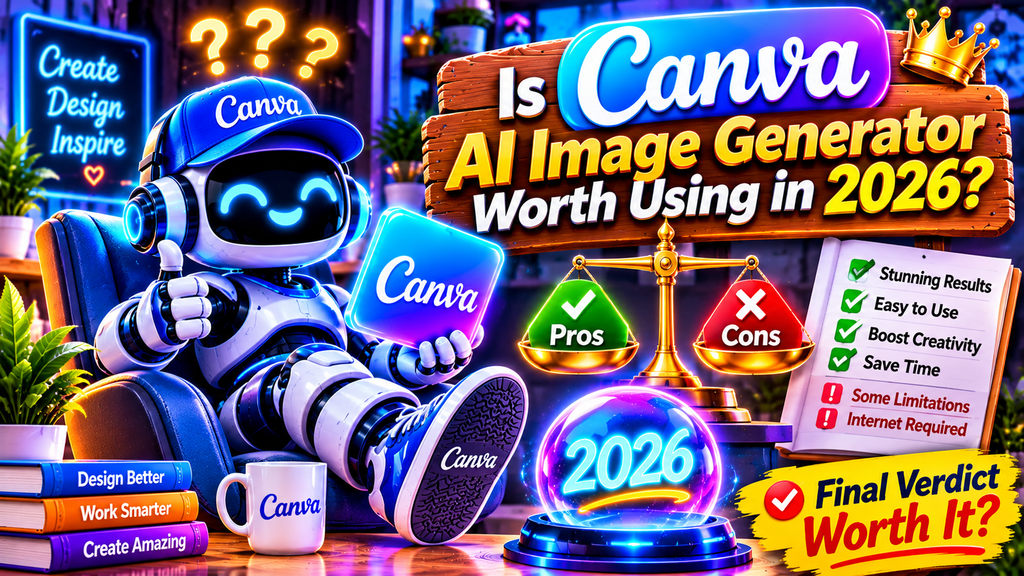
Canva AI Image Generator is a useful option for people who want to create custom visual concepts without relying entirely on traditional design methods.
Its text-to-image capabilities, available artistic styles, and integration with Canva’s editing environment make it suitable for bloggers, students, content creators, marketers, and small businesses.
The biggest advantage is the connection between image generation and the wider design workflow. Users can develop an idea, generate visual options, and continue editing within the same platform.
However, it is important to understand that AI-generated images may need corrections and should not automatically be considered ready for professional publication. Usage limits, copyright considerations, and output quality should also be evaluated.
Final Verdict: Canva AI Image Generator is worth exploring if you need a convenient way to turn written ideas into visual concepts. It can support creative projects, save time during brainstorming, and make image creation more accessible. The best results come from detailed prompts, careful editing, and human review.
Frequently Asked Questions (FAQs)
1. What is Canva AI Image Generator?
Canva AI Image Generator is an AI-powered tool that converts written descriptions into digital images. Users can describe a subject, choose available styles, and generate visuals for creative projects.
2. Is Canva AI Image Generator free?
Canva provides access to certain AI image generation features, but availability and usage allowances depend on the tool and account plan. Some features or additional usage may require a paid subscription.
3. How do I generate an image in Canva using AI?
Open Canva, access its AI Image Generator or Magic Media, enter a detailed text prompt, select an available style and layout, and generate your image. You can then edit and export the result.
4. What is Magic Media in Canva?
Magic Media is Canva’s AI-powered creative feature that allows users to generate images, graphics, and videos using written descriptions. It provides different creative options within the Canva editor.
5. Can Canva AI create realistic images?
Yes. Canva supports realistic image styles, including photography-style visuals. However, the final appearance depends on the prompt, generation model, and selected settings.
6. Can I use Canva AI-generated images for commercial projects?
Commercial use depends on Canva’s Terms of Use and applicable copyright laws. Users should review the relevant licensing conditions and ensure that their designs do not violate third-party rights.
7. What makes a good Canva AI image prompt?
A good prompt clearly describes the subject, background, lighting, colors, composition, and desired artistic style. Specific instructions generally provide better creative direction than short, vague descriptions.
8. Can I edit images generated by Canva AI?
Yes. Generated images can be added to Canva designs and edited using available tools. Users can crop images, adjust their appearance, add text, and combine them with other design elements.
9. Who can benefit from Canva AI Image Generator?
Bloggers, students, marketers, designers, social media creators, and small business owners can benefit from AI image generation. It helps them explore visual ideas and prepare custom creative materials.
10. Does Canva AI Image Generator replace professional graphic designers?
No. It can support certain design tasks and speed up creative experimentation, but professional designers still provide important skills such as visual strategy, brand development, accuracy, accessibility, and creative judgment.
Article Summary: Canva AI Image Generator makes it easier to transform written ideas into digital visuals. Its image-generation and editing capabilities can support different creative projects, while detailed prompts and careful human review help improve the final results.