
Introduction

A fast-loading WordPress website can make a big difference in how visitors interact with your content. If a page loads slowly, users may lose interest and leave before exploring the site. Improving loading performance helps create a smoother browsing experience and allows visitors to access different pages more comfortably.
There are many reasons why a WordPress website may become slow.Several factors can slow down a WordPress website, including oversized images, unnecessary plugins, weak hosting, resource-heavy themes, inefficient code, and a lack of caching. The good news is that most of these performance issues can be addressed through simple optimization steps.
If you want to learn how to speed up a WordPress site, the best approach is to identify the biggest problems first and then improve them one by one.
1. Choose Reliable WordPress Hosting
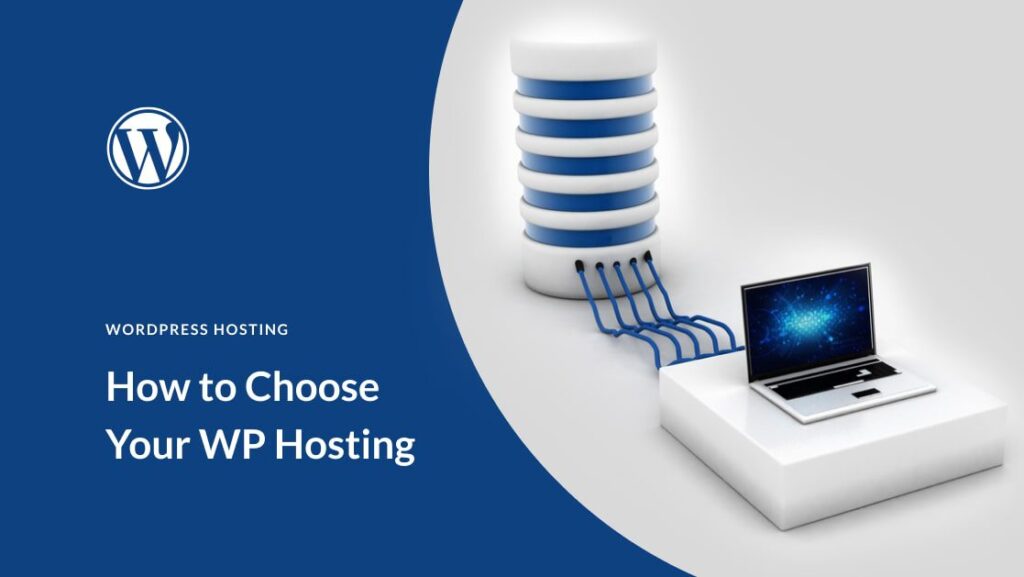
The quality of your web hosting can have a direct effect on how quickly your website loads. When a server is slow or has limited resources, your website may take longer to respond even if the website itself is well optimized.
When choosing hosting, consider server performance, available resources, storage technology, server location, uptime, and customer support.
If your website receives more visitors than before, your existing hosting plan may no longer provide enough resources. In that situation, upgrading the hosting plan can sometimes provide a noticeable improvement.
2. Enable WordPress Caching
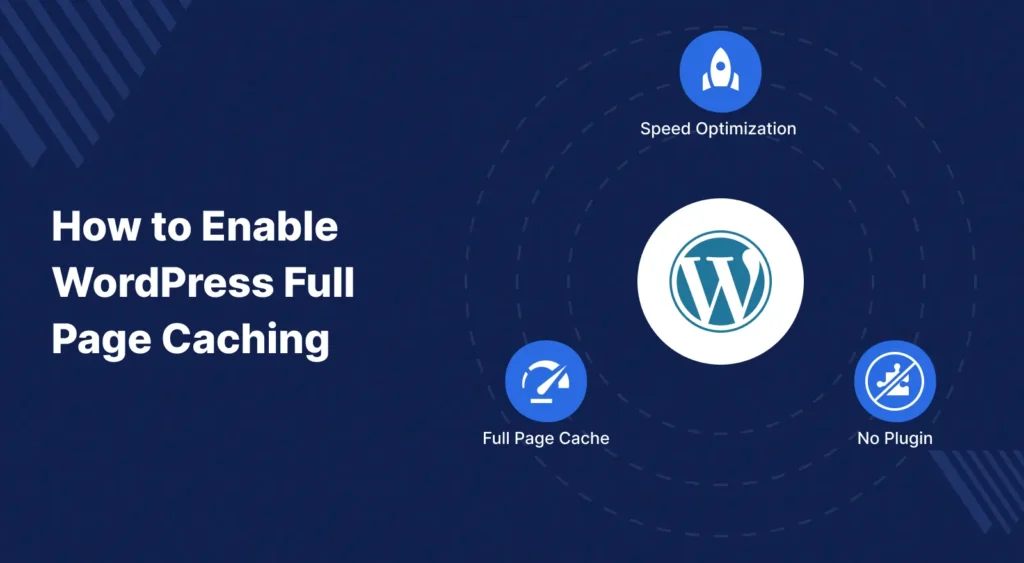
Using caching can be an effective way to make a WordPress website load faster and perform more efficiently. Without caching, WordPress may need to process a page and retrieve information from the database whenever a visitor opens it.
Caching creates ready-to-use versions of website pages, allowing WordPress to serve them to visitors more quickly.
A proper caching configuration can work alongside browser storage and other performance improvements. However, using multiple caching plugins for the same purpose may create conflicts or unexpected website issues.
3. Optimize Images Before Uploading

Images can improve the visual appeal of a website, but oversized files may slow down page loading. Uploading a high-resolution image when a smaller size is sufficient can also consume unnecessary bandwidth.
For better performance, adjust each image to the dimensions you actually need before uploading it. Compressing the file can further reduce its size, while newer image formats can help maintain good quality with less data.
Try to avoid uploading images directly from a camera or phone without optimization. Large original photographs can be several megabytes in size.
You should also use descriptive image filenames and suitable alt text where appropriate.
4. Remove Unnecessary Plugins

WordPress plugins can extend your site’s capabilities by adding different tools and features. Some plugins can load additional CSS, JavaScript, database queries, or external resources.
Go through the plugins listed in your WordPress dashboard and identify the ones you no longer use. Disable and uninstall unnecessary plugins to keep your website cleaner. However, there is no need to remove a plugin that is actively providing an important feature to your site. Instead, focus on unnecessary, outdated, poorly maintained, or resource-heavy plugins.
5. Use a Lightweight Theme

Your WordPress theme has a major role in determining your site’s appearance and layout. Themes that include excessive features may require more files and resources, which can affect loading speed.
Select a lightweight theme that provides the design and functions your website actually requires, rather than one filled with unnecessary extras.
If your website is mainly a blog, you may not need a theme filled with complicated animations, sliders, large visual effects, and additional elements.
A clean and straightforward layout is usually easier to manage and optimize for better performance.
6. Optimize CSS and JavaScript
CSS controls the appearance of your website, while JavaScript provides many interactive featuresOversized or unnecessary resources can require the browser to process more data, which may slow down page rendering.
Minification can reduce the size of CSS and JavaScript files by removing unnecessary characters without changing their basic functionality.
Some optimization tools can also combine or delay certain files. However, these settings should be tested carefully because aggressive JavaScript optimization can sometimes break menus, forms, sliders, or other website features.
7. Use Browser Caching
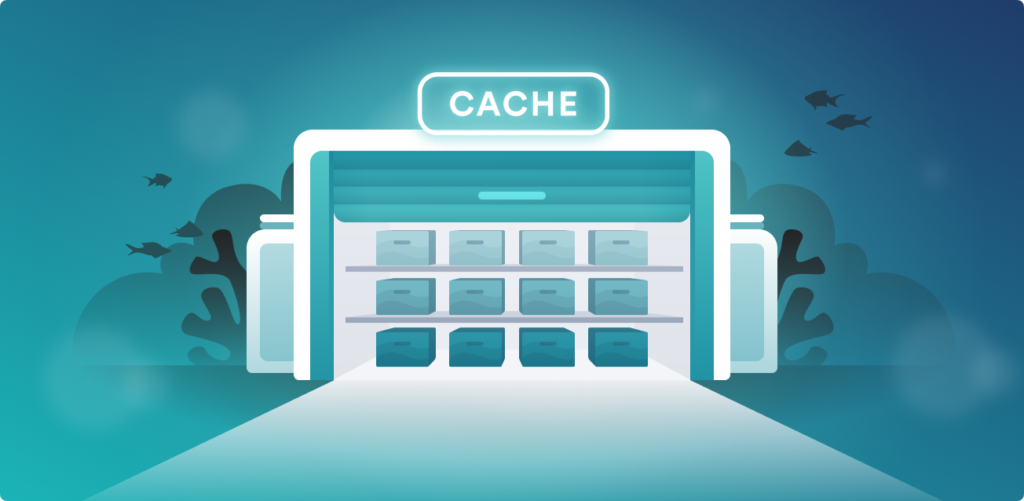
Browser storage can keep copies of certain website resources for a limited period. When users visit other pages on the same site, some files may already be available locally, reducing the need to download them again.
This approach can help improve the loading of static resources, including images, stylesheets, and JavaScript files.
Proper caching can reduce repeated downloads and improve the experience for returning visitors.
8. Use a Content Delivery Network
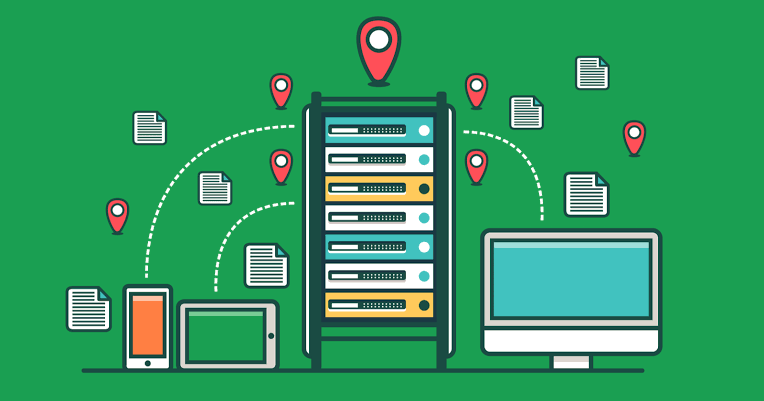
A Content Delivery Network, commonly called a CDN, stores or delivers website resources through servers located in different geographic locations.
A CDN can be helpful for websites that serve users across different locations because it can distribute static files from servers positioned closer to visitors.
However, using a CDN alone will not solve every performance issue. For better results, combine it with reliable hosting, properly optimized images, effective caching, and a well-tuned WordPress setup.
.
9. Keep WordPress and Plugins Updated
Regularly updating WordPress, along with its themes and plugins, helps maintain compatibility, security, and overall site stability.
Developers regularly release updates that can include security improvements, bug fixes, compatibility changes, and other improvements.
Create a complete backup of your website before installing any major updates, so you have a recovery option if something goes wrong.
After updating, visit important pages and test menus, forms, images, and other features to make sure everything continues to work correctly.
10. Reduce Unnecessary Website Elements

There is no need to load all of your website’s content at the same time. Excessive animations, large sliders, unnecessary widgets, external fonts, advertisements, tracking scripts, and decorative elements can add extra loading work.
Go through each page and eliminate sections or features that offer little benefit to your visitors. Keeping the layout focused and organized can make the site easier to use while also reducing unnecessary resource usage.
11. Improve Your Database

WordPress websites store posts, pages, settings, comments, revisions, and other information in a database.
Over time, unnecessary revisions, spam comments, expired data, and other unused information may accumulate.
Database optimization can help keep your website organizedMake sure to save a backup of your website before modifying any database settings or data.
If you are not familiar with database optimization, use a reputable WordPress tool and avoid deleting database information manually.
12. Test Your Website Regularly

Once you have applied your speed optimizations, run another performance test to see how your website responds. Tools such as Google PageSpeed Insights can help highlight areas that may require further improvement.
Instead of concentrating entirely on reaching a perfect score, pay attention to the specific performance issues identified by the test.
Look at the actual problems reported by the testing tool and prioritize the issues that have the biggest effect on visitors.
It is also useful to test both mobile and desktop versions because performance can differ between devices.
Conclusion
Learning how to speed up a WordPress site does not require changing every setting at once. Start with the biggest performance factors, including hosting, caching, images, plugins, themes, CSS, JavaScript, and unnecessary website elements.
After making each major change, test your website again and compare the results. This approach helps you understand which improvements are actually making a difference.
A fast WordPress website should not only achieve a good performance score. It should also provide visitors with a smooth, reliable, and easy-to-use experience. By regularly monitoring your website and improving its weakest areas, you can build a faster and more efficient WordPress site over time.Frequently Asked Questions
How can I speed up my WordPress site?
Start by improving hosting, enabling caching, optimizing images, removing unnecessary plugins, and using a lightweight theme. These areas can have a significant effect on website performance.
Does caching make WordPress faster?
Yes, caching can reduce the amount of processing required to generate pages and can help serve content more efficiently. The actual improvement depends on your website and caching configuration.
Can plugins slow down WordPress?
Some plugins can affect performance by loading additional resources, performing database operations, or connecting to external services. Plugin quality and functionality matter more than simply counting the number of installed plugins.
Should I optimize all WordPress images?
It is generally a good idea to optimize images before using them on your website. Large image files can increase page size and make pages slower to load.
Is a CDN necessary for every WordPress website?
No. A CDN can be useful, especially for websites with visitors from multiple locations, but a small website may not require one immediately.
Does WordPress speed affect SEO?
Website performance is one part of Google’s broader page-experience considerations. Core Web Vitals are also used by Google’s ranking systems. However, improving speed alone does not guarantee higher search rankings.