
Introduction

WordPress permalinks make website URLs easier to understand for visitors and search engines. However, sometimes your WordPress pages suddenly show a 404 Not Found error, even though the pages exist in your dashboard. This problem commonly happens after changing permalink settings, migrating a website, installing a plugin, or making server configuration changes.
Fortunately, most permalink problems can be fixed without rebuilding your website. In this guide, you will learn practical ways to Fix WordPress Permalinks Not Working (404 Error) and restore your website URLs.
What Causes WordPress Permalinks to Stop Working?
There can be several reasons behind broken WordPress permalinks. Understanding the cause makes troubleshooting easier.
Common causes include:
- Incorrect permalink settings
- Corrupted or incorrect .htaccess rules
- Plugin conflicts
- Theme-related issues
- Server configuration problems
- Website migration
- Changes to the URL structure
- Incorrect WordPress or site URL settings
In many cases, simply saving the permalink settings again is enough to regenerate the necessary rewrite rules.
1. Save WordPress Permalink Settings Again
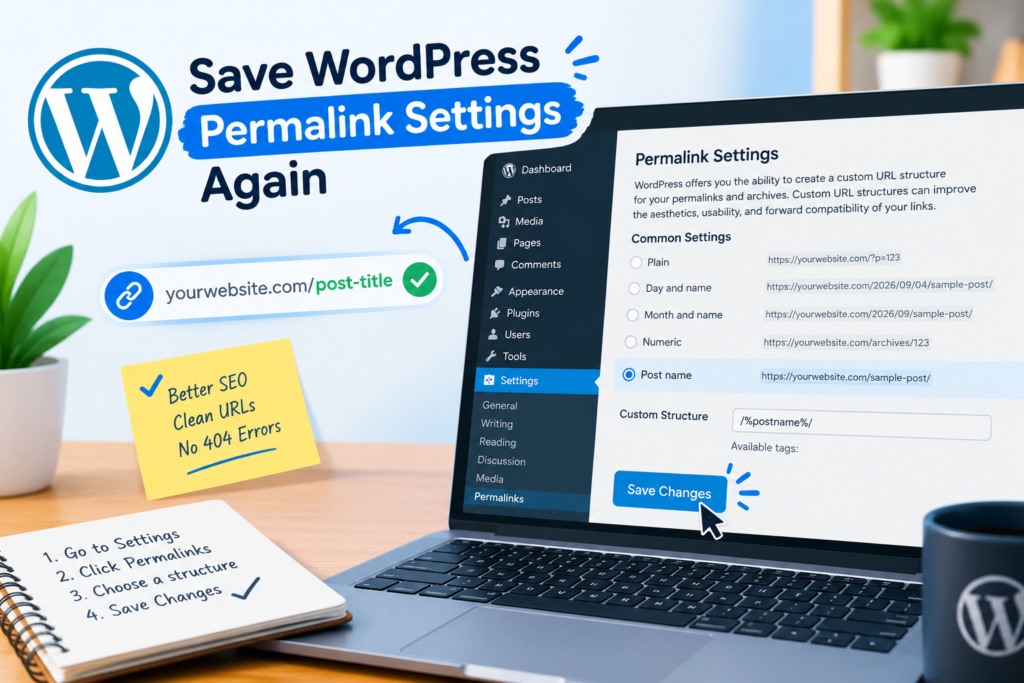
The easiest solution is to refresh your permalink structure.
Access your WordPress admin panel and open:
Settings → Permalinks
You do not necessarily need to change the current structure. Simply select your existing permalink option and click Save Changes.
WordPress will refresh its rewrite rules. Now open one of the pages that previously displayed a 404 error.
If the page loads normally, the problem has been resolved.
2. Check Your Permalink Structure
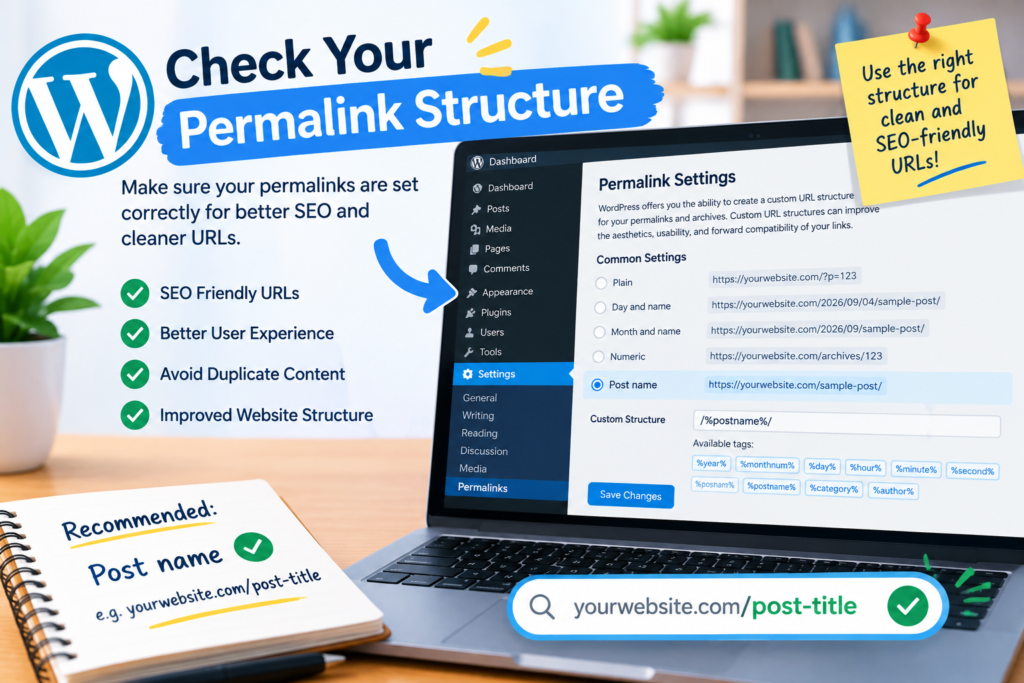
Sometimes an incorrect permalink structure can cause unexpected URLs.
Go to Settings → Permalinks and review the available options. For most websites, Post name is a simple and SEO-friendly choice because URLs remain short and descriptive.
Once you have chosen the desired permalink format, press Save Changes to apply it.
Test your homepage, posts, categories, and important pages afterward.
3. Check the .htaccess File
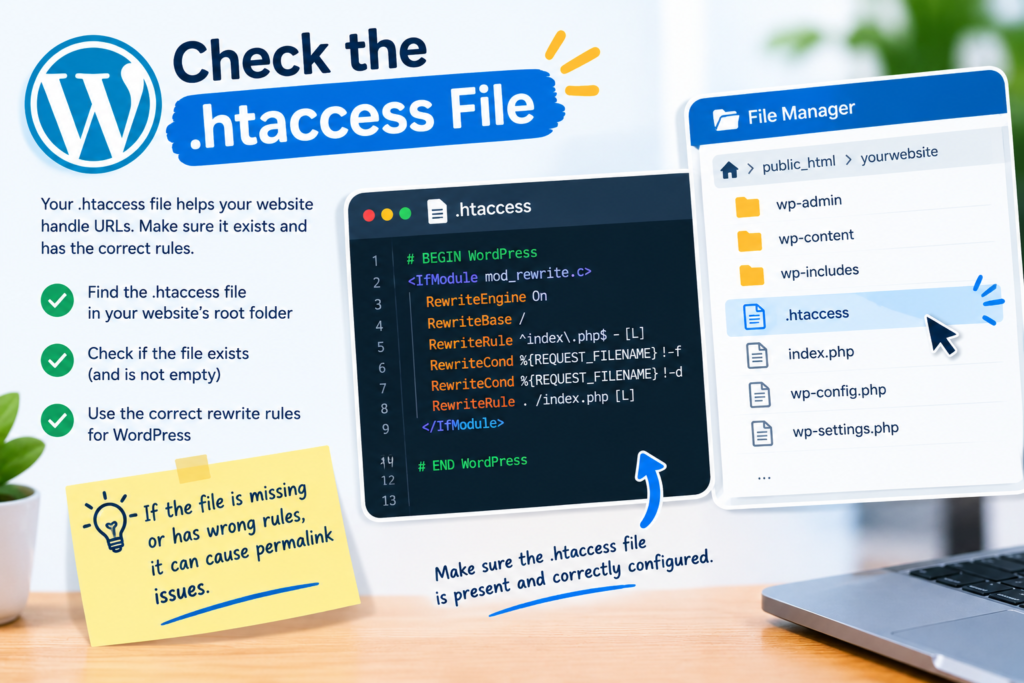
The .htaccess file controls important rewrite rules on many WordPress websites running on Apache servers. If these rules are missing or damaged, WordPress URLs may return 404 errors.
Before editing this file, create a backup.
A standard WordPress .htaccess configuration commonly looks like this:
# BEGIN WordPress
<IfModule mod_rewrite.c>
RewriteEngine On
RewriteBase /
RewriteRule ^index\.php$ – [L]
RewriteCond %{REQUEST_FILENAME} !-f
RewriteCond %{REQUEST_FILENAME} !-d
RewriteRule . /index.php [L]
</IfModule>
# END WordPress
After correcting the file, test your website again.
If your website uses Nginx or another server configuration, .htaccess may not apply. In that situation, server rewrite rules should be checked through your hosting configuration.
4. Temporarily Disable Plugins
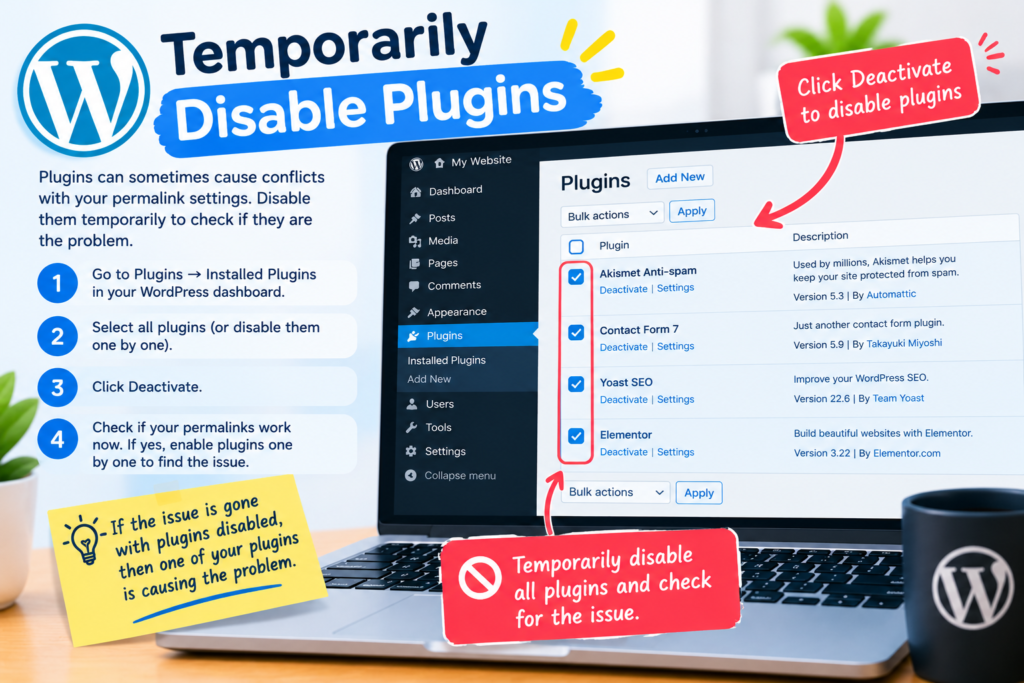
Plugins can sometimes interfere with WordPress URL rewriting. This is especially possible with caching, security, redirection, or SEO-related plugins.
To test for a plugin conflict, temporarily deactivate your plugins and check whether the 404 error disappears.
If the problem is fixed, reactivate the plugins one at a time. After reactivating each plugin, check your website to identify whether the issue has been resolved or returned.
When the error returns, you have likely identified the plugin causing the conflict.
5. Check WordPress URL Settings
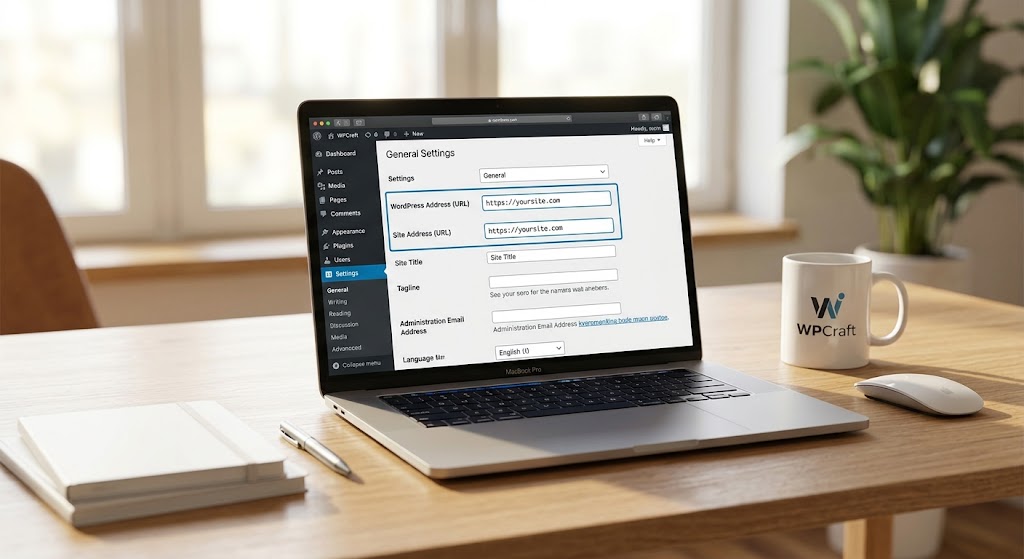
Incorrect WordPress URL settings can also create broken links.
Go to:
Settings → General
Check both:
- WordPress Address (URL)
- Site Address (URL)
Make sure the URLs are correct and use the proper version of your domain, including HTTPS if your website has SSL enabled.
Avoid changing these fields unnecessarily. If you are unsure about the correct values, check your hosting or WordPress configuration before making changes.
6. Clear Website and Browser Cache
Sometimes the permalink problem has already been corrected, but an old cached version continues displaying the 404 page.
Clear your:
- Browser cache
- WordPress caching plugin cache
- Hosting cache
- CDN cache, if applicable
Then open the URL in a private/incognito browser window.
This can help determine whether the 404 error is genuinely still present.
7. Check Redirects and Deleted URLs
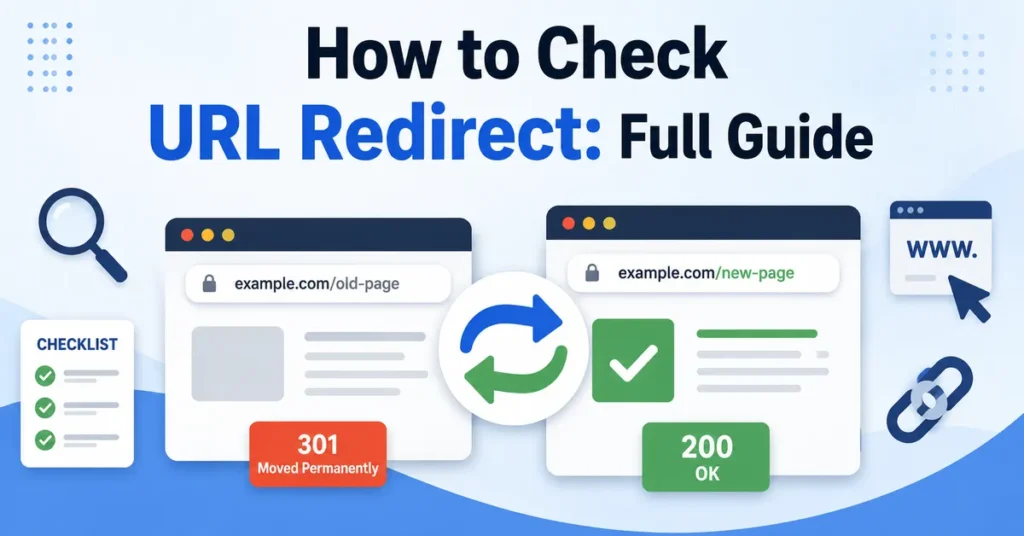
If only certain URLs are showing 404 errors, check whether those pages were renamed, deleted, or moved.
For example, a page previously using:
example.com/services/
might now use:
example.com/our-services/
In this situation, creating an appropriate redirect from the old URL to the new one can prevent visitors from reaching a 404 page.
Avoid creating unnecessary redirects, and make sure important URLs point to the most relevant destination.
8. Check Your Hosting Configuration
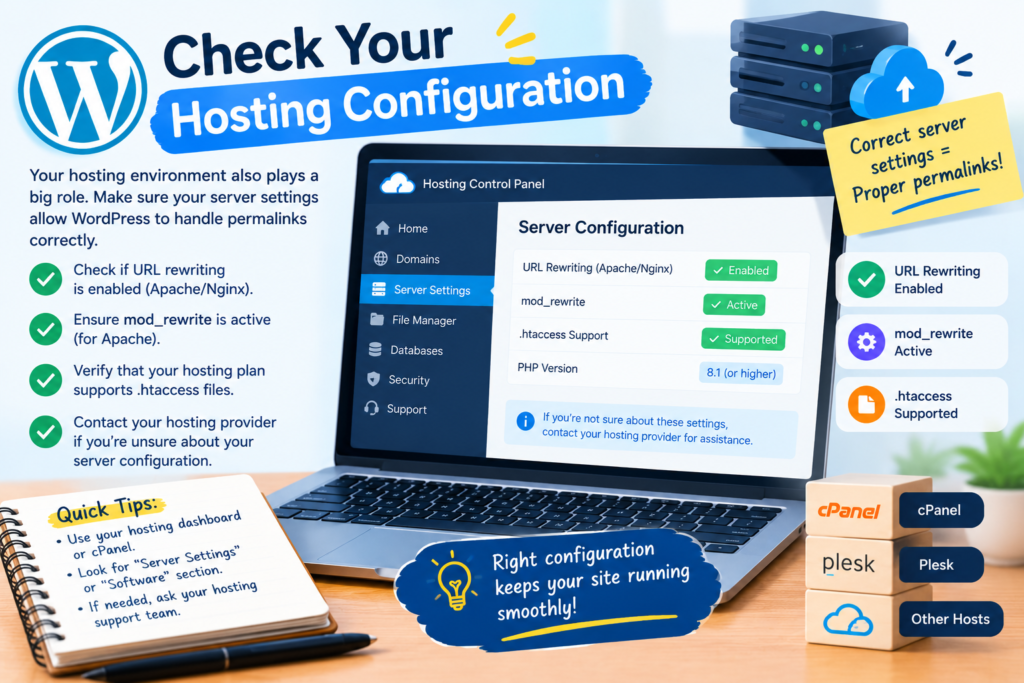
If the usual WordPress solutions do not work, the problem may be related to your web server.
Apache websites generally depend on rewrite functionality, while Nginx websites use different configuration rules.
Contact your hosting provider if:
- Every internal page returns 404
- Permalink changes do not work
- .htaccess changes have no effect
- The problem started after changing servers
- The website was recently migrated
Your hosting provider can check server-level rewrite and configuration issues.
How to Prevent Future Permalink Problems
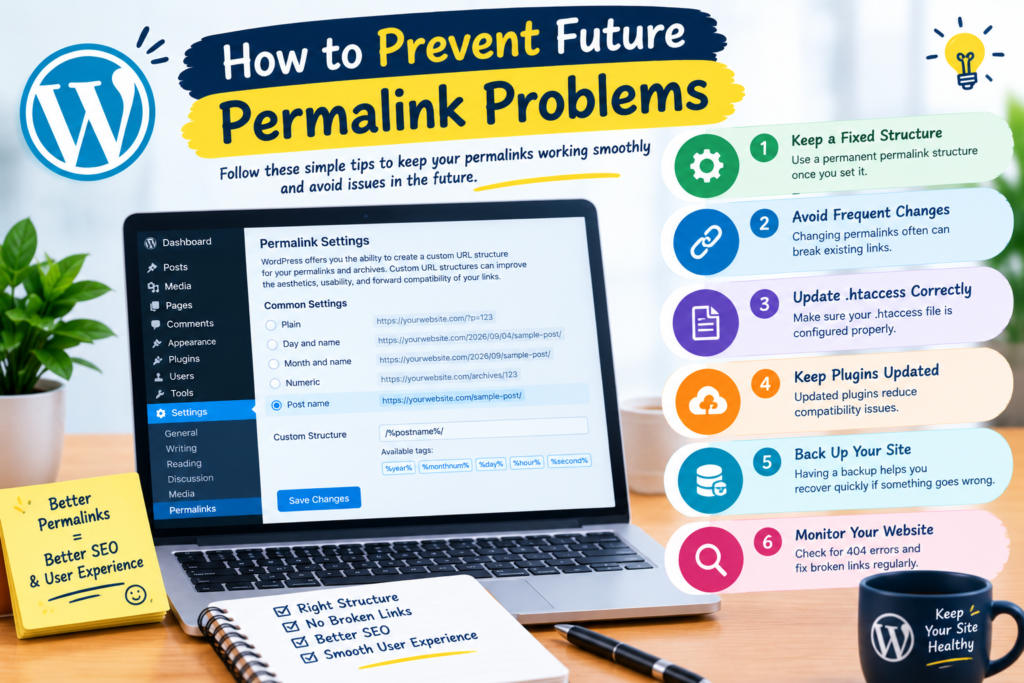
You can reduce the chances of future permalink errors by following a few simple practices.
Make a backup of your WordPress site before carrying out any significant changes. Avoid changing your URL structure frequently because existing links may stop working.
After migrating your website or changing permalink settings, test important pages, posts, categories, and menus.
Keep WordPress, themes, and plugins updated, but test major changes before applying them to a live website when possible.
Conclusion
A WordPress 404 error does not always mean that your page has been deleted. In many cases, the problem is related to permalink rules, caching, plugins, redirects, or server configuration.
Start by going to Settings → Permalinks and saving the settings again. If that does not work, check the .htaccess file, temporarily disable plugins, verify your WordPress URLs, clear caches, and investigate server configuration.
By following these steps, you can usually Fix WordPress Permalinks Not Working (404 Error) and restore access to your website pages.
FAQs
Why are my WordPress permalinks not working?
Common reasons include incorrect permalink rules, .htaccess problems, plugin conflicts, caching issues, or server configuration errors.
What Is the Best Way to Resolve a 404 Error in WordPress?
Go to Settings → Permalinks and click Save Changes. If the issue continues, check .htaccess, plugins, redirects, cache, and server settings.
Does changing permalinks affect SEO?
Yes. Changing established URLs can create broken links and may affect SEO if redirects are not handled properly. Avoid changing URLs unnecessarily.
Why does WordPress show 404 on every page except the homepage?
This often indicates a rewrite-rule or permalink configuration problem. Resaving the permalink settings is a good first troubleshooting step.
Can a plugin cause WordPress permalink errors?
Yes. Caching, security, redirect, and other plugins can sometimes interfere with URL rewriting. Temporarily disabling plugins can help identify conflicts.