
A WordPress website can be running perfectly one moment and suddenly stop loading the next. Instead of your homepage, you see a message that says 500 Internal Server Error. It can feel frustrating, especially when visitors cannot access your website and you do not immediately know what caused it.
The good new that this problem is using fixable.
In most cases, the error appears because something on the server cannot complete a request correctly. It might be a plugin conflict, a damaged configuration file, insufficient memory, or a server-side issue.
This guide explains why the error happens and how you can solve it step by step without guessing.
What Is the 500 Internal Server Error?
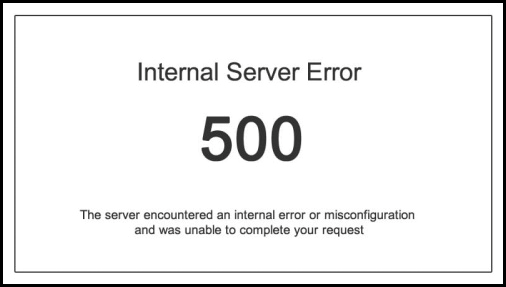
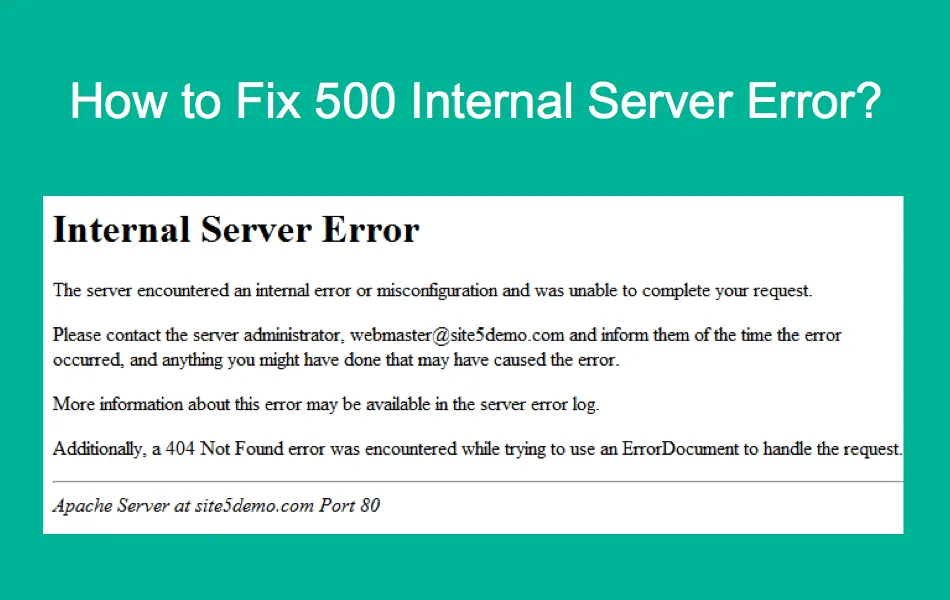
The 500 internal server error is a general server response. It means the server knows something went wrong, but it cannot clearly explain which specific issue caused the failure.
Unlike a 404 error, which means a page cannot be found, a 500 error usually means WordPress, your theme, a plugin, or server configuration is preventing the site from loading normally.
Sometimes the error appears only in the admin area. In other cases, the entire website becomes unavailable.
Why Does WordPress Show a 500 Error?
There is rarely a single cause. Usually one of these issues is responsible.
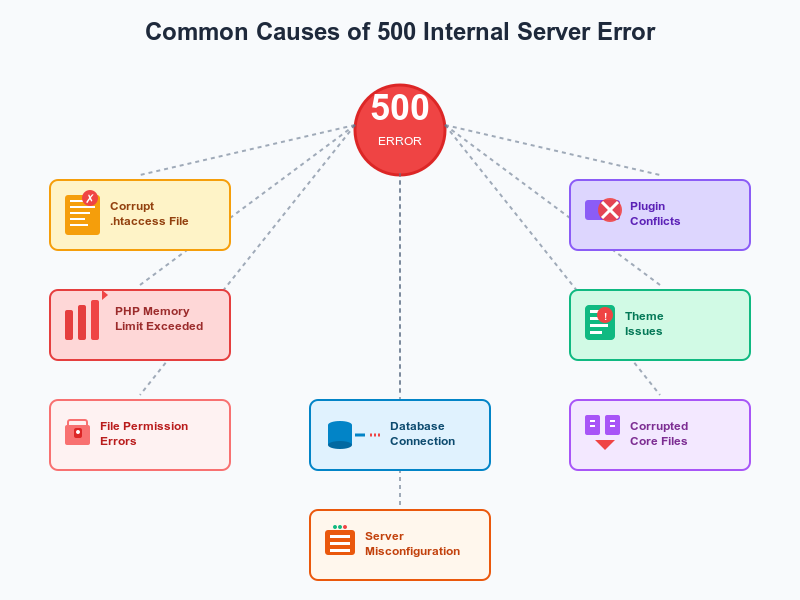
Plugin conflicts
A recently installed or updated plugin may create conflicts with WordPress core files or other plugins.
Corrupted .htaccess file
A damaged .htaccess file can break server rules and stop pages from loading.
PHP memory limit
If WordPress runs out of available memory while processing requests, the server may return a 500 error.
Theme problems
A theme update, custom code, or incomplete file upload may cause server failures.
Server configuration issues
Sometimes the problem is outside WordPress itself. Hosting-level PHP configuration or temporary server failures may be responsible.
How to Fix 500 Server Error in the WordPress
Work through these steps in order. In many cases, one of them solves the problem quickly.
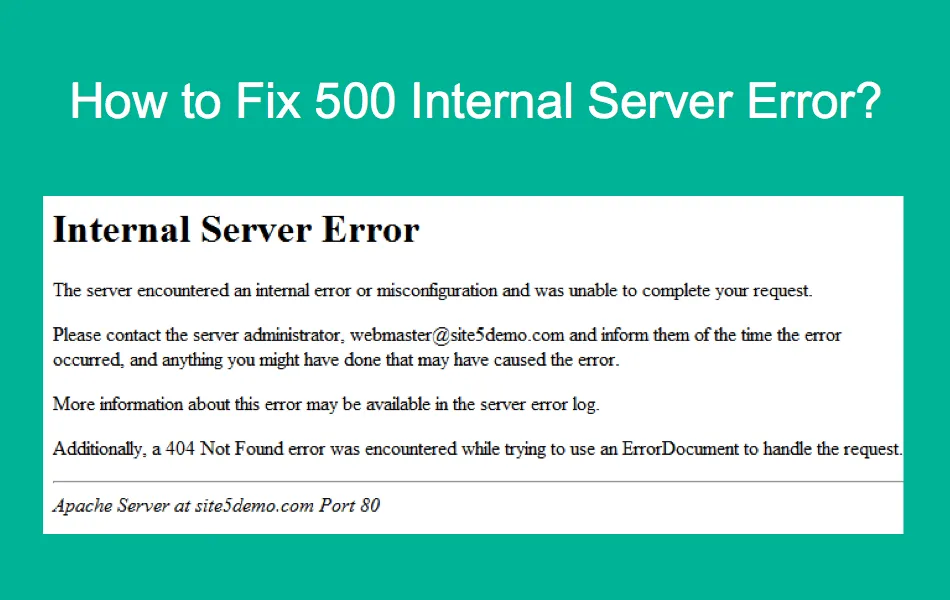
1. Refresh the Website First
Before making changes, refresh the page.
Sometimes a temporary server timeout causes the error for only a short period.
Also try opening the site in private browsing mode or clearing browser cache.
If the error remains, move to the next step.
2. Back Up Your Website
Before troubleshooting, create a backup of:
- website files
- database
- current theme and plugin settings
Even if the problem looks small, it is safer to have a restore point.
3. Disable All Plugins
Plugin conflicts are among the leading reasons behind this error.
If you can access the WordPress dashboard:
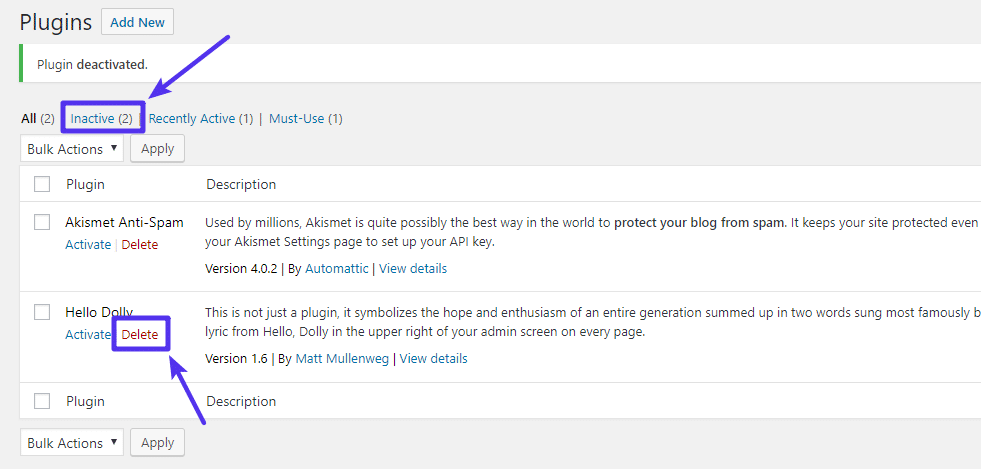
- go to Plugins
- select all plugins
- deactivate them
Now check your website.
If the site loads normally, one of the plugins caused the problem.
Activate plugins one at a time until the error returns. The last activated plugin is usually the source.
If you cannot access the dashboard, use File Manager or FTP.
Go to:
wp-content
Rename the plugins folder to:
plugins-disabled
WordPress will automatically deactivate all plugins.
4. Regenerate the .htaccess File
A damaged .htaccess file often triggers internal server errors.
Open your site files and locate:
.htaccess
Rename it to:
.htaccess-old
Now check the website.
If the site starts working, log into WordPress.
Go to:
Settings → Permalinks
Click Save Changes
WordPress will generate a fresh .htaccess file.
5. Increase PHP Memory Limit
Some websites hit memory limits during plugin loading, page building, or heavy database operations.
Open:
wp-config.php
Add this line above “That’s all, stop editing”:
define(‘WP_MEMORY_LIMIT’, ‘256M’);
Save the file and reload the website.
If the issue disappears, low memory was likely the cause.
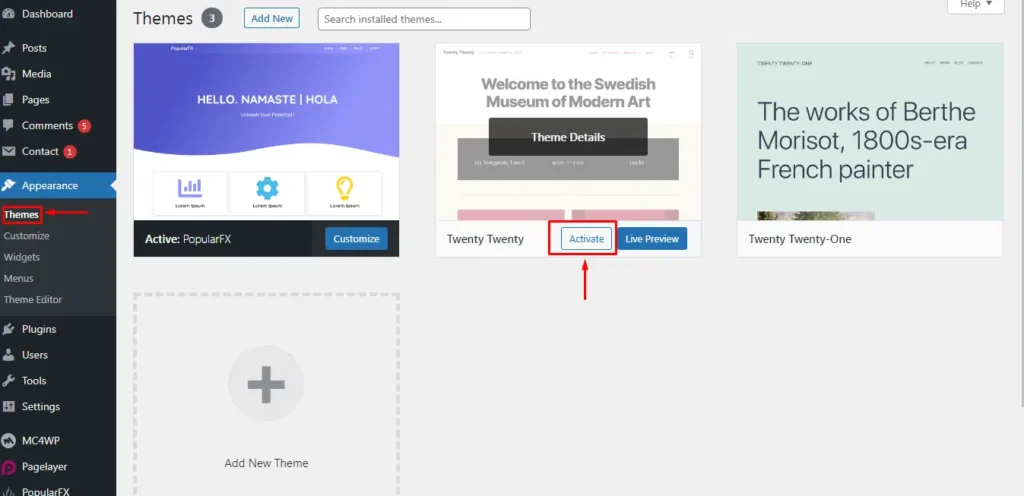
6. Switch to a Default Theme
Sometimes the active theme may contain broken code.
Use File Manager or FTP.
Go to:
wp-content/themes
Rename your active theme folder.
If a default theme is available on your site, WordPress will automatically activate it after the current theme is disabled.
Now test the site.
If the website works, the problem is probably theme-related.
7. Check Recent Changes
Think about what change the error started.
Ask yourself:
- Did you install a plugin?
- Did you update WordPress?
- Did you edit code manually?
- Did your hosting environment change?
Recent changes often point directly to the cause.
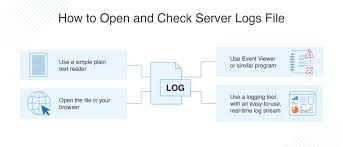
8. Review Server Error Logs
If the problem remains, server logs usually reveal more detail.
Inside your hosting panel, look for:
- Error Logs
- PHP Logs
- Server Logs
These logs often show the exact file or function that triggered the problem.
This is one of the fastest ways to locate hidden issues.
9. Contact Your Hosting Provider
If you have tried the common WordPress fixes and the error still remains, the issue may be server-side.
Ask your hosting provider to check:
- PHP version compatibility
- server resource limits
- recent server changes
- temporary outages
Many hosting teams can quickly identify what caused the failure.
How to Avoid 500 Internal Server Errors Later
Prevention saves time.
Keep regular backups
Always maintain recent backups before updates.
Avoid too many plugins
Use only necessary plugins from reliable developers.
Update carefully
Test updates one at a time instead of updating everything at once.
Use quality hosting
Stable hosting environments reduce unexpected server problems.
Monitor site health
Check performance, memory usage, and PHP warnings regularly.
Final Thoughts
A 500 internal server error can look alarming, but it does not always mean something serious has happened.
In many cases, the issue comes from a plugin conflict, broken .htaccess file, low memory, or theme problem.
The best approach is to work methodically.
Start with plugins, check configuration files, review memory limits, and use server logs when needed.
Once you identify the source, the fix is usually straightforward.
The important thing is not to panic. Most WordPress websites can be restored quickly with the right troubleshooting steps.
FAQs
Why does my WordPress site suddenly show a 500 error?
A 500 error usually appears when the server cannot properly process a request. It often happens after plugin updates, theme changes, memory limits, or server configuration problems.
Can I solve a 500 internal server error without technical knowledge?
Yes. Many WordPress users fix it by disabling plugins, refreshing the .htaccess file, or checking recent changes in their hosting file manager.
Why does the 500 error sometimes affect only the admin panel?
In some cases, the problem is connected to admin-specific plugins, dashboard scripts, or PHP processes that load only inside the WordPress backend.
Is the 500 internal server error dangerous for SEO?
If the issue stays unresolved for a long period, search engines may temporarily have trouble crawling your pages. Fixing the error quickly helps protect rankings and user experience.
What should I check first before contacting hosting support?
Start by reviewing recent plugin or theme updates, checking error logs, testing .htaccess, and confirming whether your site has enough PHP memory available.