
The Microsoft Authenticator app not working can be frustrating, especially when you need to sign in to your Microsoft account, work account, school account, or another service protected by two-factor authentication.
You may be experiencing different problems. The verification code might not work, approval notifications may not arrive, the app may stop generating codes, or Microsoft Authenticator may simply fail to respond.
The good news is that many Authenticator problems are caused by simple issues such as incorrect phone time, disabled notifications, internet problems, outdated software, or account configuration.
This guide explains practical ways to troubleshoot Microsoft Authenticator and get verification working again.
Why Is Microsoft Authenticator Not Working?
There is no single reason why the app stops working. The problem can occur because of the phone, the application, the account, or the authentication setup.
Common causes include:
- Notifications are disabled
- The phone has an incorrect date or time
- Internet connectivity is unstable
- Microsoft Authenticator is outdated
- Battery-saving settings restrict the app
- The account needs to be registered again
- The verification code has expired
- The phone was recently changed
- The app cannot properly synchronize with the account
Before making major changes, try the basic solutions first.
1. Check Your Internet Connection
Some Authenticator features require a working internet connection.
If approval notifications are not arriving, check whether your phone is connected to Wi-Fi or mobile data.
Open another website or app to confirm that your internet connection is working.
If the connection appears unstable, switch between Wi-Fi and mobile data and try the verification process again.
For time-sensitive login attempts, a stable connection can make a noticeable difference.
2. Check Your Phone’s Date and Time
Incorrect date or time settings can cause authentication codes to become invalid.
Open your phone’s date and time settings and enable the option that automatically sets the date and time.
After correcting the time, open Microsoft Authenticator again and generate a new verification code if your account uses code-based verification.
Avoid repeatedly entering an old code because authentication codes can expire quickly.
3. Turn On Authenticator Notifications
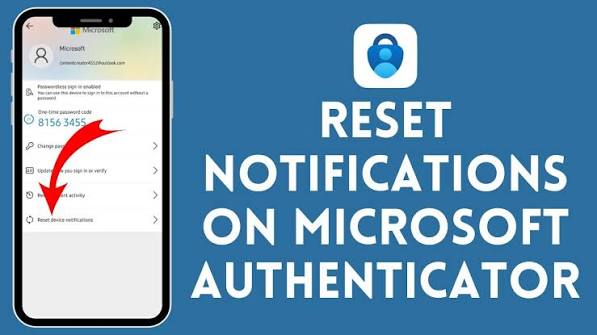
If you normally approve sign-in requests through a notification, disabled notifications can make the app appear to be broken.
Go to your phone’s notification settings and find Microsoft Authenticator.
Make sure notifications are allowed.
Also check whether your phone has a Focus, Do Not Disturb, or similar mode enabled that could prevent alerts from appearing.
After changing notification settings, request another sign-in approval.
4. Open the Authenticator App Manually
Sometimes a notification does not appear even though the request has reached the device.
Open Microsoft Authenticator manually and check whether a pending sign-in request is visible.
If you see an approval request, verify that the sign-in information matches the activity you started.
Never approve an unexpected authentication request. An unfamiliar request could indicate that someone else is attempting to access your account.
5. Update Microsoft Authenticator
An outdated version of the app can cause compatibility and functionality problems.
Open your device’s official app store and check whether an update is available for Microsoft Authenticator.
Installing the latest available version can resolve bugs and improve compatibility with newer operating system versions.
It is also a good idea to keep your phone’s operating system updated.
6. Restart Your Phone
A simple restart can sometimes resolve temporary application or notification problems.
Close Microsoft Authenticator and restart your device.
Once the phone starts again, open the application and try the authentication process.
This is a basic step, but it can clear temporary system processes that may be interfering with notifications or app behavior.
7. Check Battery and Background Restrictions
Some smartphones aggressively restrict applications that run in the background to save battery.
If Microsoft Authenticator is restricted, approval notifications may be delayed or may not appear.
Check your phone’s battery settings and make sure Microsoft Authenticator is not being unnecessarily restricted.
The exact settings can vary depending on your phone manufacturer and operating system.
After adjusting the settings, test the authentication request again.
8. Check Whether You Are Using the Correct Account
If you have multiple Microsoft accounts in Authenticator, it is possible to select the wrong account during a login attempt.
Open the app and review the accounts that are registered.
Make sure the account you’re trying to access matches the account shown in Microsoft Authenticator.
This is particularly important for people who use separate personal, work, and school accounts.
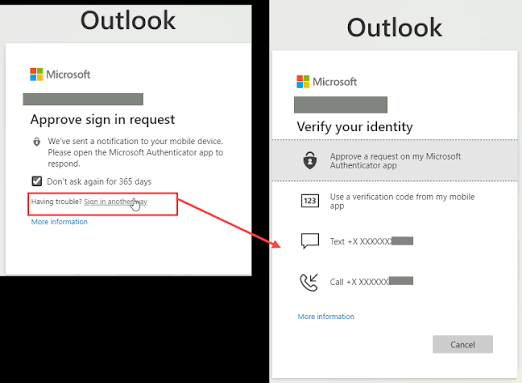
9. Try a Different Verification Method
If Microsoft Authenticator is still not responding, check whether another verification method is available on the sign-in screen.
Depending on your account configuration, you may be able to use another registered method.
Using another method can help you regain access while you troubleshoot the Authenticator problem.
Do not remove your existing authentication method unless you are certain that you have another secure way to access the account.
10. Check Your Phone Change or Account Setup
Authenticator problems commonly appear after getting a new phone.
Installing the app on a new device does not necessarily mean that every account has automatically been transferred and registered correctly.
If you recently changed phones, check whether the affected account is properly configured on the new device.
For work or school accounts, an administrator may also control authentication settings. In that situation, you may need assistance from your organization’s IT administrator.
11. Avoid Repeated Failed Login Attempts
If a verification code is rejected, avoid entering the same code repeatedly.
Generate a new code and enter it promptly.
If several attempts fail, stop and check the account, device time, internet connection, and authentication method before trying again.
Repeated failed attempts can make troubleshooting more confusing and may trigger additional security checks.
12. Reconfigure Authenticator Carefully
If the basic troubleshooting steps do not work, the account’s Authenticator registration may need to be repaired or configured again.
Be careful before removing an account from the app.
You should first make sure you have another method available to verify your identity. Otherwise, removing the existing authentication setup could make account recovery more difficult.
For business or school accounts, contacting the organization’s administrator may be the safest option.
What If Microsoft Authenticator Codes Are Not Working?
If the app opens normally but its codes are rejected, start by checking your phone’s automatic date and time settings.
Then update the application and try a newly generated code.
Make sure you are using the code for the correct account and that you enter it before it expires.
If the problem continues, the account may require its authentication registration to be checked or reset.
What If Authenticator Notifications Are Not Arriving?
If approval notifications do not appear, check internet connectivity, notification permissions, battery restrictions, and Do Not Disturb settings.
Then open the app manually and see whether the request is waiting there.
If notifications continue to fail, another configured verification method may help you access the account while you investigate the problem.
When Should You Contact Microsoft or Your Administrator?
If you have tried the basic troubleshooting steps and still cannot authenticate, the problem may be related to account configuration rather than the phone itself.
Personal Microsoft accounts may require account recovery or Microsoft support.
For work and school accounts, an organization’s Microsoft administrator may need to reset or reconfigure your authentication method.
This is especially important if you no longer have access to your old phone.
Final Thoughts
When Microsoft Authenticator app not working becomes a problem, you do not necessarily need to reinstall everything immediately.
Start with simple checks. Confirm your internet connection, enable notifications, correct your phone’s date and time, update the app, and review battery restrictions.
If the issue involves a new phone, multiple accounts, or a work or school account, check the authentication setup carefully before removing anything.
Most importantly, never approve an unexpected sign-in request. Authenticator is designed to protect your account, so security should remain the priority while troubleshooting.
By following these steps in order, you can identify many common Authenticator problems and restore access without making unnecessary changes to your account.
FAQs
1. Why is Microsoft Authenticator not sending notifications?
Notifications may be blocked by phone settings, battery restrictions, Do Not Disturb mode, an unstable internet connection, or an outdated app. Check these settings and try the sign-in request again.
2. Why are my Microsoft Authenticator codes not working?
Check that your phone’s date and time are set automatically. Then generate a new code and make sure you are using the code for the correct account before it expires.
3. What should I do if Microsoft Authenticator stopped working after changing phones?
Make sure the affected account has been properly registered on the new phone. Do not remove the old authentication method unless you have another secure way to verify your identity.
4. Can I sign in if Microsoft Authenticator is not working?
You may be able to use another verification method if one has already been configured on your account. Available options depend on your account and security settings.
5. Should I reinstall Microsoft Authenticator if it is not working?
Reinstalling the app is not always the first solution. Check notifications, internet, date and time, updates, battery restrictions, and account configuration first. Make sure you have a recovery method before removing the app or account.